
01Who this is for
- Agency administrators who need to protect core automation assets from accidental changes.
- Agency users who require collaboration on specific workflow groups while keeping other folders private.
- Account administrators who must grant broader access across multiple user types within the agency.
02Workflow folder permissions, explained
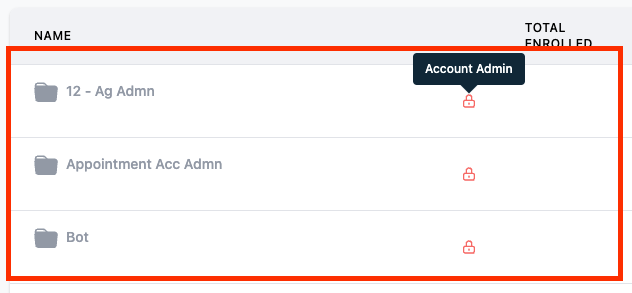
The feature adds a permission layer to workflow folders. When set, only the chosen user roles can view, create, or edit workflows stored in that folder. The permission setting lives inside each workflow folder’s actions menu. Users without the assigned role cannot open or modify the folder’s workflows, but they still see the list of workflows a contact belongs to on the Contact Details page and can add or remove contacts from any workflow.
Folder permissions are defined by selecting a user type and role, Agency Admin, Agency User, Account Admin, or All. Each selection expands access according to the table provided by the platform. The setting is only available on the Agency Pro Plan and higher, ensuring that smaller plans cannot apply folder level restrictions.
03How businesses use workflow folder permissions
- Marketing agency. The agency can lock high value client automation into a folder that only senior staff can edit. Junior staff can still attach contacts to those workflows from the contact view without seeing the underlying steps.
- Real estate brokerage. Managers may place lead nurture workflows in a protected folder, allowing only designated agents to modify them while all agents can assign leads to the flows from each property’s contact record.
- SaaS startup. Founders can keep internal onboarding automations in a folder visible only to account admins, while product team members can still enroll users into those workflows via the contact interface.
04Before you start
- The account must be on the Agency Pro Plan or a higher tier.
05How to set up and use workflow folder permissions in HighLevel
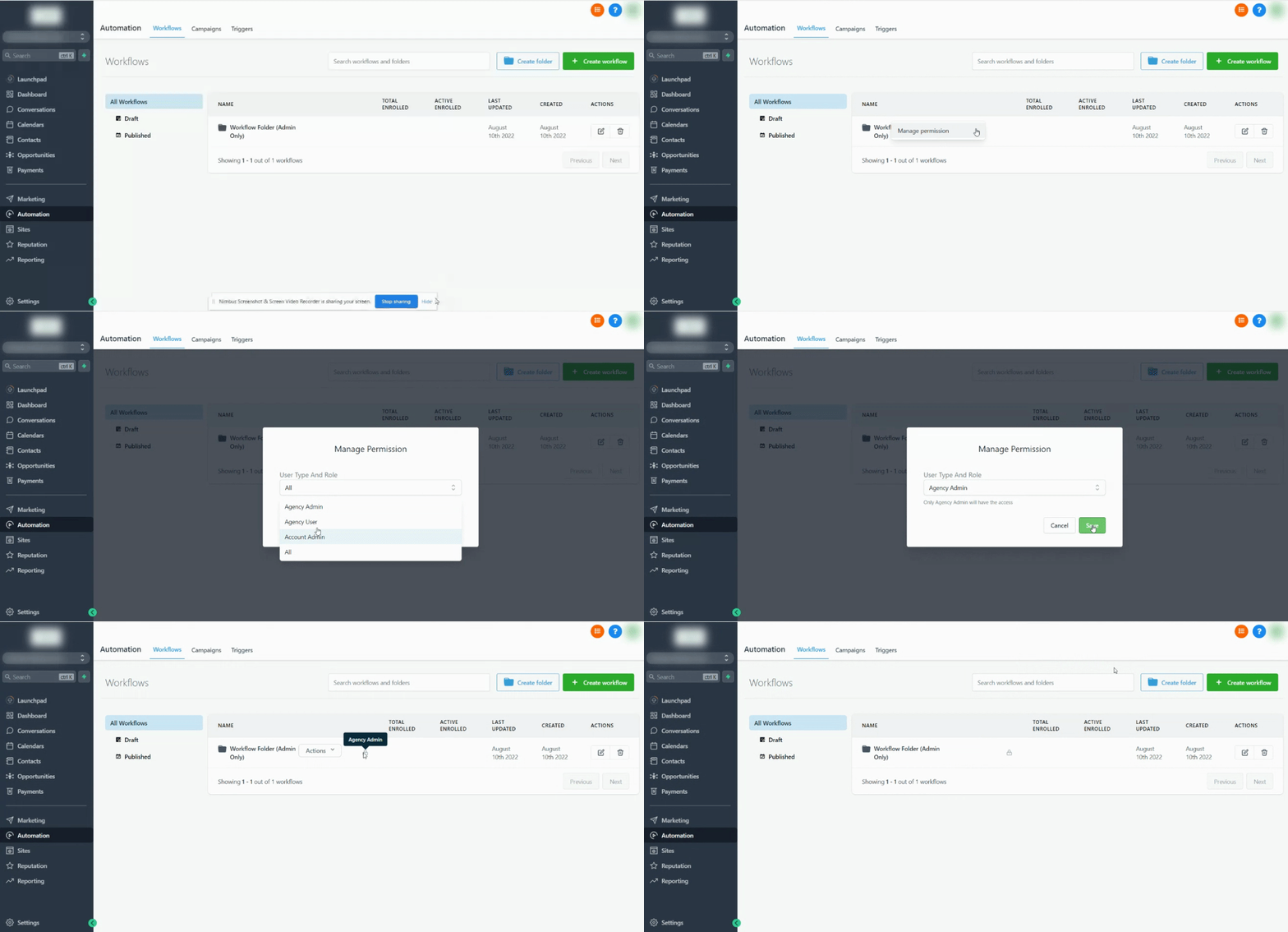
Add folder permissions
- Hover over an existing workflow folder or create a new one.
- Click the "Actions" drop down button that appears for the folder.
- Choose the "Manage Permissions" option from the menu.
- Select the desired User Type & Role that should have access to the folder and its workflows.
06What it looks like in HighLevel
07Settings that matter
- User Type & Role. Controls which categories of users are allowed to see, create, and edit workflows inside the selected folder.
08Things to know before you rely on it
- Folder permissions are only available on the Agency Pro Plan and above.
- All users can still view the list of workflows linked to a contact on the Contact Details page.
- All users retain the ability to add or remove contacts from any workflow regardless of folder permissions.
09How it connects to the rest of HighLevel
- Create and manage workflows in HighLevel Workflow creation guide
- Adjust workflow settings such as contact timing and limits Workflow settings overview
- View plan options that include folder permissions HighLevel pricing
Michael's take

Folder permissions provide tighter control over who can edit automation workflows.