
01Who this is for
- Marketers editing complex email actions benefit from a wider view that reduces scrolling.
- Small business owners using the Advanced builder can balance canvas space and panel detail on any monitor.
- Marketing teams that handle multi step forms gain focus by expanding those steps to full screen.
02Workflow Builder sidebars, explained
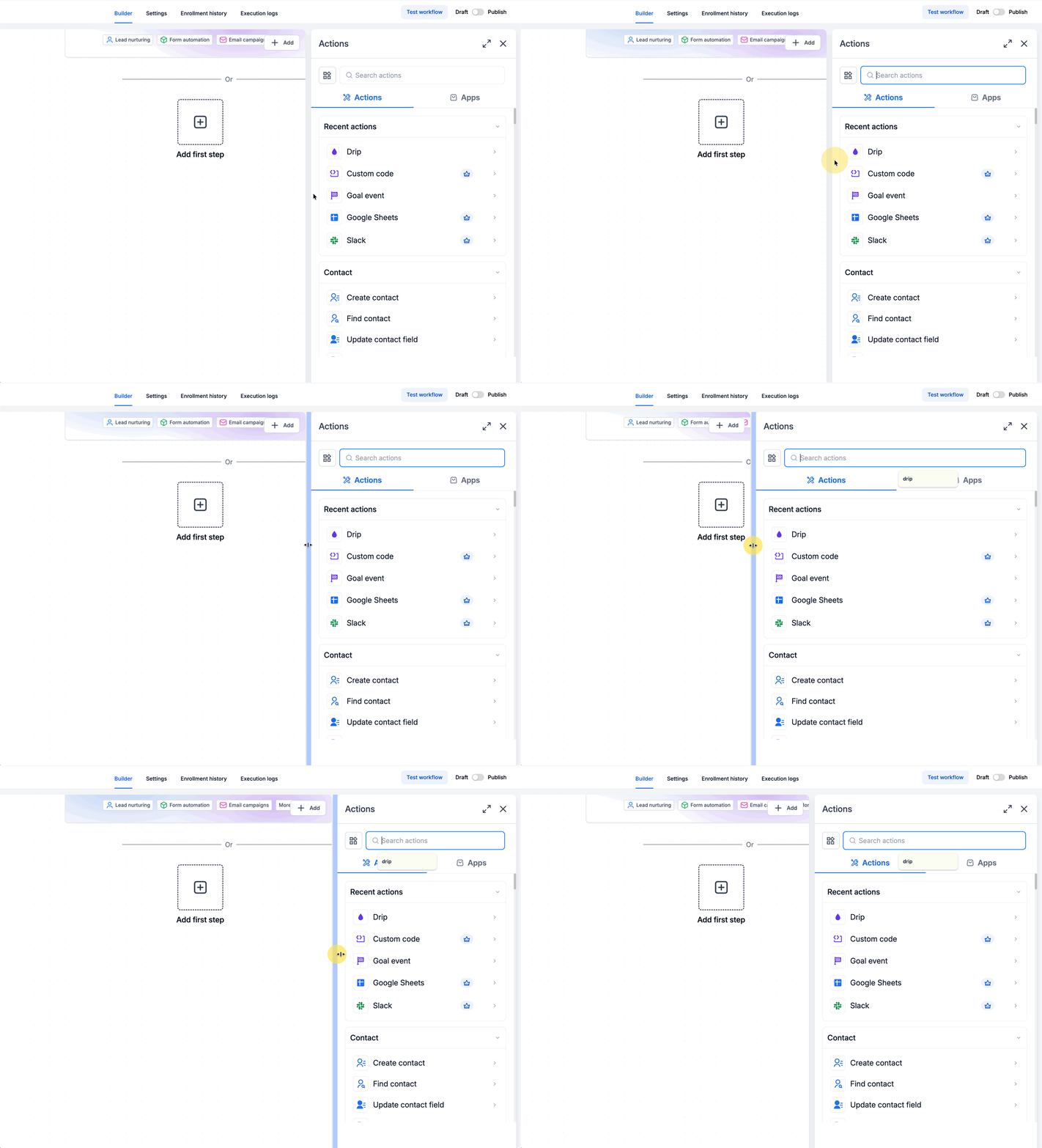
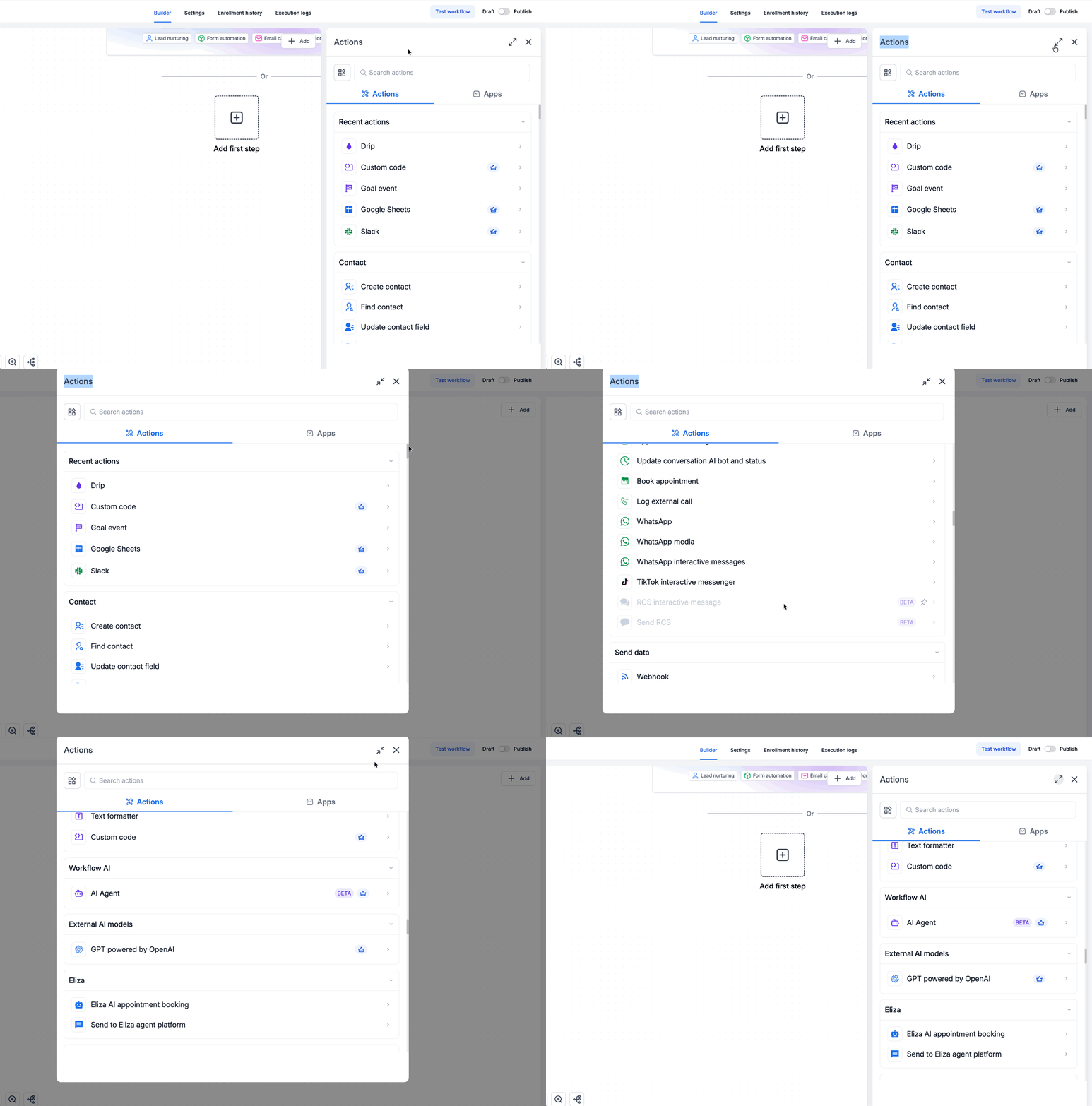
The feature adds a draggable edge to the right hand (or left hand) configuration sidebar, letting you pull the panel wider or narrower. As you adjust, the workflow canvas automatically expands or contracts to keep the layout balanced. A separate expand button lets any action or trigger panel occupy the entire browser window, giving a distraction free editing space.
These controls appear whenever you open a trigger or action configuration. They work in both the list style Standard builder and the canvas based Advanced builder. The left hand workflow sidebar also supports the same resizing interaction, so you can customize tool panels as needed.
03How businesses use Workflow Builder sidebars
- Digital marketing agency. When drafting a long form email within a workflow, the marketer drags the sidebar edge to widen the panel, seeing the full content without scrolling. For a detailed SMS message, the same user clicks the expand icon to work in full screen mode, then collapses when finished.
- Ecommerce store. The store owner opens a form submission trigger, expands it to full screen, and fills out all field mappings in the larger view. Later they resize the sidebar back to a narrower width to arrange additional workflow steps on the canvas.
- Consulting firm. A consultant configures a webhook action, uses the resize handle to allocate more space for the many JSON fields, then switches to full screen for a complex condition set, returning to the standard view to connect other nodes.
04The numbers and rules that matter
- Resizing is available on the action sidebar, trigger sidebar, and left hand workflow sidebar.
05How to set up and use Workflow Builder sidebars in HighLevel
Resize a sidebar
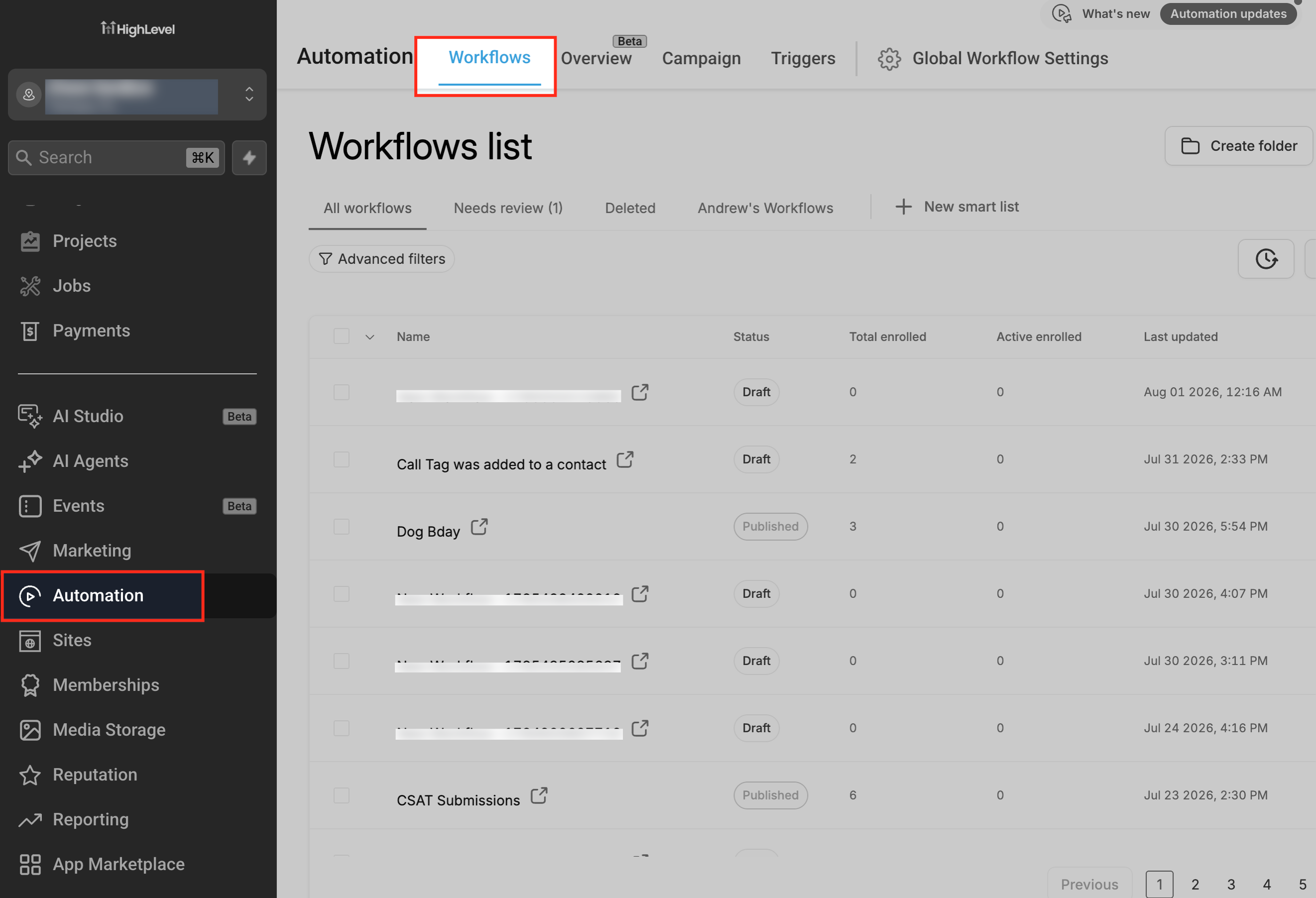
- Navigate to Automations > Workflows and open a workflow in the builder.
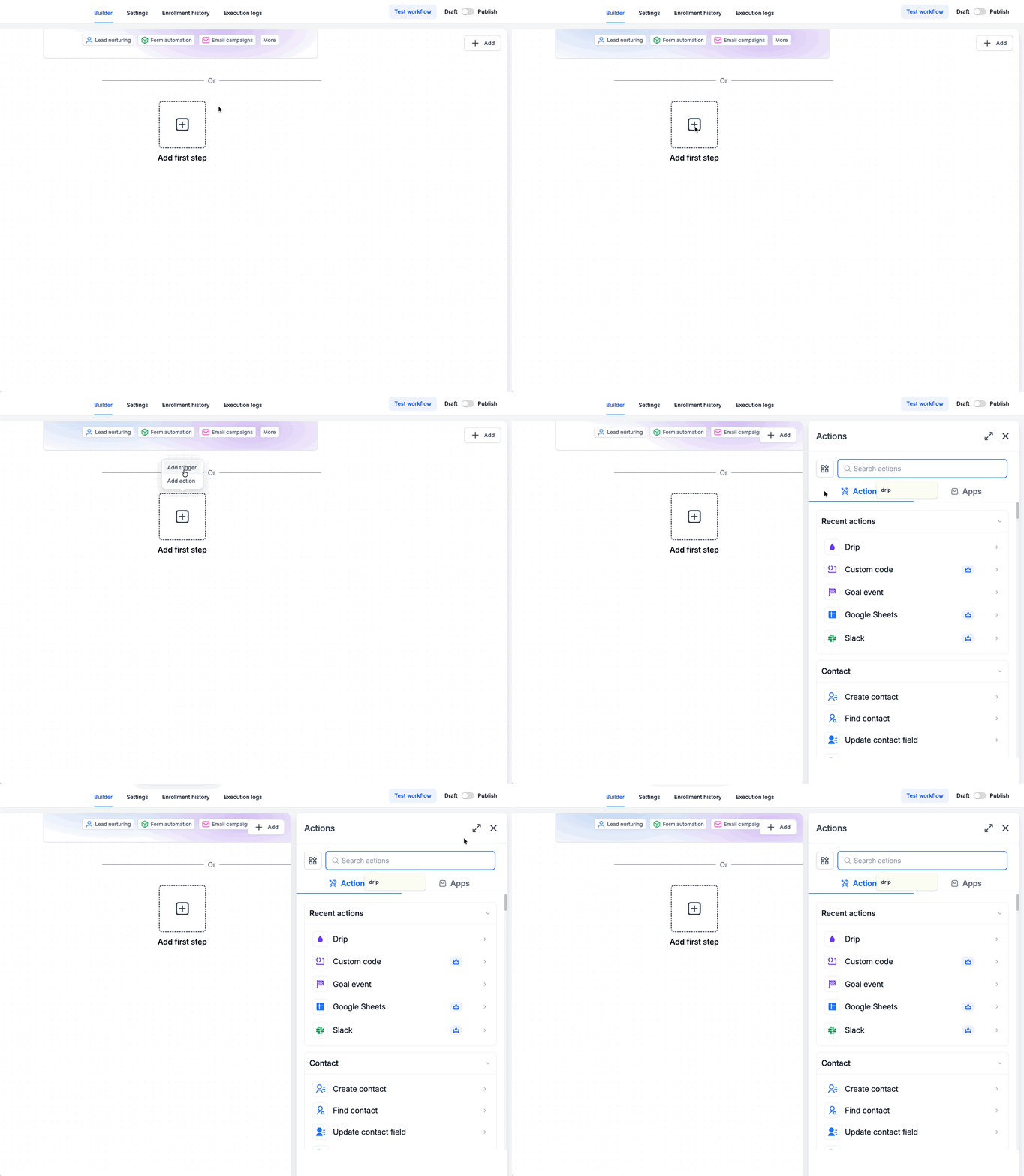
- Select any trigger or action to display its configuration sidebar.
- Hover the cursor over the inner edge where the sidebar meets the canvas.
- When the cursor changes to a horizontal resize icon, click and drag left or right.
- Release the mouse button when the sidebar reaches the desired width.
Expand an action or trigger to full screen
- Open a workflow from Automations > Workflows.
- Click an action or trigger node to open its configuration sidebar.
- Locate and click the expand control inside the configuration panel.
- Edit the fields using the enlarged full screen workspace.
- When editing is complete, click the close or collapse control to return to the standard view.
06What it looks like in HighLevel
07If something goes wrong
- Sidebar resize or expand option not visible. No additional setting is required; the controls are built into the Workflow Builder and appear when a configuration panel is open.
- Sidebar width resets after switching views or refreshing. Readjust the sidebar edge as needed after changing views, as the layout adapts to the current screen space.
08How it connects to the rest of HighLevel
- Learn how to add triggers, filters, and actions when building workflows. Workflow creation guide
- See how to control contact timing and other settings within a workflow. Workflow settings overview
- Start a free trial to explore the Workflow Builder and its sidebar features. 30 day trial
Michael's take

When I’m crafting long emails or complex triggers, I notice the screen can feel cramped, which makes me scroll more.
I like to adjust the sidebar width so I can read full email content comfortably, and I keep the full screen expand control handy for those moments when a single step dominates the edit.