
01Who this is for
- Agency admins who edit many client automations benefit from quicker updates and reduced error risk.
- Founders of SaaS startups can keep messaging consistent when email addresses or tags change across workflows.
- Marketing teams that manage large nurture sequences gain visibility into where tags and values are used.
02Workflow find & replace, explained
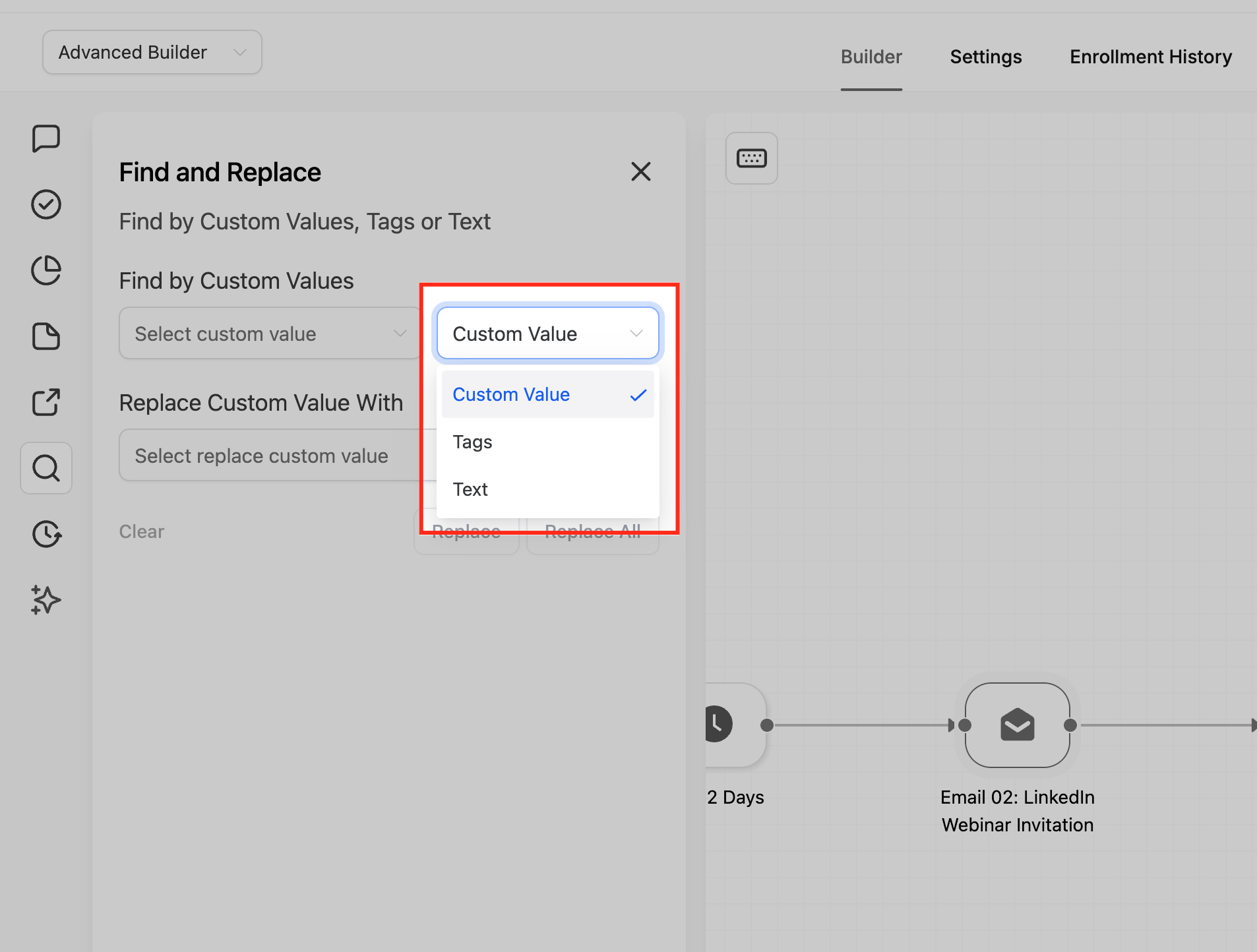
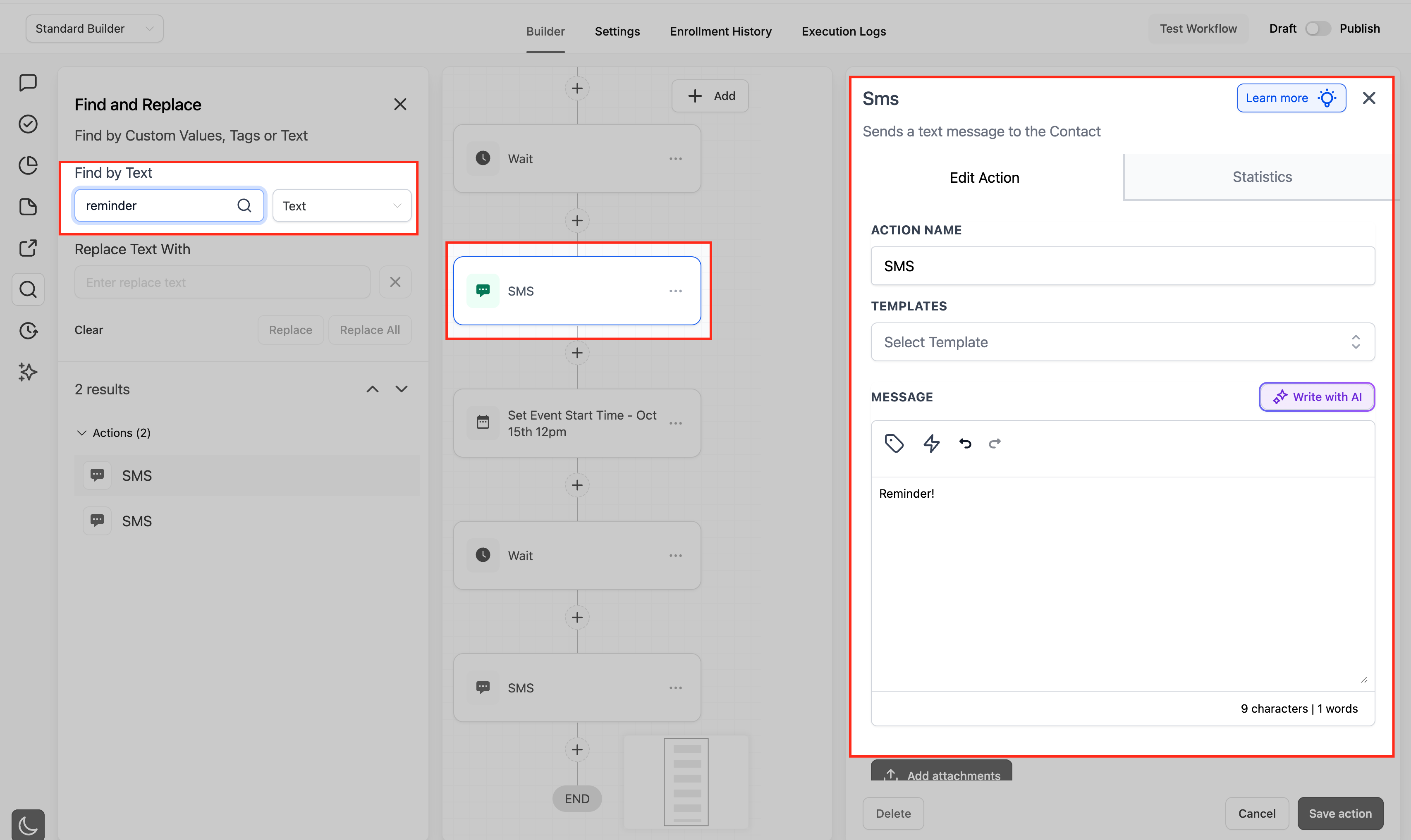
The feature adds a Find panel to the Workflow Builder. When opened, you select a search mode, Custom values, Tags, or Text, enter a term, and the panel right away lists every matching node in the current workflow. The first match is highlighted on the canvas, and you can move through results with Next and Previous controls.
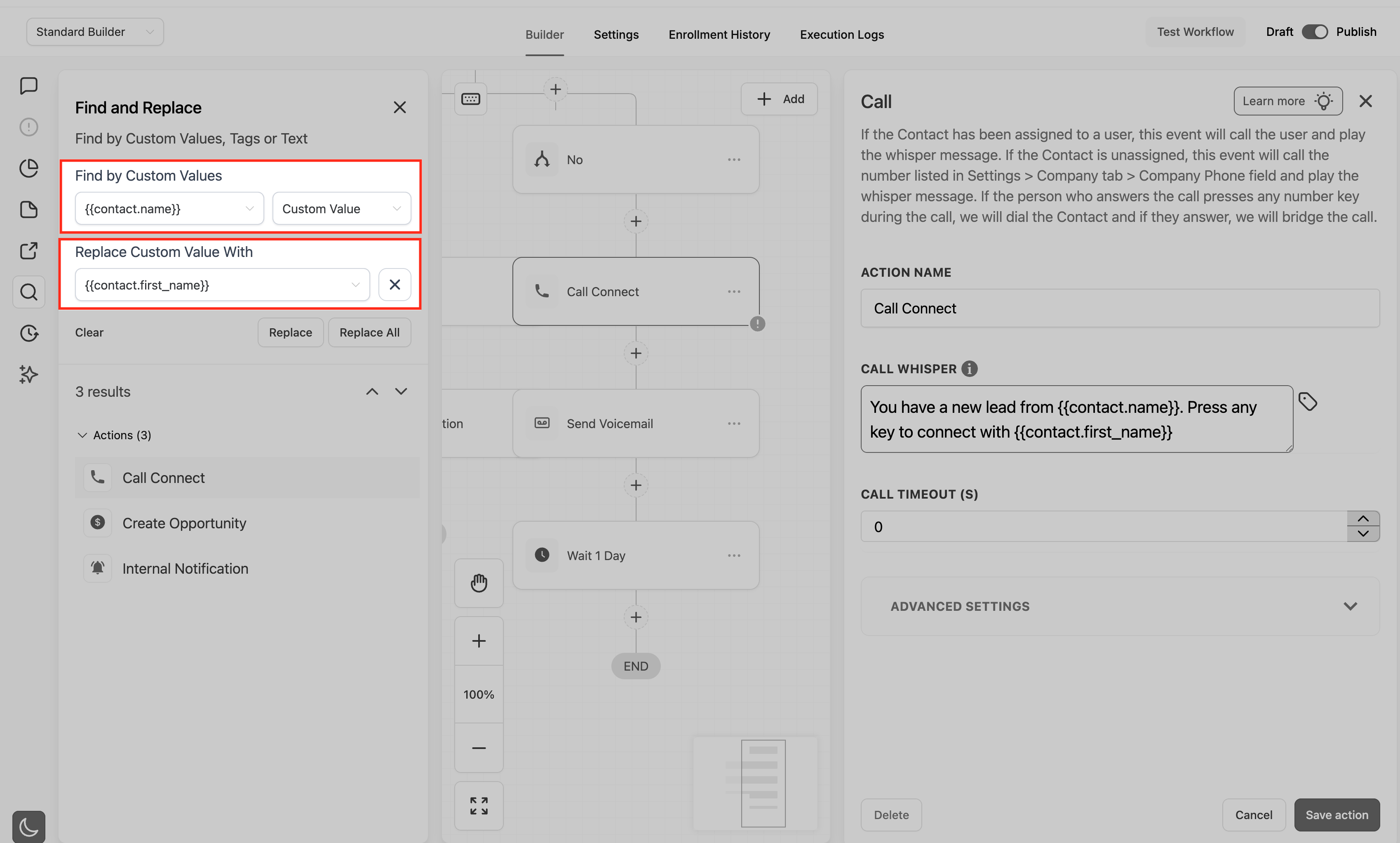
If you enable Replace, the panel lets you swap the selected custom value or tag with another. Replace updates the single highlighted match, while Replace All updates all supported matches in the open workflow. The tool works in both Standard (list) and Advanced (drag and drop) builders, but it only affects the workflow you have opened.
All edits follow the normal save, draft, and publish workflow. You can undo a Replace action with the toolbar Undo button or keyboard shortcut, and you can roll back an entire set of changes later using Workflow Version History.
03How businesses use workflow find & replace
- Ecommerce store. Search for the old support email custom value used in order confirmation messages. Replace it with the new custom value to update every email step without opening each action individually.
- Coaching business. Find the tag "HighPriority" that triggers reminder messages. Replace it with the new tag "Urgent" so all conditional branches and add tag actions reflect the updated naming convention.
- Dental practice. Run a text search for a misspelled phrase in patient reminder SMS content. Review each result and edit the text manually, knowing exactly where the phrase appears across the workflow.
04The numbers and rules that matter
- Scope is per workflow; it does not search or replace across multiple workflows.
05Before you start
- Have the workflow you want to edit opened in Automation > Workflows.
- Ensure you have permission to edit that workflow.
06How to set up and use workflow find & replace in HighLevel
Find and replace inside a workflow
- Open the target workflow from Automation > Workflows.
- Select Standard or Advanced Builder according to your preference.
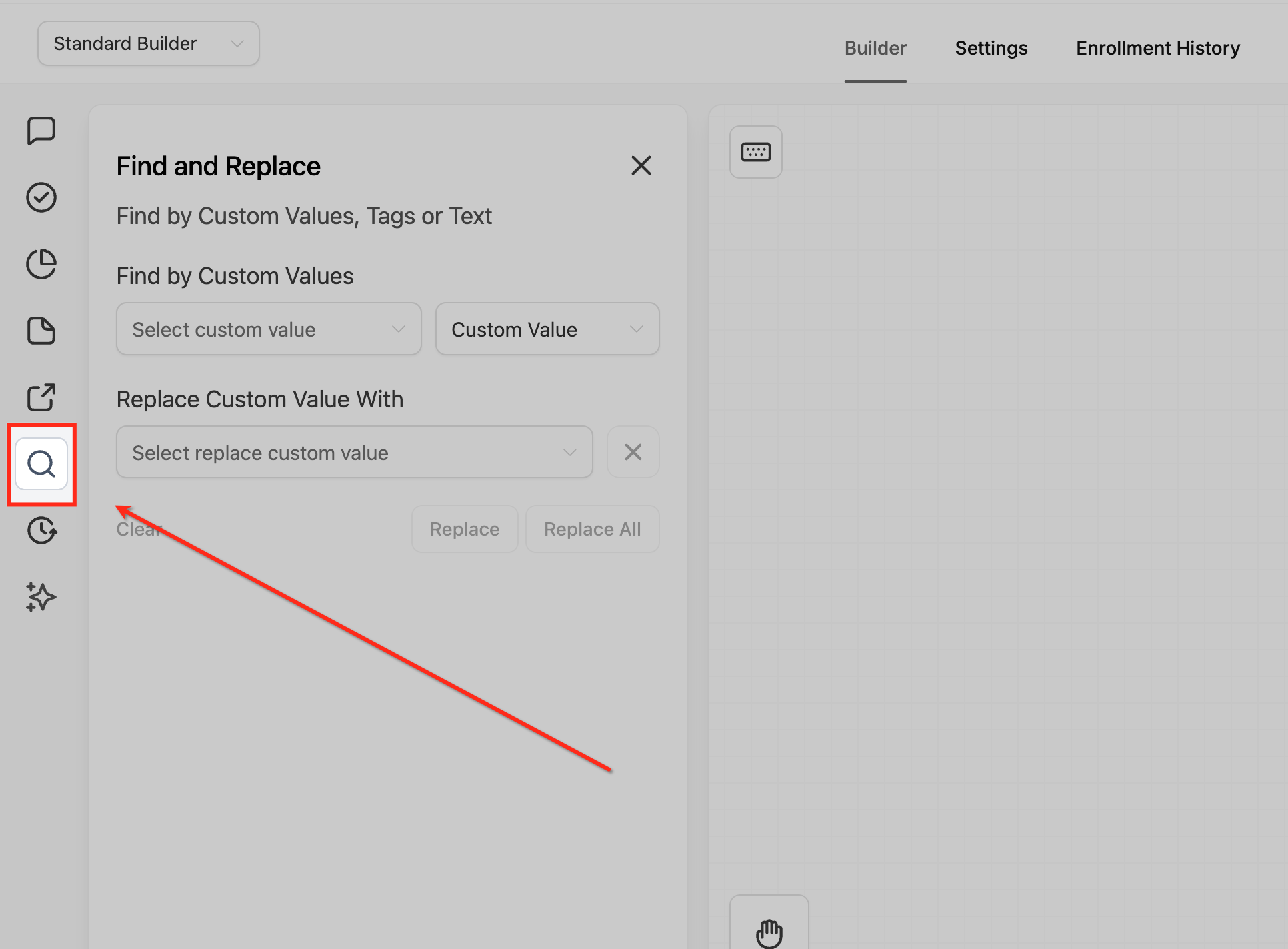
- Click the search icon on the workflow toolbar or press Alt + F (Windows/Linux) or Option + F (macOS).
- The Find panel appears on the screen.
- Choose the search mode you need, Custom values, Tags, or Text.
- Enter the term you want to locate in the search field.
- Results list appears right away and the first match opens automatically, centering the canvas on that node.
- Navigate through matches using the Next and Previous buttons in the Find panel.
- To modify a match, enable Replace, select the new custom value or tag, then click Replace for the current item or Replace All for every supported match.
- Save the workflow as a draft or publish it to make the changes live.
07What it looks like in HighLevel
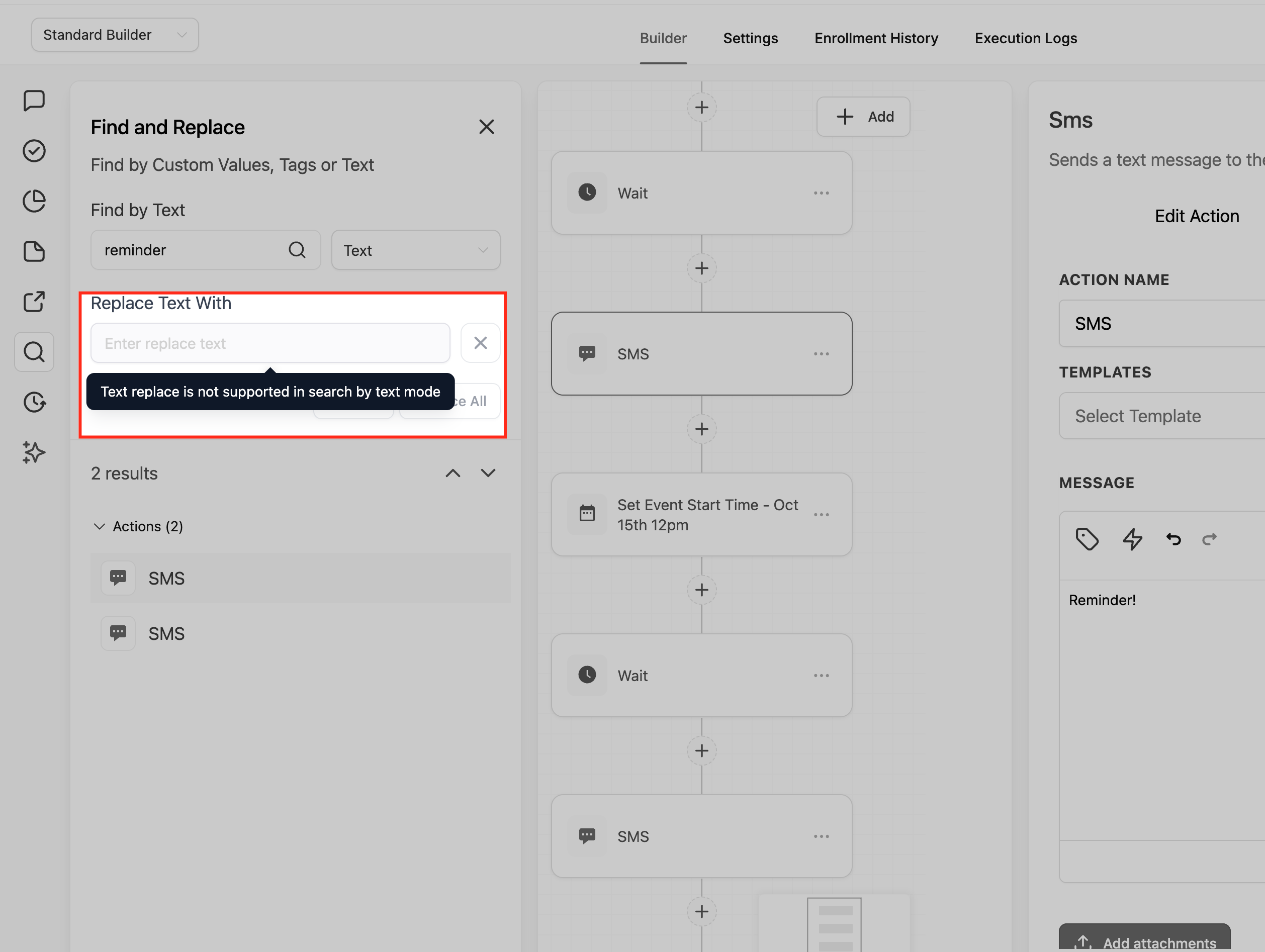
08Settings that matter
- Custom values. Controls searching for and replacing HighLevel custom value placeholders inside workflow actions.
- Tags. Controls searching for and replacing contact tag references within workflow steps.
- Text. Controls searching for literal text strings in step content and configuration; these matches cannot be replaced.
- Replace. Enables swapping a single matched custom value or tag with a new one.
- Replace All. Triggers bulk replacement of all supported matches for the chosen custom value or tag within the open workflow.
09Things to know before you rely on it
- Find & Replace runs only within the currently open workflow; it does not scan other workflows or folders.
- Replace works only for custom values and tags; step names and trigger names are find only.
- Replace All affects only the current workflow; identical values in other workflows remain unchanged.
- Search is case insensitive and accepts partial matches.
- Certain system fields or trigger types may appear in results but cannot be replaced via the panel.
10How it connects to the rest of HighLevel
- Learn how to build workflows with triggers, filters, and actions. Workflow creation guide
- Explore workflow settings that control contacts and timing. Workflow settings
- Understand how contact tag triggers work in workflows. Tag trigger guide
Michael's take

When you need to update a tag or email address across a large automation, Workflow Find & Replace lets you locate every instance of a custom value, tag, or text string inside the workflow you’re editing and swap it out in one click or across the whole canvas. It can save a lot of time when cleaning up old logic or rolling out a new branding email.
If I were updating a global support email, I’d run a Find for the old custom value, verify the matches, then hit Replace All.