
01Who this is for
- Businesses that need to send appointment reminders or follow up messages through a channel customers already use.
- Marketing teams that want to automate promotional outreach without leaving the HighLevel platform.
02WhatsApp actions, explained
The WhatsApp action is an automation step you add inside a workflow. When the workflow’s trigger fires, the action sends a WhatsApp message to the contact linked to the workflow. You can choose between a free form message, which works only inside the 24 hour customer initiated window, or a pre approved template that can be sent at any time.
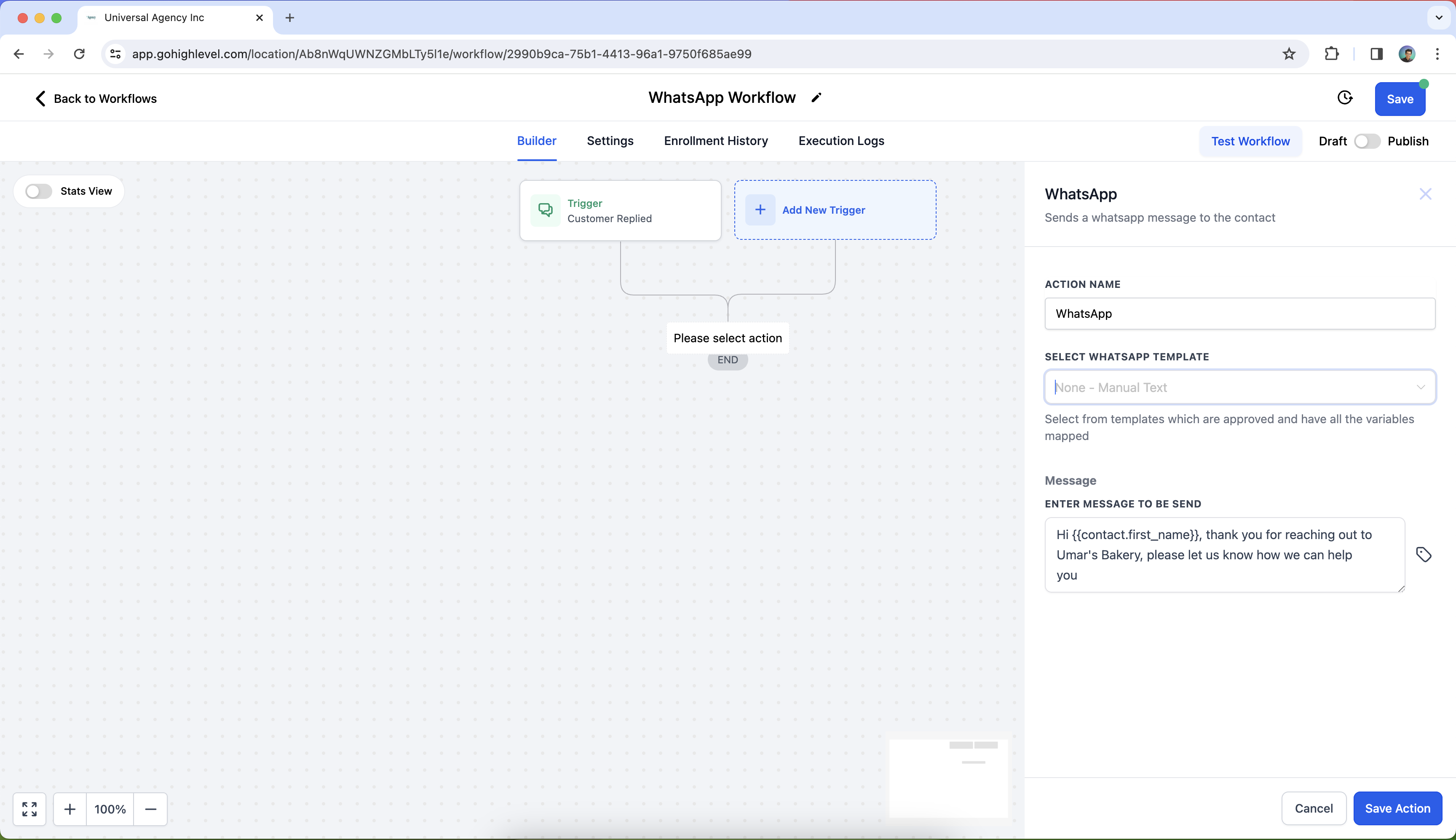
The action appears in the workflow builder alongside other actions such as Send SMS or Email. After selecting the WhatsApp action, you give it a name, pick the message type, optionally select a template, and then save and activate the workflow. Once active, the platform automatically delivers the message whenever the defined trigger occurs.
All WhatsApp communication is sent from the WhatsApp number you have set up on your HighLevel account. The feature also respects Do Not Disturb preferences and tracks free entry point conversations for up to 72 hours at no extra cost.
03How businesses use WhatsApp
- Dental practice. The practice adds a WhatsApp action to a workflow that fires 24 hours before a scheduled cleaning. It selects the appointment reminder template and includes the patient’s name and appointment date using dynamic variables. When the workflow runs, the patient receives a personalized reminder on WhatsApp.
- Real estate agency. Agents create a workflow that triggers when a new lead is captured. The WhatsApp action sends a free form greeting within the 24 hour window, allowing the lead to reply and open a free entry point conversation. The agency can then continue the dialogue directly in WhatsApp.
- Fitness studio. The studio uses a template based WhatsApp message to promote a limited time membership offer. The workflow triggers on a specific date, selects the promotional template, and includes the member’s first name. Contacts receive the offer through WhatsApp, driving engagement.
04The numbers and rules that matter
- Free Entry Point conversations allow free form or template messages for up to 72 hours at no additional cost.
05Before you start
- WhatsApp must be enabled and set up on the HighLevel account.
- For business initiated messages outside the 24 hour window, approved WhatsApp templates must be in place.
06How to set up and use WhatsApp in HighLevel
Send WhatsApp message from a workflow
- In the workflow builder, choose "WhatsApp" from the list of available actions.
- Enter a descriptive name for the action, such as "Send WhatsApp Appointment Reminder".
- Select the message type, choose a pre approved template for messages outside the 24 hour window or configure a free form message for the 24 hour window.
- Save the action and activate the workflow so messages are sent when the trigger conditions are met.
07What it looks like in HighLevel
08Settings that matter
- Message Type. Determines whether the action sends a free form message within the 24 hour window or uses a pre approved template for outreach beyond that period.
- WhatsApp Template. Specifies which approved template to send when the Message Type is set to a template.
- Do Not Disturb (DND). Enables configuration of opt out preferences so contacts who have DND enabled will not receive WhatsApp messages.
09Things to know before you rely on it
- Free form messages can only be sent inside the 24 hour window after a customer initiated conversation.
- Template messages can be sent at any time but require prior approval from WhatsApp.
- Free entry point conversations allow up to 72 hours of messaging at no extra cost.
- Do Not Disturb settings must be configured to respect contacts who opt out.
10How it connects to the rest of HighLevel
- Learn how to configure the Send SMS action in HighLevel workflows. Send SMS action
- Explore the internal notification workflow action for internal alerts. Internal notification
- Get started with workflow creation, triggers, filters, and actions. Workflow basics
Michael's take

I find the WhatsApp action handy when I need to reach customers quickly, such as confirming an appointment or acknowledging a new lead.
If your business rarely needs real time chat or you aren’t already set up with approved templates, the feature may add complexity without much return. In those cases, sticking to email or SMS might be a simpler path.