
01Who this is for
- Marketing managers can automatically adjust loyalty tier values as customers reach purchase milestones, keeping segmentation up to date.
- Sales teams can update discount rate custom values when a VIP tag is added, ensuring the correct rate is used in proposals.
- Customer support can sync custom fields with data from external APIs, maintaining accurate contact records without manual entry.
02Update Custom Values, explained
The Update Custom Value action modifies a single custom value inside a workflow. You select the target custom value, view its current content, and specify a new static entry or a dynamic variable. The change happens as soon as the action runs, and later steps can reference the updated value.
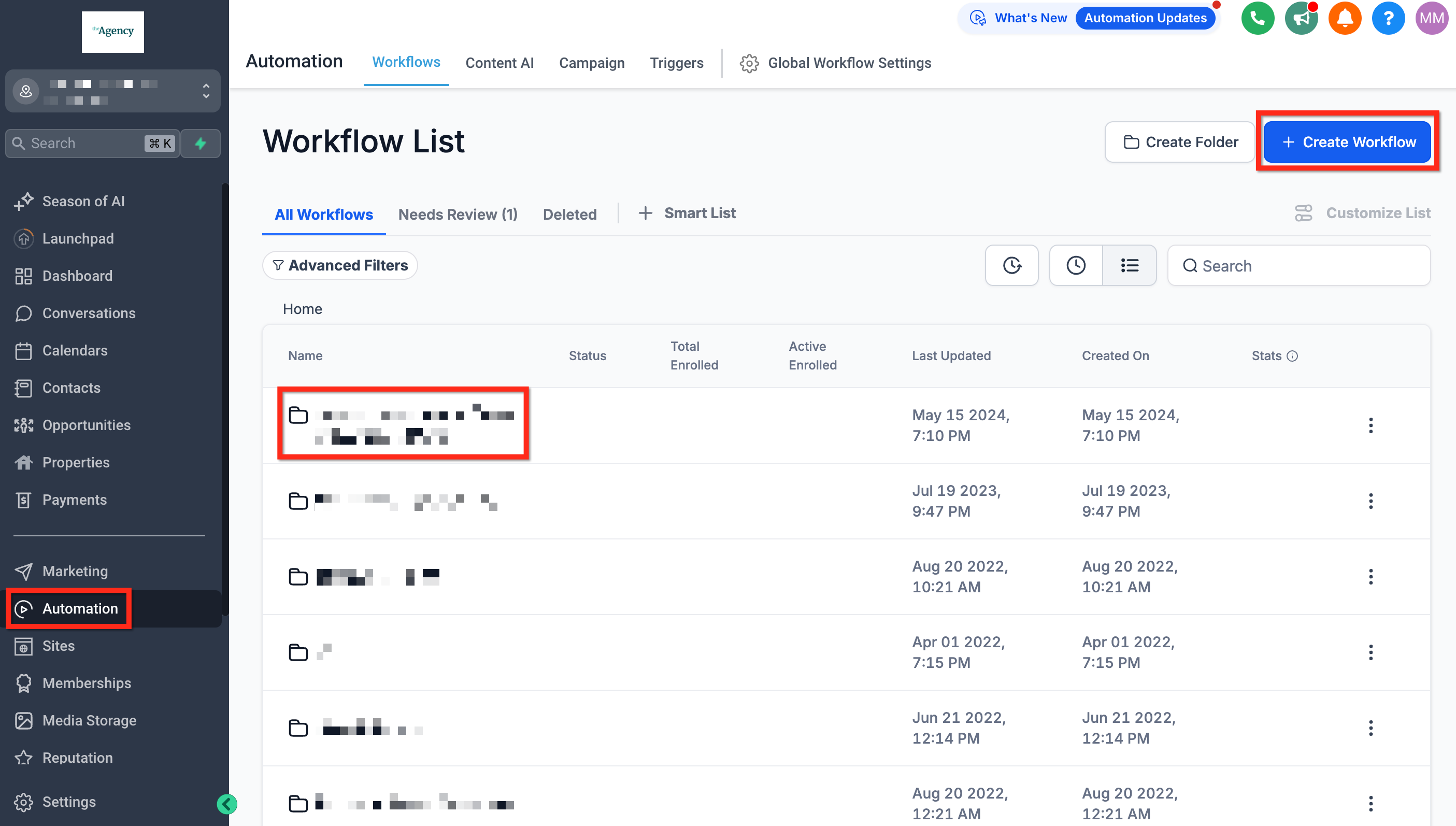
The action is accessed from Automation > Workflows. After adding the action, you configure its fields, save the workflow, and test it to confirm the new data is stored.
Because the update occurs in real time, any subsequent actions that read the same custom value will receive the freshly set data. The action can be combined with conditional logic, API integrations, or math operations for more advanced scenarios.
03How businesses use the update custom value action
- ecommerce store. When a purchase exceeds a set amount, the workflow updates the customer’s loyalty tier custom value from Bronze to Gold using the Update Custom Value action.
- Fitness studio. After a member books a high ticket class, the workflow changes the Appointment Importance custom value to High, allowing targeted follow up messages.
- Consulting agency. If a contact’s status changes to Won in the pipeline, the workflow updates the Client Tier custom value to Platinum, keeping the record aligned with the new relationship level.
04The numbers and rules that matter
- No limit to the number of Update Custom Value actions in a workflow.
05Before you start
- A custom value must be created in the same subaccount as the workflow.
- You need access to Automation > Workflows to create or edit a workflow.
06How to set up and use the update custom value action in HighLevel
Set up update custom value action
- Navigate to Automation > Workflows and either create a new workflow or edit an existing one.
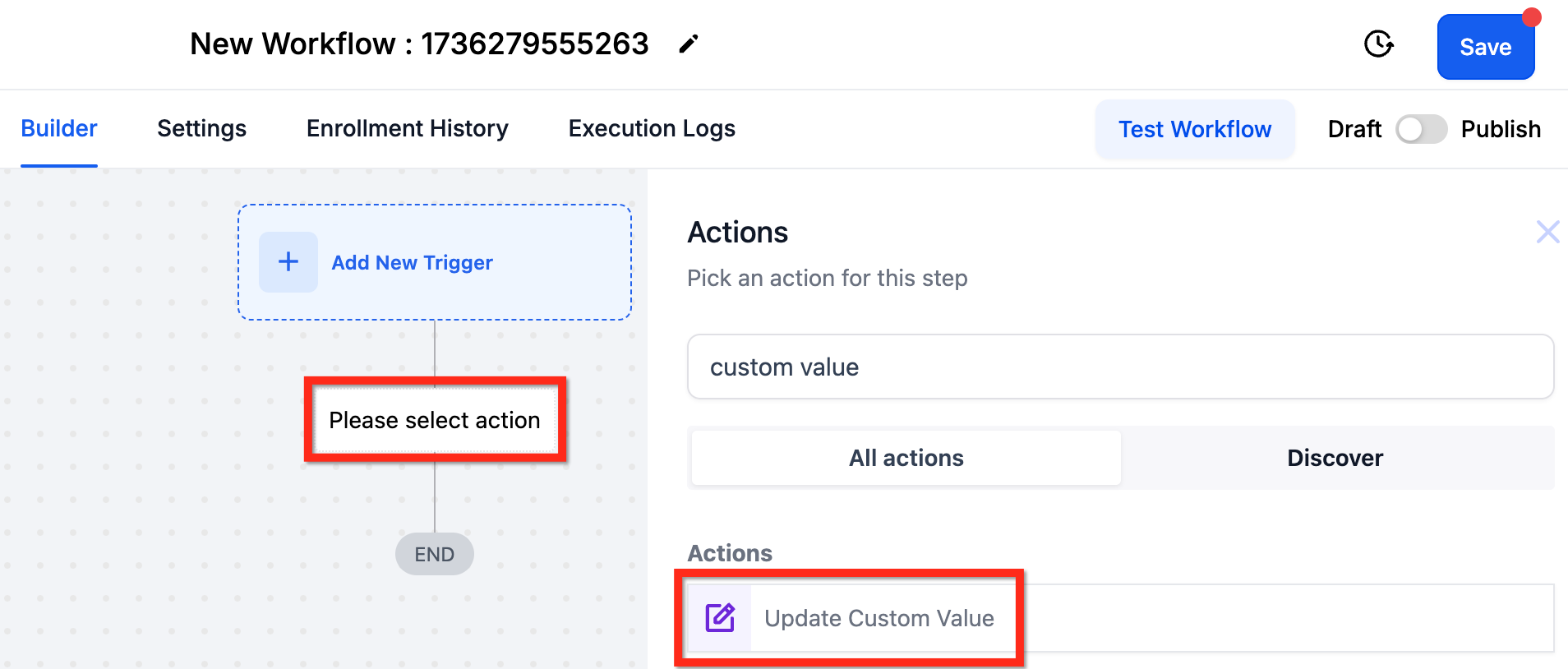
- Click the "+" button to add an action and search for "update custom value".
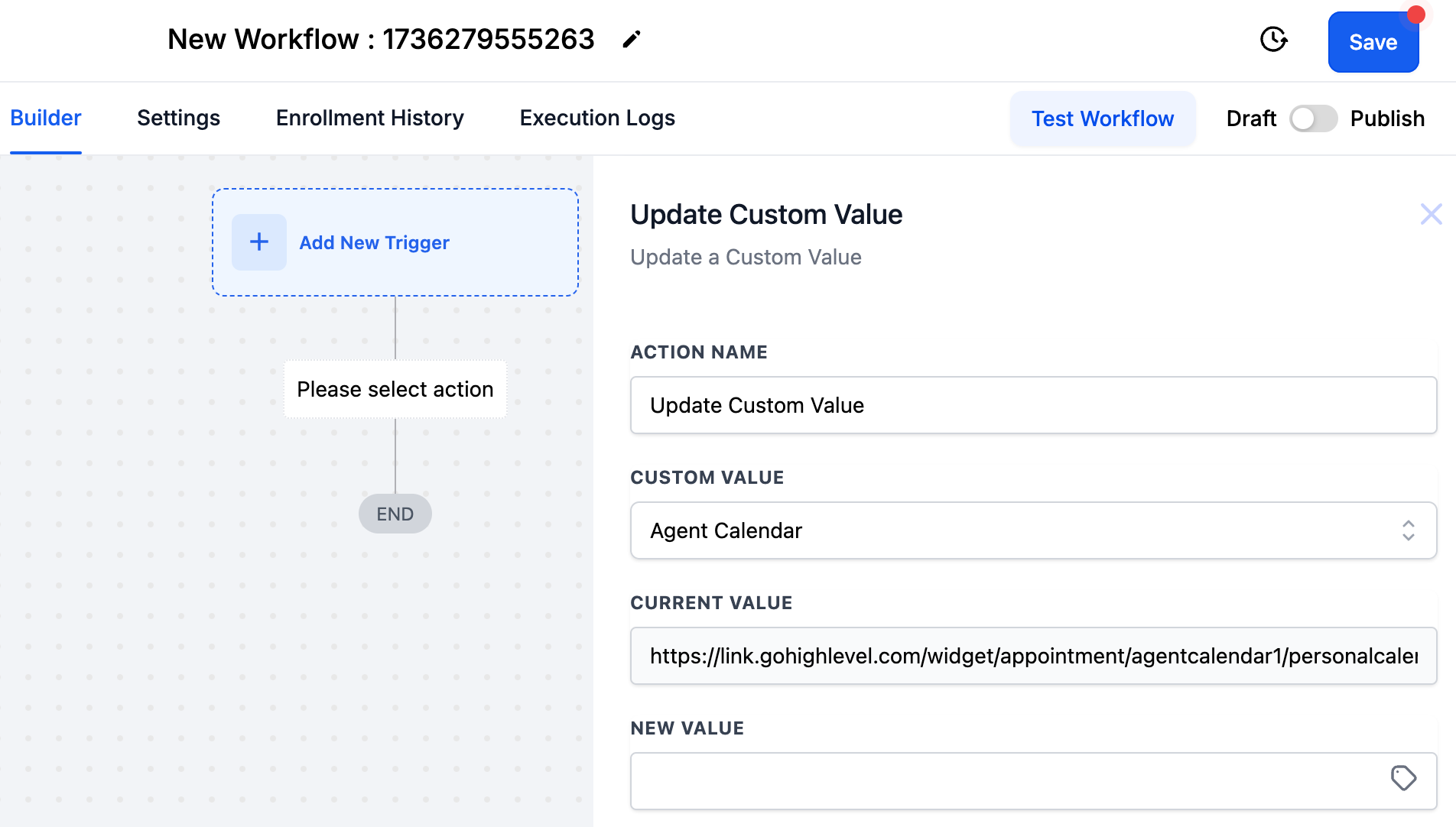
- Select the custom value you want to change and enter the new value, using a static entry or a variable.
- Save the action and test the workflow; the new value becomes available immediately after the action runs.
07What it looks like in HighLevel
08Settings that matter
- Action Name. Sets the label that appears for this step inside the workflow.
- Custom Value. Specifies which custom value field will be modified by the action.
- Current Value. Shows the existing data for the chosen custom value, if any, before the update.
- New Value. Defines the data to write, either a static entry or a dynamic variable.
09Things to know before you rely on it
- There is no limit to the number of Update Custom Value actions you can add to a workflow.
- Each action updates only one custom value one time; add more actions to modify additional fields.
- The custom value being updated must reside in the same subaccount as the workflow.
- The action cannot be undone; you would need another action to set a different value.
- If a condition is set, the update runs only when the current value matches that condition.
10If something goes wrong
- Current value does not match the condition, so the update does not occur.. Verify the condition matches the existing value or remove the condition so the action can run.
- Attempting to update a custom value in a different subaccount.. Ensure the custom value exists in the same subaccount as the workflow that is executing.
- Need to revert a change after an update.. Create another Update Custom Value action with the original value, as there is no built in undo function.
11How it connects to the rest of HighLevel
- Learn the basics of workflow automation in HighLevel. Workflow basics
- See how to create workflows, set triggers, filters, and actions. Workflow creation guide
- Review pricing plans that include workflow features. Pricing
Michael's take

Want to know if you can change a contact’s loyalty tier without manually editing each record? The Update Custom Value action does exactly that. Once a trigger like a purchase hits a threshold, the workflow flips the tier field automatically, keeping your list fresh for the next campaign.
If I were setting up a new loyalty program, my first step would be to create the loyalty level custom value, then add an Update Custom Value step after the purchase trigger. I’d run a quick test to watch the field change in real time, confirming the logic before scaling it to all contacts.