
01Who this is for
- Marketing agencies that manage client companies can keep client profiles accurate by auto updating company details when new data arrives.
- SaaS providers integrating with external platforms can ensure contact information stays synchronized by updating associated contacts via inbound webhooks.
- Real estate firms with multiple agents linked to a brokerage can automatically refresh agent phone numbers and titles when external sources change.
02Update company or associated contact, explained
The action lets a workflow update either the current company record or any contacts linked to that company. You choose the object, map source values to target fields, and save the configuration. When the workflow executes, the selected fields receive the latest data.
Field values can come from inbound webhook payloads, existing company fields, or fixed strings you type. Adding multiple field value pairs is done with the + Add Field button, each row representing one update. If the action targets Associated Contacts and no linked contacts exist, it skips without error.
This feature lives inside the workflow builder and appears only when you create a company based workflow. It does not create new records; for that purpose you must use the Create Company or Associated Contact action.
03How businesses use update company or associated contact
- Marketing agency. Create a company based workflow that triggers on an inbound webhook from a client’s lead system. Map the webhook’s industry and domain fields to the company’s Industry and Domain fields. The action then updates the client’s company record automatically.
- SaaS integration service. Set up a workflow that fires when a user’s account record changes. Choose Associated Contact as the object to update, then map the webhook’s title and phone values to the contact’s Job Title and Phone fields. The service keeps contact details current.
- Real estate brokerage. Build a workflow that runs when an external MLS feed sends updated agent information. Select Associated Contact, map the feed’s title and phone to the contact fields, and let the action refresh each agent’s record linked to the brokerage.
04Before you start
- A company based workflow must exist before adding the update action.
- The workflow must have a trigger that provides the data you plan to map.
05How to set up and use update company or associated contact in HighLevel
Set up the Update Company or Associated Contact action
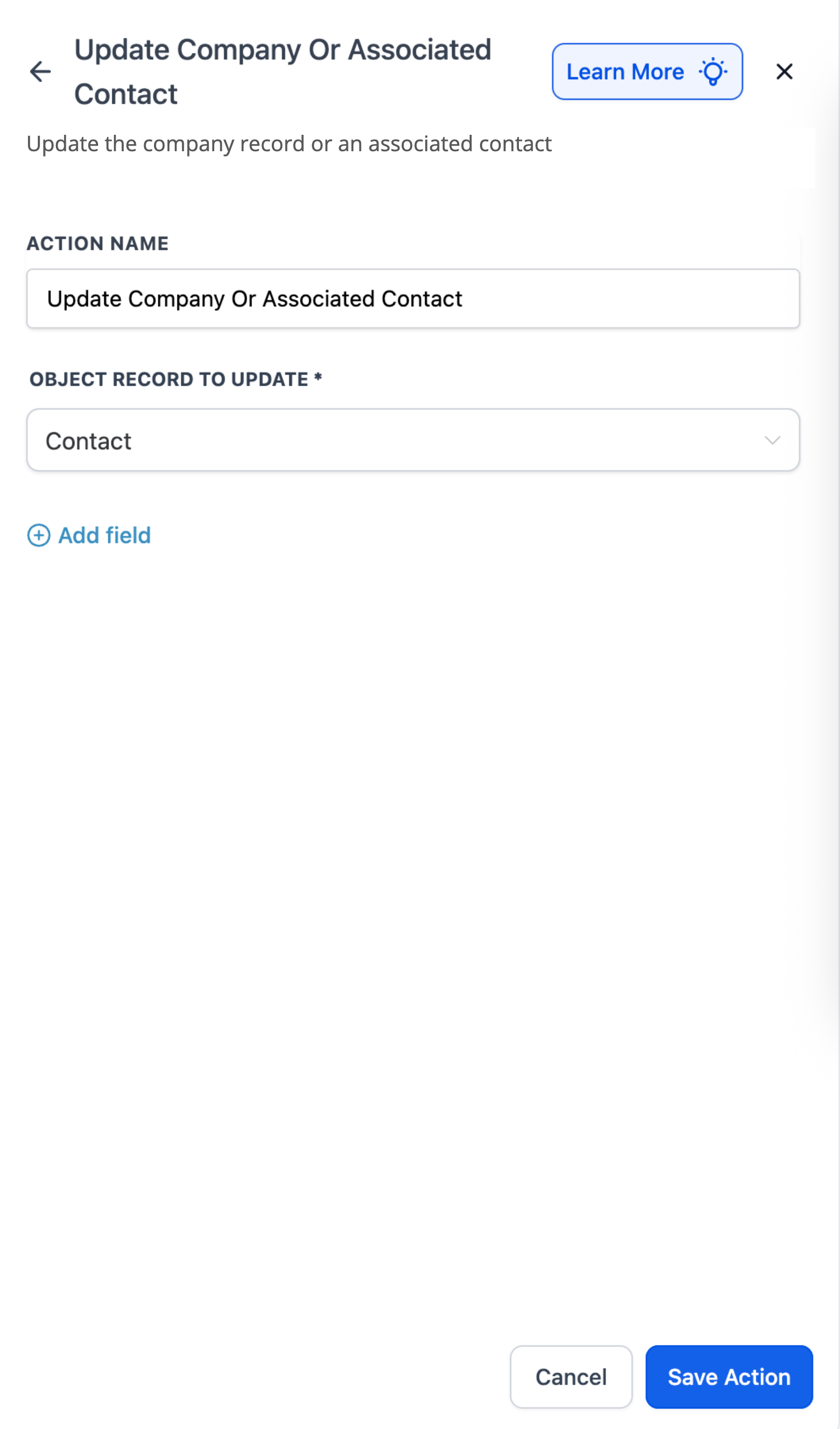
- Open the workflow builder and add a new action, selecting Update Company or Associated Contact.
- Choose whether the action will modify the Company record or an Associated Contact.
- Use + Add Field to map each source value, webhook payload, company field, or fixed text, to the target field you wish to update.
- Click Save Action to store the configuration.
06What it looks like in HighLevel
07Settings that matter
- Object Record to Update. Determines if the action changes the company record itself or the contact(s) linked to that company.
- Field Mapping. Links a source value from the workflow context to a specific field that will be updated.
- Add Field. Adds additional field value pairs so multiple fields can be updated in one action.
08Things to know before you rely on it
- The action works only in company based workflows; it is not available in other workflow types.
- It cannot create new company or contact records; use the Create Company or Associated Contact action for that purpose.
- If no associated contacts are linked to the company when the action targets contacts, the step is skipped automatically.
09How it connects to the rest of HighLevel
- How to create new company or contact records in a workflow Create Company or Associated Contact
- Clearing fields before updating them in a workflow Clear fields action
- Basics of HighLevel workflow automation and setup Workflow basics
Michael's take

This feature feels like a small convenience that can become a real shift for teams that rely on external data feeds. It quietly keeps your HighLevel account tidy without a manual copy paste step, which is valuable when you have many companies or contacts changing in other systems.
A staffing agency that receives daily employee updates from a partner payroll service fits perfectly. The agency can map the incoming title and phone changes straight to the linked contact, keeping candidate records fresh without a person opening each profile.