
01Who this is for
- Service providers such as salons can have appointments marked as Showed or No show automatically.
- Customer support teams can trigger follow up communications based on appointment status changes.
02Update appointment status, explained
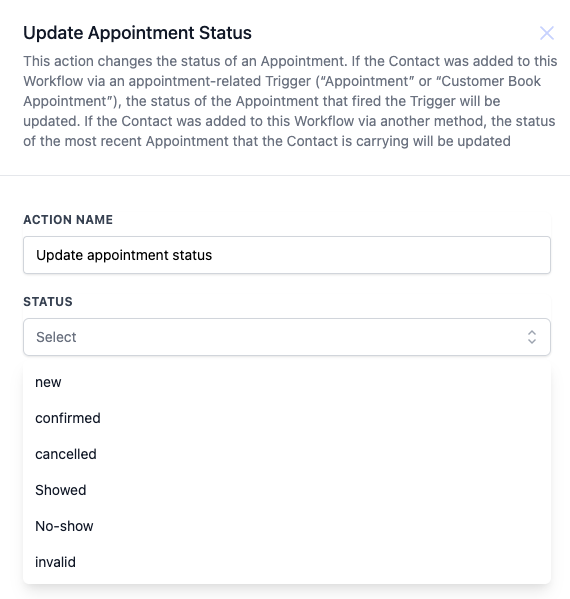
The Update Appointment Status action modifies the status field of an existing appointment associated with the contact that is moving through a workflow. It lets you set the appointment to values such as New, Confirmed, Cancelled, Showed, No show or Invalid.
When the workflow is launched by an appointment related trigger, the action targets that specific appointment. If the trigger is unrelated, the action applies to the most recent appointment for the contact. This action is edited within the workflow builder under the Actions section of a HighLevel workflow.
03How businesses use update appointment status
- Dental practice. When a patient calls to cancel, the practice adds the Update Appointment Status action set to Cancelled. The workflow runs and the appointment record reflects the cancellation automatically.
- Fitness studio. After a class, the studio’s workflow sets the status to Showed. The action updates the appointment, which can then trigger post class surveys or thank you messages.
- Consulting firm. If a client misses a scheduled call, the firm’s workflow changes the appointment status to No show, prompting a re engagement sequence to reschedule.
04Before you start
- The workflow must be triggered by an appointment related event to ensure the correct appointment is updated.
05How to set up and use update appointment status in HighLevel
Configure the Update Appointment Status action in a workflow
- Enter a name for the action, for example “Update Appointment Status”.
- Select the desired new status from the dropdown list (New, Confirmed, Cancelled, Showed, No show, Invalid).
- Verify the selected status is correct before saving the workflow.
06What it looks like in HighLevel
07Settings that matter
- Status. Specifies the new appointment state that will be applied when the action runs. This field must be filled before saving the workflow.
08Things to know before you rely on it
- The action updates only a single appointment, the one that triggered the workflow, or if none, the most recent appointment for the contact.
- Changing status to Showed or No show does not send an update to external calendars such as Google, Outlook, or iCloud, preventing extra notification emails.
09How it connects to the rest of HighLevel
- Learn the fundamentals of HighLevel workflow automation. Workflow basics
- Step by step guide to building workflows, triggers, filters and actions. Workflow creation
- Check the workflow Pro plan pricing tiers. Workflow pricing
Michael's take

A useful but niche feature for businesses that need automated appointment tracking.
Skip it if you never automate appointment status changes or rely solely on manual updates.