
01Who this is for
- Service managers who need to keep warranty or service records current without manual entry.
- Support staff who log service history directly from workflow triggers.
02Update Associated Record for Contact, explained
The Update Associated Record action modifies one or more fields on a custom object that has been associated with a contact. It uses the association label you defined to locate the correct records, and you can choose to update a single record or all records linked to the contact. This action resides in the workflow builder alongside other automation steps.
When the workflow runs, HighLevel looks up the custom object records that match the selected association label. It then writes the new values you specify into the chosen fields. You can enter static data, use merge fields, or append information to existing content.
The action only works after you have created the custom object in the subaccount and set up an association label connecting that object to contacts.
03How businesses use update associated record
- Warranty tracking for home appliances. When a service request is received, the workflow runs the Update Associated Record action to append the service details to the Warranty object's Service History field and set the Last Service Date to today’s date.
- Product purchase logging. After a product is purchased, the workflow updates the associated custom object to set the Warranty Start Date automatically.
- Service request handling. When a customer submits a service request, the workflow updates the related custom object to record the request date and details.
04Before you start
- Create the required custom object in the subaccount.
- Set up an association label linking the custom object to contacts.
05How to set up and use update associated record in HighLevel
Set up update associated record action
- Open the workflow builder and add a new action.
- Select the action named "Update Associated Record for Contact".
- Choose the custom object to modify in the Object to Update field.
- Pick the relevant association label from the Association Label dropdown.
- Choose whether to update specific records or select All associated records.
- Add each field you want to change in the Fields to Update section and set its new value, using merge fields if needed.
- Save the workflow and activate it.
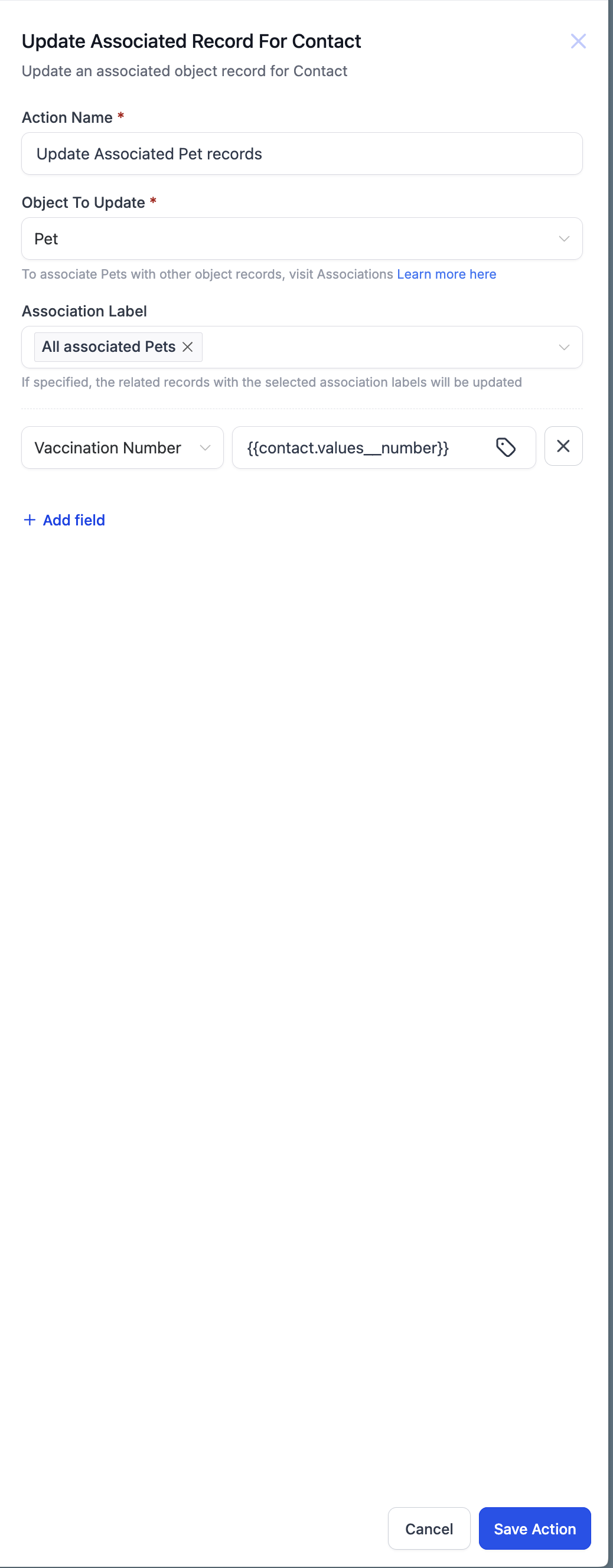
06What it looks like in HighLevel
07Settings that matter
- Object to Update. Specifies which custom object record will be edited.
- Association Label. Determines which records linked to the contact are targeted.
- Fields to Update. Lists the fields whose values will be changed and the new data to write.
- All associated records. Option to apply the update to every record linked to the contact under the chosen label.
08Things to know before you rely on it
- The action works only after custom objects and an association label have been created.
- You can update one or multiple records depending on the association label selection.
- Choosing "All associated records" applies the changes to every matching record.
09How it connects to the rest of HighLevel
- Create a custom object record for a contact Create associated record
- Remove data from a custom object record linked to a contact Clear associated record fields
- Learn the basics of building workflows in HighLevel Workflow basics
Michael's take

Great for anyone who already uses Custom Objects and wants data to stay current without manual intervention. Skip it if you never link objects to contacts or if you prefer manual updates.
The feature shines when you have repeat processes like warranty tracking. Just set the association once and let the workflow keep fields fresh.