
01Who this is for
- Founders who need clean contact information because the action standardizes names and emails.
- Marketing managers who send automated SMS or email campaigns, as proper capitalization improves consistency.
- Developers integrating external forms via webhooks, because the formatter can clean incoming text before it is stored.
02Text Formatter, explained
The Text Formatter is a workflow action that edits string data. It offers many transformation types such as upper case, lower case, title case, trimming, replacing, and extracting specific patterns. Each type has its own set of options that tell the action which field to work on and how to modify it.
The action lives inside the workflow builder. After you create or edit a workflow under Automation > Workflows, you add the Text Formatter from the action list, name it, choose the transformation, point it at a field from contacts, users, messages, or custom values, and fill in any extra parameters like a find/replace pair or a character limit.
03How businesses use Text Formatter
- Ecommerce store. When a checkout form is submitted, the formatter can capitalize the customer's first and last names and trim extra spaces from the address field, ensuring the order data is uniform before it reaches inventory tools.
- Real estate agency. After a lead fills out a property inquiry, the workflow replaces shorthand terms like "apt" with "apartment" and extracts the first email address from the notes field to add to the contact.
- Online course platform. When a new student registers, the formatter can set a default value for an empty phone field, convert the student’s name to title case, and pull the first URL from a bio field for later use.
04The numbers and rules that matter
- Fields that can be formatted include those from Contact, User, Message, Account, Phone Call, Client Portal Contact, Attribution, and Custom Fields.
05Before you start
- A workflow must be created or opened in the Automation > Workflows area before the Text Formatter action can be added.
06How to set up and use Text Formatter in HighLevel
Add and configure Text Formatter in a workflow
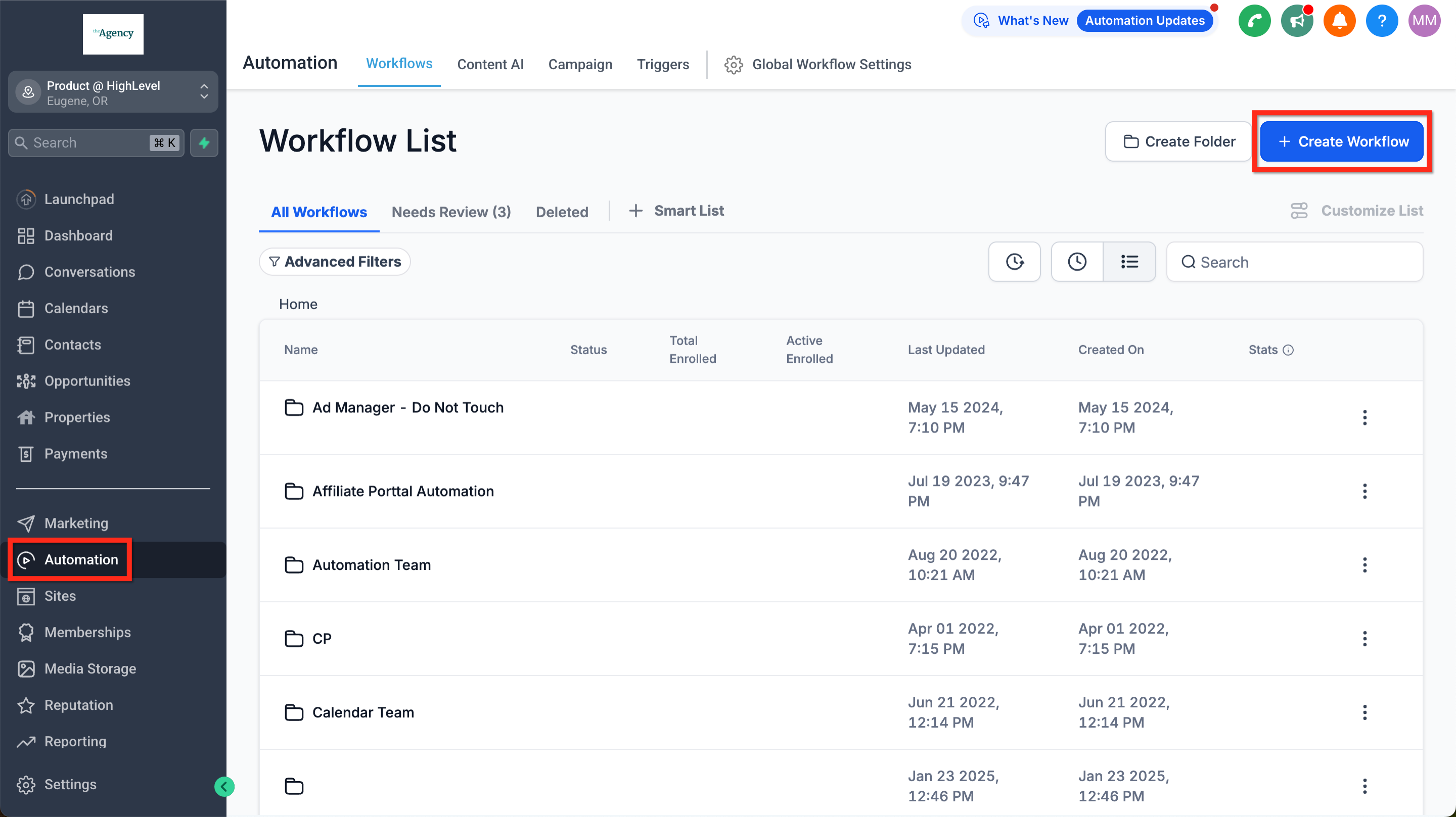
- Open Automation > Workflows, then start a new workflow or edit an existing one.
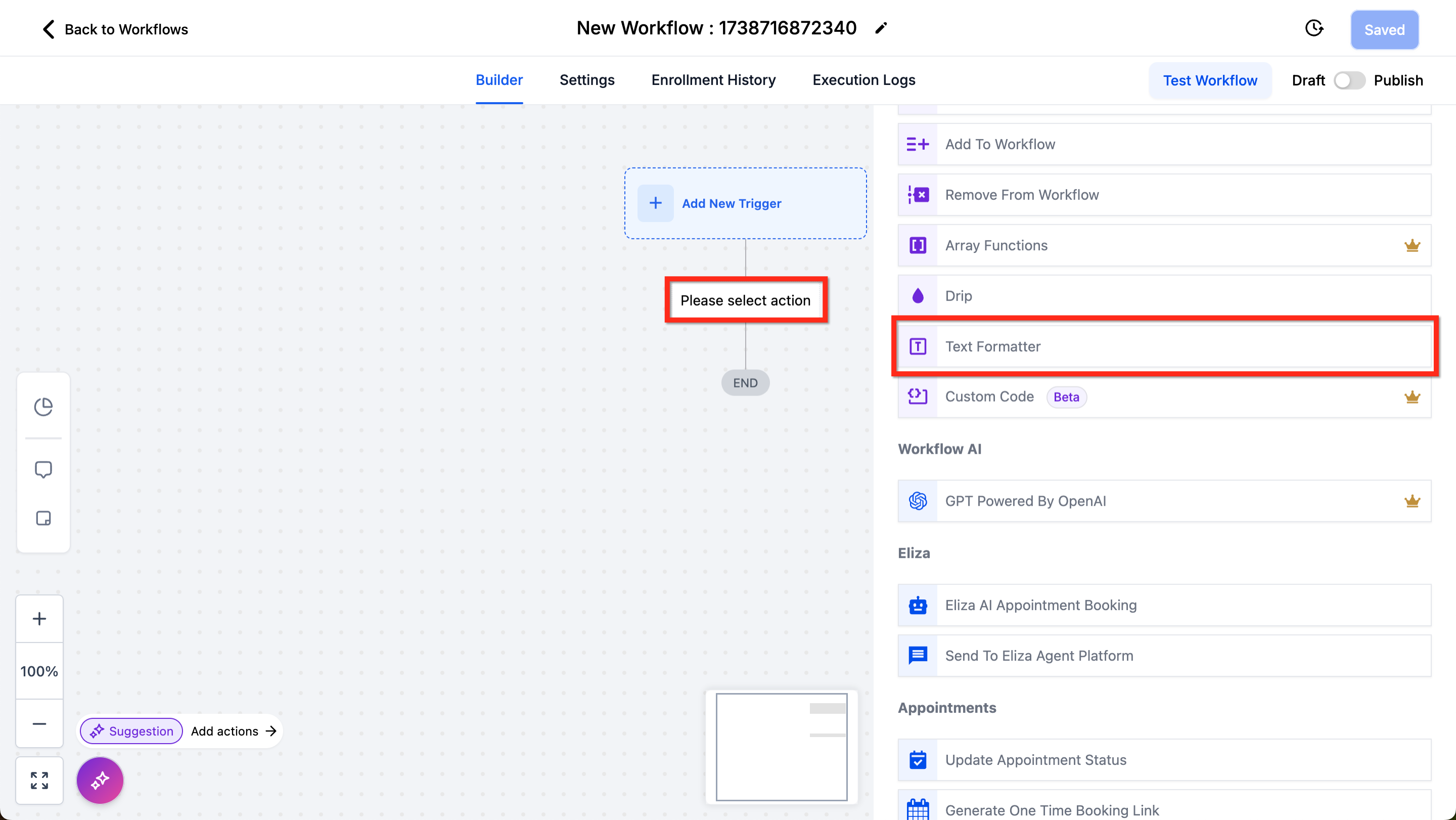
- Click the plus (+) icon, locate Text Formatter in the list, and select it.
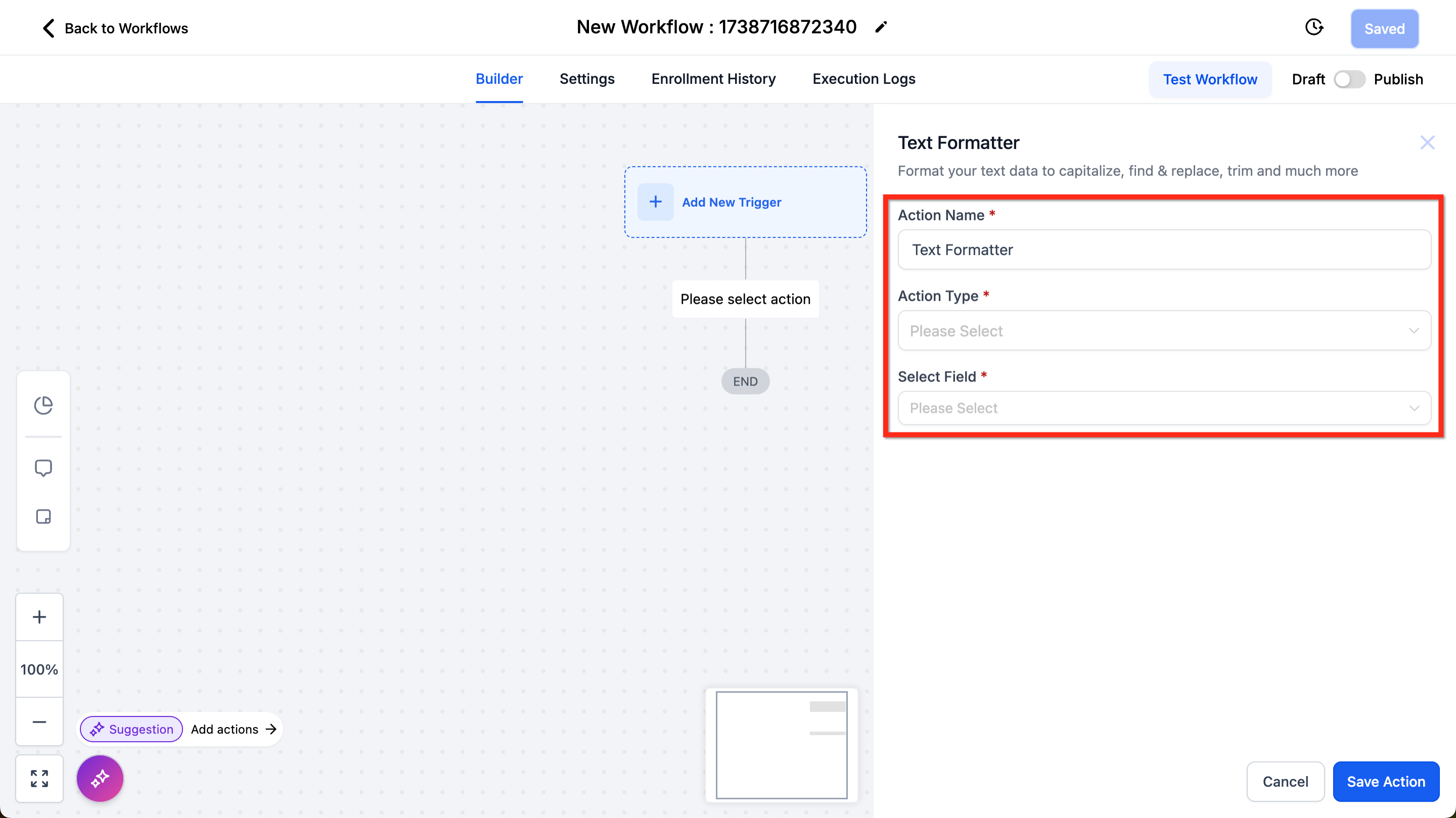
- Give the action a descriptive name, pick the desired transformation type, select the target field, and fill any extra fields such as Find, Replace, or Max Length.
07What it looks like in HighLevel
08Settings that matter
- Action Type. Determines which text operation, like upper case, trim, or replace, is performed.
- Select Field. Specifies the data element that the action will read and modify.
- Find. Provides the exact string to search for when using Replace Text.
- Replace. The string that substitutes each occurrence found by the Find setting.
- Max Length. Limits the number of characters kept when using the Trim action.
09Things to know before you rely on it
- Only fields listed in the Select Field table are available for formatting.
- The action works on text values; numeric fields must be treated as text or handled with the Number Formatter action.
10If something goes wrong
- Cannot locate the field that contains the text.. Review the Select Field table to confirm the field exists and drill down to the appropriate subcategory before selecting it.
- Formatter does not change numbers as expected.. If the data is stored as a numeric type, use the Number Formatter action instead of Text Formatter.
11How it connects to the rest of HighLevel
- Learn the basics of building automations with workflows. Workflow basics
- Start a workflow from scratch or edit an existing one. Getting started
- Check plan eligibility for advanced workflow features. Workflow plan details
Michael's take

How do I make sure my contact data looks clean before I send a campaign? It capitalizes names, trims extra spaces, and even adds a default value when a field is blank, so everything downstream stays tidy.
If I were setting up a form, I would drop a Text Formatter step to replace any slang and trim whitespace before the data lands in HighLevel. That way my emails and SMS messages can read professionally without extra work later.