
01Who this is for
- Founders of subscription businesses, because the action can auto calculate renewal dates and send timely reminders.
- Sales managers handling lead scoring, because the action updates numeric fields without manual math.
- Operations staff who track contract deadlines, because date calculations can add or subtract days, months, or years.
02Math operation workflow actions, explained
The Math Operation action lives inside the workflow builder under Automation. It takes a source field or a static value, applies a single arithmetic operation, and writes the result to another field. You can work with numeric, monetary, or date fields.
When the workflow runs, the platform performs the calculation right away and stores the outcome, so subsequent actions or If/Else conditions can use the new value. Complex formulas are not supported in one step; each simple operation requires its own Math Operation action.
03How businesses use the Math Operation workflow action
- Subscription service. Add a Math Operation action that adds a set number of months to the contract start date field. The resulting date is saved to a renewal date custom field, enabling automated reminder workflows.
- Lead generation agency. Create a Math Operation that multiplies a lead’s activity score by a weighting factor stored in a custom field. The updated score is saved, then used in an If/Else branch to route high scoring leads.
- Legal firm. Insert a Math Operation that adds 30 days to a case’s filing date field. The new deadline is stored in a custom date field, triggering deadline alerts through subsequent workflow steps.
04Before you start
- A workflow trigger must be defined before the Math Operation action can be added.
05How to set up and use the Math Operation workflow action in HighLevel
Add a Math Operation action
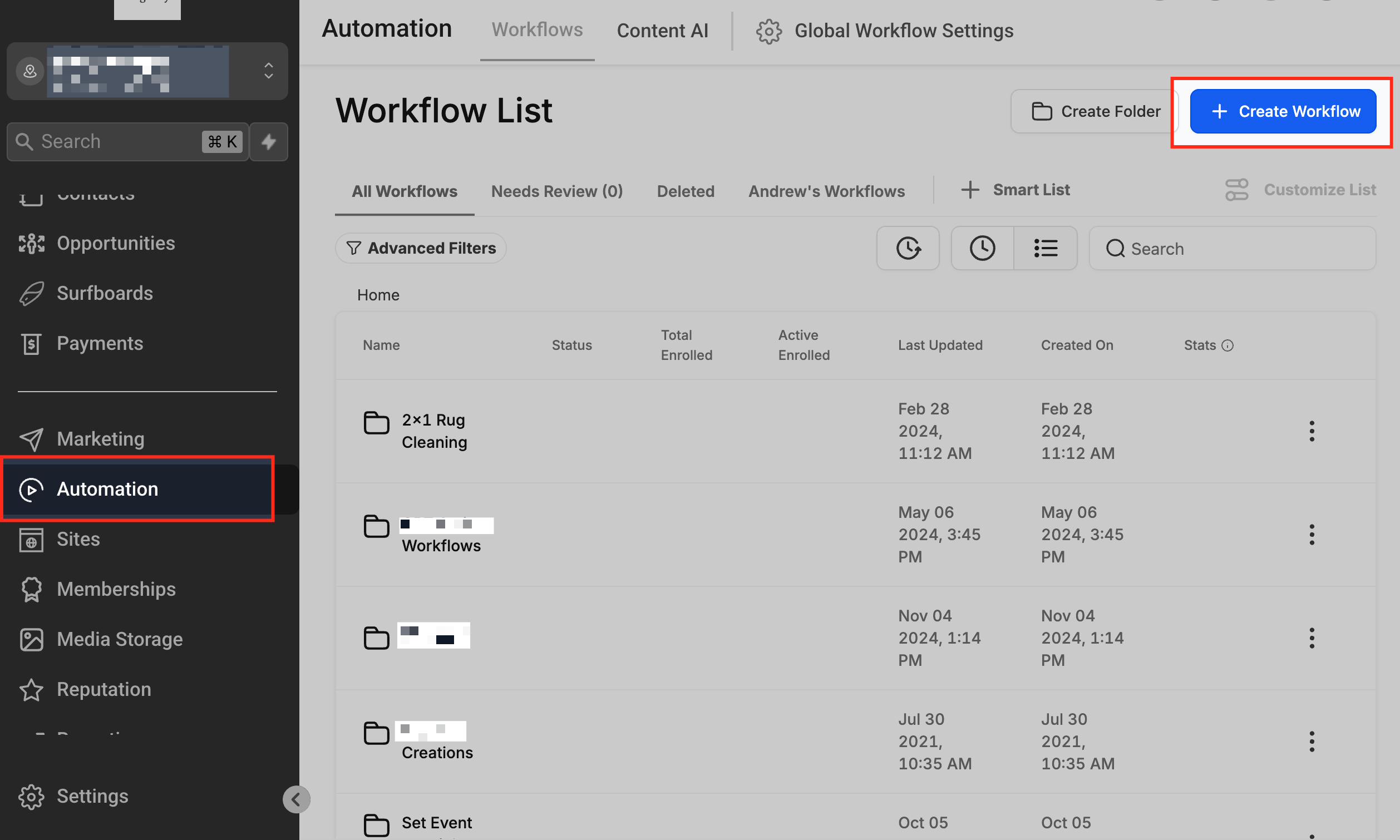
- Open the Automation area and create or select the workflow where the action will reside.
- Add a trigger that defines when the workflow should start.
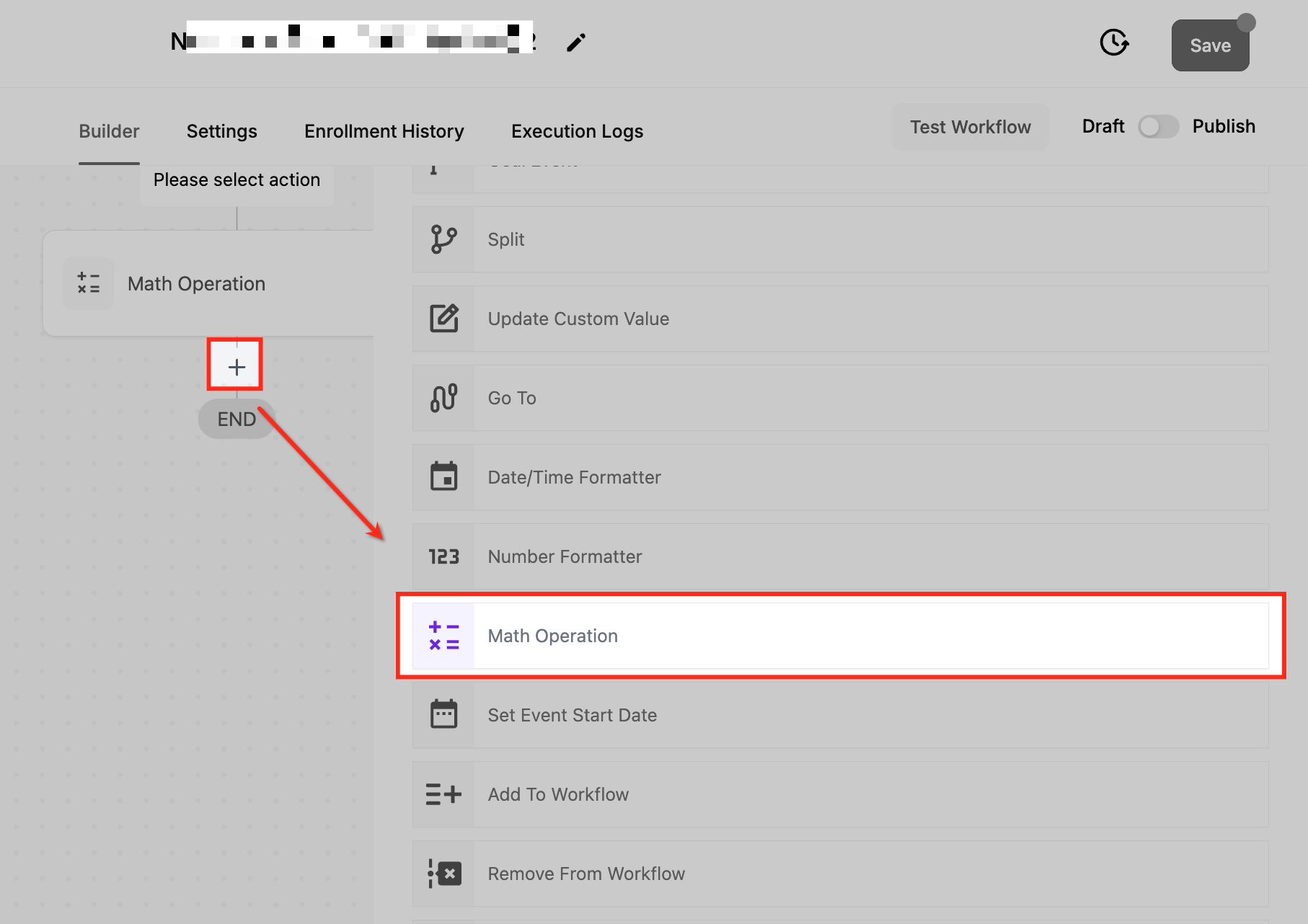
- Click the Add Action button inside the workflow editor.
- Choose Math Operation from the list of available actions.
Configure the calculation
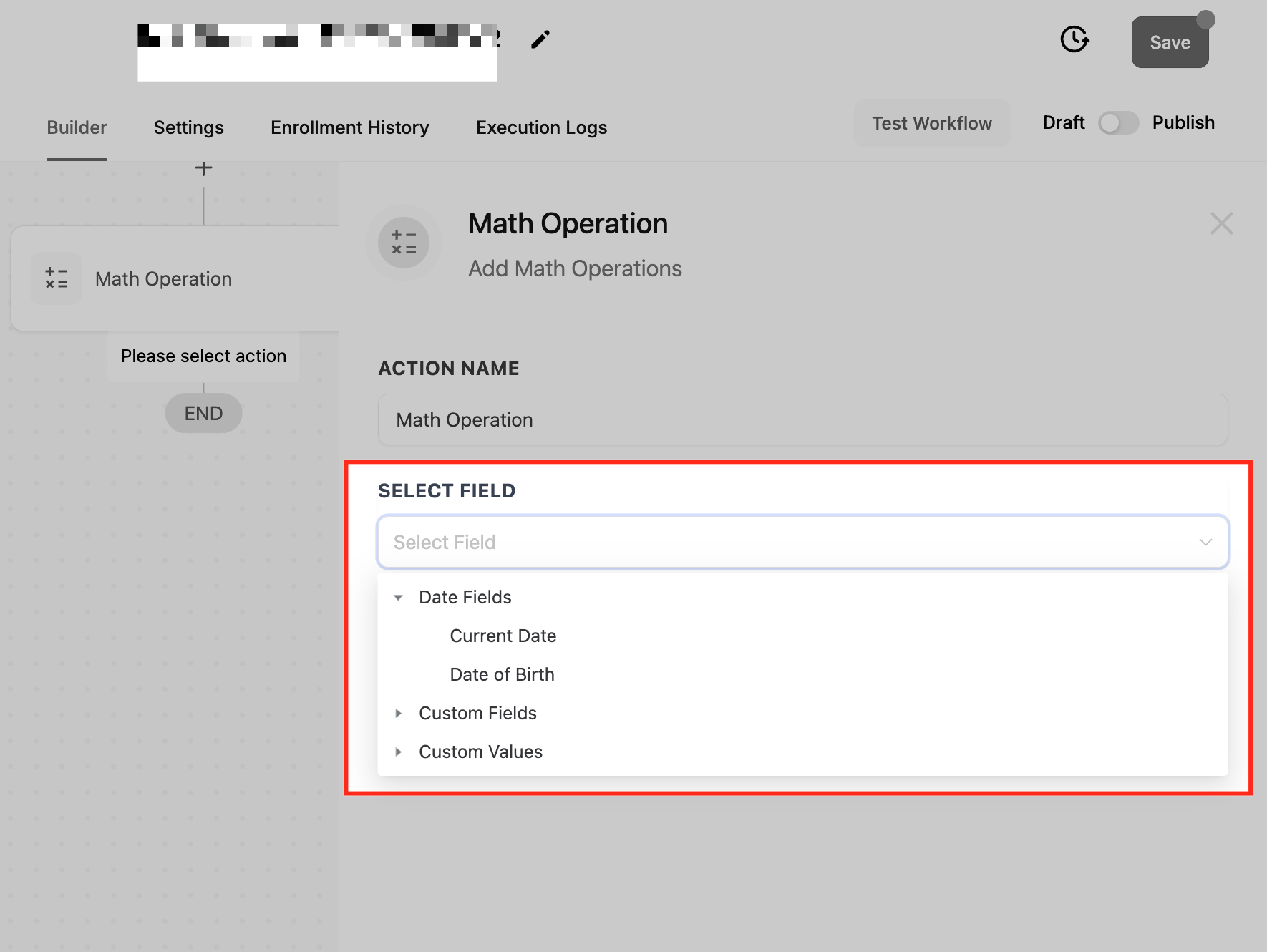
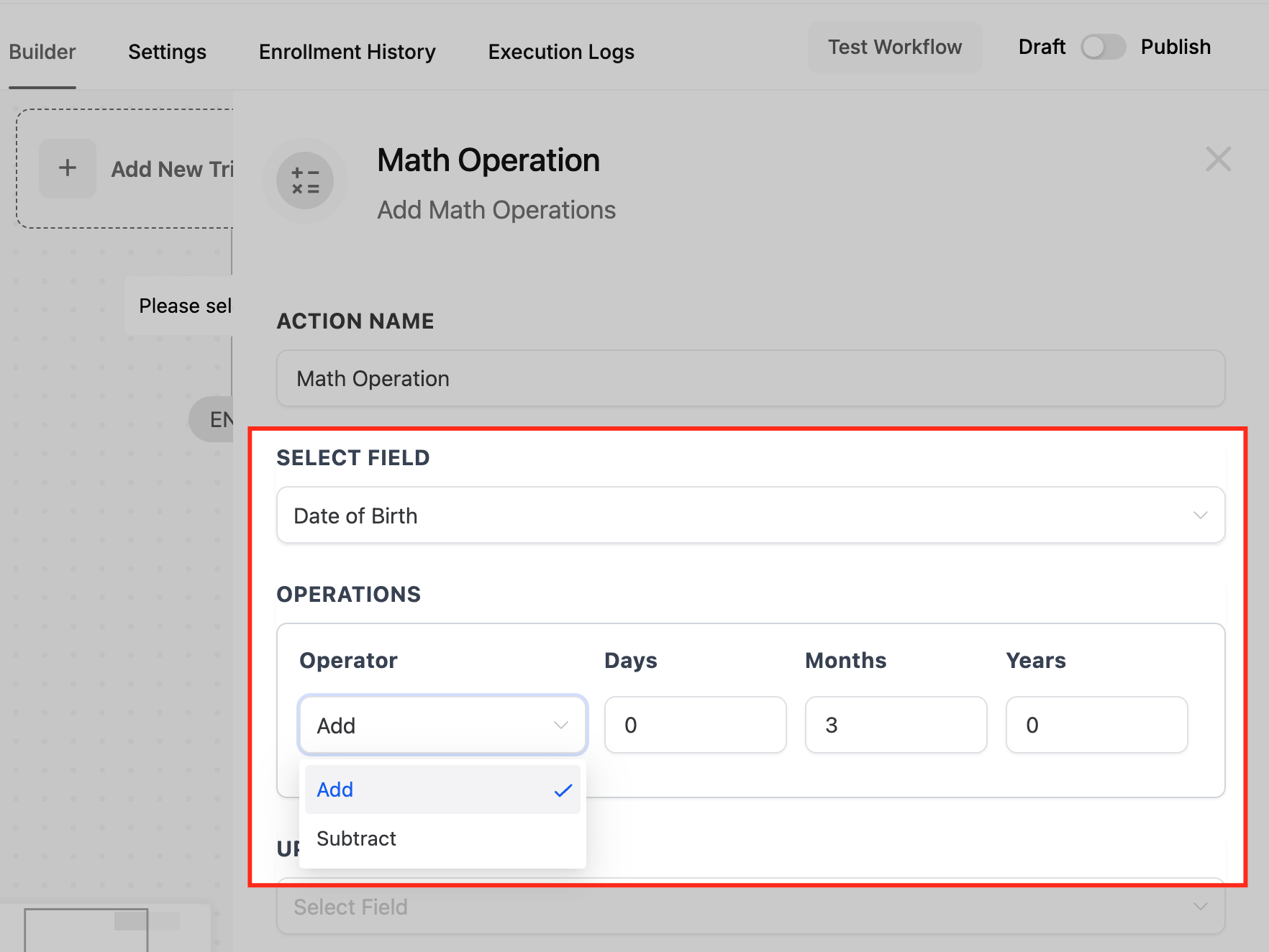
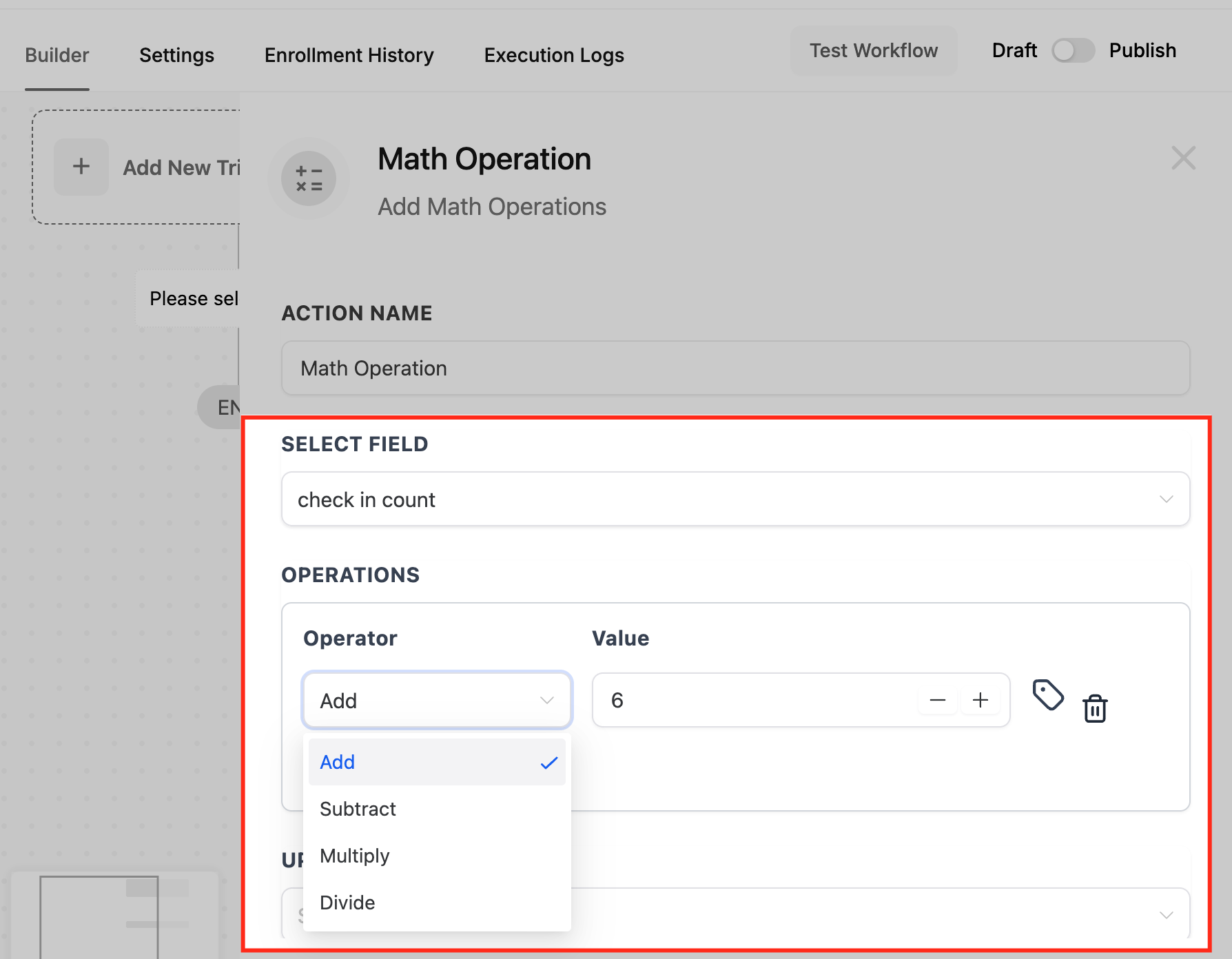
- Select the field that will receive the calculation result using the Select Field dropdown.
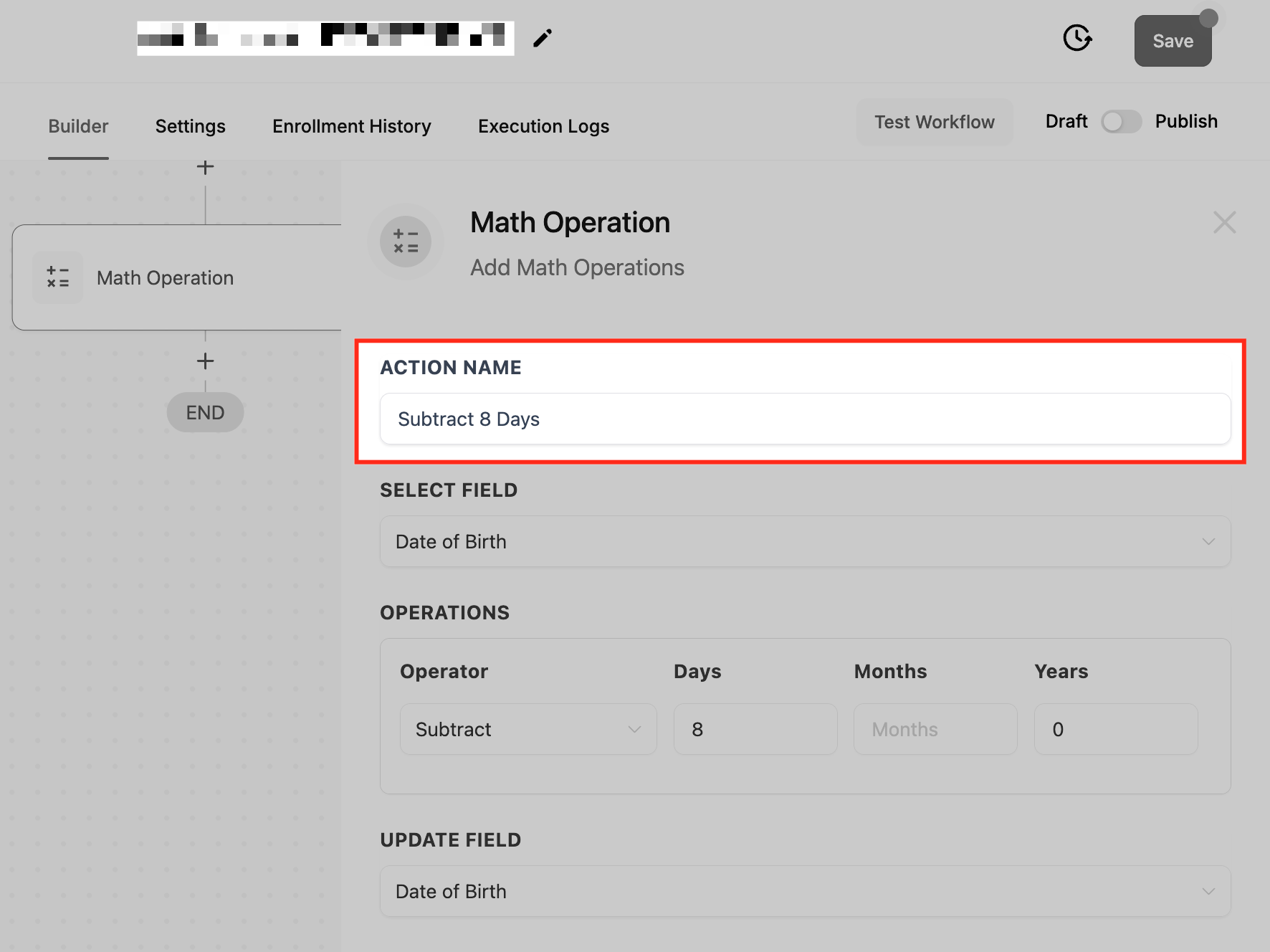
- Choose the operation type, addition, subtraction, multiplication or division, or a date add/subtract option.
- Enter the numeric value for the operation, or use the +/- icons to adjust it.
- Optionally click the Tag Icon to pull a dynamic value from another custom field.
- Save the action and publish the workflow to activate the calculation.
06What it looks like in HighLevel
07Settings that matter
- Select Field. Determines which date, numeric, monetary or custom field will be updated with the calculation result.
- Operation Type. Specifies whether the action adds, subtracts, multiplies or divides values, or adds/subtracts days, months or years for date fields.
- Operation Value. The static number or amount used in the calculation; can be entered manually or adjusted with +/- icons.
- Tag Icon. Allows a dynamic value from another custom field to be used instead of a static number.
- Delete Icon. Removes an operation from the action without rebuilding the entire Math Operation step.
- Add Operator. Enables additional operations to be chained inside the same Math Operation action.
- Update Field. Selects where the calculated result will be stored, matching the data type of the operation.
08Things to know before you rely on it
- Only a single simple operation (addition, subtraction, multiplication or division) is supported per Math Operation action; complex expressions with order of operations are not allowed.
- Date fields cannot accept negative values; only positive adjustments are permitted.
- Monetary fields must be zero or greater; negative amounts are rejected.
- To perform a multi step formula, you must break it into separate Math Operation actions and store intermediate results in custom fields.
09If something goes wrong
- Attempting to perform more than one arithmetic operation in a single Math Operation action.. Create additional Math Operation actions and use custom fields to hold intermediate results, arranging them in the required order.
- Using a negative number with a date field.. Enter only positive numbers for date adjustments; negative values are not supported for date calculations.
10How it connects to the rest of HighLevel
- Learn the basics of building workflows in HighLevel. Workflow basics
- Step by step guide to creating triggers, filters and actions. Workflow creation
- Explore all available workflow actions and settings. All workflows features
Michael's take

The Math Operation workflow action is handy for anyone who wants calculations to happen automatically without leaving HighLevel. Skip it if you never need to adjust dates or numbers in your automations.
It shines when you need to set renewal dates, adjust lead scores, or move deadlines based on today’s date. Keep it simple. Break complex math into separate steps and let the workflow do the heavy lifting.