
01Who this is for
- Sales managers, receive instant Slack alerts when a lead changes status, keeping the sales pipeline visible.
- Support supervisors, get notified in a channel when a new support task is assigned, enabling quick response.
- Marketing directors, see form submission notifications in Slack, allowing rapid follow up on prospects.
02Slack messages, explained
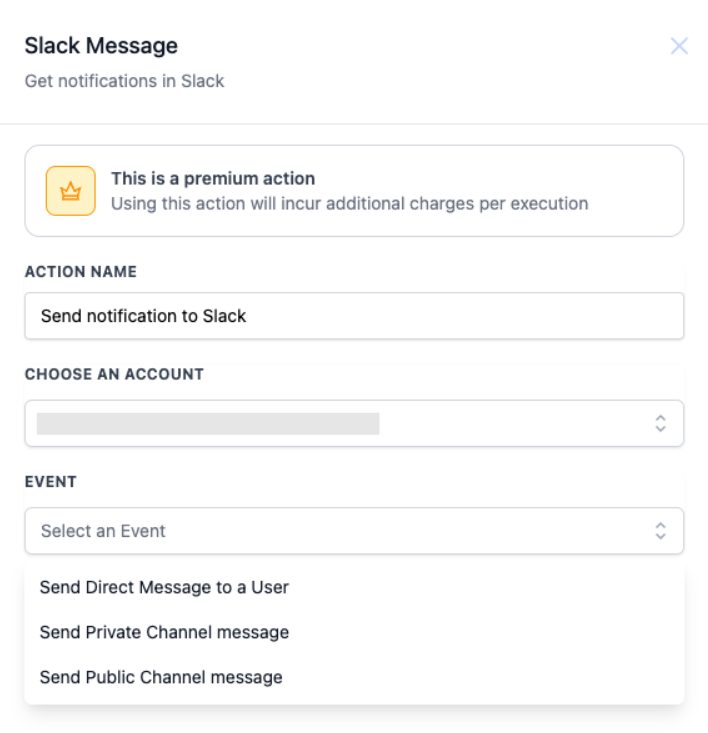
The Slack Message action is a premium feature in the Workflow Builder. When a workflow reaches this step, HighLevel posts a message to the selected Slack destination, an individual user, a private channel or a public channel.
The action requires you to pick a connected Slack account and define the event type. You can include workflow variables in the message text to provide contact details or other data. Private channel messages are sent using the identity of the user who established the Slack integration; direct and public messages are sent by the integration bot.
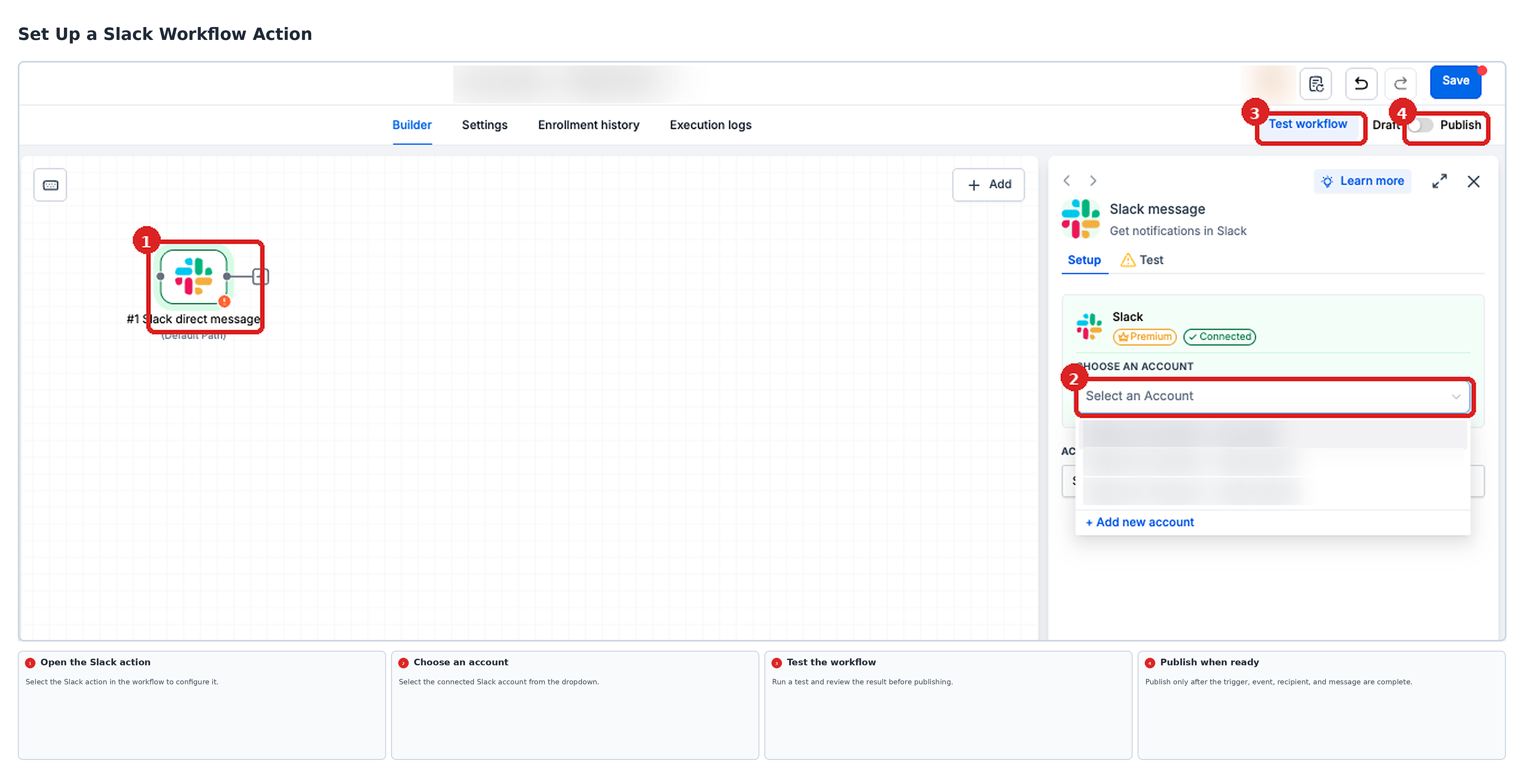
You find the action inside any workflow under Automation > Workflows. After adding the action, you configure the account, event, recipient and message, then save and publish the workflow.
03How businesses use the Slack Message workflow action
- Real estate agency. Create a workflow that triggers when a new lead is added. Add the Slack Message action, select the agent’s Slack user, and compose a message that includes the lead’s name and phone number. The agent receives a direct Slack notification for each new lead.
- SaaS company. Set a workflow to trigger on a bug report form submission. Add the Slack Message action, choose a private Slack channel for the development team, and insert the reporter’s email and issue description using variables. The team sees the report in the channel immediately.
- Event planning business. When a task is assigned in HighLevel, trigger a workflow with the Slack Message action. Select the public channel used by the planning crew and write a message that references the task title and due date. The crew gets a channel update as soon as the task is created.
04Before you start
- A Slack account must be connected to the HighLevel subaccount.
- Access to a workflow where the notification will be added is required.
- Premium workflow features must be enabled and billing settings reviewed.
05How to set up and use the Slack Message workflow action in HighLevel
Set up Slack Message action
- Navigate to Automation > Workflows in the appropriate subaccount and open or create a workflow.
- Add or verify the trigger that will start the automation.
- Click the plus sign, search for Slack Message, and select it as the action.
- Choose the connected Slack account from the dropdown list.
- Pick the event type: direct message, private channel message, or public channel message.
- Select the specific user or channel and type the message content, using variables as needed.
- Save the action, test it with a sample record, and publish the workflow when the test succeeds.
06What it looks like in HighLevel
07Settings that matter
- Choose an Account. Selects which connected Slack workspace will send the message.
- Event. Defines whether the action sends a direct message, a private channel message, or a public channel message.
08Things to know before you rely on it
- The Slack Message action is a premium feature; usage may incur charges after any free allowance is exhausted.
- Private channel messages appear to come from the integration user rather than a bot.
- Large Slack workspaces may require using the Load More option to see all users or channels.
09If something goes wrong
- Desired Slack account does not appear in the dropdown.. Verify that the Slack workspace is connected to the subaccount via the Marketplace connection manager.
- Cannot locate a specific Slack user or channel.. Confirm the correct workspace is selected and use the Load More option to display additional items.
10How it connects to the rest of HighLevel
- Learn basic workflow setup steps Workflow basics
- Review pricing for premium workflow actions Pricing
- Start a trial of HighLevel 30 day trial
Michael's take

Most people assume the Slack Message action will work as soon as they select a channel, but the destination must belong to the Slack workspace linked to the specific HighLevel subaccount. If the workspace differs, the user or channel won’t appear and the message never sends.
I would first verify the correct Slack account is connected, then test the action with a sample contact before publishing. A quick test confirms both the connection and that the right user or channel receives the notification.