
01Who this is for
- Sales managers who need a central reviewer for all outgoing contracts, reducing accidental sends.
- Legal coordinators in firms with multiple agents, ensuring the designated lawyer signs off on each draft.
- Operations leads for SaaS companies that want to auto populate agreements but keep a final approval step.
02Send documents & contracts, explained
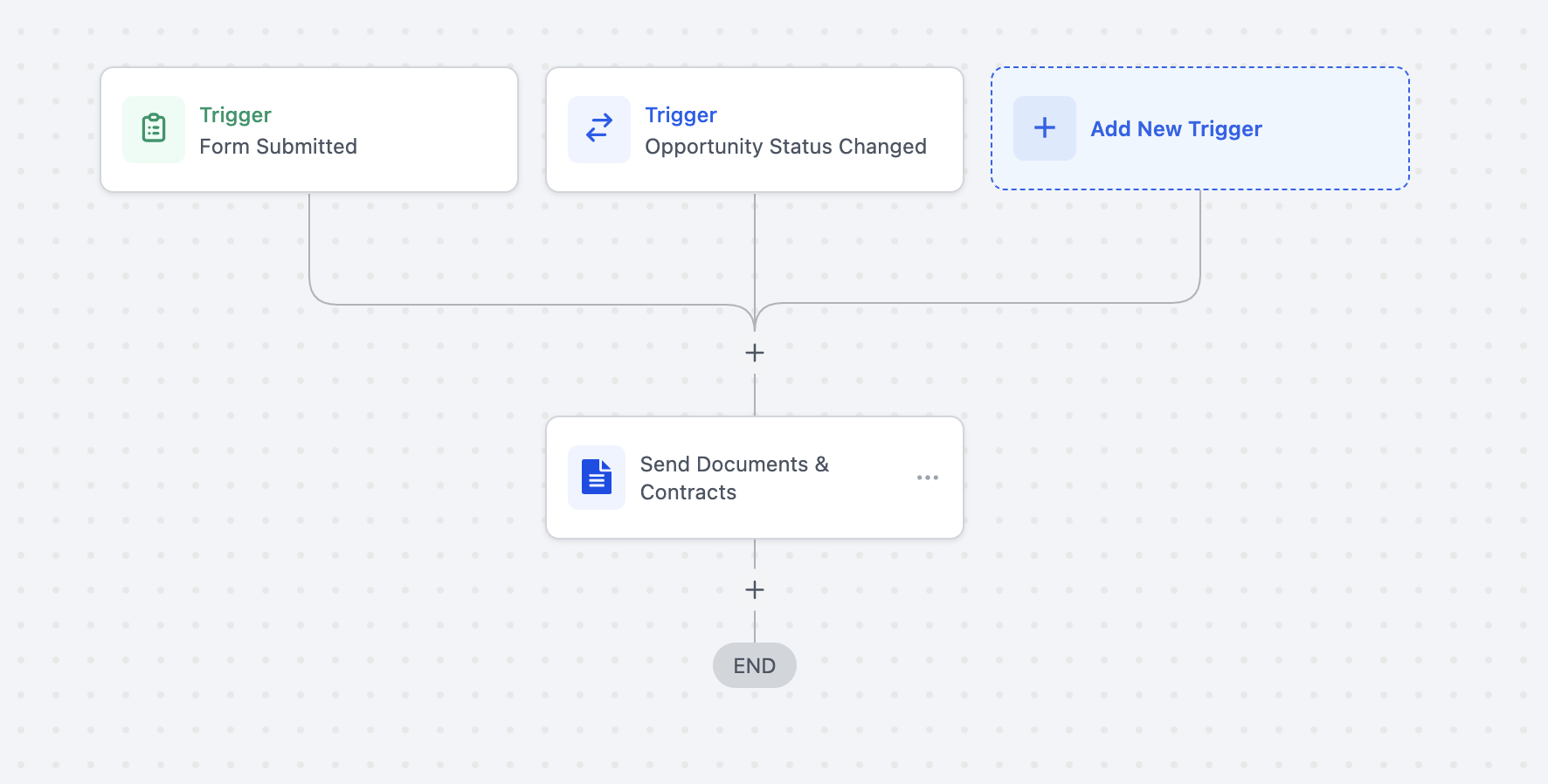
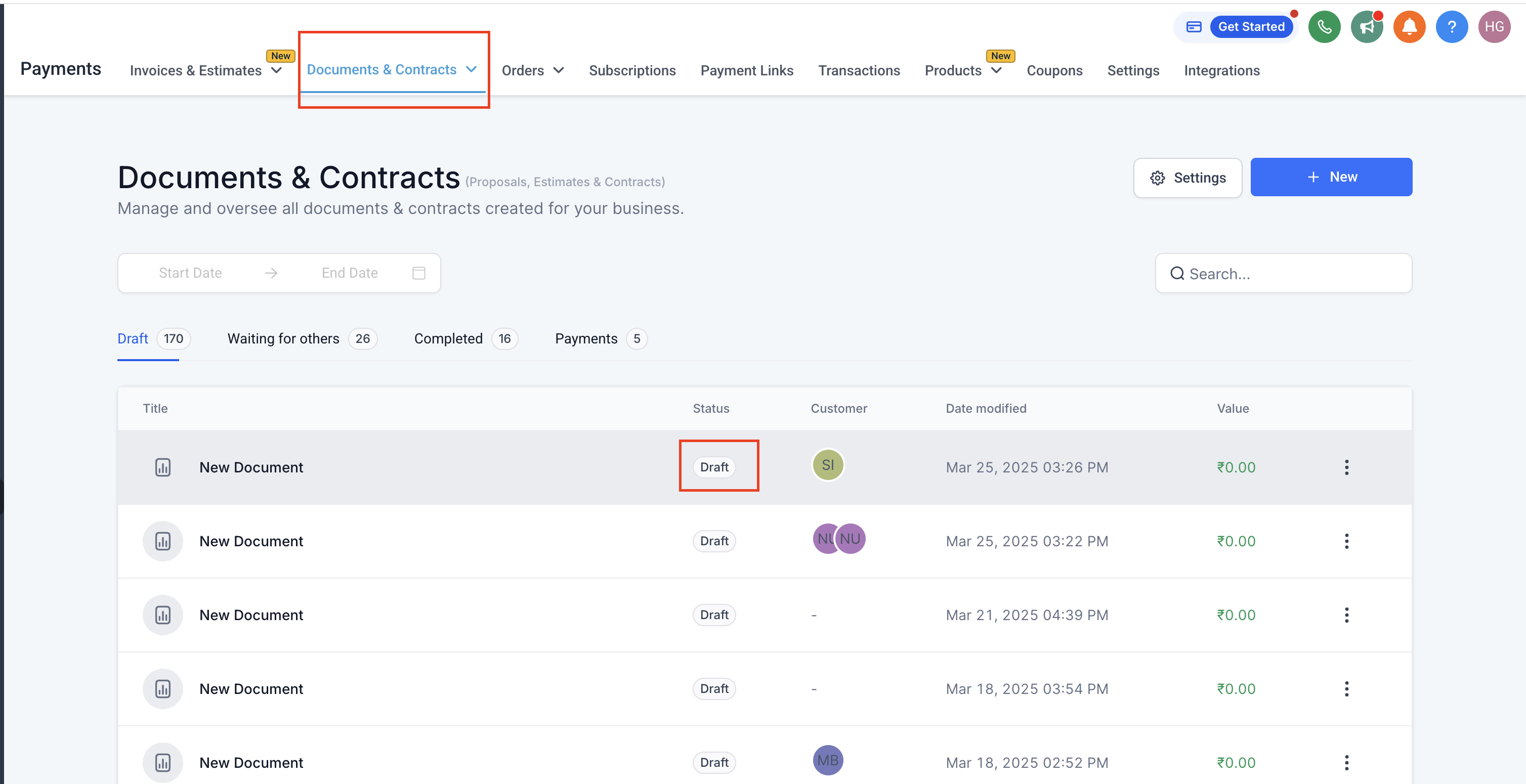
This action lives inside the workflow builder. When a trigger fires, such as a stage change or a form submission, the workflow can create a contract document based on a chosen template. The document is saved in draft status, so it does not leave the system until a user manually sends it.
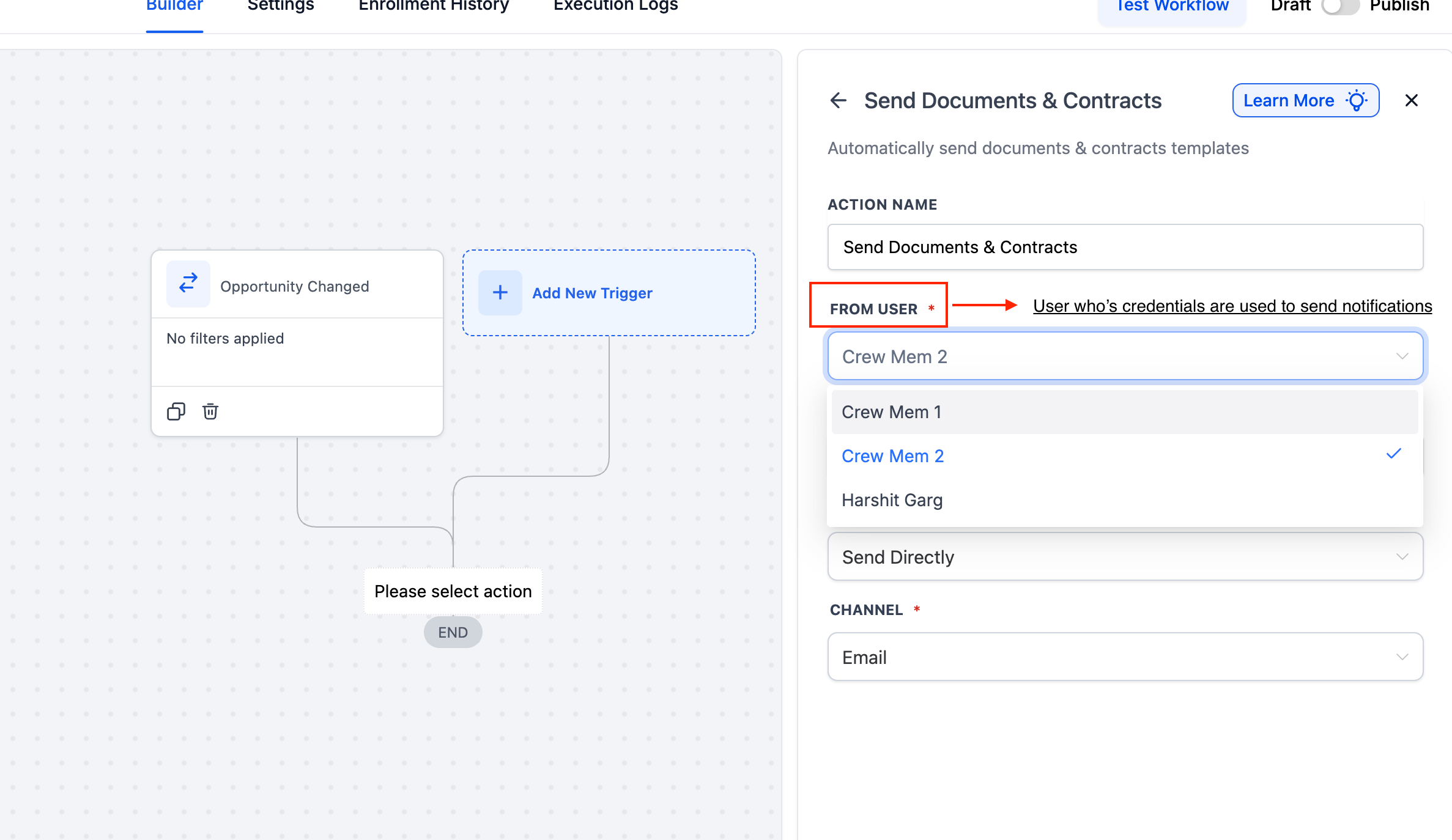
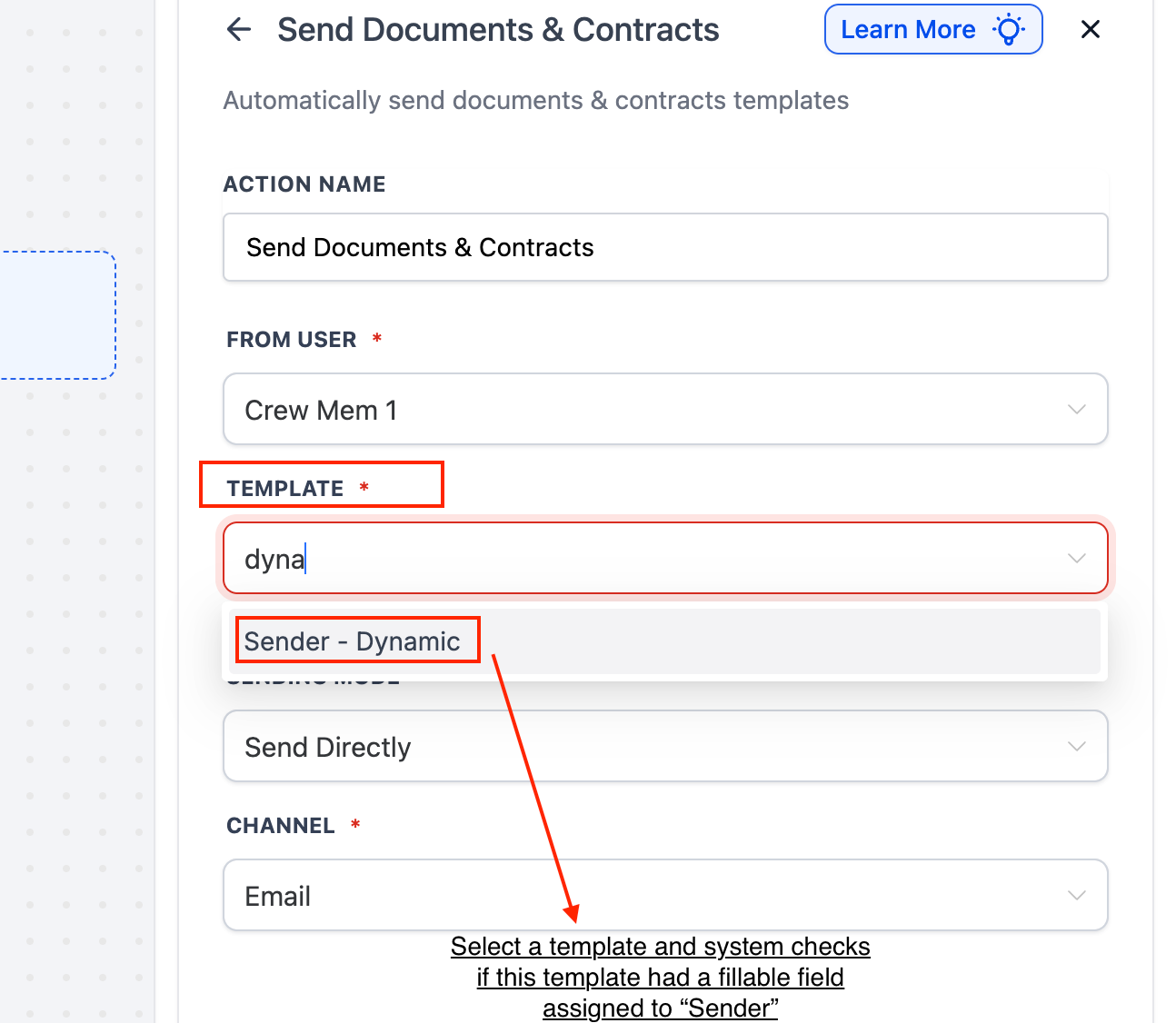
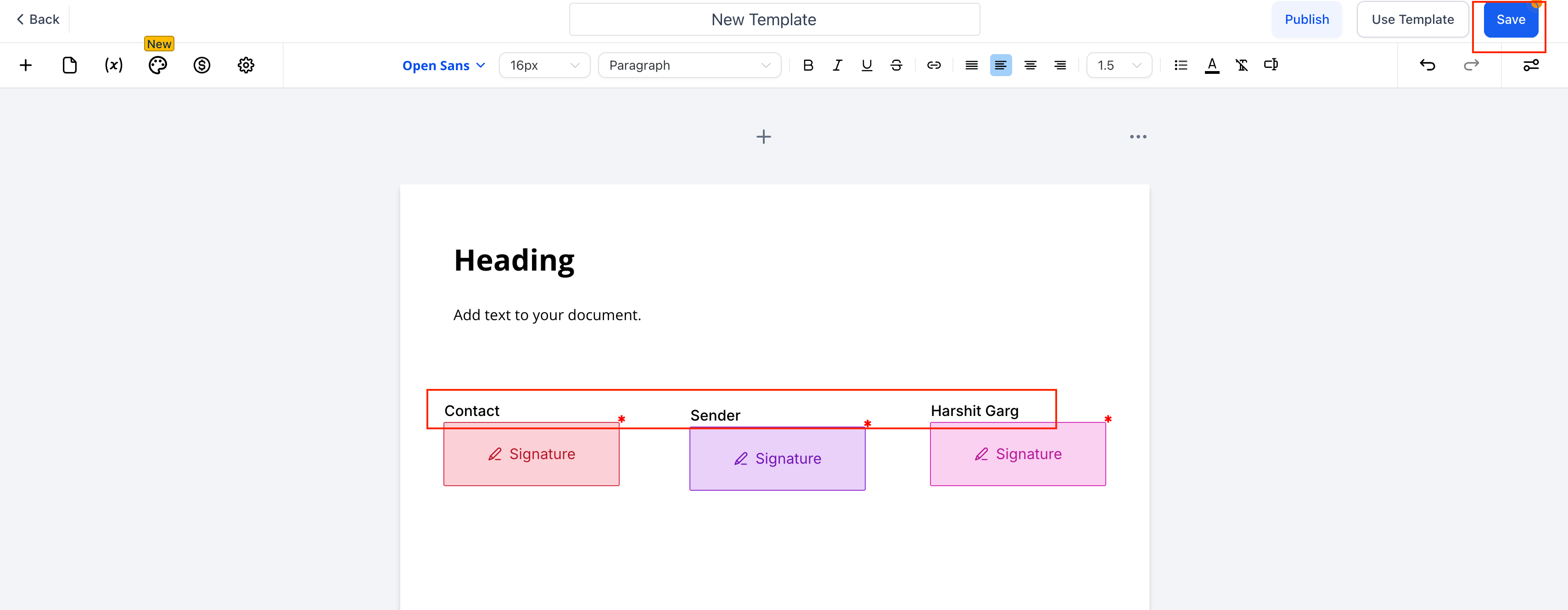
The action includes options to pick who appears as the sender, which template to use, and whether the document is saved as a draft or sent straight away. If the selected template contains fields marked "To be signed by > Sender", the system can automatically fill those fields with either the workflow’s From user or the user who last edited the template. All settings are configured directly on the action card before the workflow is published.
03How businesses use send documents & contracts
- Real estate agency. Agents set a workflow that runs when a property deal reaches the contract stage. The system creates a draft purchase agreement, assigns the listing broker as the sender, and holds the draft for the office manager to review before sending to the buyer.
- SaaS subscription service. When a new subscription is approved, a workflow generates a draft service agreement using the sales rep’s name as the sender. The contract stays in draft until the legal team opens Documents & Contracts, checks the terms, and clicks Send.
- Event planning company. After a client completes an event booking form, a workflow auto creates a draft venue contract. The planner designated as the From user appears on the document, and the event coordinator reviews and finalizes the send from the draft list.
04Before you start
- A contract template must exist, and if you plan to auto fill Sender fields, the template needs fillable fields marked "To be signed by > Sender".
- At least one user with permission to view Documents & Contracts should be available to act as the draft reviewer.
05How to set up and use send documents & contracts in HighLevel
Set up send documents & contracts action
- Open the Workflows area and start a new workflow or edit an existing one, then add a trigger such as a stage change or form completion.
- Click the button to add a new action and choose Send Documents & Contracts from the action list.
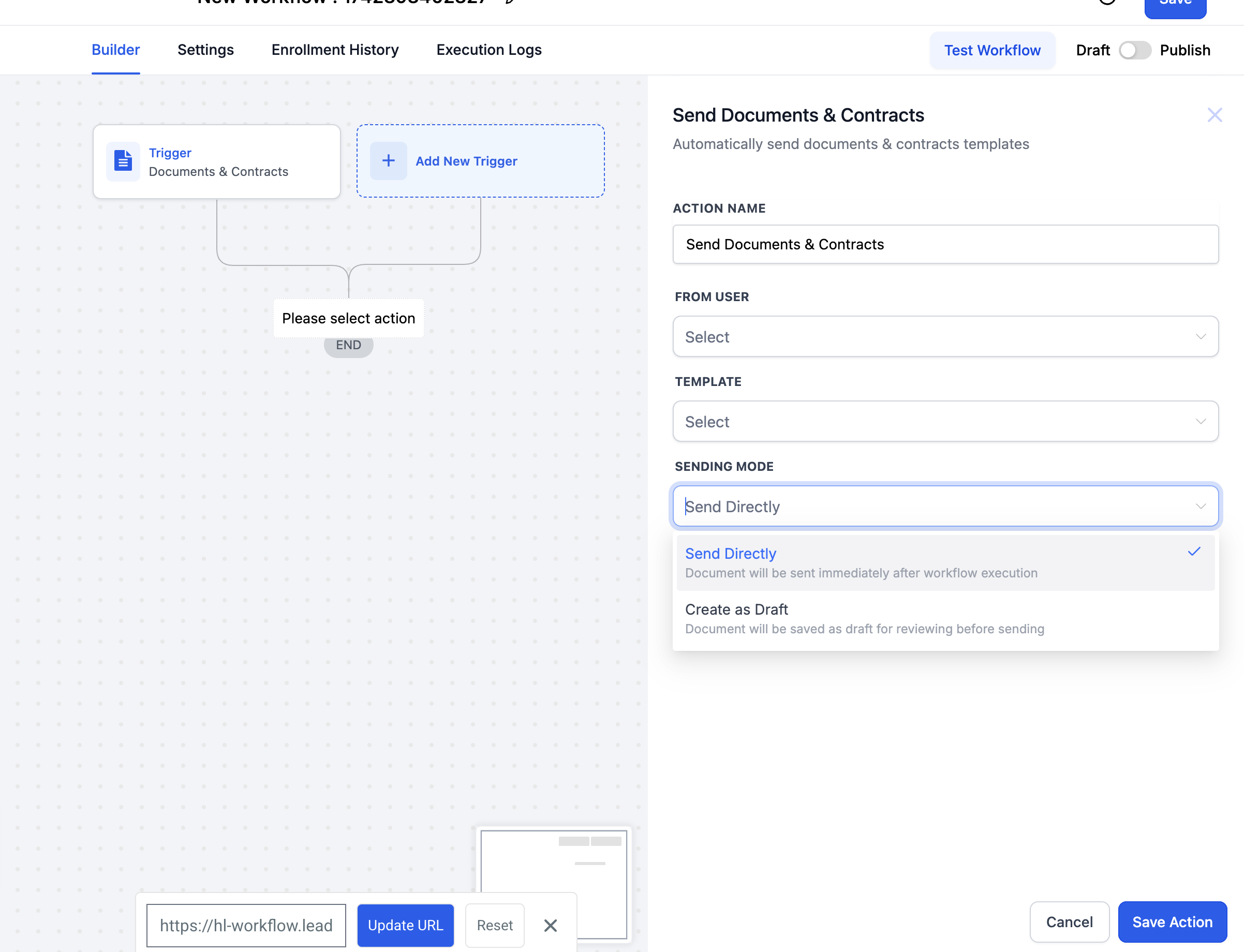
- Enter a label for the action, select the user who will appear as the sender, pick the desired contract template, and set the sending mode to Create as Draft.
- Save the action, then publish the workflow so contacts entering the flow will generate draft contracts automatically.
06What it looks like in HighLevel
07Settings that matter
- Action Name. Provides a readable label for this step inside the workflow.
- From User. Determines which internal user is shown as the contract sender.
- Template. Specifies the contract template that will be used to generate the document.
- Sending Mode. Chooses whether the contract is saved as a draft or sent immediately.
- Assign Sender Fields To. Selects whether Sender fields in the template are filled with the From user or the template owner.
- Channel. Sets the delivery method for the contract, such as Email or Direct.
08Things to know before you rely on it
- Workflows check the contract status only at the moment the contact enters the flow; later status changes do not trigger branch updates.
- If a workflow includes a condition based on document completion, that condition will not re evaluate after the contract is signed.
- To react to real time status changes, a separate workflow must be created that triggers on Document Signed or Document Completed events.
09How it connects to the rest of HighLevel
- Workflow automation basics Workflow intro
- Workflow Pro Plan pricing Pro plan tiers
- Start a 30 day trial Free trial
Michael's take

When you have several reps creating deals but only one person should sign off on contracts, the draft workflow removes the back and forth of manual edits and keeps the final send under tight control.
If your team already has a smooth hand off for contracts or you rarely need a review step, the extra draft stage may add unnecessary friction. In those cases sending directly from the workflow is the simpler path.