
01Who this is for
- Marketing managers can follow up with leads who have recently messaged the Facebook page, staying within the allowed response window.
- Customer support teams can send quick updates or confirmations to contacts that have opened a chat in the last day.
- Small business owners can deliver promotional content to engaged followers without leaving the HighLevel platform.
02Messenger actions, explained
The Messenger action is a workflow step that sends a Facebook Messenger message directly to a contact. It only works when the contact has interacted with a connected Facebook page no more than 24 hours before the step runs, complying with Facebook's messaging policy.
Within the action you can select a pre saved template, write a custom message that can include dynamic fields, attach files or link to online content, and optionally test the output. The action lives inside a workflow builder alongside other triggers, filters, and actions.
03How businesses use messenger action
- Digital marketing agency. The agency adds the Messenger action after a Facebook ad lead form trigger, selects a thank you template, and attaches a brochure PDF. This delivers the brochure right away to the lead who just messaged the page.
- Fitness studio. The studio creates a workflow that sends class reminders via Messenger. It crafts a message with the member’s name, adds an image of the schedule, and tests the message before activation.
- Ecommerce store. The store uses the action to follow up on cart abandonment chats. It writes a personalized discount offer, includes a product image, and sends a test to verify formatting.
04The numbers and rules that matter
- Contact must have messaged a connected Facebook page within the last 24 hours.
05Before you start
- A Facebook page must be linked to the HighLevel account.
- The contact must have sent a message to that page within the last 24 hours.
06How to set up and use messenger action in HighLevel
Configure the Messenger action
- Drag the Messenger action onto the workflow canvas.
- Choose a pre defined template if one matches the intended message.
- Enter the message text, inserting custom values to personalize it.
- Click Add attachment to upload an image, document, or other media file.
- Use the + Add button under Add files through URL to link online files.
- Activate the Test Phone Number option to send a preview of the message.
07What it looks like in HighLevel
08Settings that matter
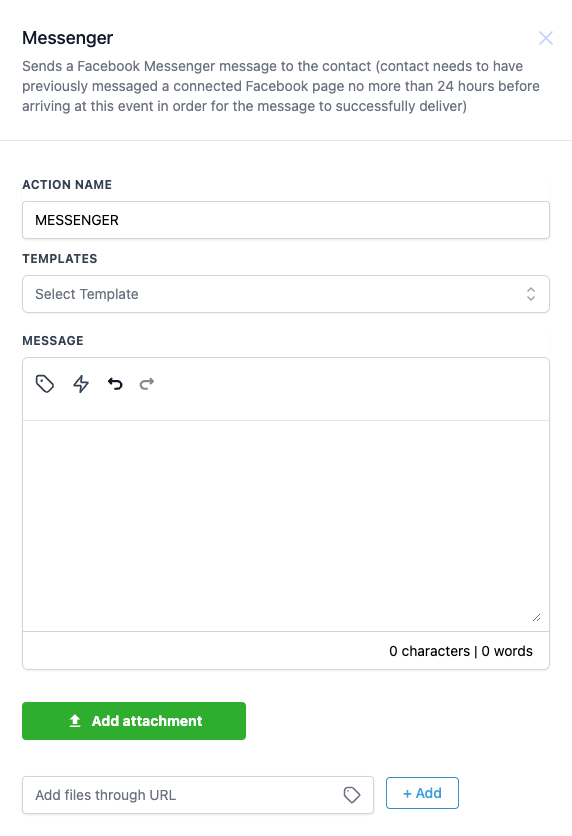
- Action Name. Identifies the action inside the workflow; this field must be completed.
- Templates. Lets you pick a saved message template to keep messaging consistent; optional.
- Message. Contains the text that will be sent; you can use custom values for personalization and it is required.
- Add Attachment. Enables you to attach images, documents, or other media files to the Messenger message.
- Add files through URL. Allows you to attach files by providing a direct URL link to the content.
- Test Phone Number. Sends a test version of the message to a specified phone number before the workflow is finalized.
09Things to know before you rely on it
- The contact must have messaged the connected Facebook page within the previous 24 hours for the message to be delivered.
- Action Name and Message fields are mandatory; all other fields are optional.
10How it connects to the rest of HighLevel
- Learn the basics of workflow automation and how actions fit into a workflow. Workflow automation basics
- Step by step guide to building workflows with triggers, filters, and actions. Workflow creation guide
- Review plan options and features included with each HighLevel subscription. HighLevel pricing
Michael's take

Messenger action lets you drop a quick thank you, a reminder, or a brochure right into the chat they’re already using.
Never fire a Messenger message to someone who hasn’t messaged your page in the past 24 hours.