
01Who this is for
- Founders of SaaS businesses who receive leads from multiple channels and need a single record per prospect to keep communication consistent.
- Marketing managers at agencies that run high volume lead capture forms and want to avoid duplicate entries without manual clean up.
02Merge contact workflow actions, explained
The Merge Contact action lives inside a workflow. When the workflow reaches this step, HighLevel searches for another contact that matches the enrolled contact based on the chosen criteria, email, phone number, or both. If a matching record is found, the newer contact is merged into the older one, preserving the older record’s history. The workflow then proceeds using the surviving contact.
The action can be added to any workflow that has a trigger such as Contact Created, Form Submitted, or Contact Changed. You can give the action a custom name and select the matching rule. After saving and publishing the workflow, the merge runs automatically each time the trigger fires. Execution details appear in the Workflow Execution Logs for later review.
03How businesses use merge contact workflow action
- Real estate brokerage. When a new lead is captured from a website form and later enters a property inquiry via phone, the workflow uses the Merge Contact action set to Email and Phone Number. The duplicate leads are merged, keeping the full interaction history for the older client record while the workflow continues sending follow up messages.
- Fitness studio. A member signs up online and later registers at the front desk using a mobile number. The studio’s welcome workflow includes the Merge Contact action with Phone Number matching. The two records combine, ensuring class bookings and messaging reference the single surviving member profile.
- Ecommerce store. A shopper makes a purchase on the website and later creates an account in store using the same email address. The order fulfillment workflow adds the Merge Contact action set to Email matching, merging the newer store record into the existing online profile so order history stays linked.
04How to set up and use merge contact workflow action in HighLevel
Add merge contact action
- Log in to your subaccount.
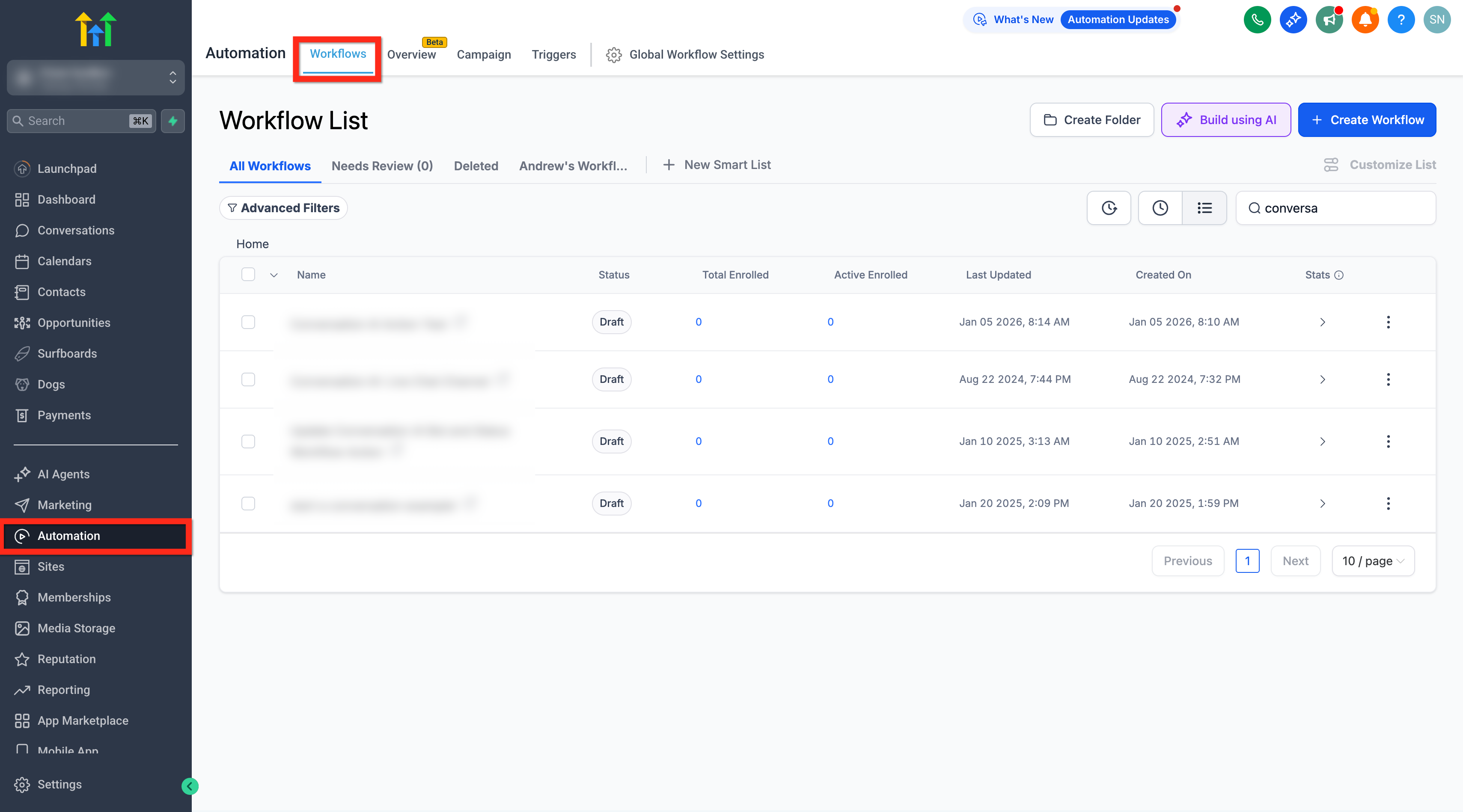
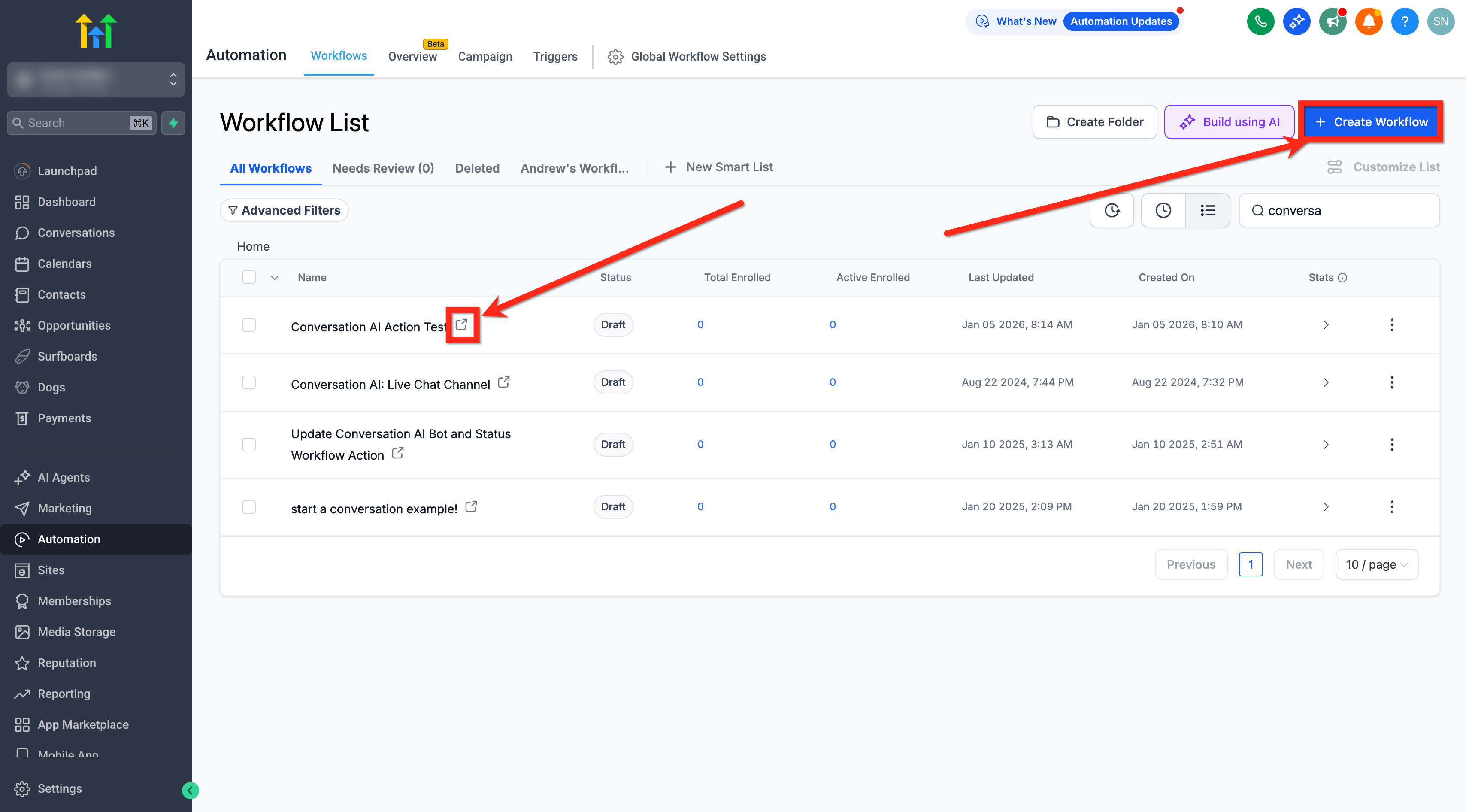
- Navigate to Automations > Workflows.
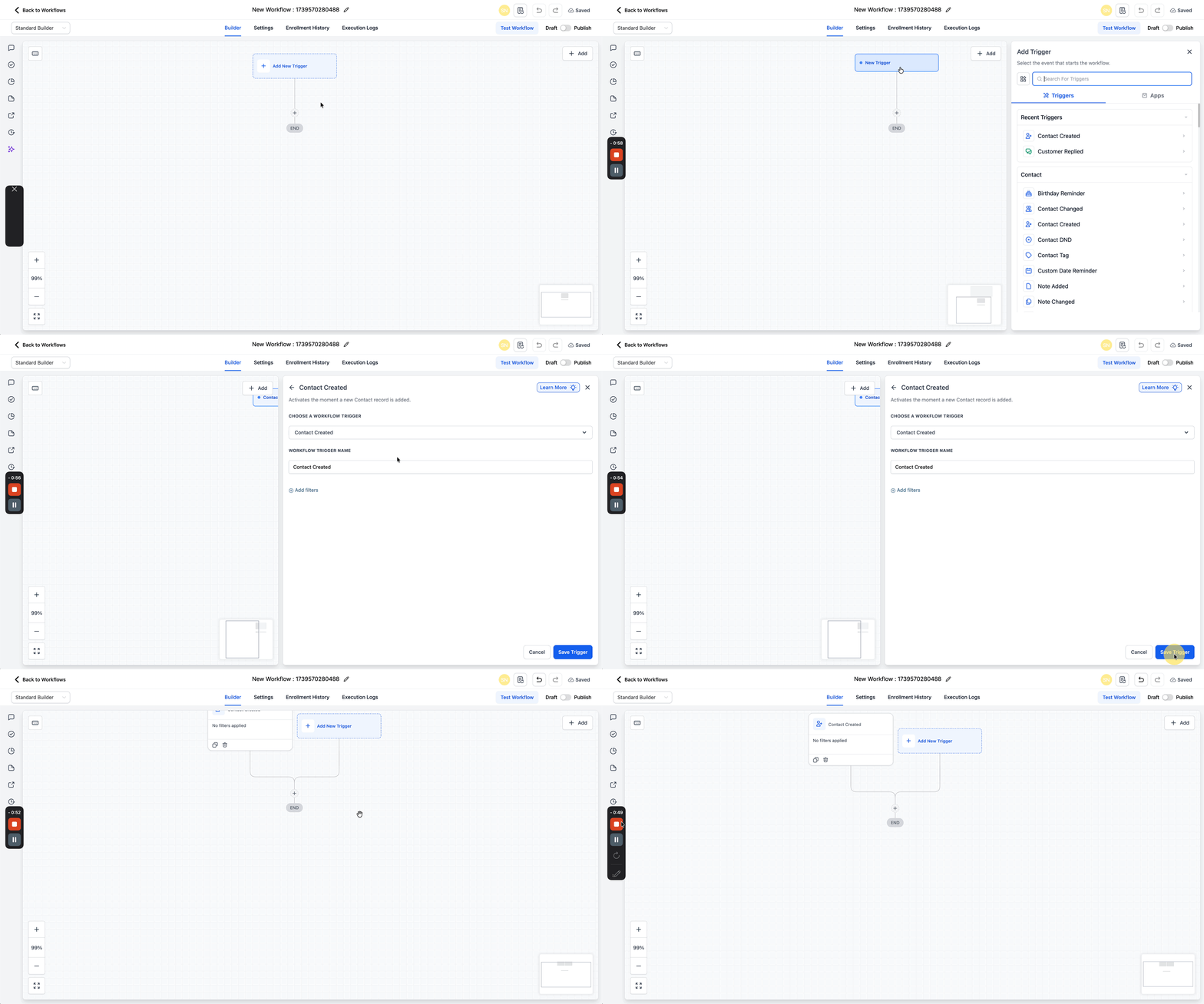
- Create a new workflow or open an existing one.
- Click the + Add New Trigger button and select a trigger that will run the merge action.
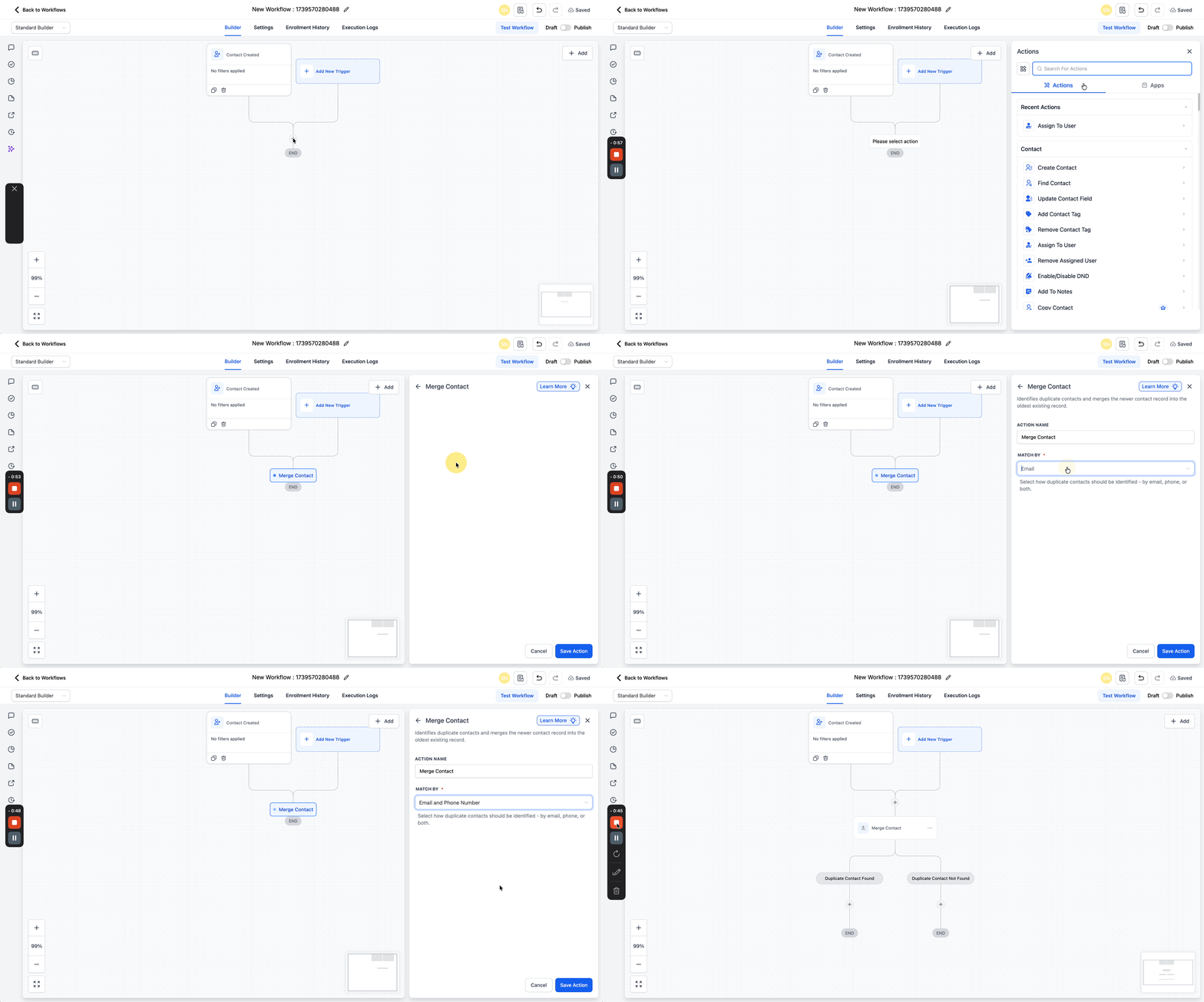
- Add the Contact Merged action to the workflow.
- In Match Criteria, select Email, Phone Number, or Email and Phone Number.
- Save the action.
- Publish and Save the workflow.
05What it looks like in HighLevel
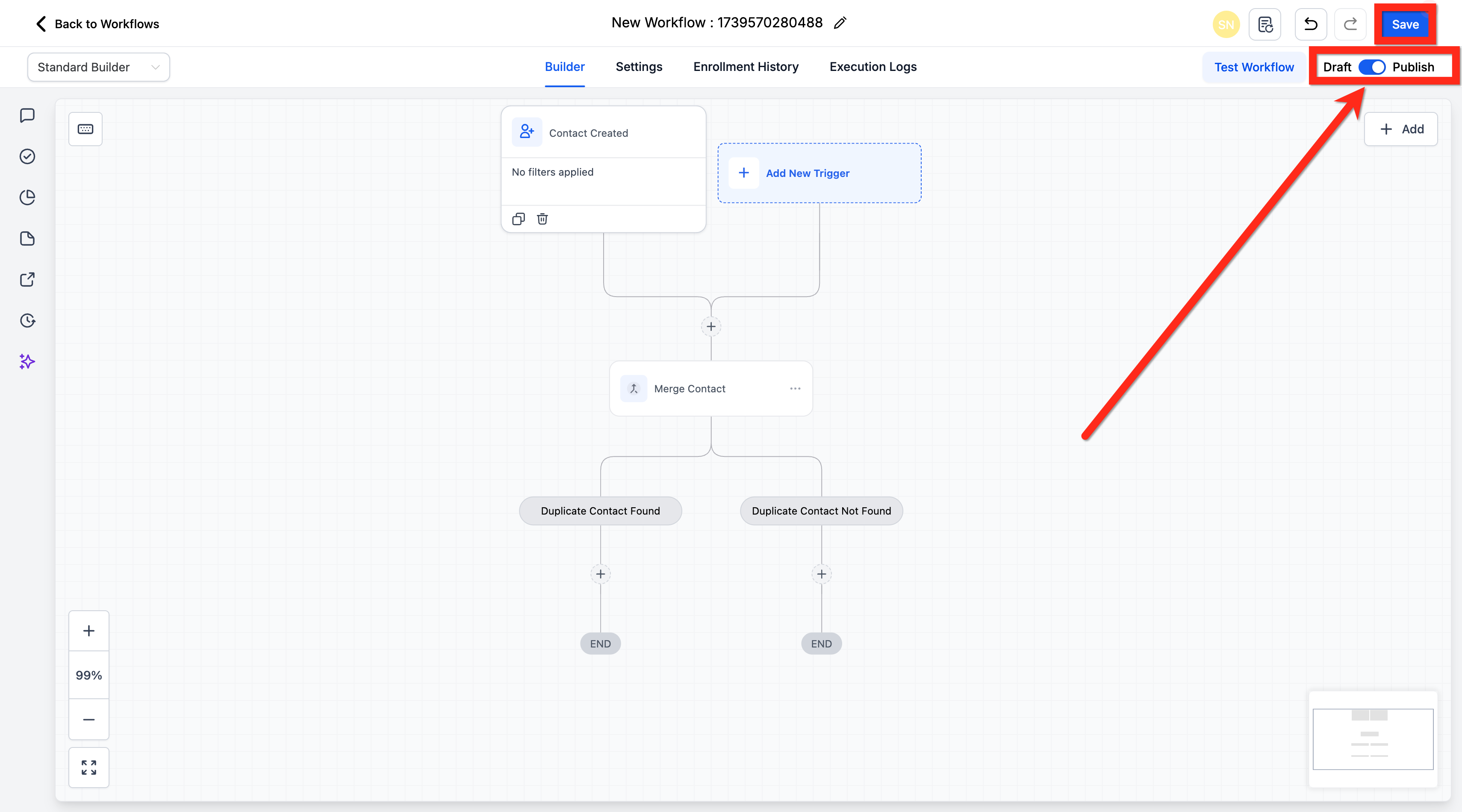
06Settings that matter
- Action Name. Provides a custom label for the merge step; if left blank the default name Merge Contact is used.
- Match By *. Determines which fields are compared to find duplicate contacts, options are Email, Phone Number, or both Email and Phone Number.
07Things to know before you rely on it
- If a goal references the old contact ID, it may not work as expected after a merge.
- Wait for reply steps can be disrupted if the message was sent before the merge, because the workflow may still be waiting on the original context.
- Wait for email events may not resume correctly after a merge for the same reason.
- Trigger link waits may fail because tracking links were generated with the original contact and message IDs.
- If the surviving contact is already in the same workflow, the merged execution ends.
- If the surviving contact was previously in the workflow and Allow Re entry is off, the merged execution ends.
08How it connects to the rest of HighLevel
- Add contact tag action guide Add Contact Tag
- Create contact action configuration Create Contact
- Update contact field action details Update Contact Field
- Start a 30 day HighLevel trial 30 day trial
- HighLevel pricing and plans overview Pricing
Michael's take

Merge Contact is a smart way to keep your contact list tidy without manual effort.
If you rely on manual duplicate cleanup or have no duplicate issues, you can skip this feature.