
01Who this is for
- Gym owners, can auto extend membership dates and trigger renewal reminders.
- Sales managers, can compute commissions or lead scores without manual spreadsheets.
- Operations directors, can adjust inventory counts or project deadlines directly in the platform.
02Math operation actions, explained
The Math Operation action is a workflow component that performs a single arithmetic or date calculation. It can add, subtract, multiply or divide numeric and monetary values, or add and subtract days, months or years on date fields. The result is written back to a field you choose.
In the workflow builder you pick a source field, select the type of operation, provide a value or merge tag as the operand, and designate a destination field. The action runs each time the workflow triggers, updating the record in real time.
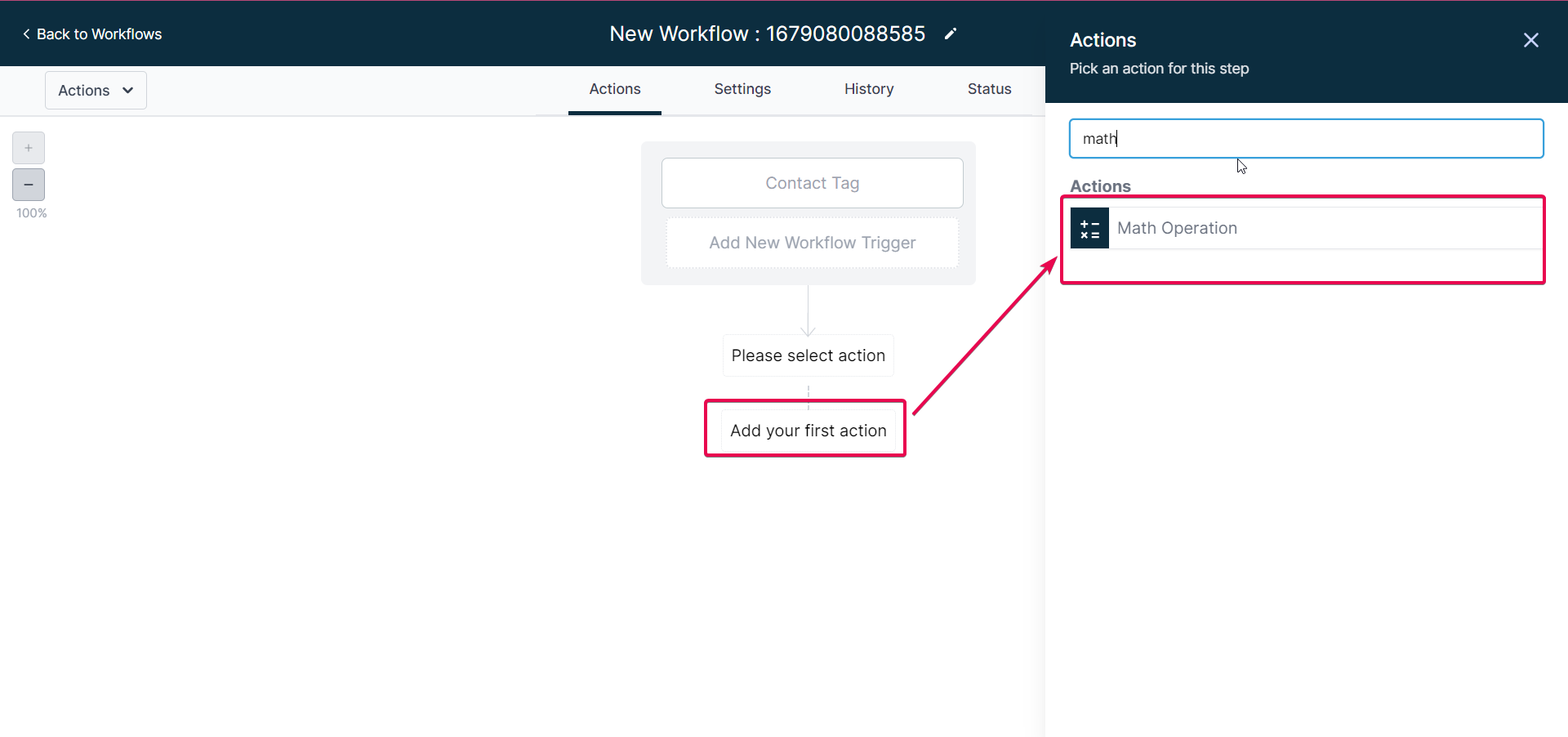
The action resides in the workflow editor under Add Action > Math Operation. It works alongside other actions such as email sends, tag updates, and can be combined with If/Else conditions for branching logic.
03How businesses use Math Operation actions
- Gym membership management. Create a workflow that runs when a membership expires. Add a Math Operation action, select the expiration date field, choose Add Years, enter 1 as the operand, and set the same date field as the update target. The system extends each member’s renewal date automatically.
- Loan servicing. When a payment is recorded, insert a Math Operation action that selects the remaining balance numeric field, chooses Subtract, and uses the payment amount merge tag as the operand. Update the same balance field so the new amount reflects each payment without manual entry.
- Retail inventory control. Set a workflow to fire after a sale is logged. Add a Math Operation action that picks the inventory count numeric field, selects Subtract, and inputs the quantity sold from the trigger. Update the inventory field so stock levels stay current.
04The numbers and rules that matter
- Supported field types: Numeric, Monetary, Date.
- Monetary fields have a minimum value of 0; numeric fields can store positive and negative values.
05Before you start
- A workflow must be created or selected before adding the Math Operation action.
- The field you plan to update must be of type numeric, monetary, or date and match the type of the selected field.
06How to set up and use Math Operation actions in HighLevel
Add a Math Operation action to a workflow
- Open an existing workflow or create a new one in the workflow builder.
- Click Add Action and choose Math Operation from the list.
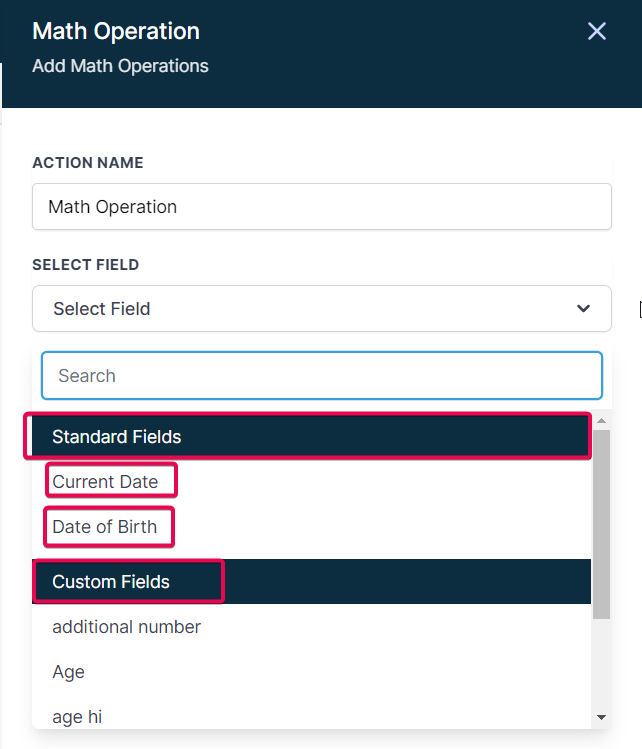
- Pick the field whose value will be used as the base for the calculation (Select Field).
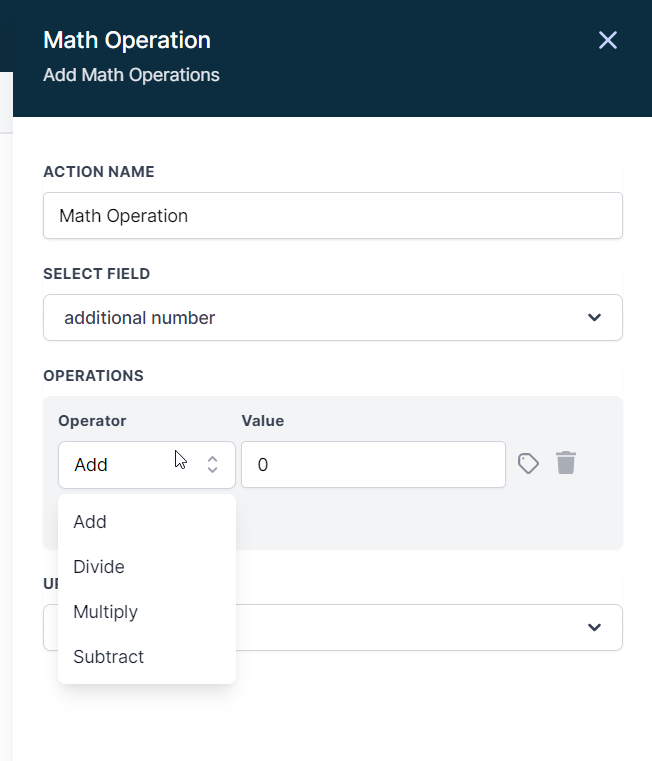
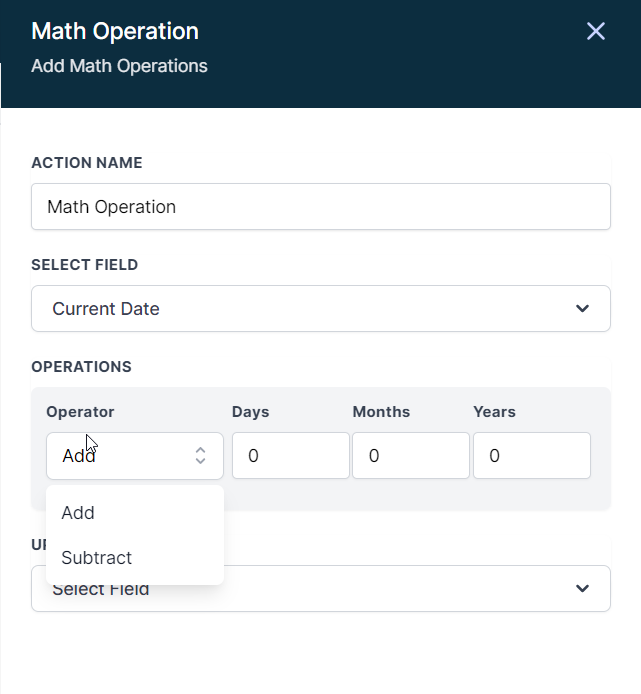
- Choose the operation: addition, subtraction, multiplication, division for numeric/monetary fields, or add/subtract days, months, years for date fields.
- Enter a number, merge tag, or custom field in the Value box to serve as the operand.
- Select the field that will receive the result (Update Field); it can be a standard, custom, or custom value field.
- Save the action.
- Publish the workflow so the calculation runs whenever the trigger fires.
- If the result is negative for a monetary field, the system replaces it with zero.
- Date and Current Date fields cannot produce negative values.
07What it looks like in HighLevel
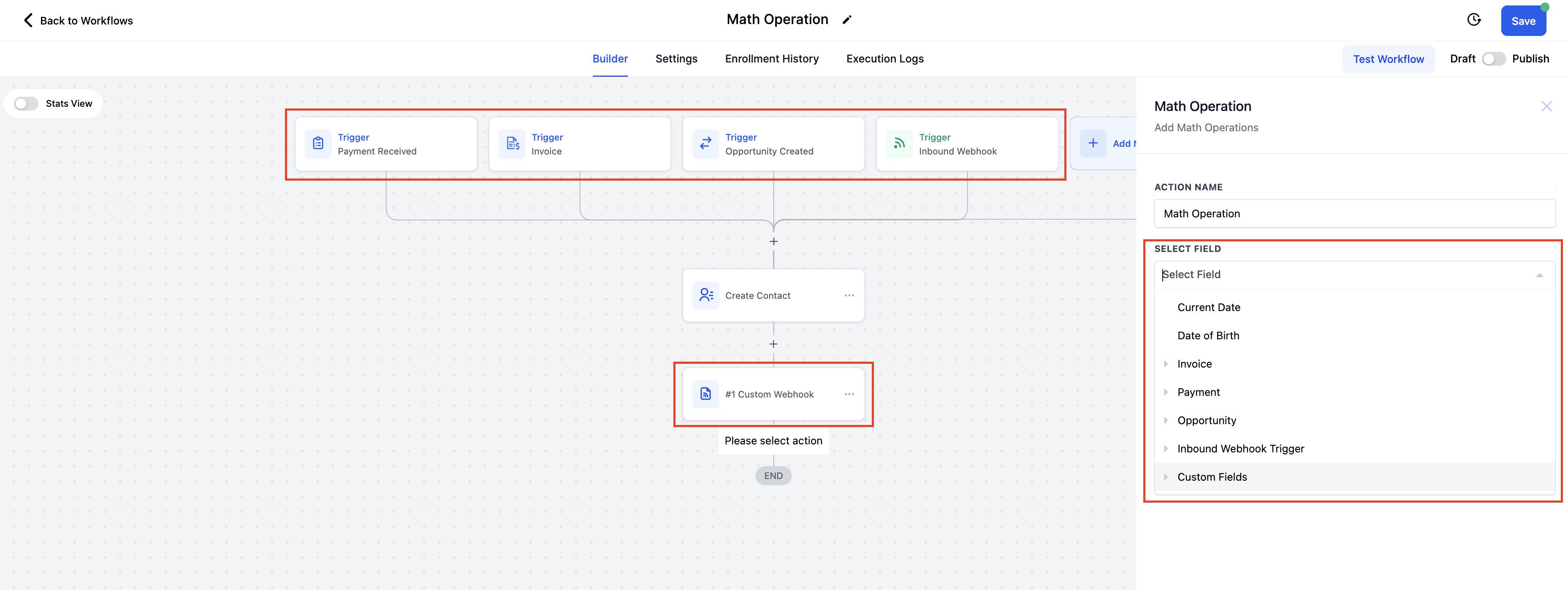
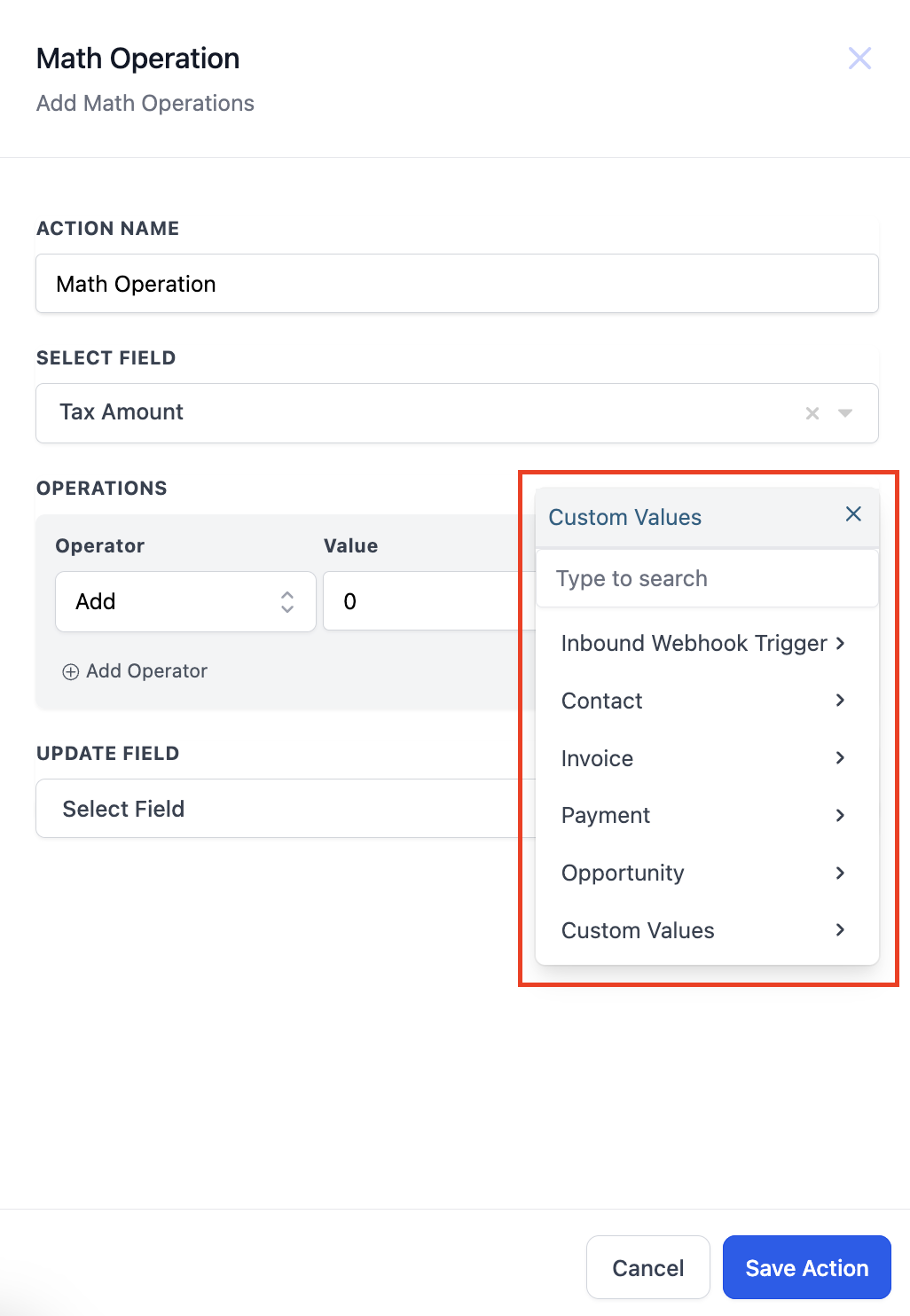
08Settings that matter
- Select Field. The field whose value will be used as the base for the calculation.
- Update Field. The field that receives the result of the math operation.
- Operation. The type of calculation to perform, such as add, subtract, multiply, divide, or date adjustments.
- Value. The operand entered as a static number, merge tag, or custom field reference.
09Things to know before you rely on it
- Only numeric, monetary and date field types are supported.
- The Select Field and Update Field must be of the same type.
- If the calculation yields a negative result for a monetary field, the system replaces it with zero.
- Date and Current Date fields cannot produce negative values.
- Monetary fields have a minimum value of zero; numeric fields can store positive and negative numbers.
10How it connects to the rest of HighLevel
- Start building a workflow and add actions Workflow creation
- Control contacts and timing for workflows Workflow settings
- See the full list of available workflow actions All workflow actions
Michael's take

In my experience, the most important first step is ensuring the selected field and the update field are the same type (numeric, monetary, or date). Mismatched types can prevent the Math Operation from working correctly.