
01Who this is for
- Customer support agents, need to send individualized follow up texts that require a personal touch.
- Sales representatives, can manually reach out after a lead fills a form, using custom values and calendar links.
- Appointment coordinators, create tasks that include booking links, ensuring the right staff member sends the SMS.
02Manual SMS, explained
The Manual SMS workflow action generates a manual task for a user to send a text message to a contact. The task is listed under Conversations > Manual Actions and waits for a team member to complete it.
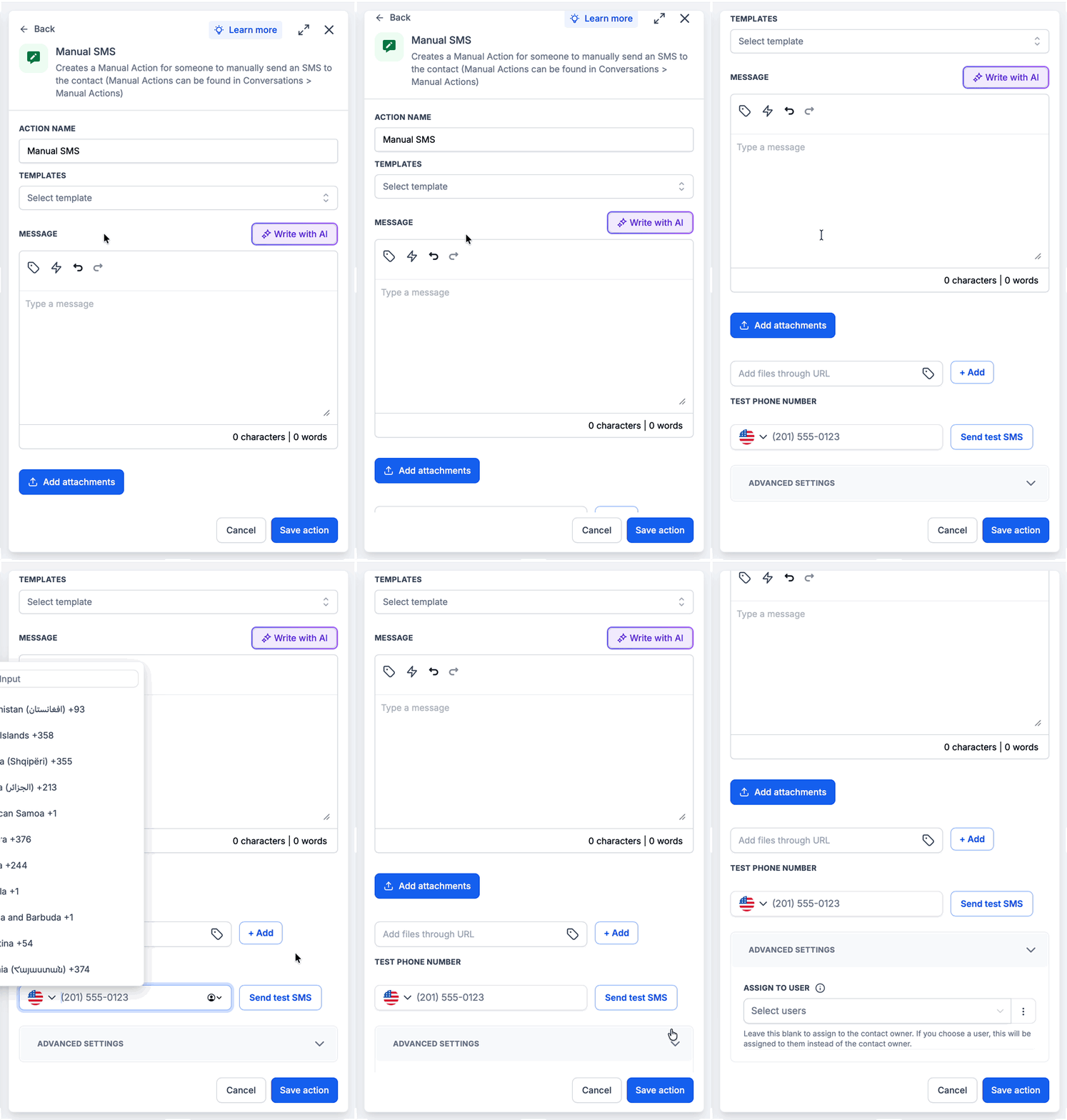
When configuring the action you can pick a predefined template, write a custom message with placeholders, add an attachment URL, and test the message by sending it to a phone number. An optional Assign To setting lets you route the task to a specific user instead of the default contact owner.
03How businesses use manual SMS
- Fitness studio. Staff select a template for class reminders and insert the member’s name using custom values. They test the message with a phone number, then assign the task to the instructor who will send the SMS.
- Real estate agency. Agents create a manual SMS after a property inquiry, adding the prospect’s name and a link to schedule a showing. They preview the text with a test number and assign the task to the designated listing agent.
- Dental practice. Receptionists generate a manual SMS for appointment confirmations, including the patient’s name and a clickable link to confirm or cancel. They may attach a PDF via URL and assign the task to the office manager.
04How to set up and use manual SMS in HighLevel
Configure manual SMS action
- Choose an SMS template from the list if a predefined message is needed.
- Enter the message body and add placeholders using the custom values dropdown.
- Provide a URL in the Add Attachment field if an attachment is required.
- Select a test phone number, adjust the country picker if necessary, and click Send test SMS.
- If the number is invalid the field shows “Invalid phone number.”
- Optional: In Advanced Settings pick a user for the Assign To field to override the default contact owner.
05What it looks like in HighLevel
06Settings that matter
- Action Name. Identifies the action inside the workflow.
- Templates. Allows selection of a predefined SMS content that pre fills the message field.
- Message. The text that will be sent; supports custom values and trigger links.
- Custom Values. Provides placeholders for dynamic data such as contact name or appointment details.
- Add Attachment. Enables entering a URL to attach a file to the SMS.
- Test Phone Number. A number used to preview the SMS; the platform formats it to an international standard before sending.
- Assign To. Selects a specific user for the manual task; falls back to the contact owner if the chosen user lacks contact access.
07Things to know before you rely on it
- The country picker defaults to the subaccount’s country; selecting another country requires clicking the flag and searching by name or dialing code.
- If the entered test phone number is not valid, the field displays “Invalid phone number.”
- Assign To follows fallback logic: if the selected user lacks contact access the task goes to the contact owner, otherwise to Unassigned when neither have access.
08If something goes wrong
- “Invalid phone number” error when testing SMS. Enter a valid phone number in local format for the chosen country and retry the test.
09How it connects to the rest of HighLevel
- Configure the Send SMS action in HighLevel workflows Send SMS action guide
- Internal notification workflow action in HighLevel Internal notification guide
- HighLevel workflow automation: basics and set up guide Workflow basics
Michael's take

People think the Manual SMS step automatically sends a text, but it only creates a task. The real value is the chance to review and add a personal touch before the message goes out.
If I were setting this up, I’d pick a template, add a custom placeholder for the contact’s name, and test it on my own phone.