
01Who this is for
- Founders who need AI reasoning for specific workflow points, because the action adds flexible decision making without leaving the platform.
- Small agencies that want to reuse a single Managed Agent across many automations, saving time on duplicated AI configuration.
- Businesses that handle files in automations, as the action can pass attachments to the agent for analysis.
02Invoke Managed Agent, explained
Invoke Managed Agent is a workflow action that hands off a task to a published Managed Agent. When the workflow reaches this step, HighLevel sends the selected contact, any dynamic values, and optional attachments to the agent. The agent runs its configured instructions, tools, knowledge bases, and CRM capabilities, then returns a response.
The response becomes a dynamic value that later workflow actions can read. You can use it to update records, branch the automation, or populate messages. The action lives inside the Workflow Builder under Automation > Workflows, where you add it as a regular step.
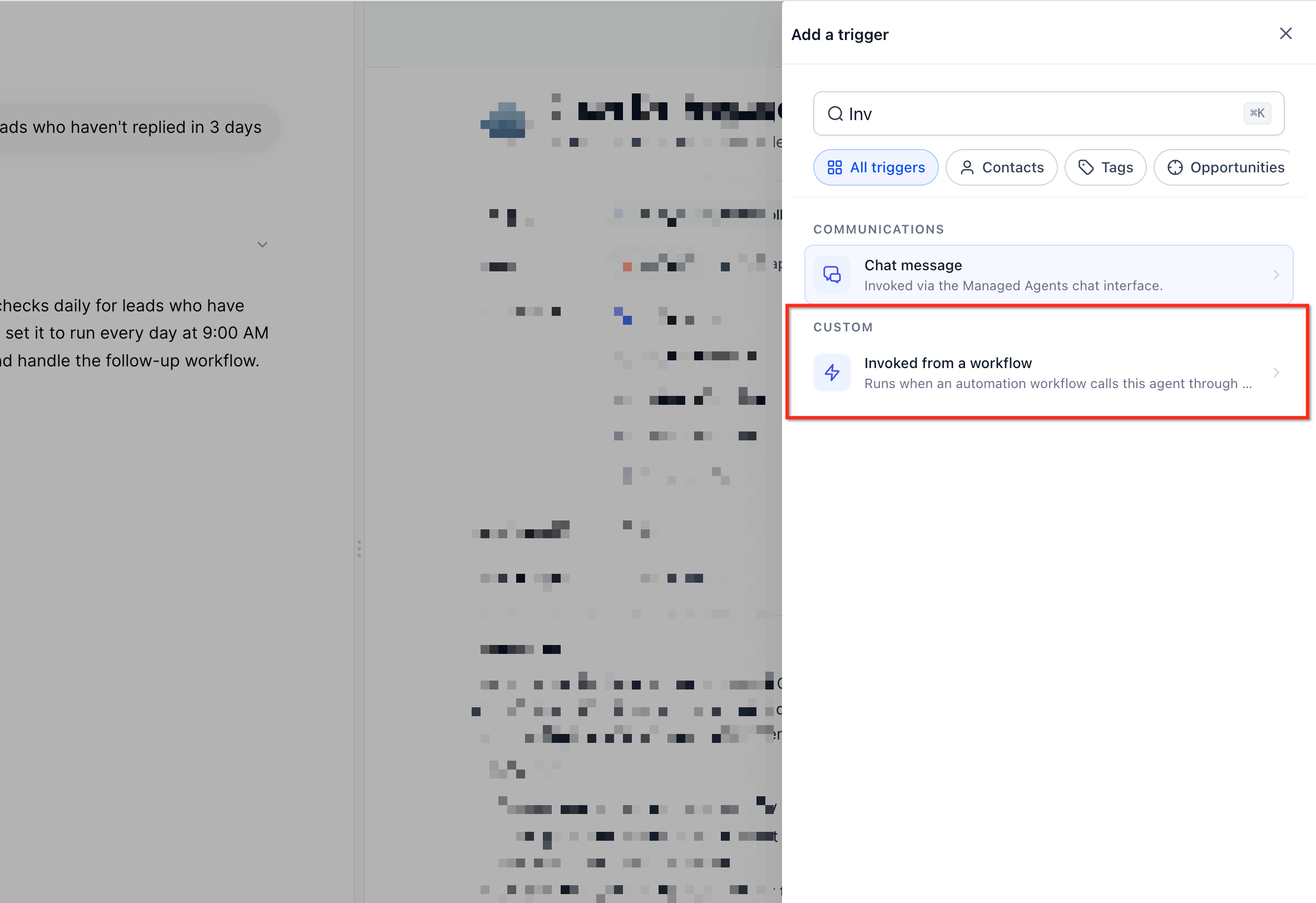
To use the action, the Managed Agent must already exist, have the "Invoked from a workflow" trigger added, be tested, and be published. Once the agent appears in the selector, you write an instruction, optionally add dynamic data or attachments, and save the action.
03How businesses use Invoke Managed Agent
- Dental practice. A dental office can invoke a Managed Agent to review a patient’s recent appointment notes and return a recommended follow up plan. The workflow then uses that plan to send a personalized reminder email.
- SaaS company. A SaaS business can pass a subscription record and usage data to a Managed Agent, which evaluates churn risk and returns a risk score. The workflow branches to a retention sequence if the score is high.
- Real estate brokerage. A brokerage can attach a property PDF to a workflow, invoke a Managed Agent to extract key details, and use the extracted information to populate a property summary message sent to the client.
04Before you start
- Create a Managed Agent in AI Agents > Agent Studio.
- Add the "Invoked from a workflow" trigger to the agent.
- Test the agent and publish it.
05How to set up and use Invoke Managed Agent in HighLevel
Set up invoke managed agent
- Open AI Agents > Agent Studio.
- Select the Managed Agents tab.
- Create a new Managed Agent or open an existing one.
- Define the agent’s instructions, tools, Knowledge Base access, and CRM capabilities.
- Open the agent’s trigger configuration.
- Add the Invoked from a workflow trigger.
- Test the Managed Agent to confirm expected behavior.
- Publish the Managed Agent.
- Navigate to Automation > Workflows.
- Create a new workflow or open an existing one.
- Locate the point where the agent should run.
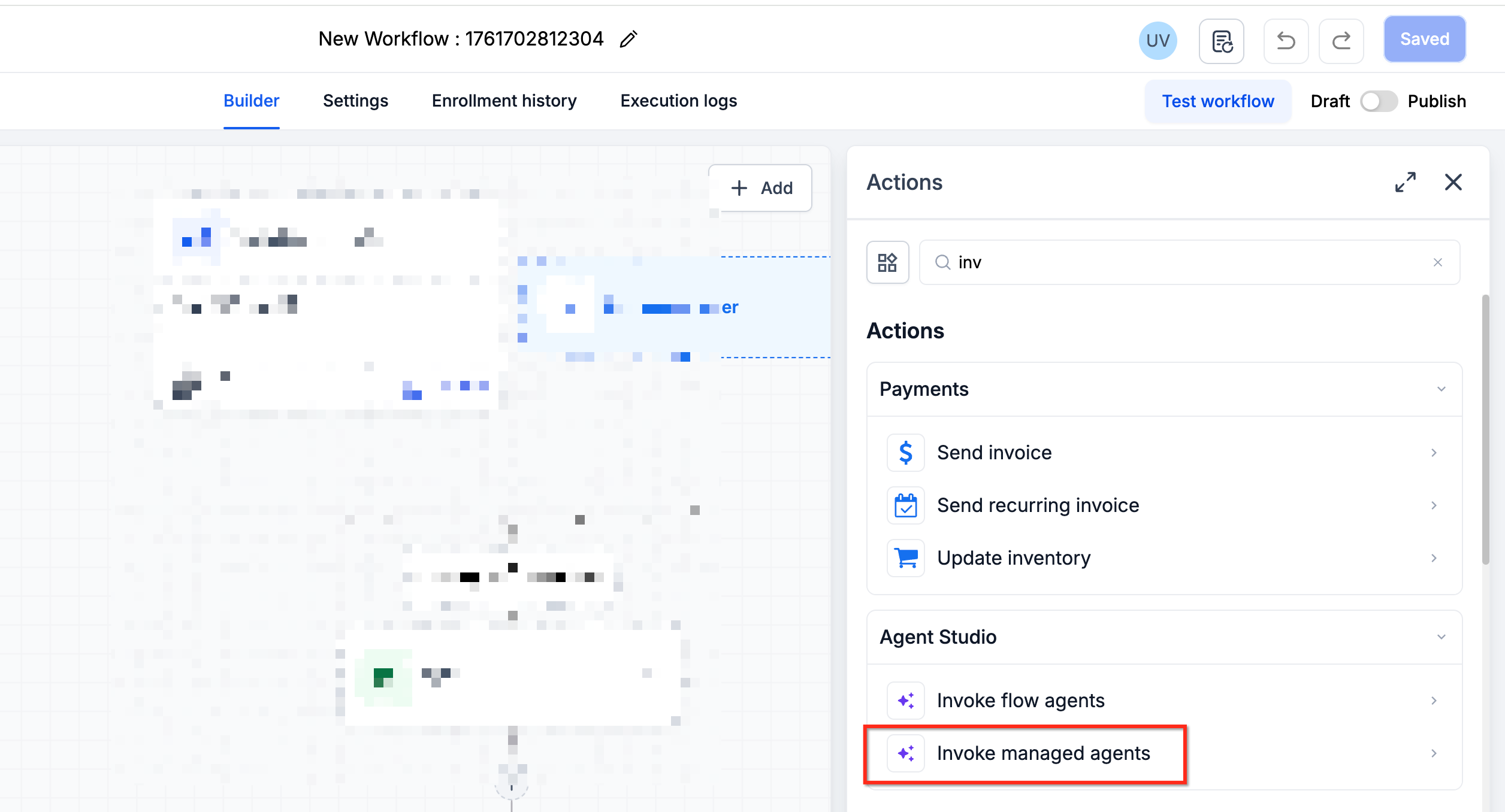
- Click + Add Action.
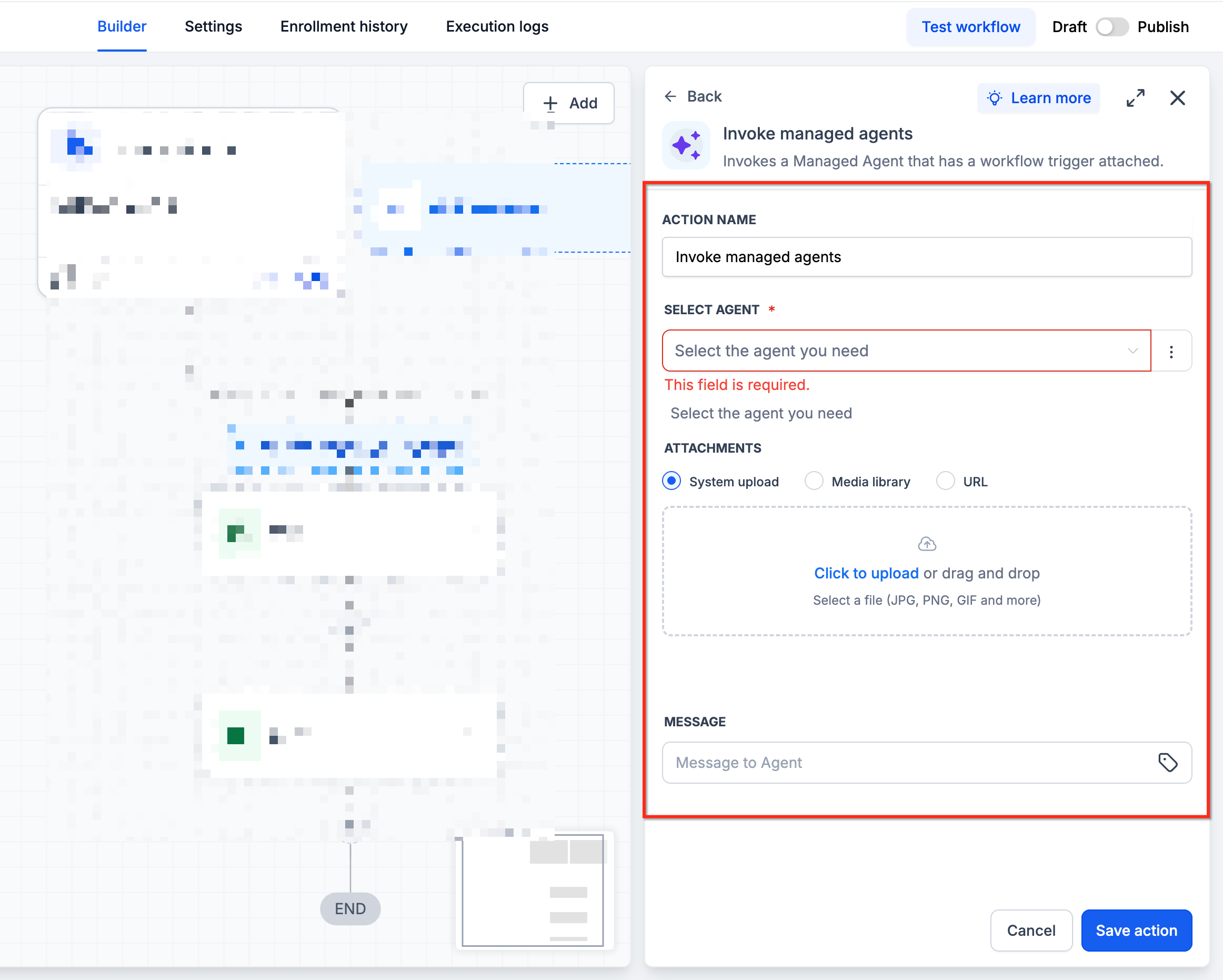
- Choose Invoke Managed Agent and select the published agent.
- Enter the instruction that tells the agent what to do.
- Insert dynamic contact or workflow data where needed.
- Attach any required files for the agent’s context.
- Save the Invoke Managed Agent action.
- Add downstream actions that will use the agent’s response.
- Test the workflow with representative contact data and context.
- Publish the workflow when testing is complete.
06What it looks like in HighLevel
07Settings that matter
- Invoked from a workflow trigger. Enables a Managed Agent to be started by a workflow action.
08Things to know before you rely on it
- Only Managed Agents that have the Invoked from a workflow trigger and are published appear in the selector.
- The action does not replace standard workflow steps; it works alongside them.
09If something goes wrong
- Managed Agent does not appear in the Invoke Managed Agent selector. Confirm that the Managed Agent has the Invoked from a workflow trigger and that it is published.
10How it connects to the rest of HighLevel
- Learn the basics of HighLevel workflows Workflow basics
- See HighLevel pricing and plan options Pricing
- Start a free 30 day HighLevel trial Free trial
Michael's take

When a Workflow hits a point where static steps aren’t enough. Like needing a quick summary of a contact’s history or generating a custom reply. You need a way to bring AI insight without breaking the flow. The first setting I would get right is the Managed Agent trigger: Make sure the agent has the "Invoked from a workflow" trigger and is published so the action can find it.
If I were setting this up, I’d start by testing the agent in isolation, then plug it into a simple Workflow and watch the response feed into an update step. That confirms the handoff works before I trust it with more complex branching or messaging.