
01Who this is for
- Support teams that need to keep their message inbox tidy and quickly identify unread chats.
- Teams that manage inbound conversations and want to reduce manual inbox work.
02Edit conversation workflow action, explained
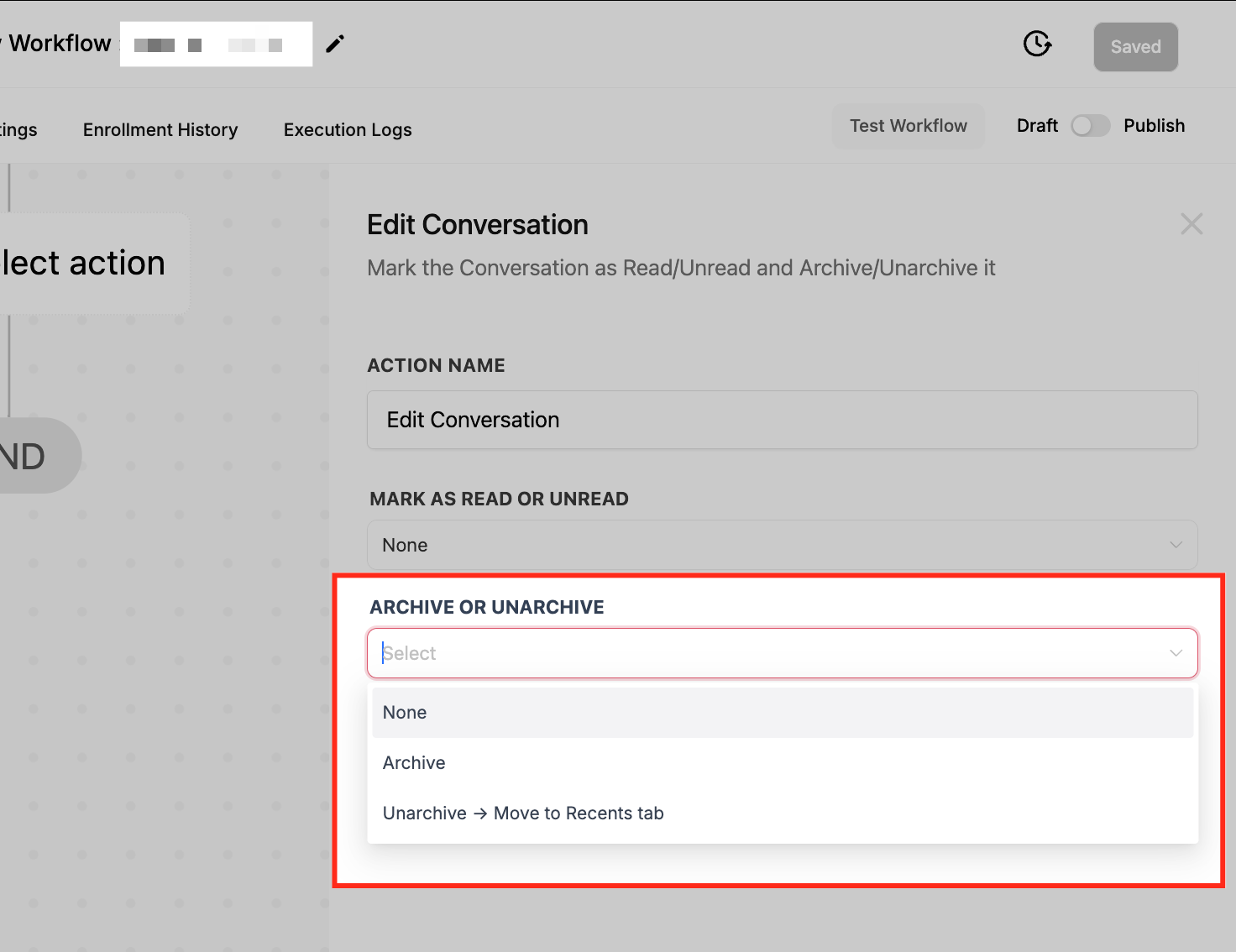
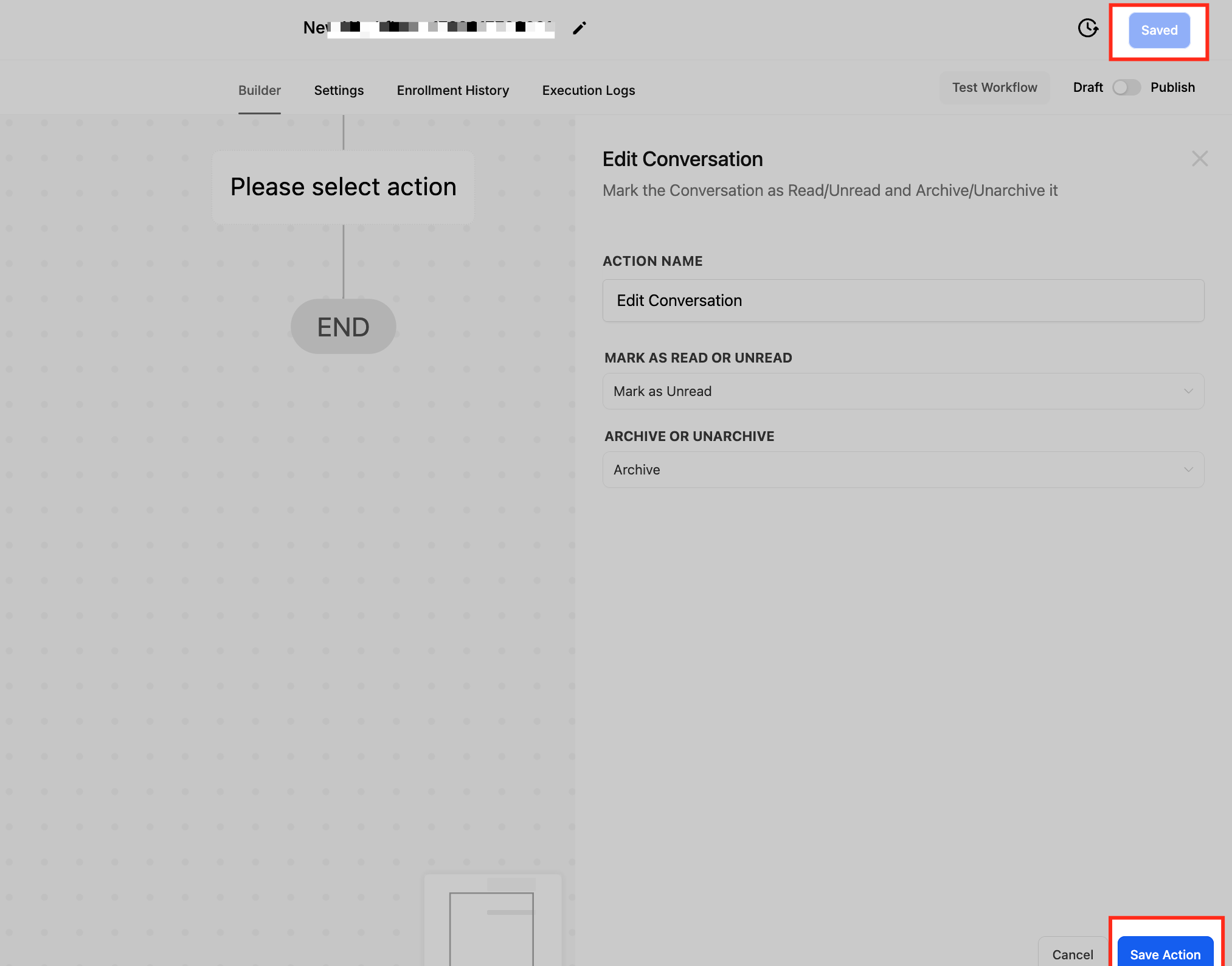
The Edit Conversation action changes the read/unread flag of a chat and can also archive or unarchive the thread. When set to Mark as Read, the unread indicator disappears and the divider that separates unread messages is removed in supported views. Selecting Archive moves the conversation out of the active view, while Unarchive returns it to the recent list.
This action is available inside the workflow builder. After a trigger fires, the workflow runs the Edit Conversation step and applies the chosen settings to the specific conversation linked to the contact. No notifications are sent by this action; it only updates the status inside the platform.
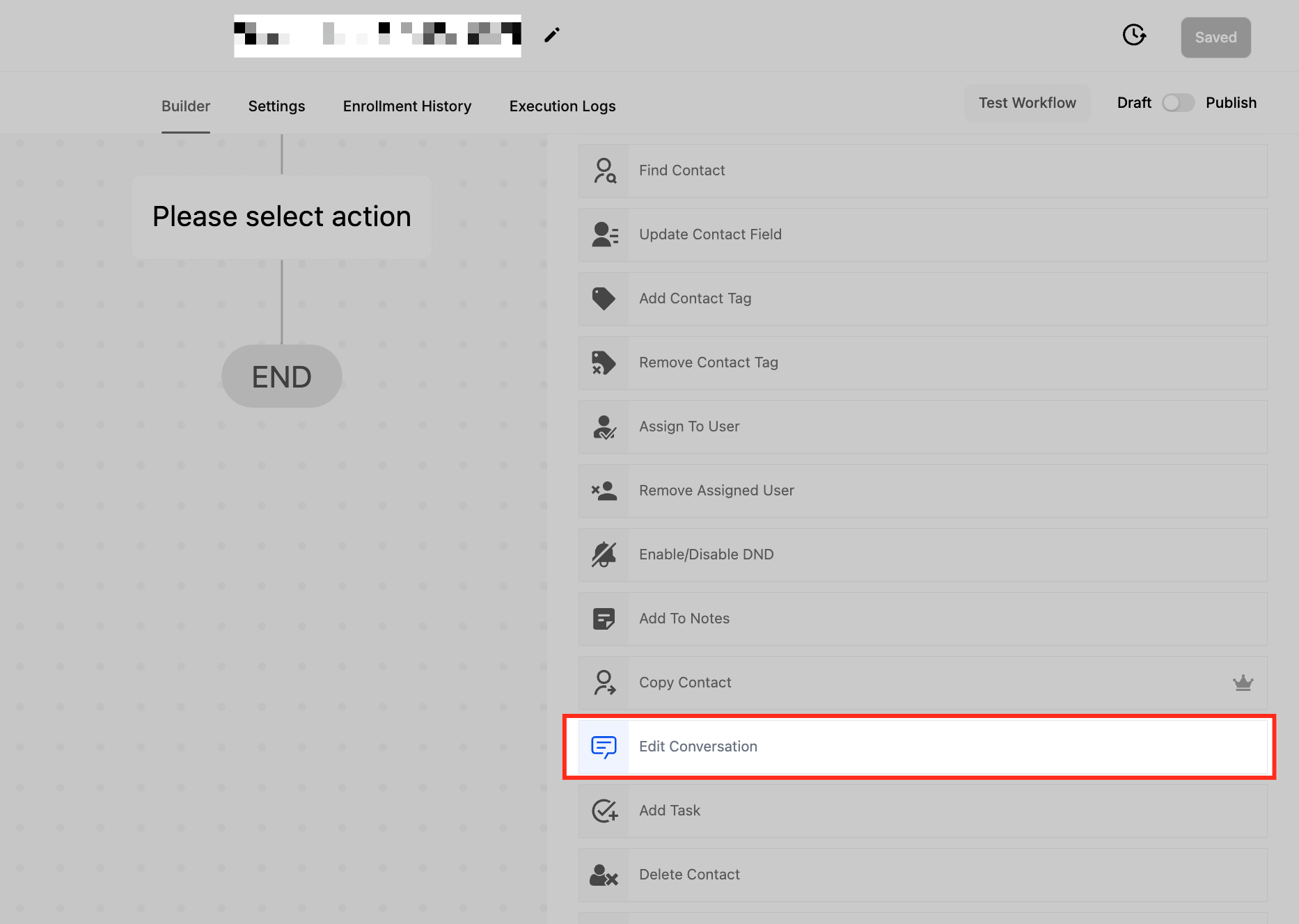
The action lives among other workflow actions. It is added by selecting + Add Action, searching for Edit Conversation, and configuring its two options before saving and publishing the workflow.
03How businesses use edit conversation workflow action
- Contact reply handling. When a contact replies, the workflow marks the conversation as read and optionally archives it to keep the inbox focused on pending items.
- Appointment status changes. After an appointment status changes, the workflow can mark the related chat as unread so staff see it until the client responds.
- Lead stage progression. When a lead moves to a closed stage, the workflow archives the conversation, removing it from the active view while preserving the record.
04How to set up and use edit conversation workflow action in HighLevel
Configure Edit Conversation action within a workflow
- Open the Automation area, click + Create Workflow, and start a new workflow or open an existing one.
- In the workflow canvas, click the + Add Action button.
- Search for "Edit Conversation" in the list and choose it.
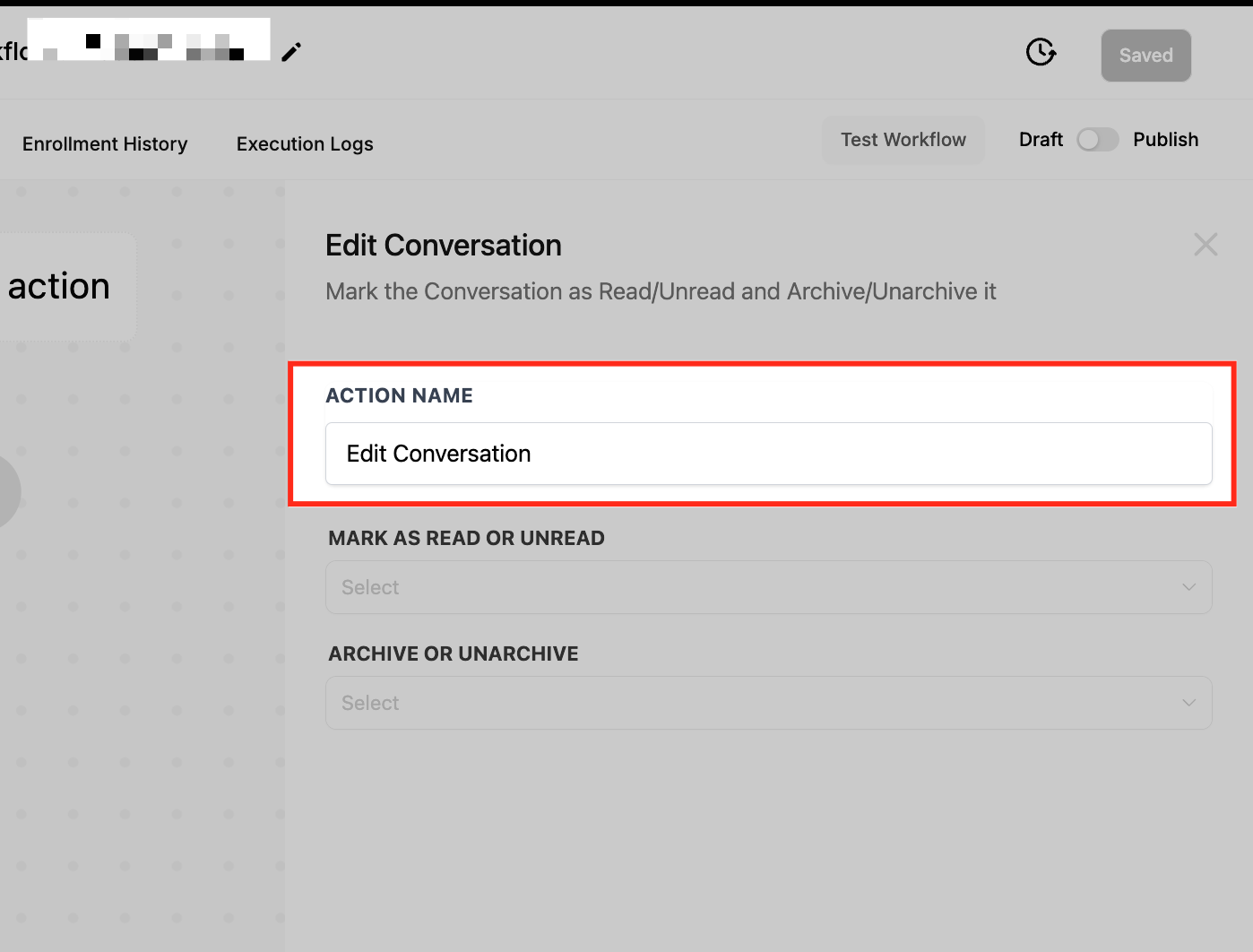
- Enter a clear name for the action, such as "Mark as Read & Archive".
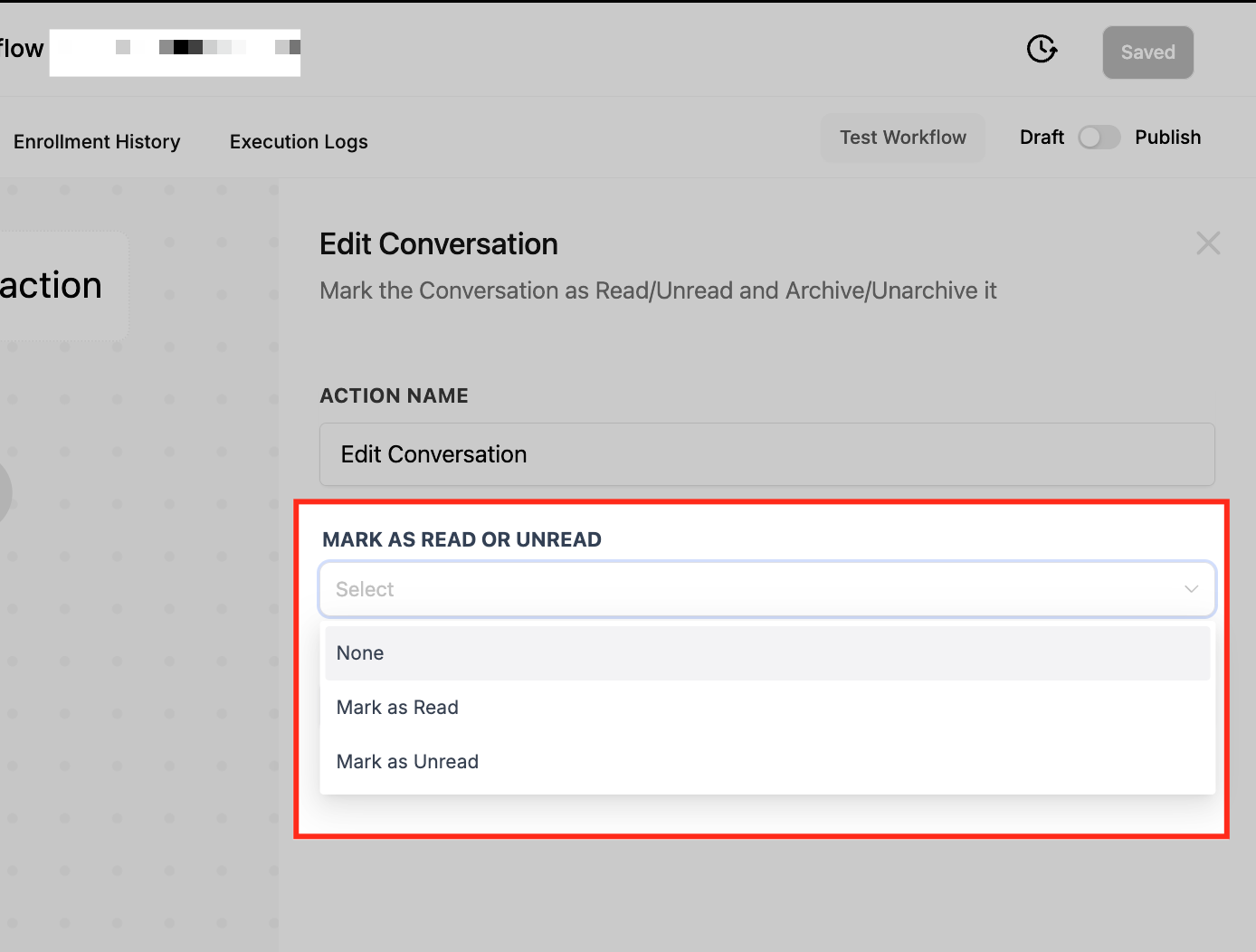
- Select the desired read state: Mark as Read, Mark as Unread, or None.
- Select the desired archive state: Archive, Unarchive, or None.
- Click Save Action to store the configuration.
- Click Publish Workflow to activate the automation.
05What it looks like in HighLevel
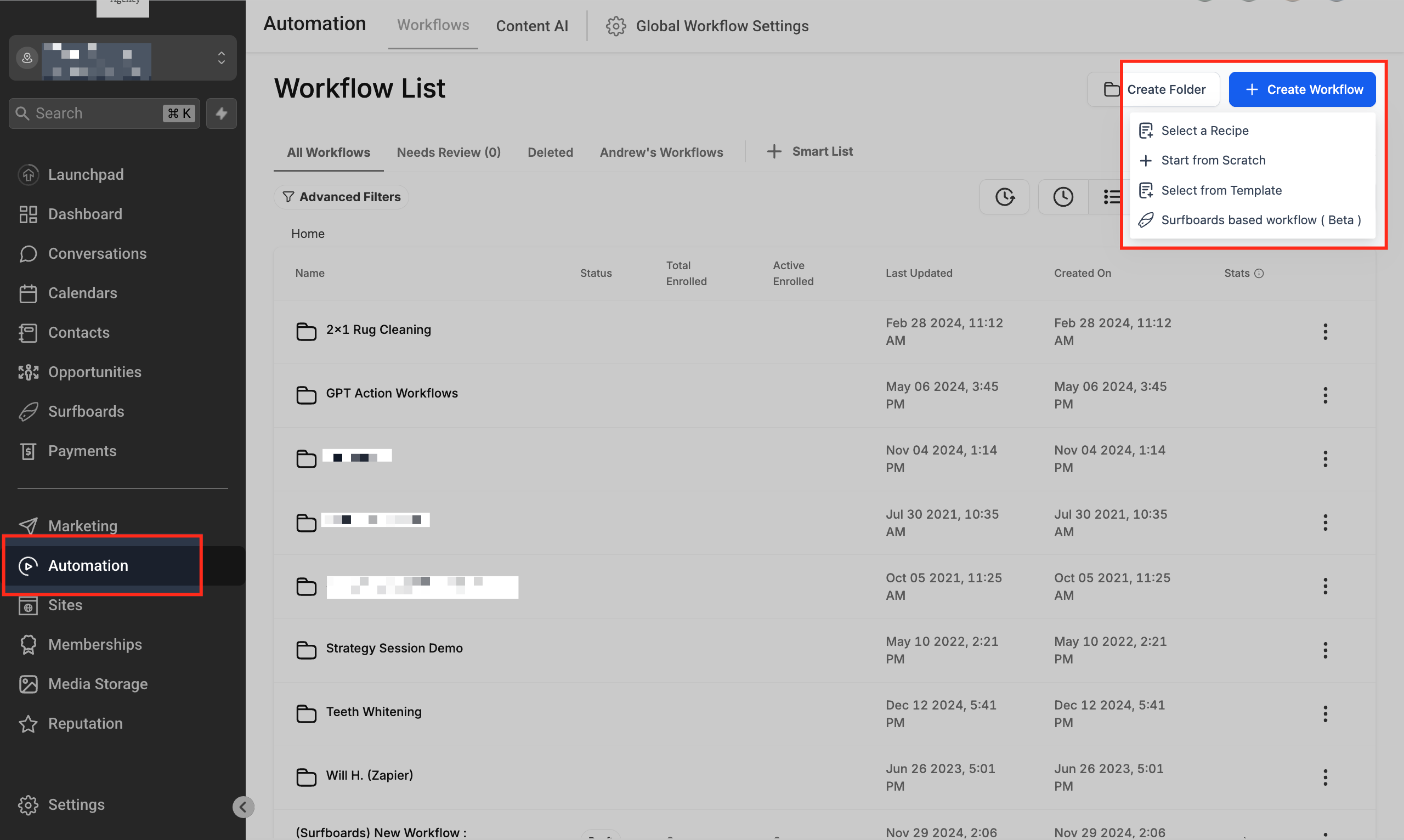
06Settings that matter
- Mark as Read or Unread. Determines whether the conversation is set to read, set back to unread, or left unchanged.
- Archive or Unarchive. Controls moving the conversation out of the active inbox, bringing it back, or keeping its current archive status.
07How it connects to the rest of HighLevel
- Learn how to start a new workflow and add actions Workflow creation guide
- Review all available workflow actions in HighLevel Workflow actions list
- Understand workflow settings for timing and contact control Workflow settings overview
Michael's take

How can I keep my support inbox from turning into a mess? Let the Edit Conversation action do the heavy lifting. It flips read flags and shuffles chats in and out of the archive based on the triggers you set, so your team sees only what matters.
If I were setting this up, I’d start with a simple “mark as read and archive” step after a ticket closes. It gives a clean slate without any extra clicks, and you can always layer on notifications later if you need them.