
01Who this is for
- Founders who sell online courses can automate removal of access when subscriptions end, keeping content restricted.
- Coaches offering membership programs can right away revoke course entry after a payment fails, ensuring only paying members stay enrolled.
- Marketing agencies that provide client training can use the action to manage course access based on tag changes or cancellation events.
02Course revoke offers, explained
The Course Revoke Offer action lives among the workflow actions in HighLevel. When placed in a workflow, it removes a contact’s enrollment in the chosen course. The action runs after the workflow reaches it, based on the triggers you set.
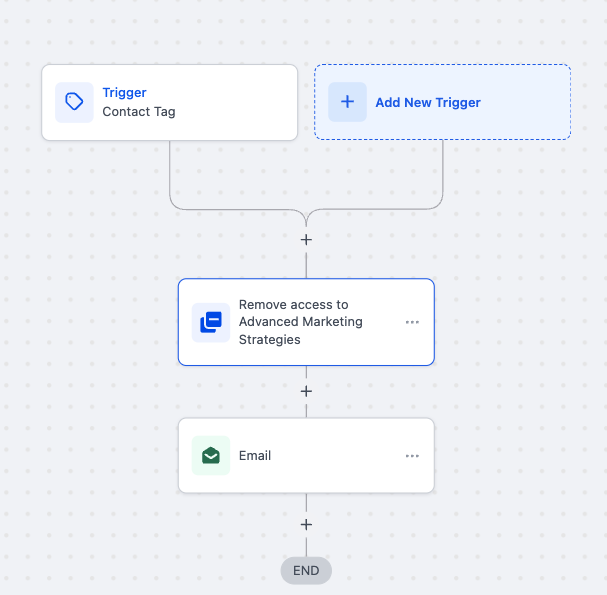
You first select the action type, then give the step a clear name. After that you pick the specific offer (the course) whose access you want to revoke. Finally you define the triggers or conditions that will cause the revocation and can add optional settings such as sending an email or tagging the contact.
All of these options are configured directly within the workflow builder, so the revocation happens automatically without manual intervention.
03How businesses use the Course Revoke Offer
- Online course creator. In HighLevel, the creator adds the Course Revoke Offer action to a workflow that runs when a contact’s subscription expires. They select the course offer and set the trigger to the expiration date. The platform then automatically removes the user’s access.
- Membership coach. The coach builds a workflow that fires on a failed payment trigger. They add the Course Revoke Offer action, name it, and choose the membership course to revoke. An optional email can be configured to inform the client of the change.
- Training agency. The agency creates a tag change trigger for the label “expired”. They attach the Course Revoke Offer action, specify the training course, and optionally set a tag for follow up. When the tag is applied, the contact loses access automatically.
04How to set up and use the Course Revoke Offer in HighLevel
Set up course revoke action
- Select "Course Revoke Offer" from the list of workflow actions.
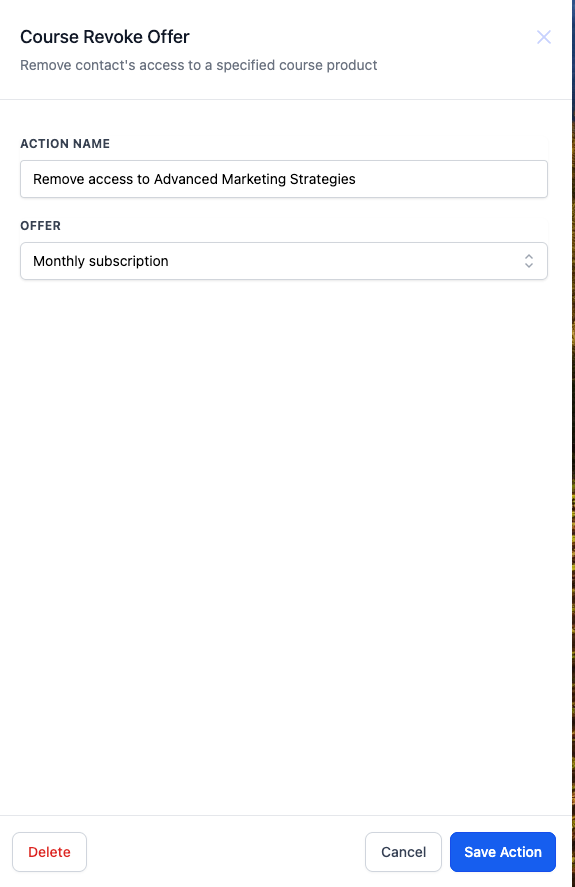
- Enter a descriptive name for the action, such as "Revoke Access to Advanced Marketing Strategies".
- Choose the specific offer (course) from which access should be removed.
- Define the triggers or conditions that will activate the revocation, like a failed payment or tag change.
- Optionally configure additional parameters, such as sending a notification email or applying a contact tag.
05What it looks like in HighLevel
06Settings that matter
- Action Type. Determines which workflow action is being added; selecting Course Revoke Offer tells the system to remove course access.
- Name. Provides a human readable label for the action step, helping identify its purpose within the workflow.
- Offer. Specifies the particular course or membership offer whose access will be revoked when the action runs.
- Triggers and Conditions. Sets the events or criteria, such as expired tags, payment failures, or dates, that cause the revocation to occur.
- Additional Options. Allows optional settings like sending an email notification or tagging the contact after access is removed.
07How it connects to the rest of HighLevel
- Course grant offer workflow action Course grant offer
- Workflow automation basics Workflow guide
- Workflow creation: triggers, filters, actions Workflow creation
Michael's take

The Course Revoke Offer workflow can automatically revoke access when a condition like an "expired" tag appears.
The first setting to lock in is the correct offer selection. Choose the exact offer that contains the course you want to protect, then set up triggers, emails, and tags as needed.