
01Who this is for
- Marketing managers who need precise event data for campaign measurement because the action pushes events directly into Google Analytics.
- Small business owners running appointment booking sites, enabling them to log each booking as an analytics event without extra coding.
- Ecommerce operators who want to capture purchase information in GA for better funnel analysis.
02Add to Google Analytics actions, explained
The action creates a custom event in the chosen Google Analytics property whenever the workflow runs. It works with both GA4 and the older Universal Analytics, sending the event name and any optional value you define. The action lives inside a workflow as one of the possible steps after a trigger.
To use it, you add the action to a workflow, select the Analytics version, enter the required identifiers, and optionally set a numeric value. When the workflow fires, HighLevel formats the request and delivers it to Google’s endpoint using the API secret you supplied. The event then shows up in your GA reports alongside any other traffic data.
03How businesses use add to Google Analytics
- Digital marketing agency. The agency builds a workflow that triggers on form submissions. The Google Analytics action records a "Form Submitted" event, letting the agency view form conversion numbers directly in GA.
- Fitness studio. When a client books a class through the booking page, a workflow sends a "Class Booked" event to GA. The studio can analyze class popularity through analytics dashboards.
- Online retailer. After a checkout is completed, the workflow fires a "Purchase" event with the order total as the event value. The retailer can segment revenue by source in GA.
04The numbers and rules that matter
- Supports Google Analytics 4 (GA4) and Universal Analytics (UA).
- Measurement ID. Mandatory. The unique ID for the GA4 property.
- Event Name. Mandatory. The name of the event to trigger in GA4 or UA.
05Before you start
- Google Analytics must already be set up and linked to your HighLevel account.
06How to set up and use add to Google Analytics in HighLevel
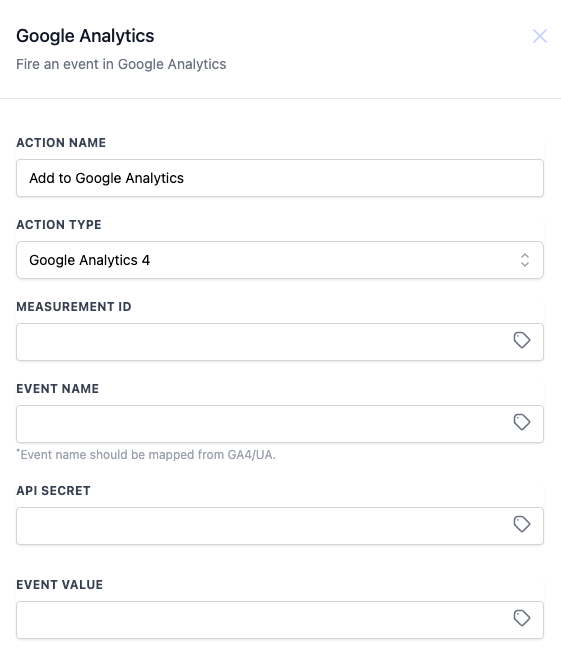
Configure Add to Google Analytics action
- Enter a label for the action, such as "Add to Google Analytics".
- Select the analytics version you are using, either GA4 or Universal Analytics.
- Enter the Measurement ID that belongs to the target GA4 property.
- Specify the Event Name that will appear in Analytics.
- Provide the API Secret generated in your Google Analytics settings.
- Optionally, add a numeric Event Value to pass with the event.
07What it looks like in HighLevel
08Settings that matter
- Measurement ID. Identifies the specific Google Analytics property that will receive the event.
- Event Name. Defines the label of the event that Google Analytics records.
- API Secret. A secret key that authenticates the request so the event is accepted by Google.
- Event Value. An optional number attached to the event, such as revenue or count.
09Things to know before you rely on it
- The action works only with GA4 and Universal Analytics properties.
- Event Value is optional; the other three fields must be filled for the event to be sent.
- Accurate Measurement ID and API secret are required for successful transmission.
10How it connects to the rest of HighLevel
- Overview of workflow automation in HighLevel Workflow basics
- Guide to creating workflows, triggers, and actions Workflow creation
- All workflow features available in the platform Workflow feature list
Michael's take

Double check the Measurement ID and API Secret; inaccurate values prevent events from being recorded.
When the values are correct, the Add to Google Analytics action sends the configured events to your analytics property.