
01Who this is for
- Marketers who run paid search campaigns and need offline conversion data for better campaign insight.
- Sales teams that book appointments after a click and want each booking reported back to Google Ads.
- Business owners who track form submissions or chat replies as conversions to evaluate ad performance.
02Add to Google Ads, explained
The action pulls click identifiers (GCLID, GBRAID, WBRAID) stored on a contact record and posts a conversion event to the selected Google Ads conversion. It works only after a Google Ads account is linked and at least one conversion action exists in that account. The action appears in the workflow builder alongside other automation steps.
When the workflow runs, HighLevel validates the conversion name, currency and value, then sends the data via the Google Ads API. Execution results are logged as Executed or Skipped, allowing you to confirm successful transmission.
The feature lives inside each subaccount under Automations > Workflows, where you add it as an action after a trigger such as a form submission or chat reply.
03How businesses use add to Google Ads
- Real estate agency. After a lead completes a property inquiry form, the agency adds the Add to Google Ads action, selects the "Inquiry" conversion created in Google Ads, and assigns a value. The workflow then sends the conversion back to Google Ads for each qualified lead.
- Dental practice. When a patient books an appointment through the online scheduler, the practice’s workflow uses the Add to Google Ads action, sets the conversion name to "Appointment Booking," and records a $100 value (per HighLevel's help center, checked November 2026). Each booked appointment is reported to Google Ads as an offline conversion.
- Ecommerce retailer. After a customer submits an order form, the retailer’s workflow triggers the Add to Google Ads action, maps the order total to the conversion value field, and pushes the sale back to Google Ads for attribution.
04The numbers and rules that matter
- Supported click IDs: GCLID, GBRAID, WBRAID.
- Conversion setting “One Per Click” requires GCLID; GBRAID/WBRAID only support “Many Per Click”.
- It takes approximately 5 minutes for the conversion list to populate after the first contact with a click ID.
- Supported triggers: Form Submission, Order Purchase, Number Pool Calling, Survey Submission, Chat Widget.
05Before you start
- Connect a Google Ads account to the HighLevel subaccount (Settings > Integrations > Google).
- Create at least one conversion action in the Google Ads account and note its exact name.
- Ensure incoming contacts contain a valid GCLID, GBRAID, or WBRAID captured from the ad click.
06How to set up and use add to Google Ads in HighLevel
Set up Add to Google Ads action in a workflow
- Log in to your HighLevel subaccount.
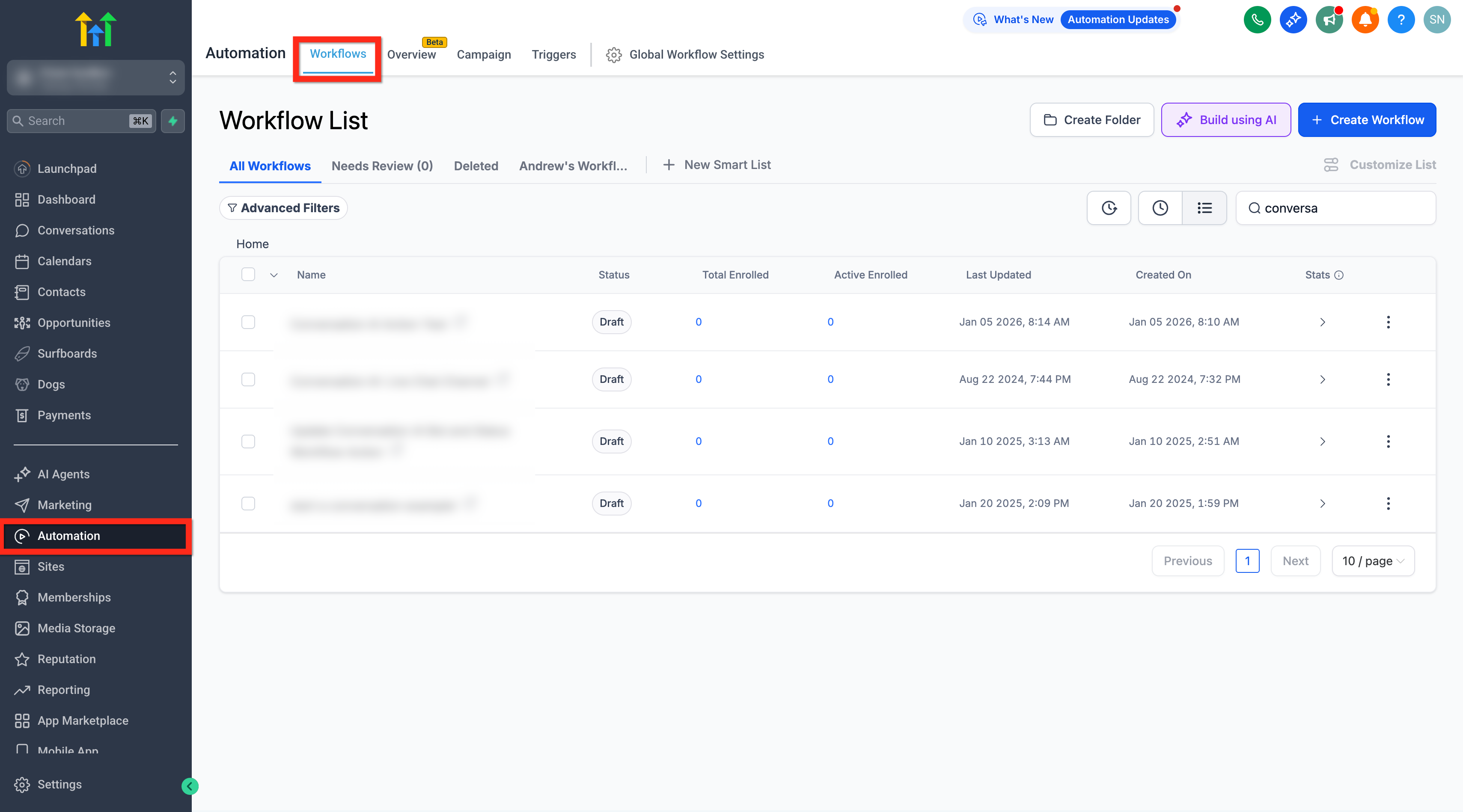
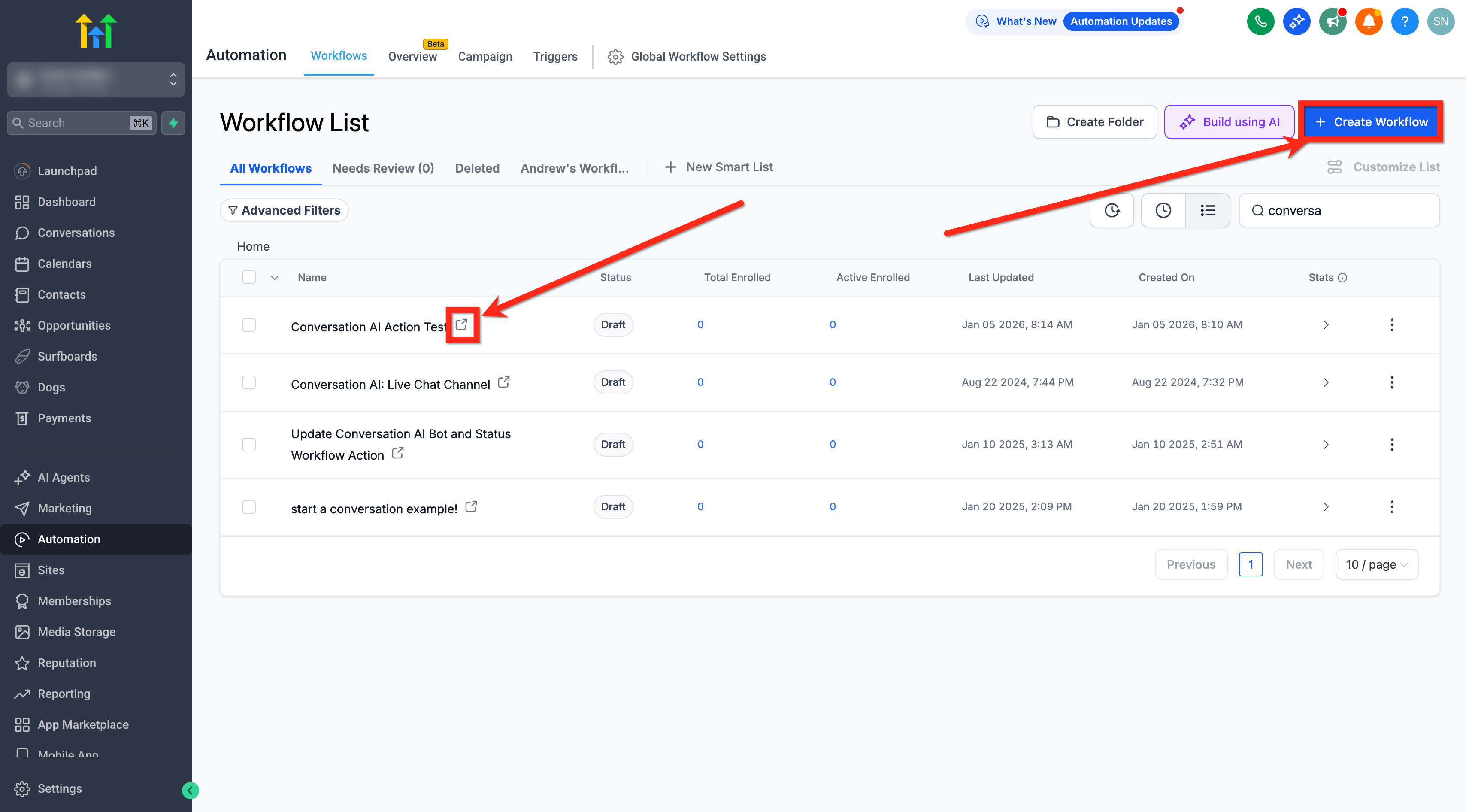
- Navigate to Automations > Workflows.
- Create a new workflow or open an existing one.
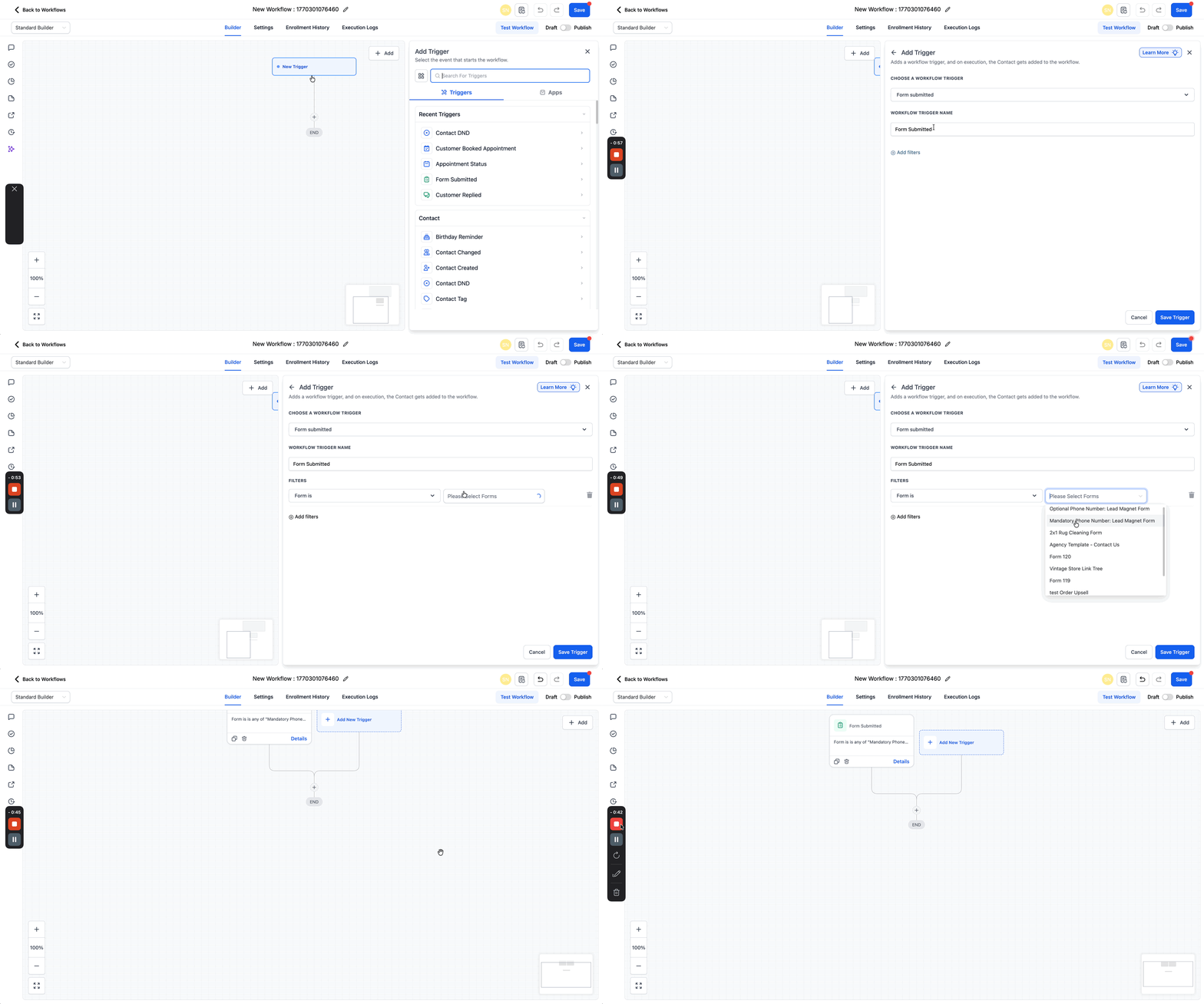
- Click Add New Trigger and choose the event you want to track, such as Form Submitted or Customer Replied.
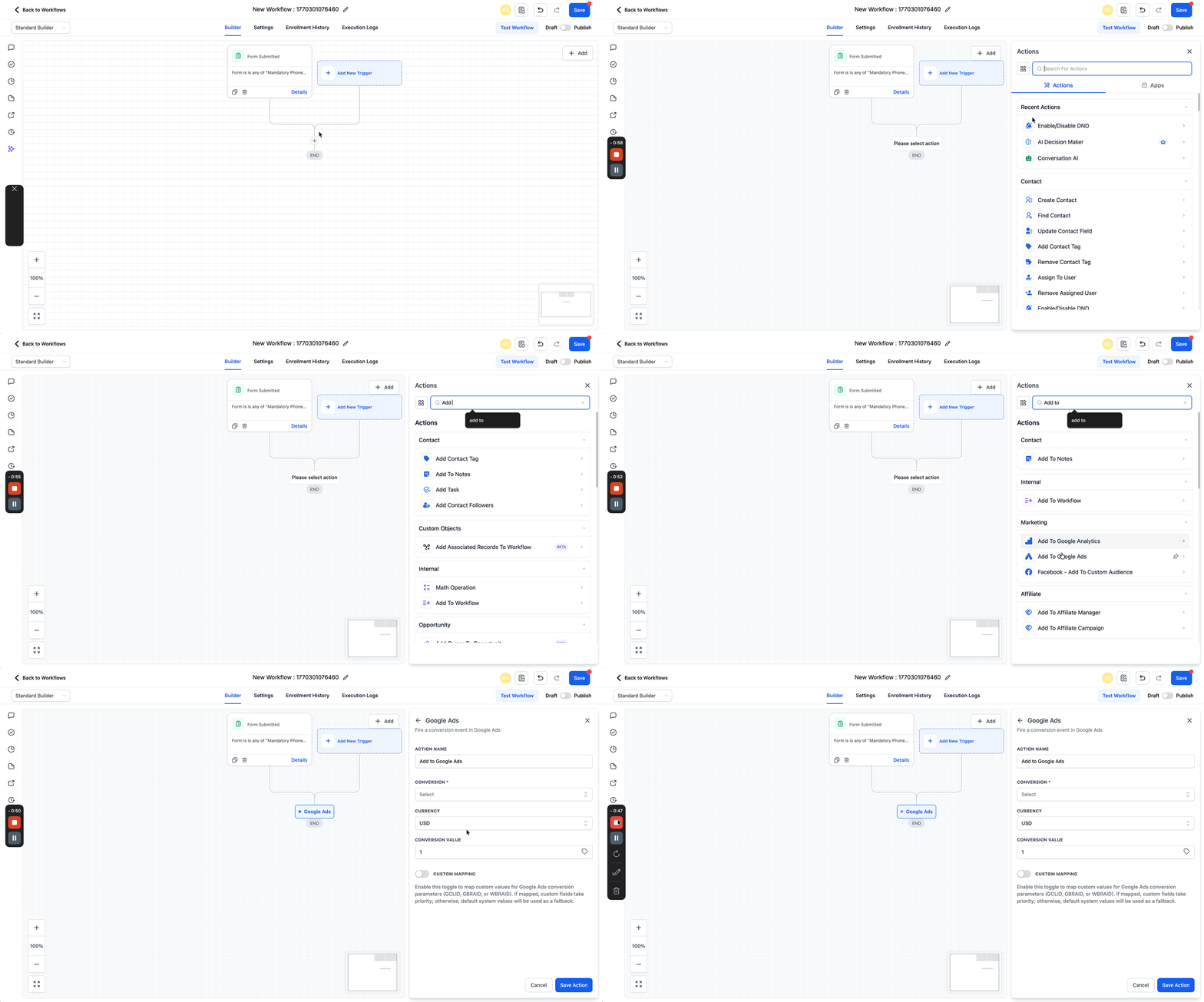
- Click the “+” icon where the conversion should fire.
- Select “Add to Google Ads” from the action list.
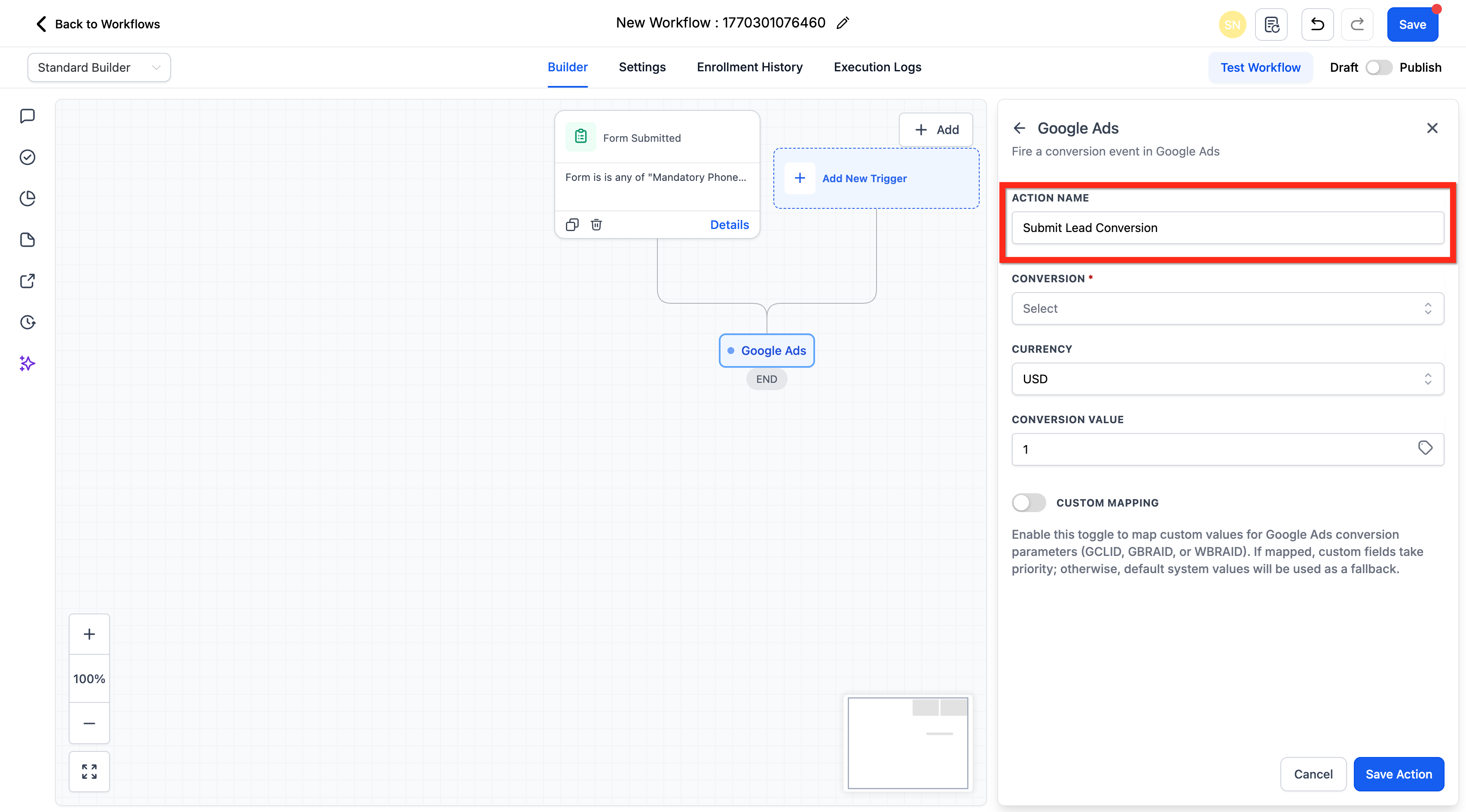
- Enter a descriptive Action Name.
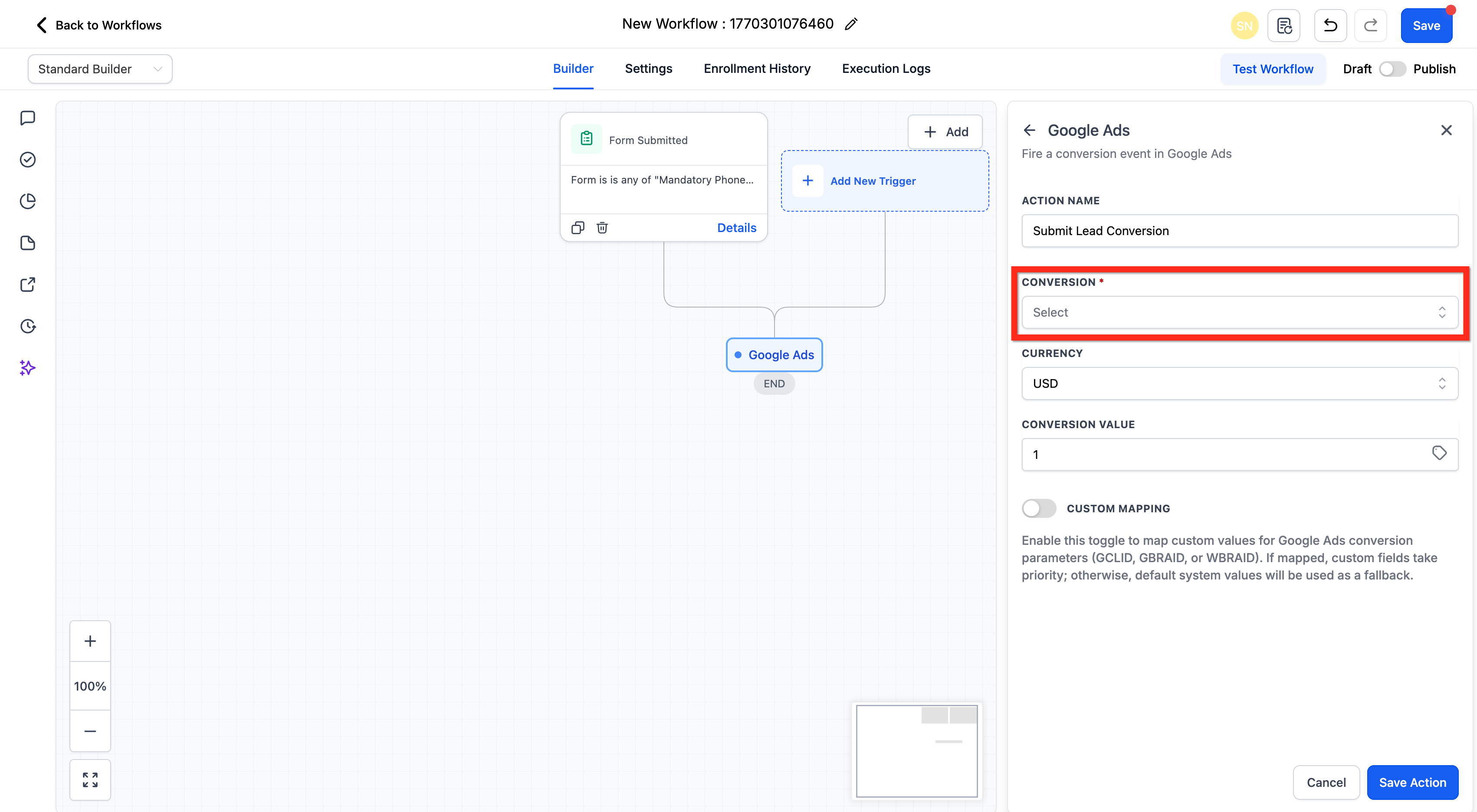
- Select the exact conversion name from the dropdown (must match Google Ads character for character).
- Choose the appropriate Currency.
- Enter the Conversion Value.
- If needed, enable Custom Mapping and map GCLID, GBRAID, or WBRAID to workflow fields.
- Click the Save Action button.
- Publish the workflow.
Monitor execution logs
- Open the workflow and go to the Execution Logs tab.
- Look for the “Add to Google Ads” entry.
- Executed means the conversion was sent; Skipped indicates a problem such as missing click ID or mismatched conversion name.
07What it looks like in HighLevel
08Settings that matter
- Action Name. Sets the label that appears in workflow logs to identify this conversion step.
- Conversion. Defines which Google Ads conversion event to fire; the name must match exactly.
- Currency. Specifies the monetary unit used for the conversion value.
- Conversion Value. Assigns a numeric amount to each conversion sent to Google Ads.
- Custom Mapping. When enabled, lets you map click ID fields (GCLID, GBRAID, WBRAID) to custom fields in the workflow.
09Things to know before you rely on it
- The action works only with Form Submission, Order Purchase, Number Pool Calling, Survey Submission, and Chat Widget triggers.
- If the conversion is set to “One Per Click,” only GCLID is accepted; GBRAID and WBRAID support only “Many Per Click” conversions.
- A five minute delay occurs before new contacts populate the conversion list in the workflow and in Google Ads.
- The conversion name must match the Google Ads name character for character; any mismatch prevents the action from firing.
10If something goes wrong
- Action shows “Skipped” in execution logs. Confirm the contact record contains a valid GCLID, GBRAID, or WBRAID and that the conversion name entered matches exactly the name in Google Ads.
- Conversion name mismatch. Copy the conversion name from Google Ads precisely, including capitalization and spacing, and paste it into the workflow action.
- One Per Click conversion without GCLID. Ensure the conversion setting is compatible; use GCLID for “One Per Click” types.
11How it connects to the rest of HighLevel
- Learn how to build basic workflows in HighLevel. Workflow basics
- Add to Google Analytics workflow action shows a similar setup process. Google Analytics action
- Review HighLevel pricing and plan options. Pricing
- Start a free 30 day trial of HighLevel. Start trial
- See details about the Founder Plan for unlimited access. Founder Plan
Michael's take

Add to Google Ads makes it easy to see which offline actions are tied to your ads without needing extra tools.
Don’t overlook exact name matching for the conversion. A tiny typo can stop data from ever reaching Google.