
01Who this is for
- Founders who run affiliate programs and need to add customers automatically.
- Marketing managers looking to turn interested leads into active partners.
- Small business owners who want to streamline affiliate enrollment through tags.
02Add to Affiliate Campaign, explained
This workflow action creates a new affiliate record for a contact and attaches it to the affiliate campaign you select. When the action runs, the contact becomes an active affiliate and can start earning commissions.
The action is available in the workflow builder. You pick it from the action list, give it a name, and choose the campaign that will receive the new affiliate. It works together with any trigger or filter you place before it, such as a tag being added to a contact.
03How businesses use Add To Affiliate Campaign
- Online tutoring service. When a student receives the "ReferralReady" tag, the workflow runs the Add To Affiliate Campaign action and assigns them to the "Tutor Referral" campaign. The student then appears as an affiliate ready to share the service.
- Fitness studio. Members flagged with a "GymAmbassador" tag are automatically moved into the "Studio Affiliate" campaign via the action, enabling them to promote classes and track earned commissions.
- SaaS product. A contact tagged as "BetaTester" triggers the workflow, which adds the contact to the "Product Advocate" affiliate campaign, allowing the tester to earn rewards for referrals.
04How to set up and use Add To Affiliate Campaign in HighLevel
Set up Add To Affiliate Campaign action
- Select Add To Affiliate Campaign from the list of available actions.
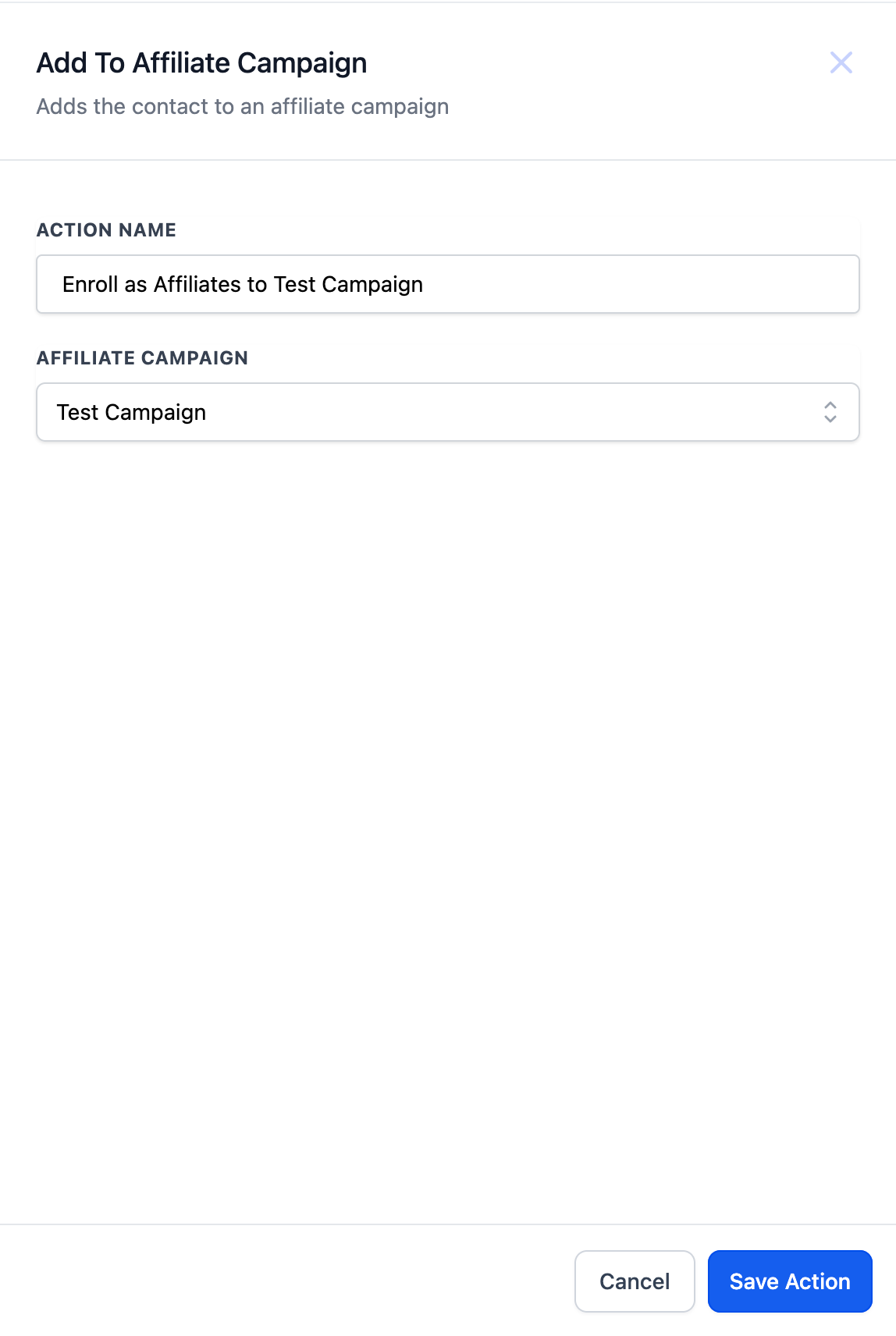
- Enter a clear name for the action, such as Enroll Affiliates in Campaign XYZ.
- Pick the target affiliate campaign from the dropdown menu.
05What it looks like in HighLevel
06Settings that matter
- Action Type. Determines which workflow action is being added; choosing Add To Affiliate Campaign activates the affiliate enrollment feature.
- Action Name. Provides an identifiable label for the step in the workflow, making it easier to recognize its purpose.
- Affiliate Campaign. Specifies the campaign that will receive the contact as an active affiliate.
07How it connects to the rest of HighLevel
- See how to add a contact to the Affiliate Manager workflow action. Add to Affiliate Manager
- Learn how to update an affiliate’s details within a workflow. Update Affiliate
- Read about removing a contact from an affiliate campaign via workflow. Remove from Affiliate Campaign
Michael's take

Michael ReimerFounder of CRM Pros, HighLevel Commander and Certified Admin
Don’t forget to verify the correct affiliate campaign is selected before publishing the workflow.
Get More InformationOpens on HighLevelPublished November 2, 2026 · Updated November 17, 2026