
01Who this is for
- Founders who need a central place to track team tasks can route inbound forms into Todoist, keeping work visible to the whole organization.
- Operations managers can automate project setup by creating Todoist projects whenever a new client is added, reducing manual onboarding steps.
- Customer support teams can close the loop by triggering updates in HighLevel when a Todoist task is marked complete, ensuring records stay in sync.
02Todoist workflow actions and triggers, explained
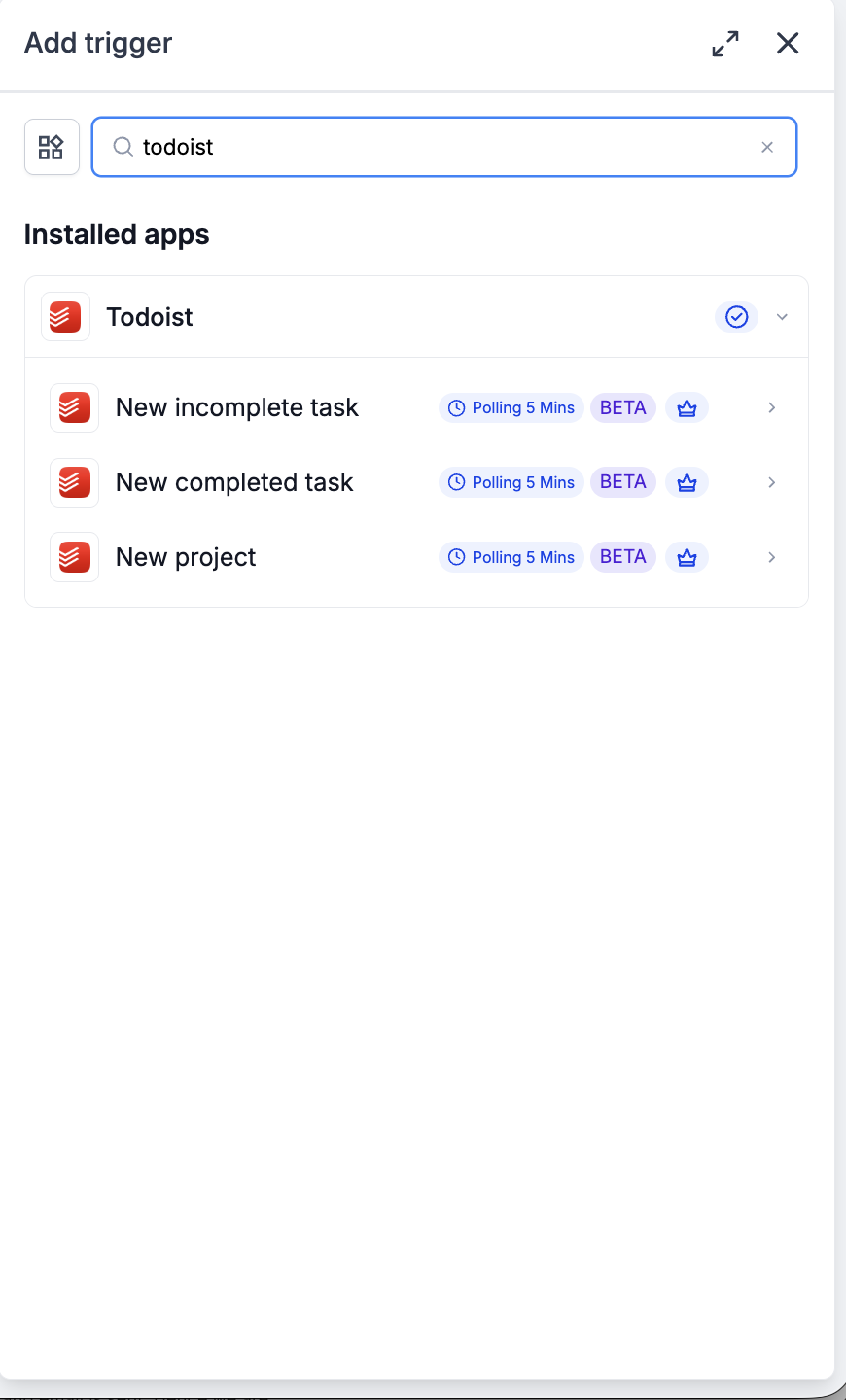
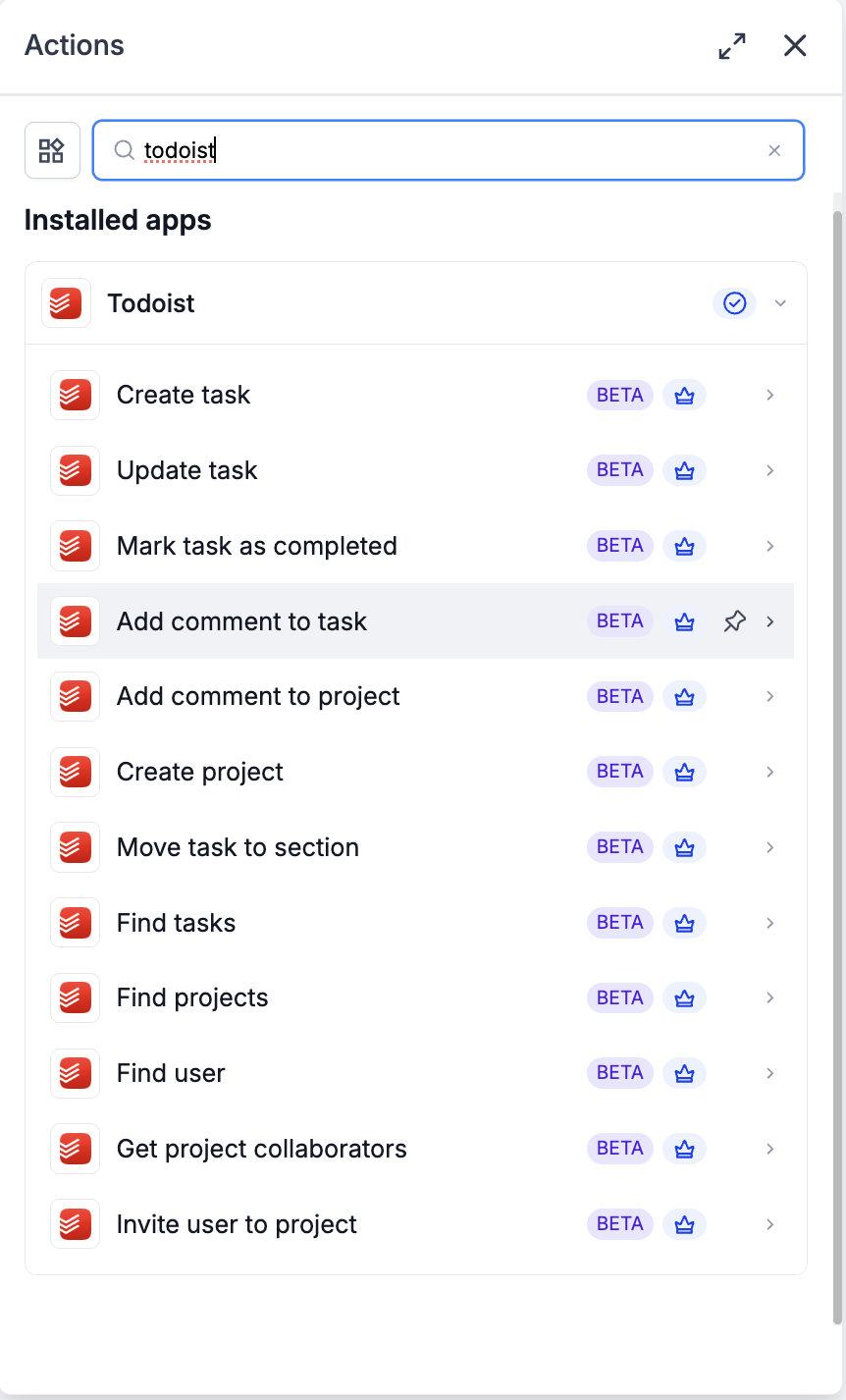
The Todoist integration brings task management primitives into HighLevel's Workflow Builder. Three polling triggers fire when a new incomplete task, a newly completed task, or a new project appears in the connected Todoist account. Twelve actions let workflows create, update, comment on, move, or otherwise manage tasks and projects.
All triggers poll the Todoist API every five minutes and return records in chronological order. Actions run from the workflow outward, creating or modifying Todoist objects in real time. Both triggers and actions are marked as premium components and consume premium action credits at the standard rate.
03How businesses use todoist workflow actions and triggers
- Marketing agency. A form submission triggers a Find projects action to locate the correct client project, then a Create task action adds a new task with the lead’s details, appropriate priority, and routing labels.
- Software development firm. When a developer marks a code review task complete in Todoist, the New completed task trigger runs an Update contact action that changes the related ticket status in the platform, keeping development progress reflected in HighLevel.
- Event planning business. An internal request fires a Create task action that adds a task to a shared project, sets a due date, applies a vendor label, and then an Add comment to task action appends the contract link for the planning team.
04The numbers and rules that matter
- All triggers poll Todoist every 5 minutes.
- Priority defaults to P4 (lowest).
05Before you start
- The Todoist integration must be connected to HighLevel via OAuth before any trigger or action can be used.
06How to set up and use todoist workflow actions and triggers in HighLevel
Set up a Todoist trigger
- Open the workflow and click Add trigger.
- Switch to the Apps tab and search for Todoist.
- Select New incomplete task as the trigger.
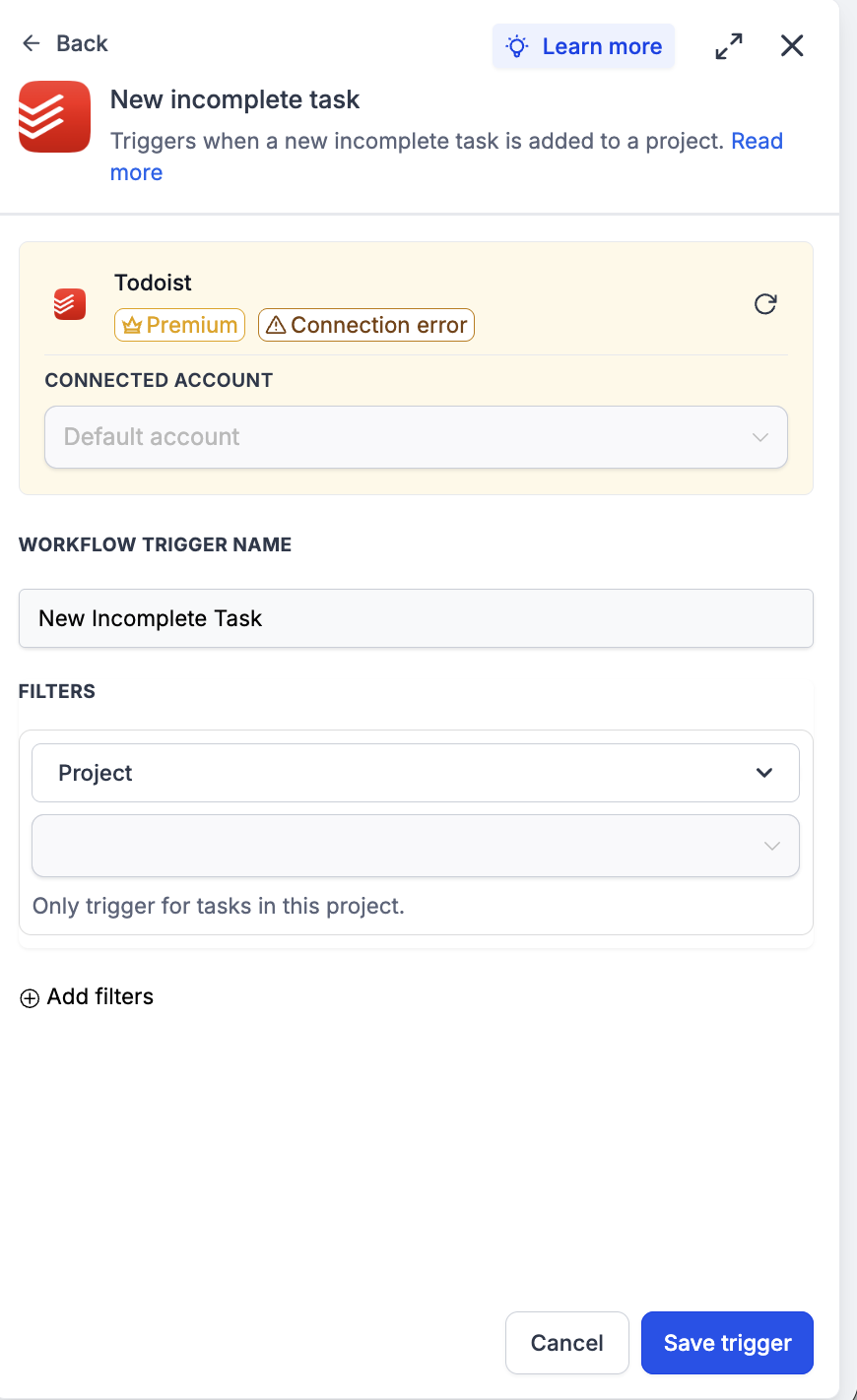
- Choose the connected Todoist account to watch.
- Enter a descriptive workflow trigger name.
- Set the Project filter to limit the trigger to a specific project, or leave blank for all projects.
- Optionally add extra filters such as label, priority, or due date range.
- Click Find new records in the Test your trigger panel.
- If no records appear, create a task in the target project and wait one polling cycle (five minutes).
- Select the returned task record as the mapping reference.
- Click Save trigger.
Set up a Todoist action
- Inside the workflow, click Add to insert a new step.
- Open the Apps tab and select Todoist.
- Choose Create task from the action list.
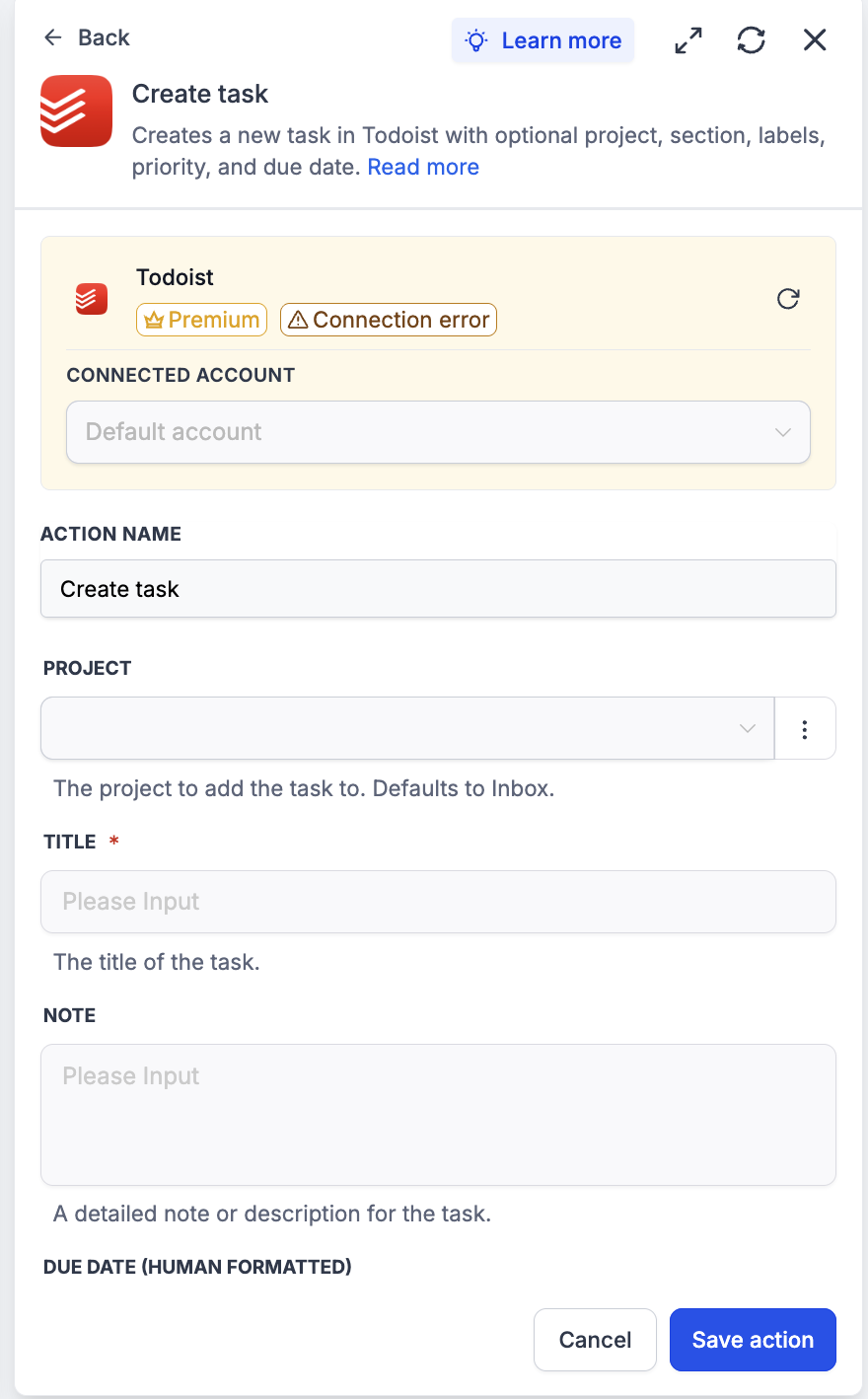
- Select the connected Todoist account where the task will be created.
- Give the action a name that describes its purpose.
- Pick a project from the dropdown; it defaults to Inbox if left blank.
- Enter the task title (required).
- Provide a note with additional details if needed.
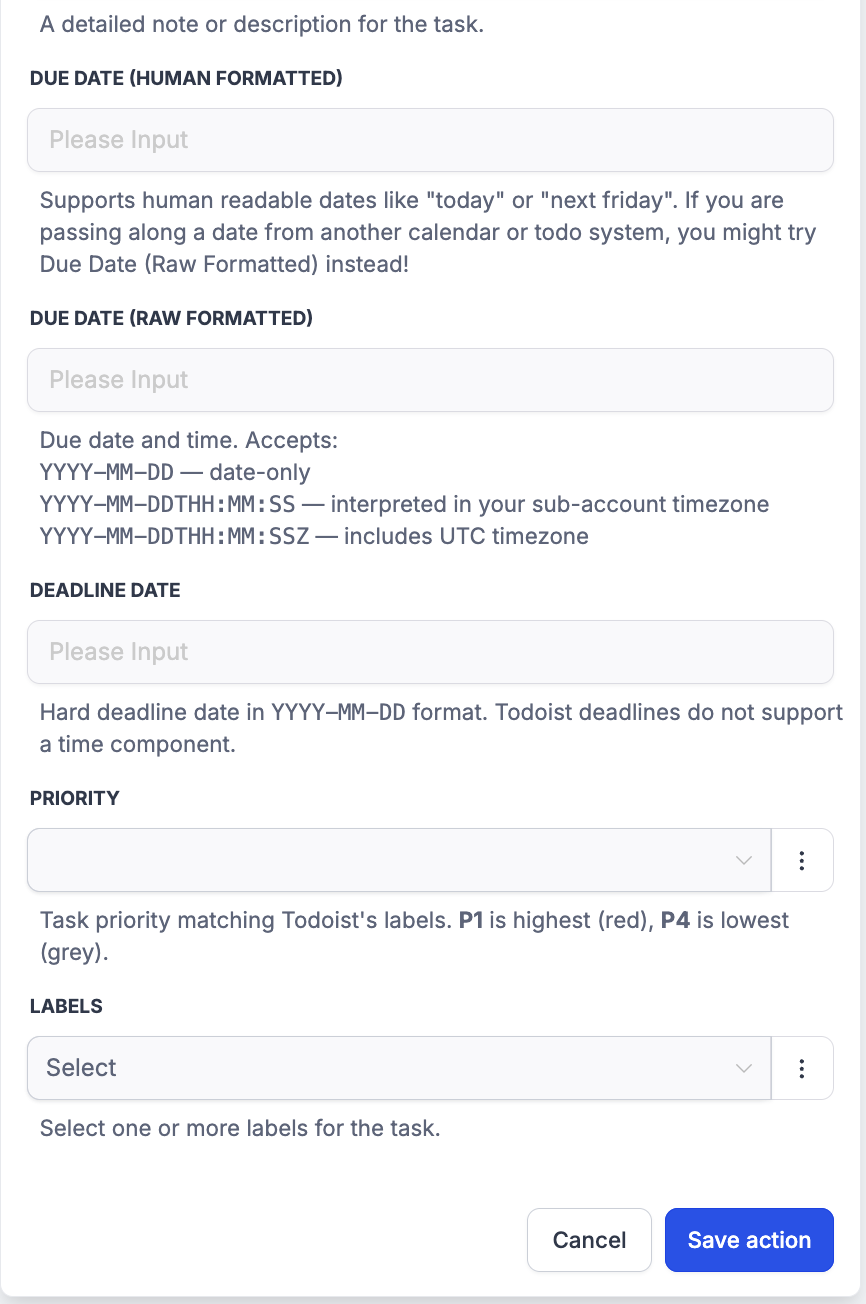
- Choose either a Human Formatted due date or a Raw Formatted due date.
- Optionally set a deadline date in YYYY MM DD format.
- Select the priority level from P1 to P4.
- Add one or more existing labels to the task.
- Click Test action to create a real task and verify the settings.
07What it looks like in HighLevel
08Settings that matter
- Connected Account. Specifies which Todoist account the trigger or action will use.
- Workflow Trigger Name. A label that identifies the trigger within the workflow.
- Filters → Project. Limits the trigger to tasks that belong to a chosen project.
- Add filters. Allows extra conditions such as label, priority, or due date range to narrow trigger results.
- Action Name. A descriptive label for the action step.
- Project. The Todoist project where a new task will be placed; defaults to Inbox if not set.
- Title. The required short text that becomes the task’s title.
- Note. A longer description added to the task for context.
- Due Date (Human Formatted) / Due Date (Raw Formatted). Sets when the task is due; only one format may be used at a time.
- Deadline Date. A hard deadline without a time component, entered as YYYY MM DD.
- Priority. Defines task urgency from P1 (highest) to P4 (lowest).
- Labels. Applies existing Todoist labels to the task for categorisation.
09Things to know before you rely on it
- All Todoist triggers poll the API every five minutes and return records in the order they were created.
- Triggers and actions are premium workflow components and consume premium action credits at the standard automation rate.
- Labels used in actions must already exist in the connected Todoist account.
- Only one of the Human Formatted or Raw Formatted due date fields can be set for a task.
10How it connects to the rest of HighLevel
- Workflow automation basics and how to add triggers Workflow basics
- Understanding Workflow Pro Plan pricing for premium components Workflow pricing
- Enable and rebill premium workflow features such as Todoist Enable premium features
Michael's take

How do I get my form submissions into Todoist without building a custom script? By linking the form trigger to a Todoist create task action, you can route each submission into the right project, apply labels and set priority. The workflow grabs the project ID with a Find projects step if you don’t know the numeric ID ahead of time.
If I were setting this up, I’d first test the trigger by adding a dummy task to the target project and confirming the payload appears in the builder. Once the trigger is solid, I’d run a quick test of the Create task action with a clearly marked title so I can delete it afterward and keep the production project clean.