
01Who this is for
- Marketing managers can standardize campaign copy by forcing consistent capitalization.
- Customer support teams can trim long notes to fit predefined field limits.
- Ecommerce owners can split comma separated tag lists into individual values.
02Text formatter actions, explained
The Text Formatter is a free workflow action that adjusts textual data in a HighLevel automation. It provides a collection of formatting options that can change case, remove whitespace, replace text, extract URLs, emails, and more.
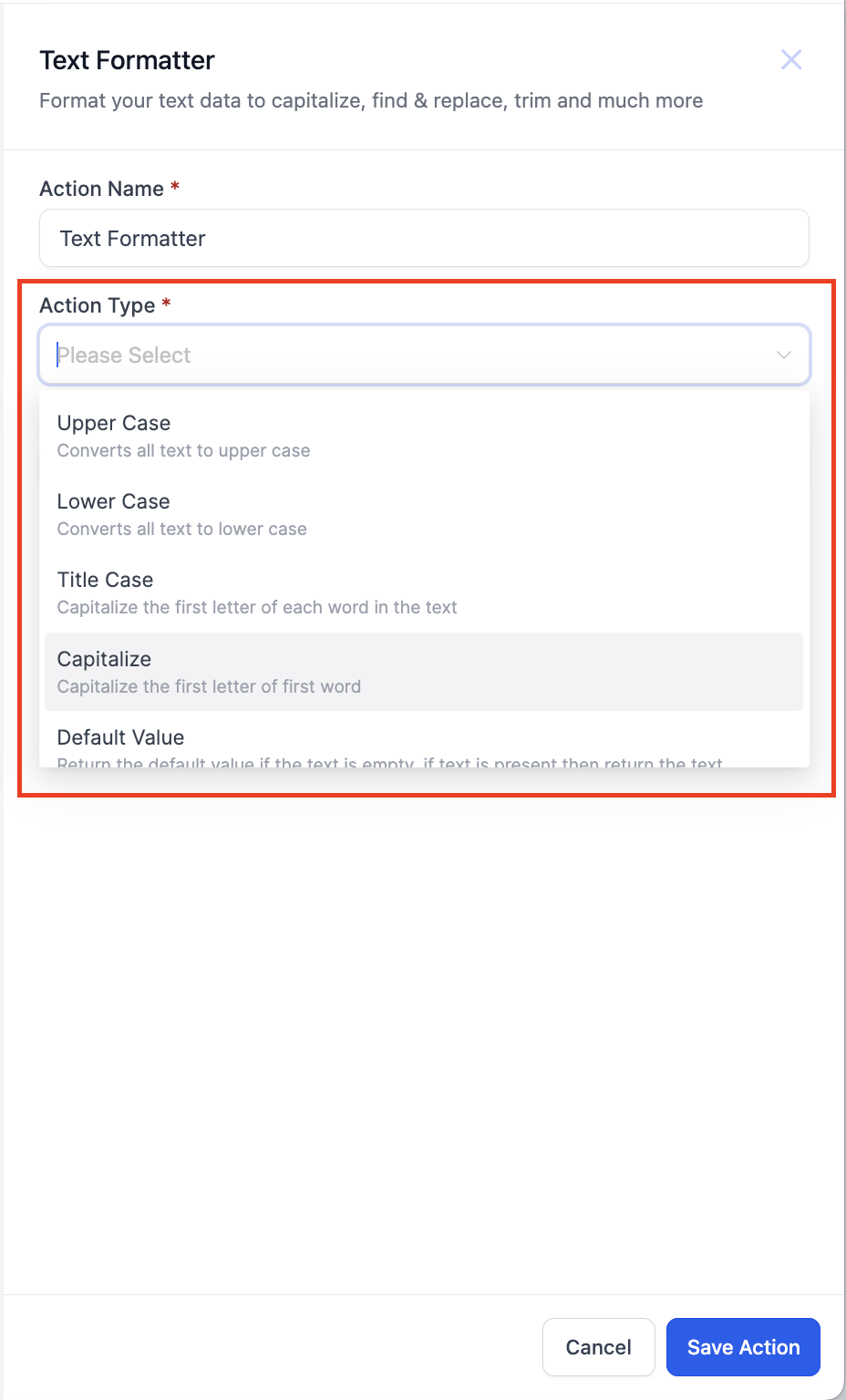
When you add the action, you select an Action Type such as Trim or Split, then supply the source field and any required parameters. The action processes the input and returns the transformed result for use in subsequent workflow steps.
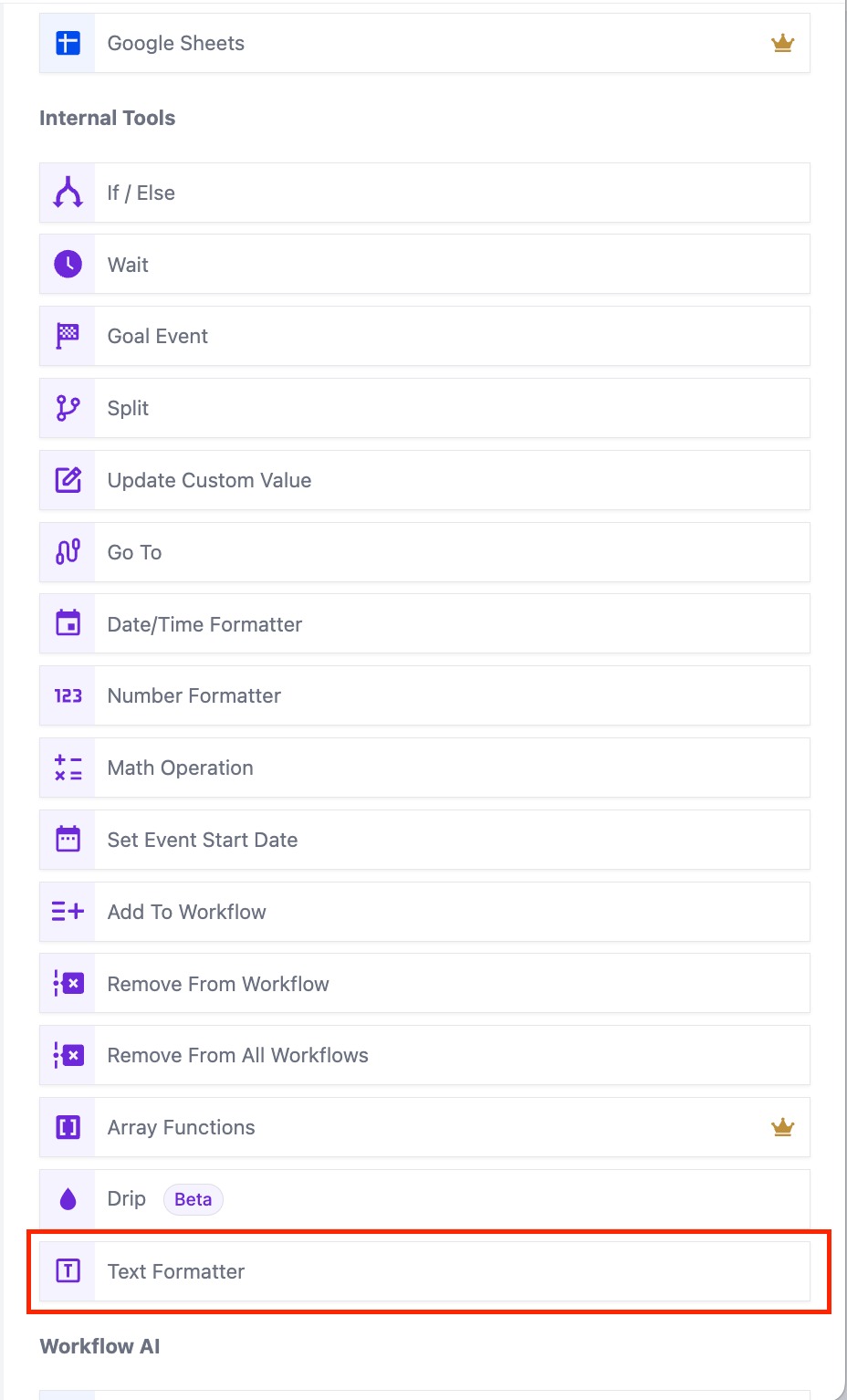
You find the Text Formatter under the Internal Tools category of the workflow builder, or you can locate it quickly using the search bar within the workflow editor.
03How businesses use text formatter action
- Real estate agency. Agents can apply the Upper Case formatter to status fields so every listing shows consistent capitalization. The workflow picks the status field, selects Upper Case, and stores the result for downstream notifications.
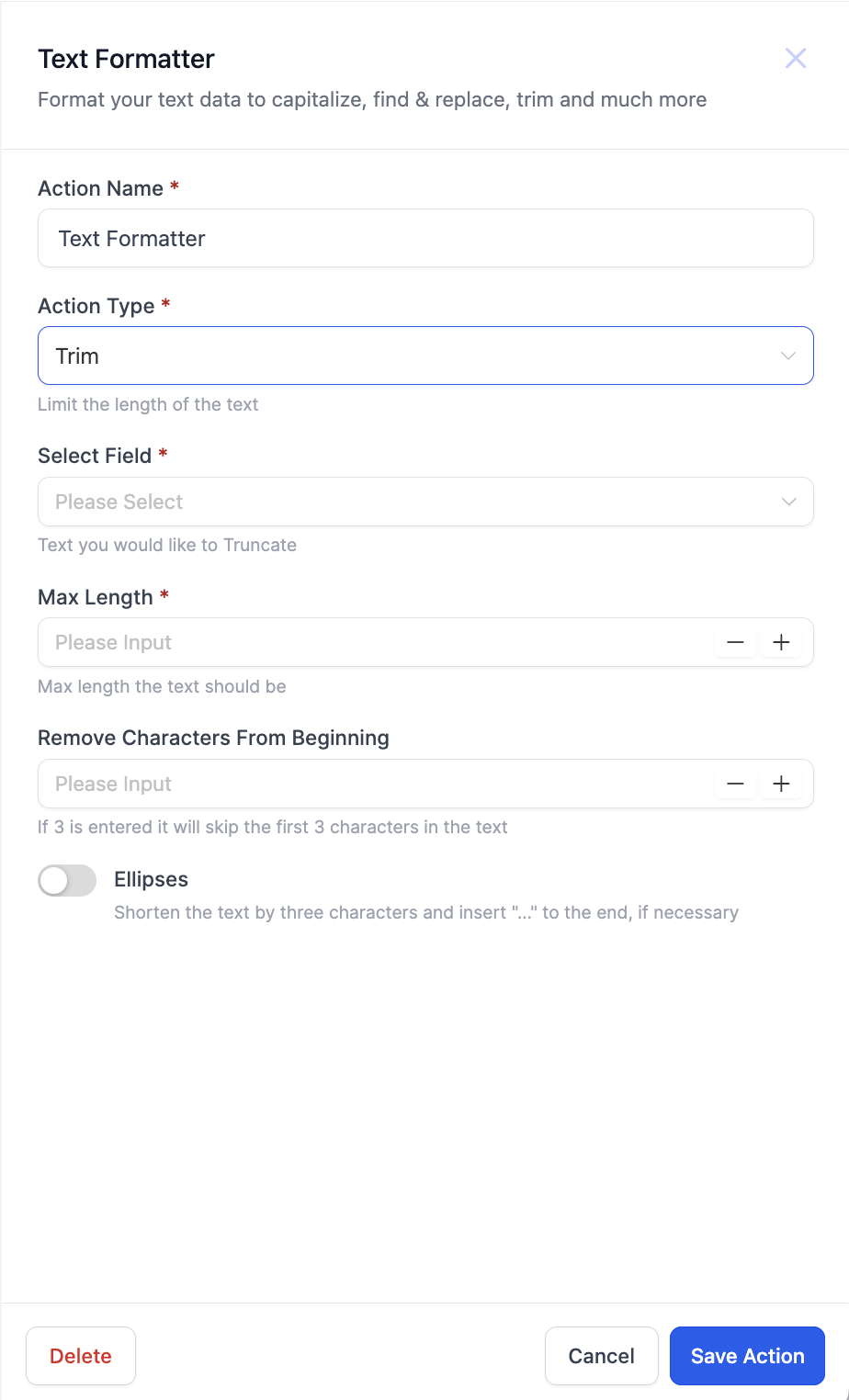
- Fitness coaching service. When creating class descriptions, the Trim formatter limits the text to a set number of characters, optionally adding an ellipsis. The workflow selects the description field, sets the desired length, and uses the trimmed output in email summaries.
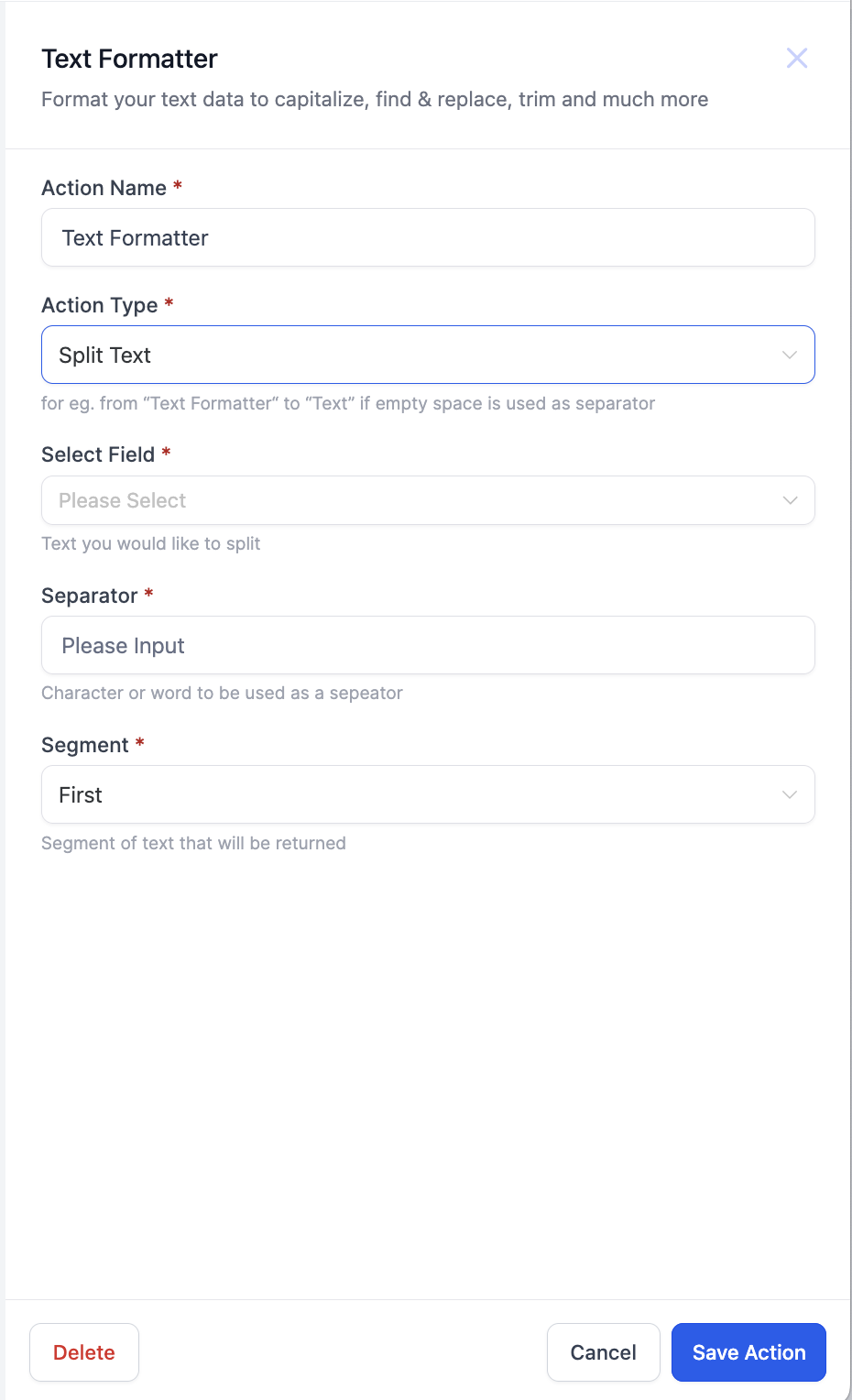
- Online marketplace. Product tags entered as a comma separated string can be split into separate elements. The workflow chooses the Split action, defines the comma as the separator, and returns the first tag for display on the product page.
04How to set up and use text formatter action in HighLevel
Add a Text Formatter action to a workflow
- Click the plus icon to insert a new action.
- Search for or locate Text Formatter in the Internal Tools category.
- Select the Text Formatter action from the results.
- Pick the desired Action Type from the full list.
Configure a Trim action within Text Formatter
- Choose Trim as the Action Type.
- Select the field that contains the text you want to shorten.
- Enter the maximum number of characters for the output.
- Optionally enable the skip characters from beginning option and specify how many to remove.
- Optionally toggle the ellipsis setting to add "." after the trimmed text.
Configure a Split action within Text Formatter
- Choose Split as the Action Type.
- Select the field that holds the text to be divided.
- Enter the delimiter that separates each segment.
- Select which segment to return, First, Second, Last, or Second Last.
05What it looks like in HighLevel
06Settings that matter
- Action Type. Determines which text manipulation function (e.g., Trim, Split, Upper Case) will be applied.
- Input Text. The source field whose content will be processed by the formatter.
- Length. Specifies the character limit for the Trim action.
- Skip Characters from Beginning. Removes a defined number of characters from the start of the text before trimming.
- Add Ellipsis. Adds an ellipsis (…) to the end of trimmed text when enabled.
- Separator. The delimiter used by the Split action to break the input into segments.
- Segment to Return. Chooses which piece of the split result (First, Second, Last, or Second Last) is output.
07Things to know before you rely on it
- The Text Formatter action is free to use and does not incur additional charges.
08How it connects to the rest of HighLevel
- HighLevel workflow automation: basics and set up guide Workflow basics
- HighLevel workflow creation: triggers, filters, actions Workflow creation
- HighLevel pricing and plans Pricing overview
Michael's take

People often dump raw user input into messages and then wonder why formatting looks off. The trick is to clean or reshape that text before you send it, using the Text Formatter action right after the data capture step. That way every downstream message uses the exact style you need.
If I were building a lead capture flow, I would immediately add an Upper Case formatter for the name field and a Trim action for the notes field. That helps ensure consistent capitalization and keeps the note length within template limits before anything else happens.