
01Who this is for
- Marketing managers can test different message variations by sending contacts down separate random paths.
- Sales leaders can compare conversion rates for alternative follow up sequences within the same workflow.
- Ecommerce owners can evaluate distinct promotional offers by allocating traffic percentages to each route.
02Split Action, explained
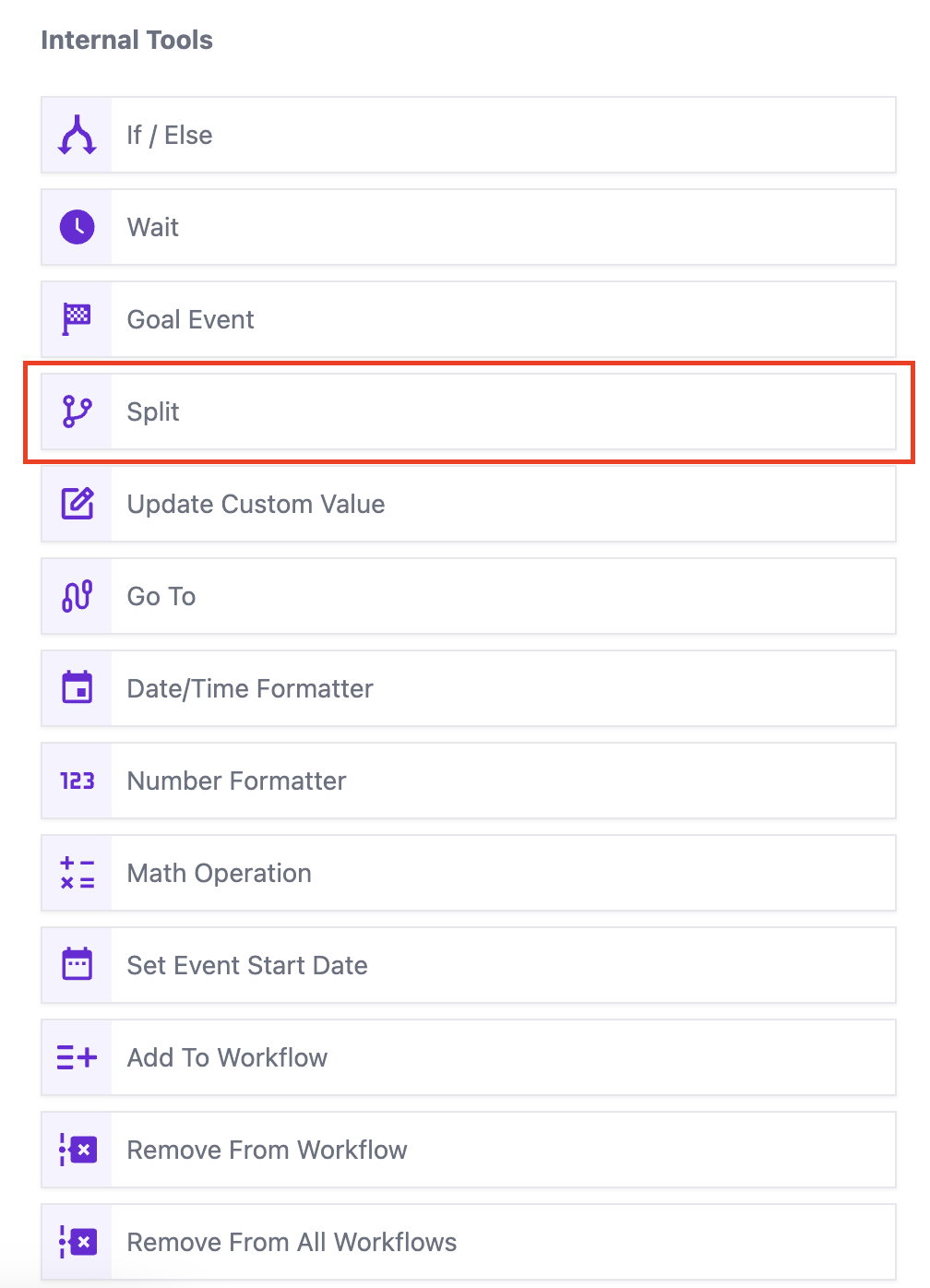
The Split action lives under the Internal Tools section when building a workflow in HighLevel. It lets you create branching logic that routes contacts to different sequences based on a chosen distribution method.
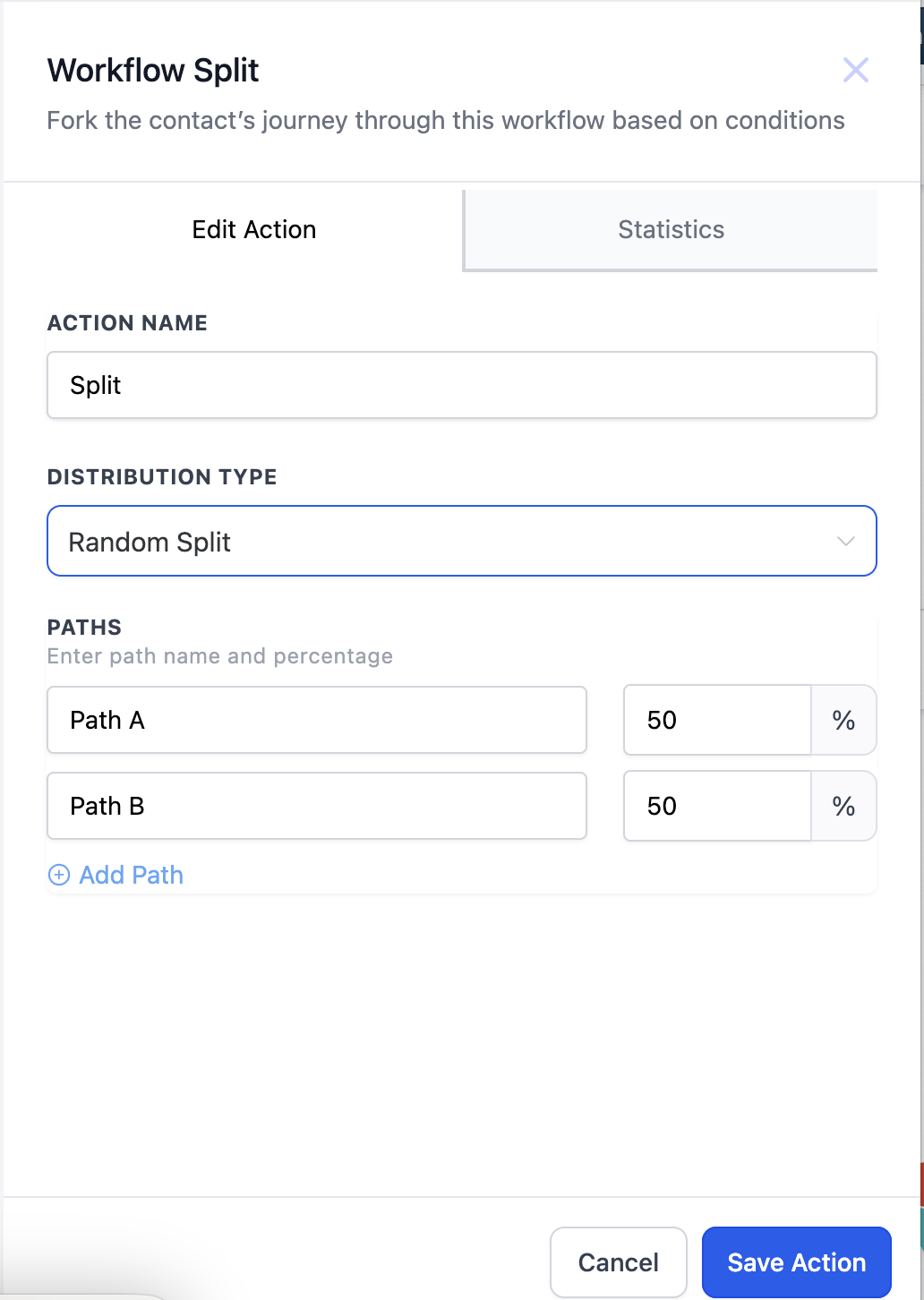
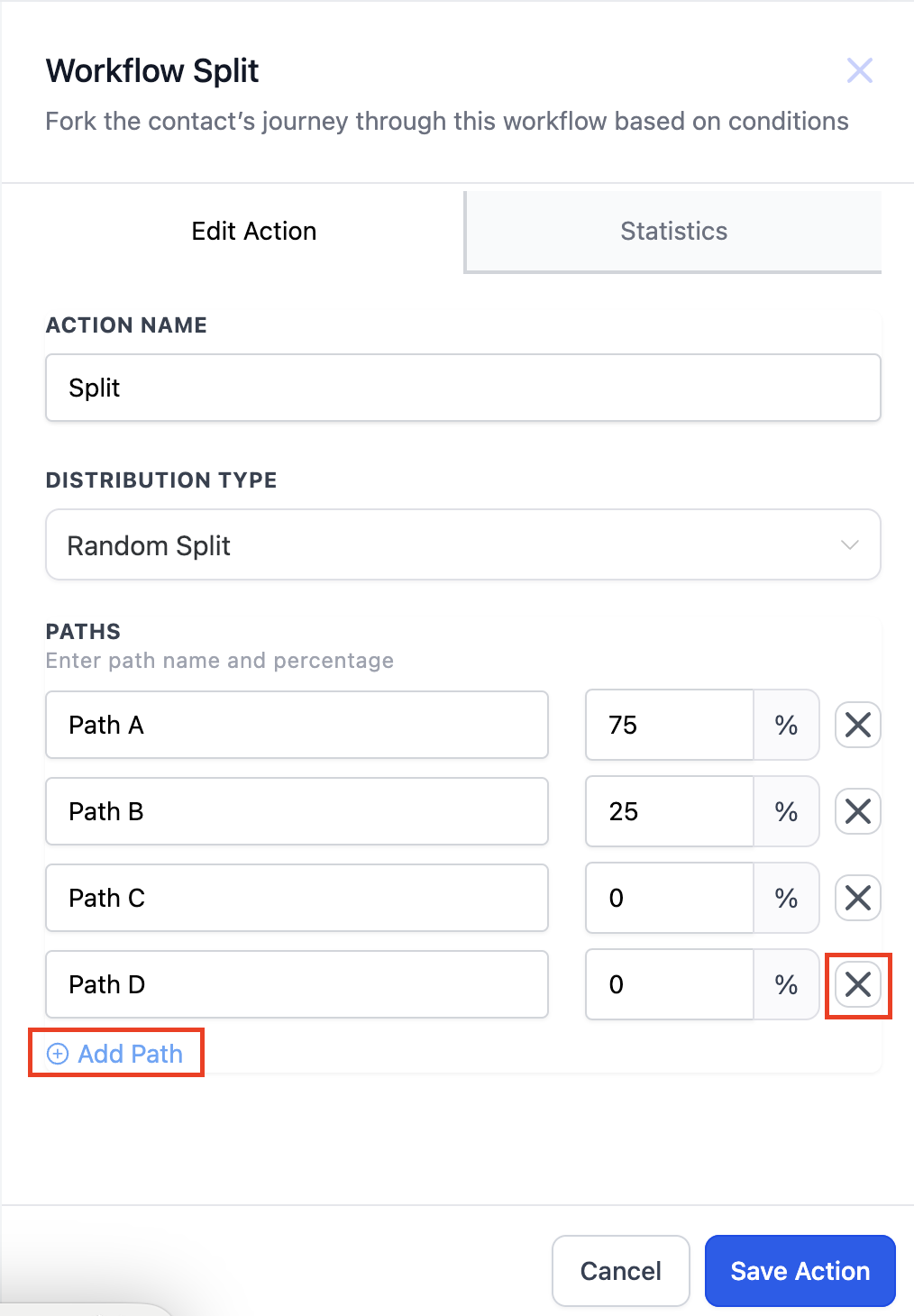
When you select Random Split, the platform assigns each incoming contact to one of the defined paths according to the percentages you set. You may create up to five distinct paths, rename each for clarity, and the percentages across all paths must total 100 %. After a contact follows a path, any later re entry to the same split will keep it on that original path.
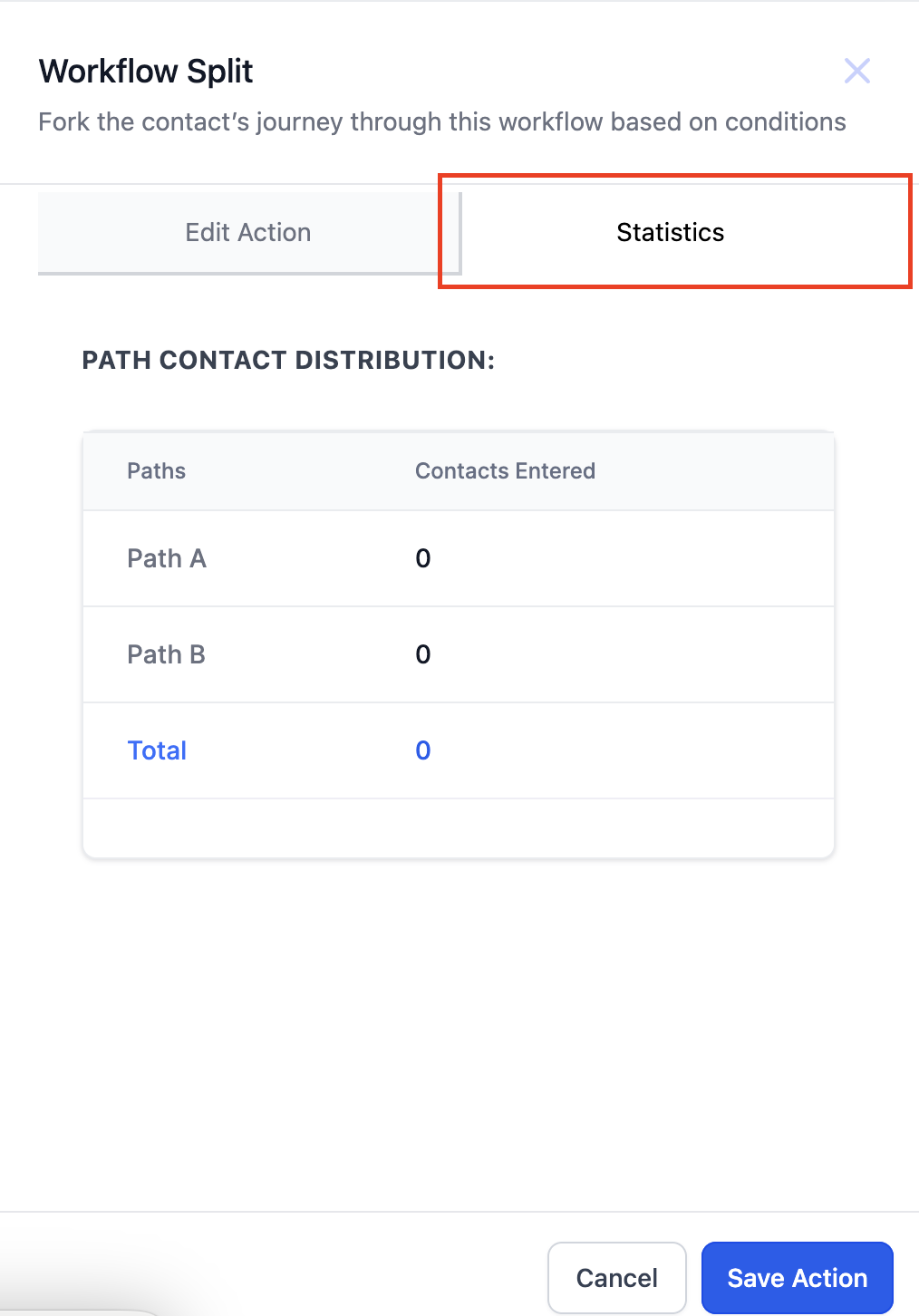
HighLevel provides a Statistics view for the split, showing how many contacts entered each route and their goal completions. Enabling the Stats View option displays these numbers directly on the workflow canvas.
03How businesses use split action
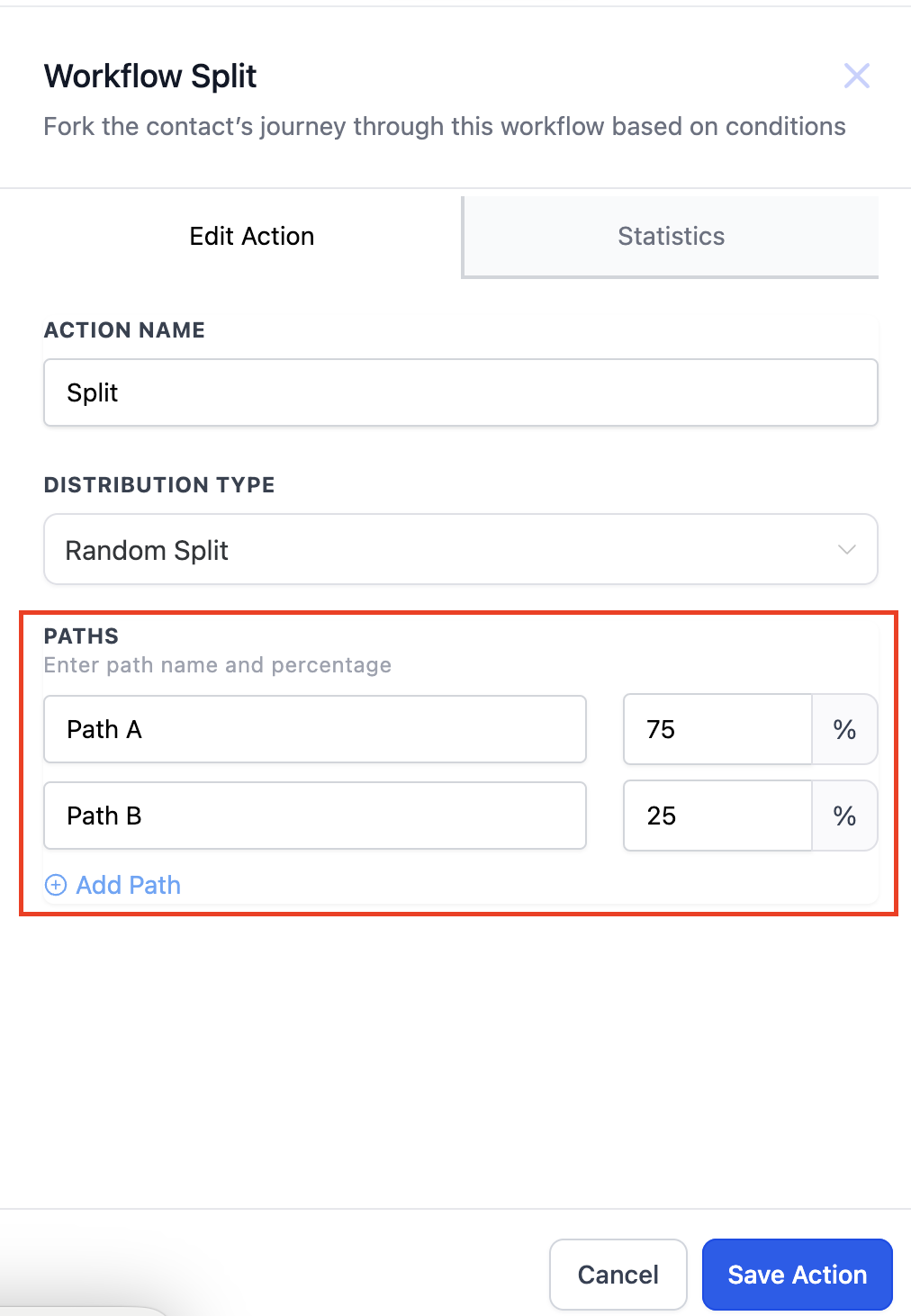
- Email subject line testing. Create a Random Split with two paths, each linked to an email containing a different subject line. Set percentages (for example 70 % to Path A and 30 % to Path B), rename the paths to reflect the subject lines, and use the statistics to see which subject drives higher open rates.
- Landing page variation. Add a Random Split after a lead capture trigger. Define two paths that each direct contacts to a different landing page version. Allocate traffic percentages, rename the paths to identify the page versions, and monitor which page yields more conversions via the built in stats.
- Promotional offer comparison. Insert a Random Split in a workflow that sends contacts to two separate promotional offer emails. Set the split percentages, give each path a clear name, and track which offer results in more purchases using the Statistics view.
04The numbers and rules that matter
- Create up to 5 separate paths.
- Percentages must total 100%.
05How to set up and use split action in HighLevel
Set up a random split in a workflow
- Open the desired workflow and click the plus icon to add a new element.
- Select Split from the Internal Tools category.
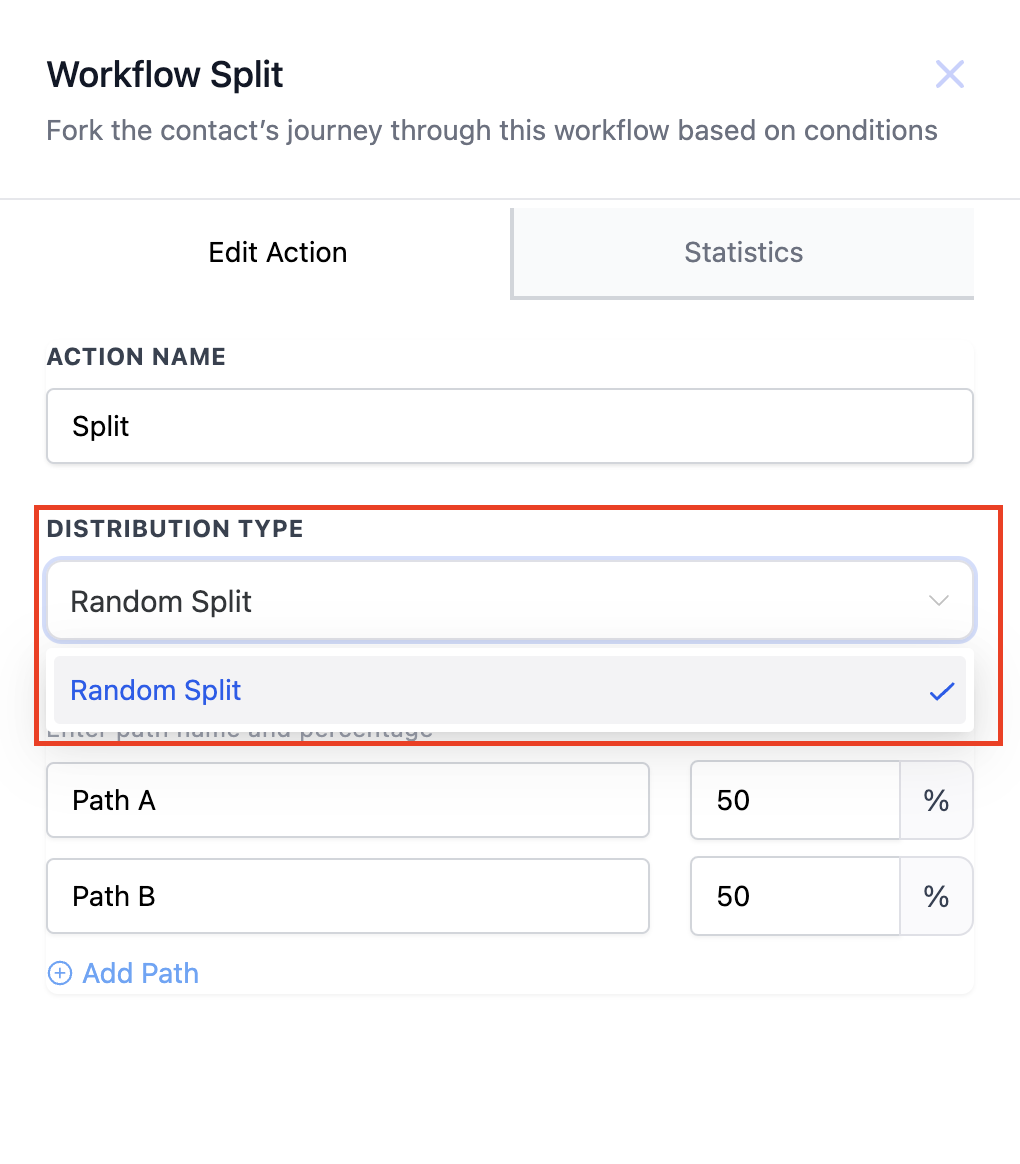
- In the Split configuration screen, pick Random Split from the Distribution Type dropdown.
- Edit the default path labels to the names you want for each route.
- Enter a percentage for each path, making sure the total equals 100 %.
- Add additional paths up to five, or remove a path by clicking its X icon.
- Open the Statistics icon, and turn on Stats View if you want split data shown on the workflow diagram.
06What it looks like in HighLevel
07Settings that matter
- Distribution Type dropdown. Chooses the algorithm that determines how contacts are routed; selecting Random Split enables random percentage distribution.
- Path name fields. Allows you to rename each branch so its purpose is clear when reviewing the workflow.
- Percentage fields. Sets the share of contacts that will follow each path; all percentages must add up to 100 %.
- Stats View toggle. When enabled, displays entry and completion numbers for each split path directly on the workflow canvas.
08Things to know before you rely on it
- You can create a maximum of five separate paths in a Random Split.
- The combined percentages of all paths must equal 100 %.
- A contact that follows one path will not be sent down another path if it re enters the split.
- Stats are available only if the Statistics view is turned on.
09How it connects to the rest of HighLevel
- Learn the basics of building workflows in HighLevel. Workflow basics
- Detailed guide on creating triggers, filters, and actions for HighLevel workflows. Workflow creation
- Review plan options to ensure Access to advanced workflow features. Pricing and plans
Michael's take

Many people set up a Random Split and then expect contacts to wander between paths later, but the split is a one time decision. Once a contact follows a path, they stay on that route even if they reenter the workflow.
I would map out exactly what I want to test, set clear percentage goals, and then watch the stats before moving the winning path into my main flow. A quick glance at the Statistics icon tells me which variant is delivering the results I need.