
01Who this is for
- Online retail Founders, can auto notify buyers when refunds are processed, reducing support tickets.
- Service based business owners, receive internal tasks to follow up with refunded clients, ensuring personal outreach.
- Subscription platform managers, differentiate full and partial refunds to trigger appropriate onboarding or cancellation steps.
02Refund workflow triggers, explained
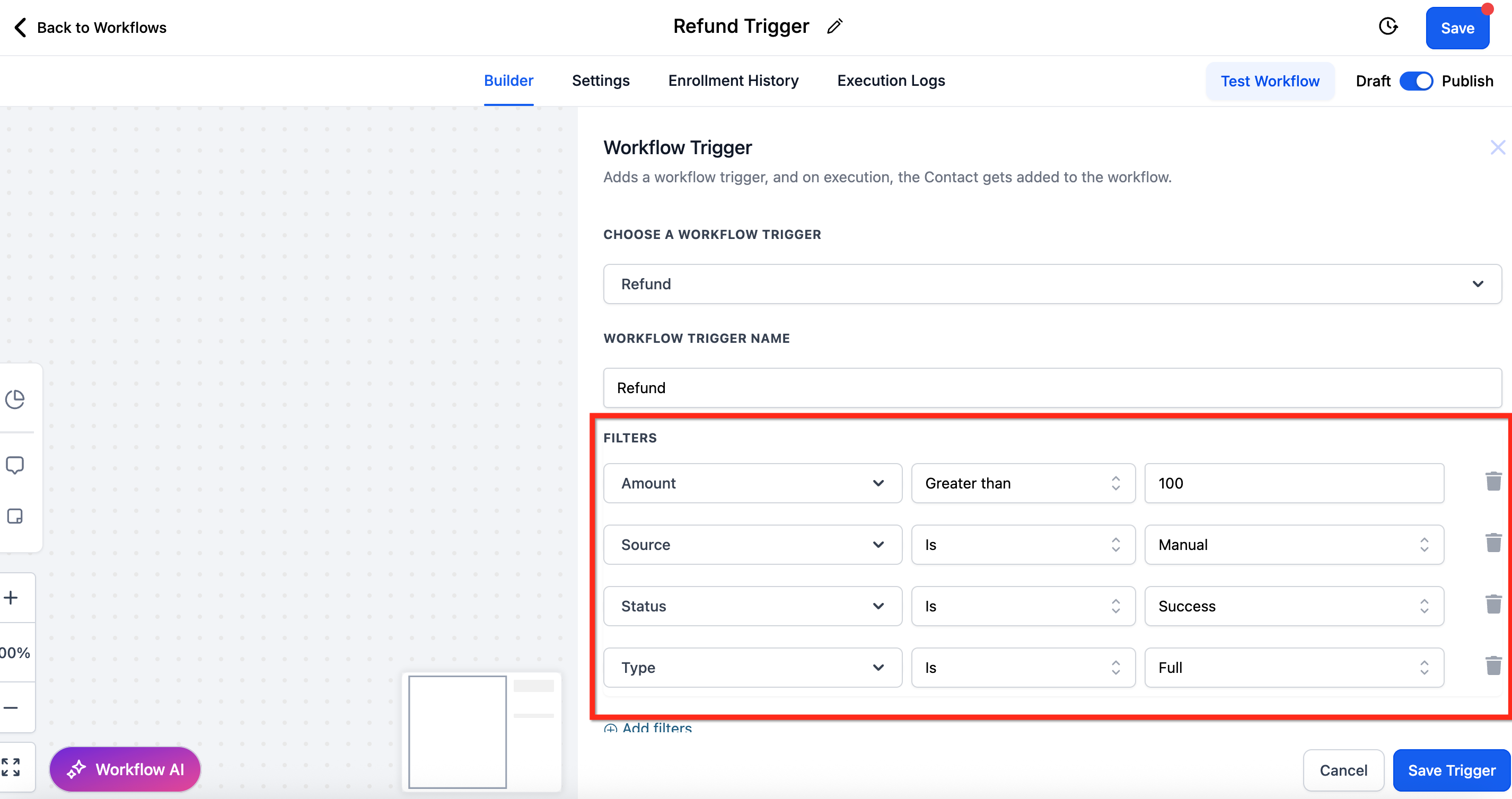
The Refund Workflow Trigger starts a workflow each time a refund is logged in HighLevel. Filters let you limit activation by refund status (successful or failed), amount thresholds, the source of the refund, or whether it is a full or partial refund.
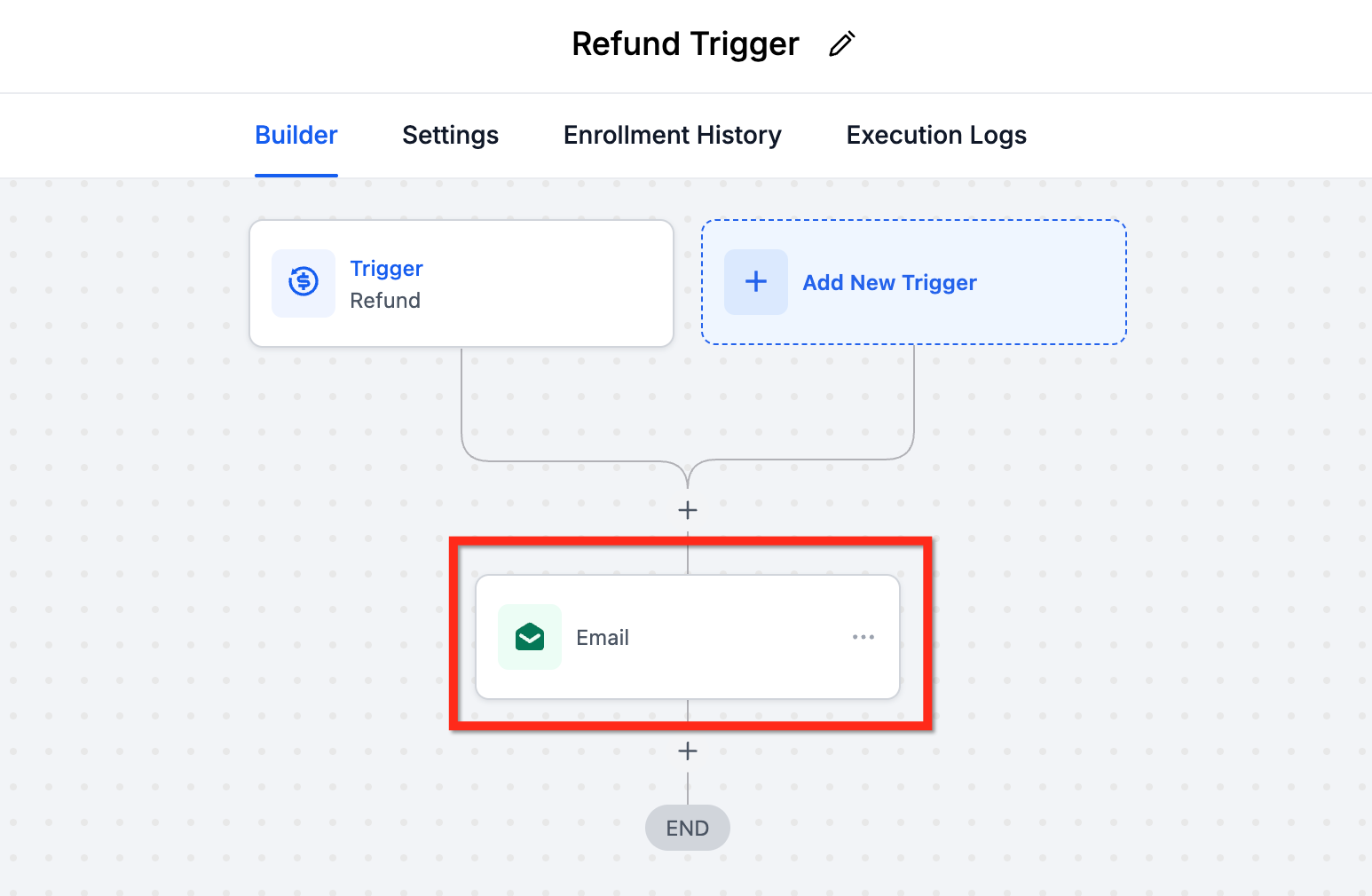
You create the trigger inside the Automation > Workflows area. After naming the workflow and adding the Refund trigger, you attach any desired filters, then build out actions such as sending messages, creating tasks, or updating records before publishing the workflow.
Custom values from the Payments section are available in the workflow, allowing you to insert specific refund details like the amount or transaction ID into messages or tasks.
03How businesses use refund workflow trigger
- Ecommerce store. Add the Refund trigger and filter for successful refunds. Then configure an email action that pulls refund custom values to inform the buyer that their money has been returned. The workflow runs automatically whenever a sale is refunded.
- Coaching business. Set the trigger with a filter for Partial refunds. Create a task action assigned to the success team so they call the client to discuss the partial reimbursement. The task appears in the team’s task list as soon as the refund is processed.
- SaaS subscription service. Use the Source filter to target refunds that originated from Invoices. Attach an internal email action that alerts the billing department, enabling them to review the failed payment and take next steps. The workflow fires only for the selected source.
04The numbers and rules that matter
- Supported payment processors: Stripe, Authorize.net, NMI.
- Refund source options include Calendar, Communities, Payment Link, Invoices, Manual, and more.
05How to set up and use refund workflow trigger in HighLevel
Set up refund workflow trigger
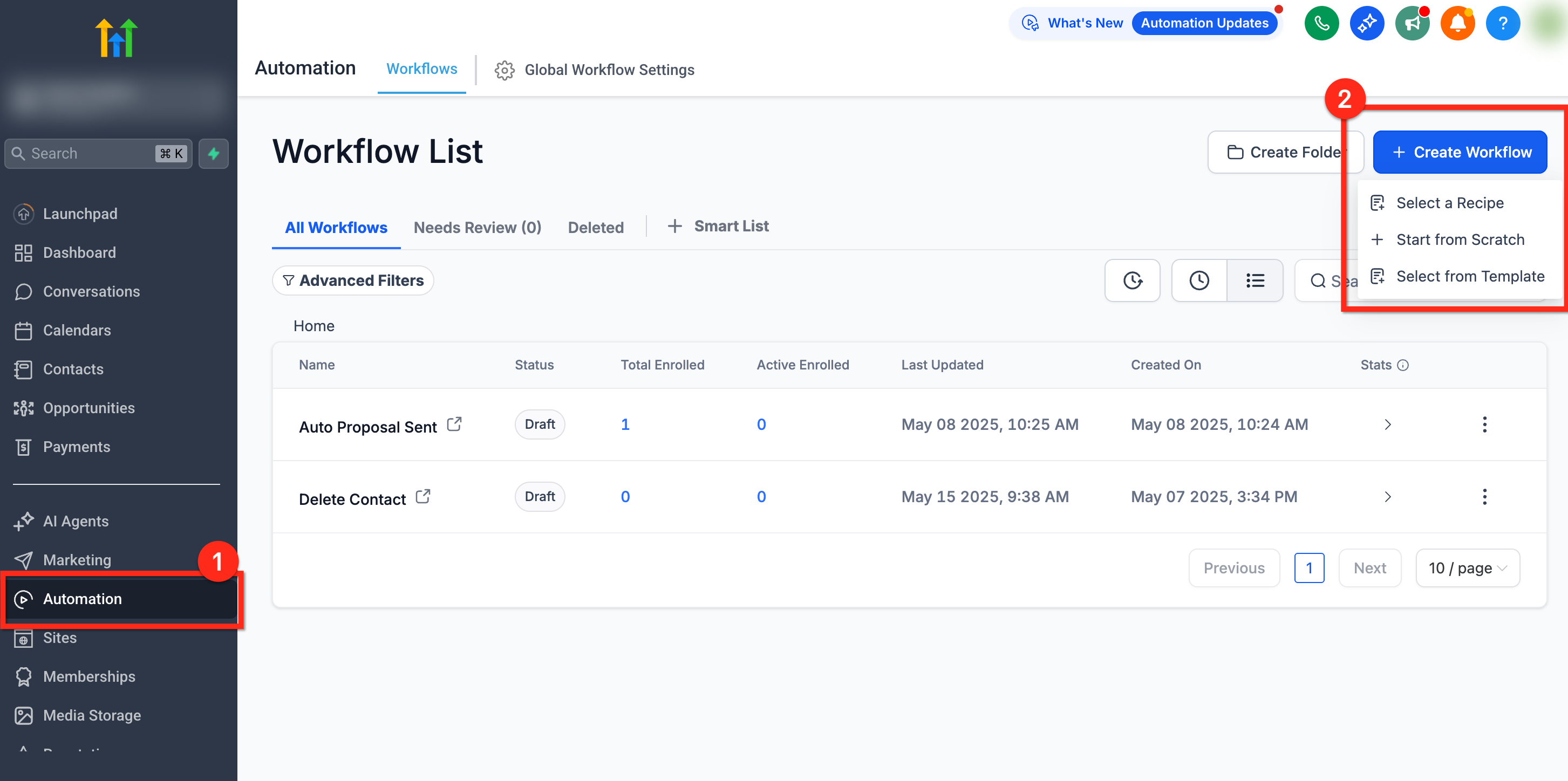
- Navigate to Automation using the left hand navigation bar in your subaccount.
- Click the + Create Workflow button in the top right corner.
- Enter a name for the workflow.
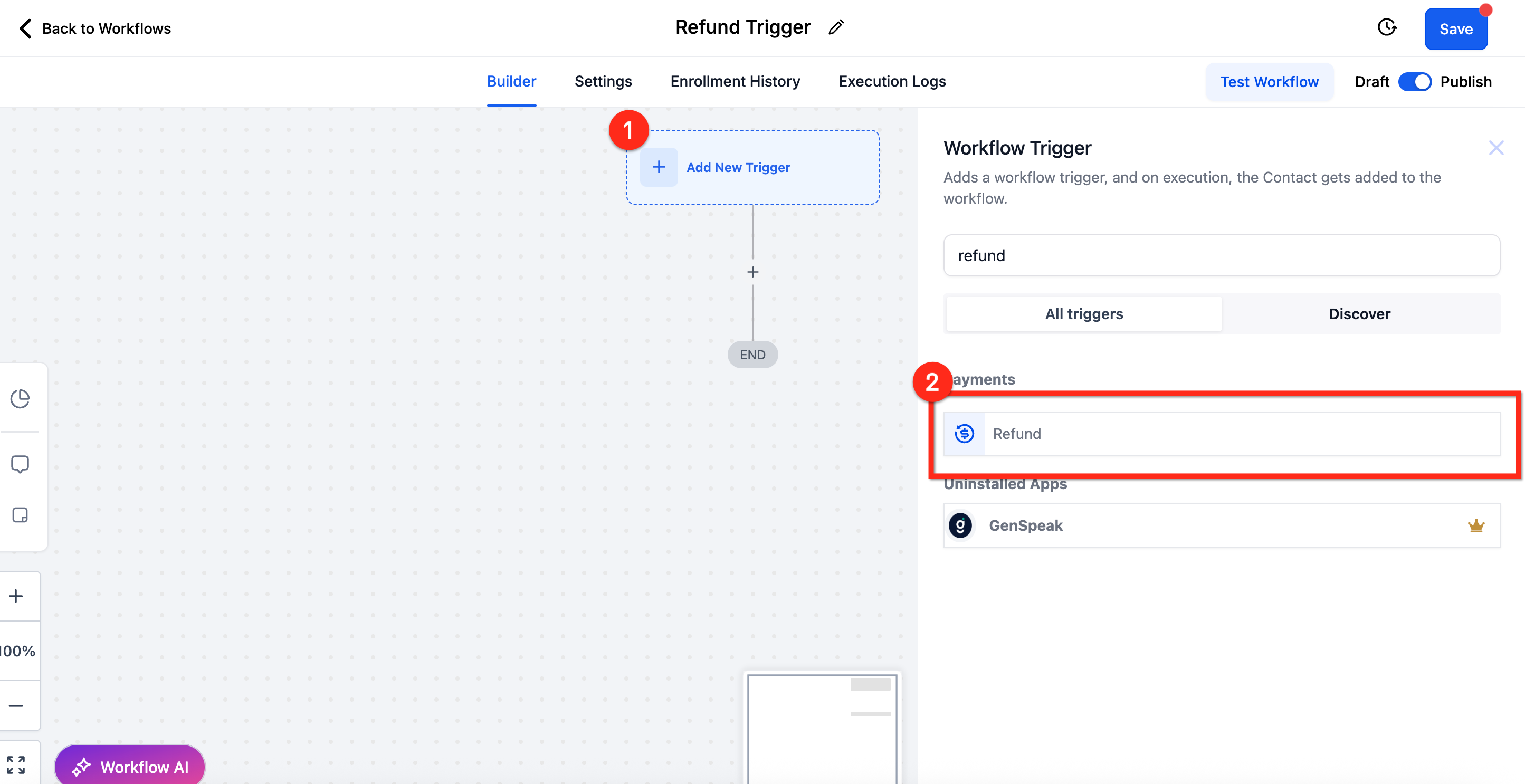
- Click + Add New Trigger.
- Search for Refund and select it.
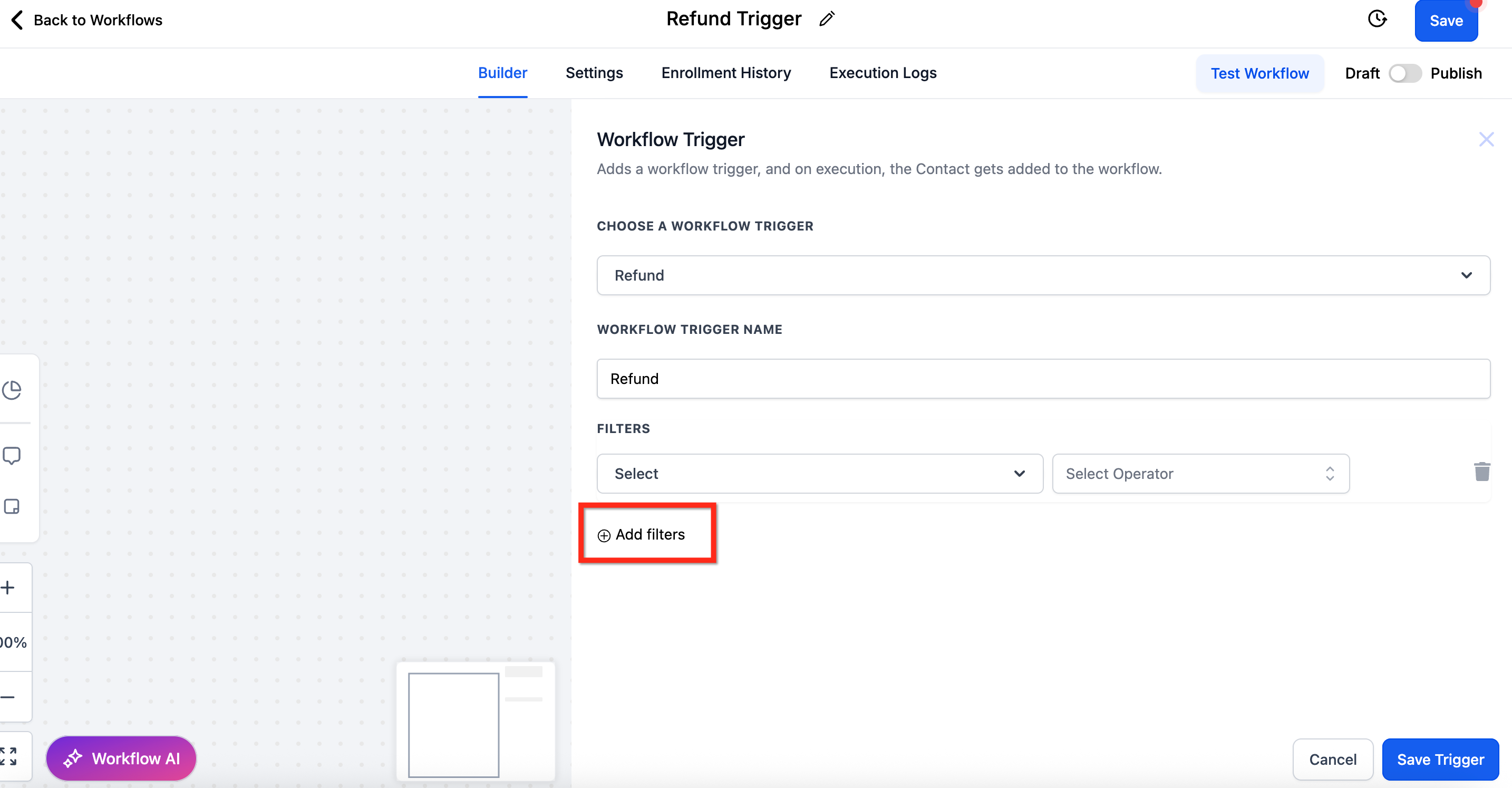
- Click + Add Filters at the bottom of the Workflow Trigger page.
- Apply desired filters such as status, amount, source, or type.
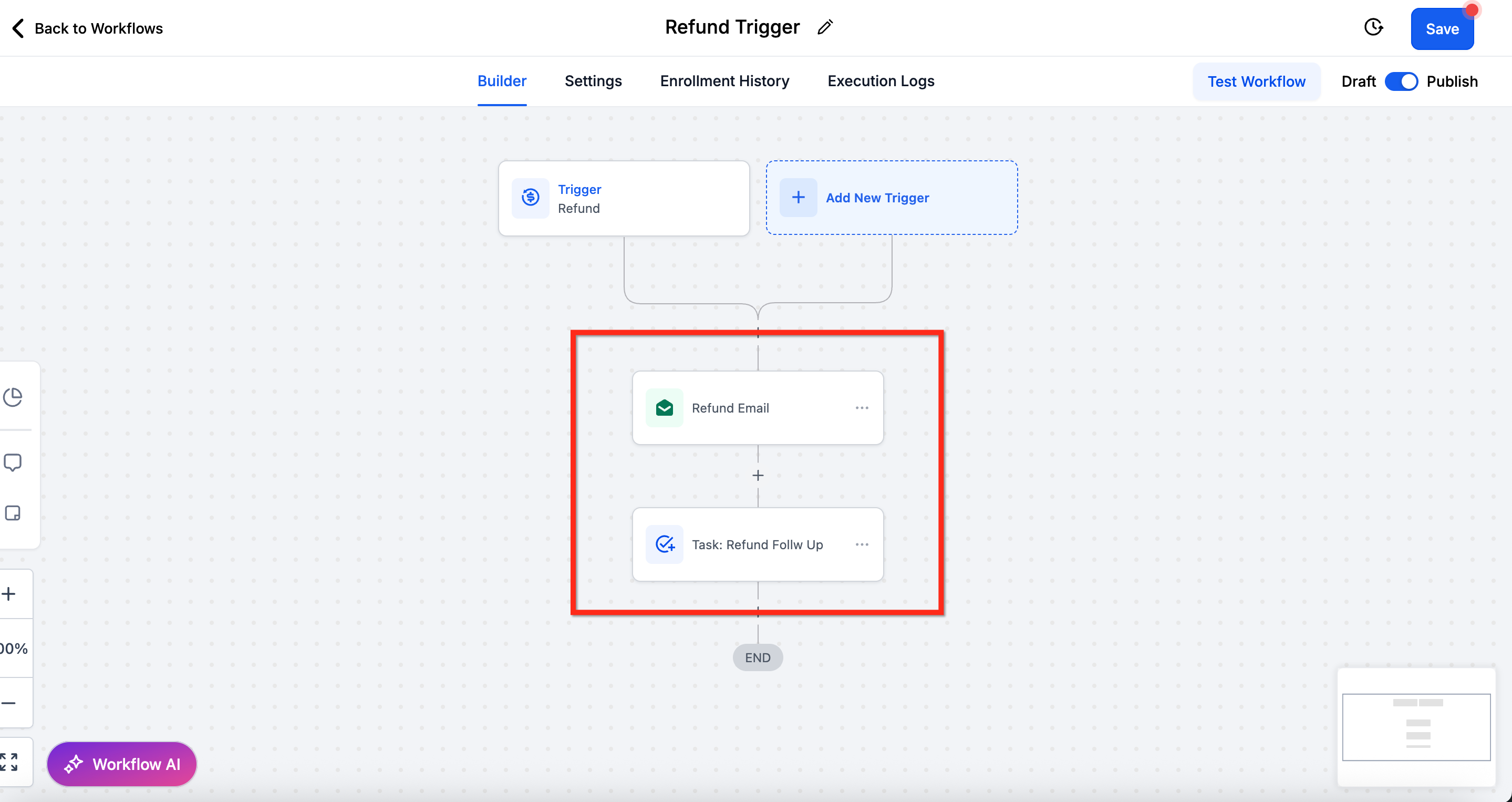
- Add actions like notifications or task creation according to your needs.
- Click Save and Publish the workflow.
06What it looks like in HighLevel
07Settings that matter
- Status. Determines whether the workflow runs for successful refunds, failed refunds, or both.
- Amount. Sets a dollar threshold; the trigger fires only when the refund amount is greater than, less than, or equal to the value you specify.
- Source. Specifies which refund origin (Calendar, Communities, Payment Link, Invoices, Manual, etc.) can activate the workflow.
- Type. Chooses between Full Refund, Partial Refund, or any type to decide when the trigger should fire.
08Things to know before you rely on it
- The trigger activates only for refunds issued inside HighLevel; refunds processed directly in an external Stripe dashboard will not fire it.
- Supported payment processors for refunds are Stripe, Authorize.net and NMI, and the integration must be configured.
- Each refund event, even for the same contact, generates a new trigger execution.
09If something goes wrong
- Workflow does not start after a refund processed outside HighLevel.. Issue the refund through HighLevel using a supported processor (Stripe, Authorize.net, or NMI).
- Failed refunds are not notifying the team.. Add a filter where Refund Status = Failed so the workflow runs on failed attempts.
10How it connects to the rest of HighLevel
- Combine with the Payment Received trigger to handle post payment actions. Payment received trigger
- Pair with the Order Submitted trigger for full order to refund automation. Order submitted trigger
- Use alongside the Subscription trigger to manage refunds linked to recurring plans. Subscription trigger
- Link with the Invoice trigger to handle refunds generated from invoice payments. Invoice trigger
Michael's take

Wondering if automating refund notifications is worth the effort? The Refund workflow trigger lets you set up a single rule that sends customers a confirmation or alerts your team when something goes wrong, so you never have to manually type a message after each refund.
If I were building a refund process from scratch, I’d first map the exact scenarios I need. Successful refunds, failed attempts, partial refunds. And then attach the appropriate actions. Test each path with a low value refund to confirm the trigger fires and the messages land where they should before rolling it out to every transaction.