
01Who this is for
- Any user can pause specific actions while testing workflows without rebuilding the flow.
- Teams can isolate a step to debug without affecting the rest of the sequence.
02Pause workflow actions, explained
Pause Workflow Actions provides a quick way to turn a workflow node off or on inside the builder. When a node is disabled, the platform skips it during run time, so contacts move past the step without interruption. The node stays linked to the rest of the workflow, so you keep the original wiring.
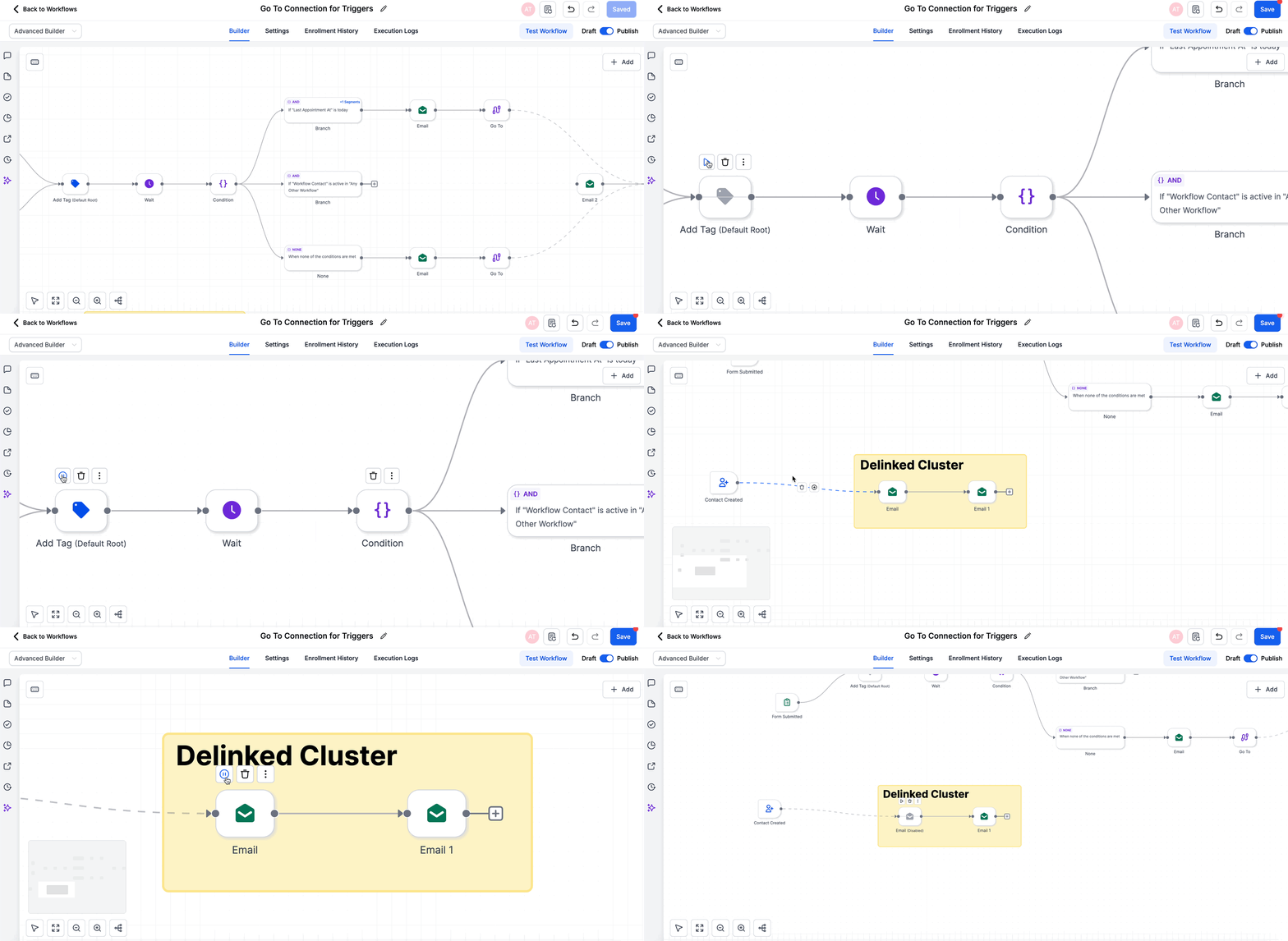
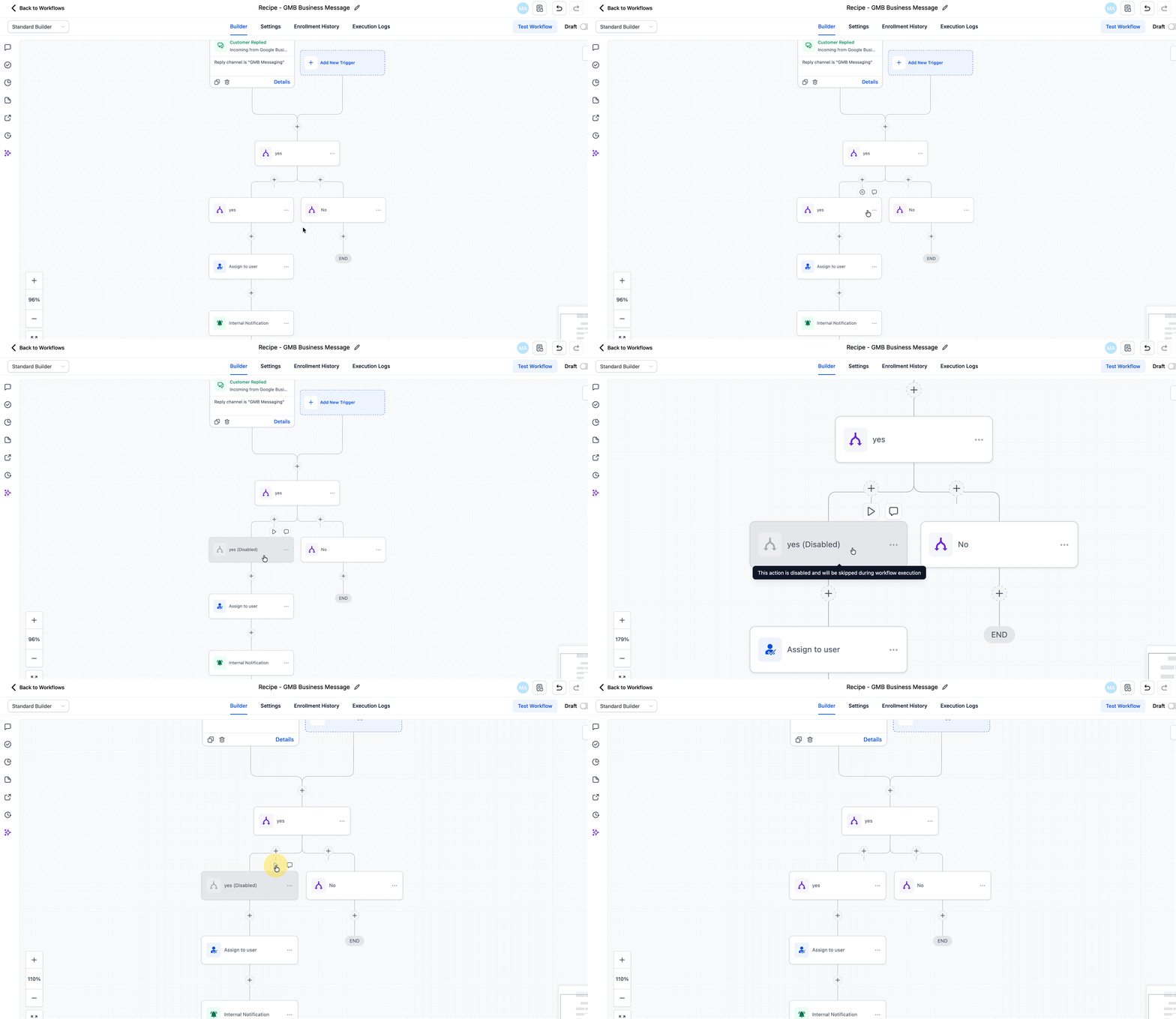
The interface shows a greyed out node with a Disabled label when you turn it off. The toggle appears when you hover over the node, and clicking it changes the node’s color back to normal when re enabled. Execution logs record disabled nodes as Skipped, giving clear traceability.
The feature is available in both the Advanced Builder and the Standard Builder. You can use the same toggle in either canvas, allowing consistent testing and troubleshooting regardless of which builder you prefer.
03How businesses use pause workflow actions
- Testing variations. Toggle off an email action to run the workflow without it, then re enable the node to restore the original behavior.
- Debugging a branch. Disable a webhook node to verify that downstream steps execute correctly before re activating the notification.
- Isolating step timing. Turn off a delay node while adjusting schedule settings, then turn it back on once the new timing is confirmed.
04How to set up and use pause workflow actions in HighLevel
Enable or disable a node
- Hover over the desired node on the workflow canvas.
- Watch for the enable/disable switch to appear on the node.
- Click the toggle to turn it off; the node greys out and shows a Disabled label.
- If needed, click the same toggle again to re enable the node, restoring its normal appearance and execution.
05What it looks like in HighLevel
06Settings that matter
- Enable/Disable toggle. Controls whether a specific workflow node runs. Turning the toggle off skips the node during execution; turning it on restores normal processing.
07Things to know before you rely on it
- Bulk enable or disable of nodes is not supported; each node must be toggled individually.
- Switching to the Standard Builder while disabled nodes remain prompts you to delete or re enable those nodes before the builder loads.
- Disabled nodes do not count toward execution limits because they are skipped.
- If a disabled node is the only path forward, the workflow skips it and continues with any downstream active nodes.
08How it connects to the rest of HighLevel
- Learn how to build workflows with triggers, filters, and actions. Workflow creation guide
- Review workflow settings that control contacts and timing. Workflow settings overview
- Explore pricing options for workflow features. HighLevel pricing
Michael's take

Wondering if you can test a new email without breaking the rest of your funnel? You can. Pause workflow actions let you turn any step off, run the flow, and see the results without losing the wiring you already built. It’s a quick way to isolate a piece of logic and make sure it behaves the way you expect.
When I’m setting up a new automation, I first disable the part I’m still tweaking, run a few contacts through, and then flip the toggle back on. It saves the hassle of rebuilding connections and gives a clean log that marks the skipped steps. That clarity is worth the few seconds it takes to click the pause icon.