
01Who this is for
- Agency owners who need to keep client project boards aligned with HighLevel stages, reducing manual data entry.
- Operations managers looking for a single platform to move tasks between HighLevel and Monday.com without Zapier.
- Developers building reusable automation templates across multiple subaccounts.
02Monday.com actions and triggers, explained
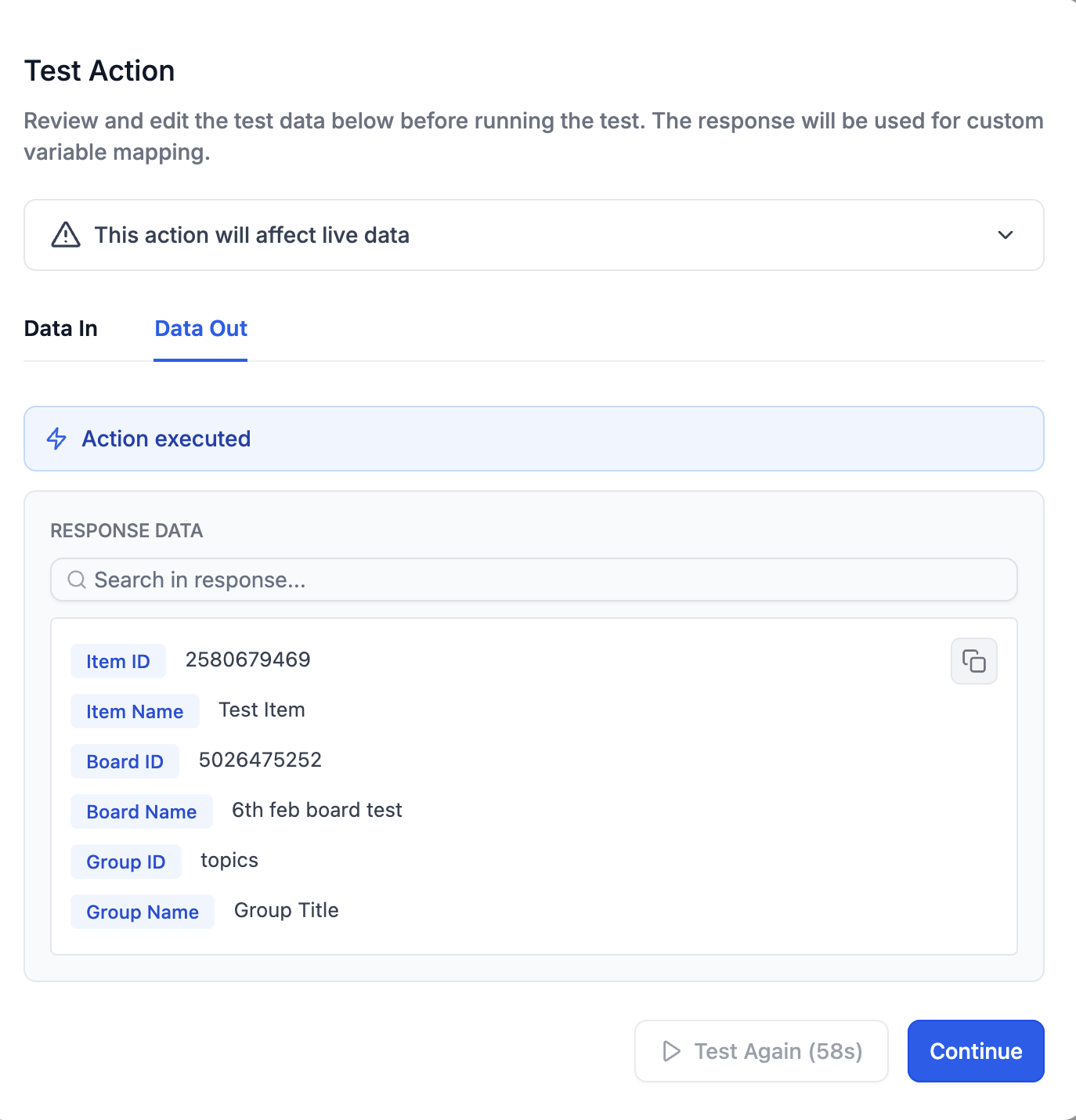
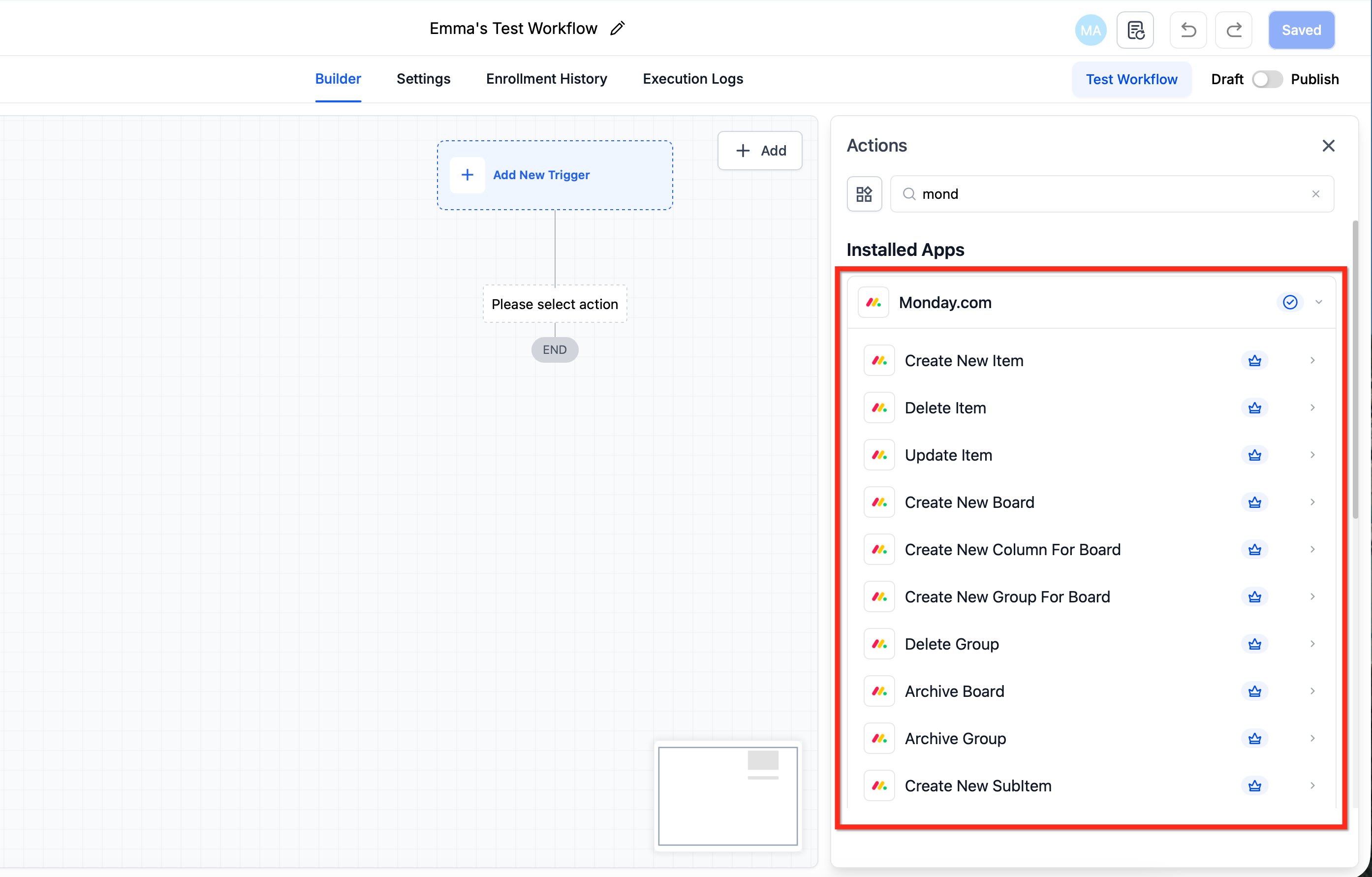
The integration adds a set of Monday.com actions to the workflow builder. Users can create boards, groups, items, subitems, and update or delete them, as well as search for items by ID or column values. A Test Action validates the connection and captures returned IDs for later steps.
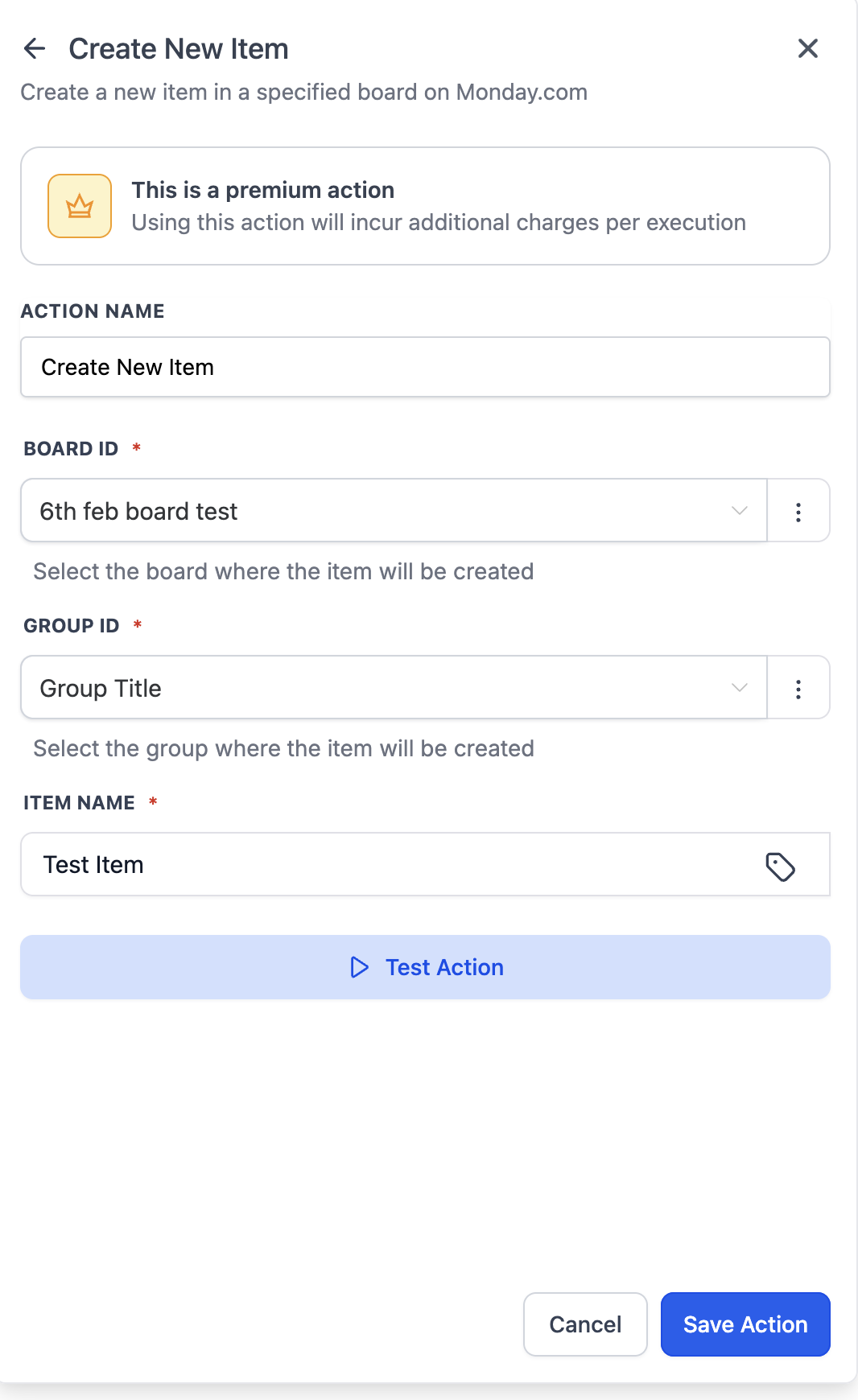
These actions are available inside the workflow editor under the Monday.com selector. When an action is added, the user selects the workspace, board, and optional group, then maps required fields such as item name or column values. At present only actions are supported; triggers are announced for future release and will let Monday events automatically launch or branch workflows.
03How businesses use monday.com actions and triggers
- Marketing agency. The agency adds a Create New Item action to a workflow that triggers when a lead reaches the qualified stage. It maps the lead name to the Monday item name and assigns the account manager to the People column, ensuring the project board reflects new opportunities.
- Software consultancy. The consultancy uses an Update Item action after a client signs a contract. The workflow maps the contract date to a Date column and changes the Status column to Signed, keeping the development board current without manual updates.
- Event planning company. The company inserts a Find Items by Column Value action to locate a specific event record based on its custom code column. The returned Item ID is then fed into a subsequent Update Subitem action to adjust task assignments.
04Before you start
- A HighLevel subaccount with Workflows access.
- A Monday.com account with permission to view and edit the target workspace, boards, groups, and items.
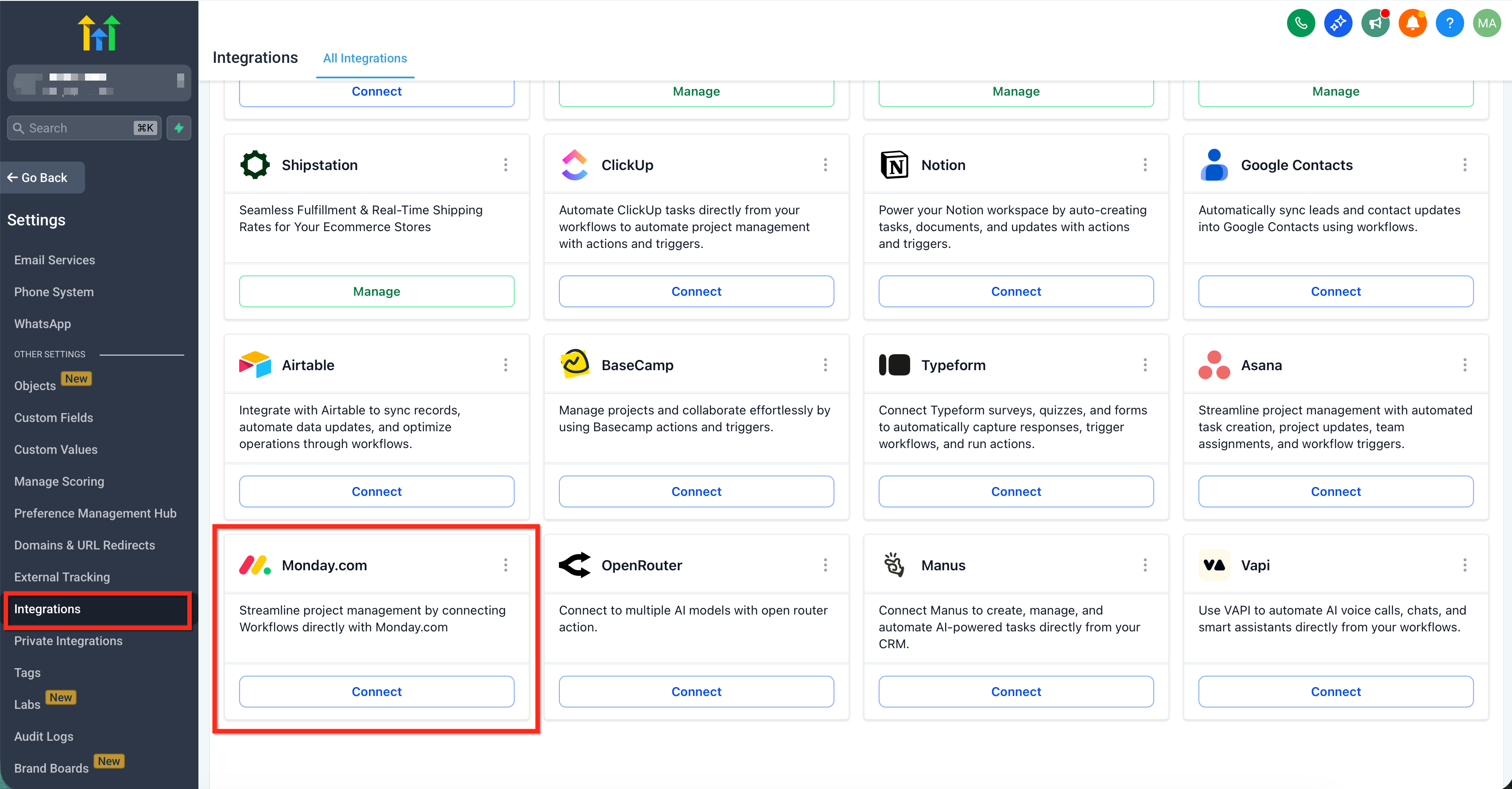
- Your Monday.com API key for authentication.
- A clear list of Monday columns you will read from or write to.
05How to set up and use monday.com actions and triggers in HighLevel
Set up a workflow that syncs HighLevel and Monday.com
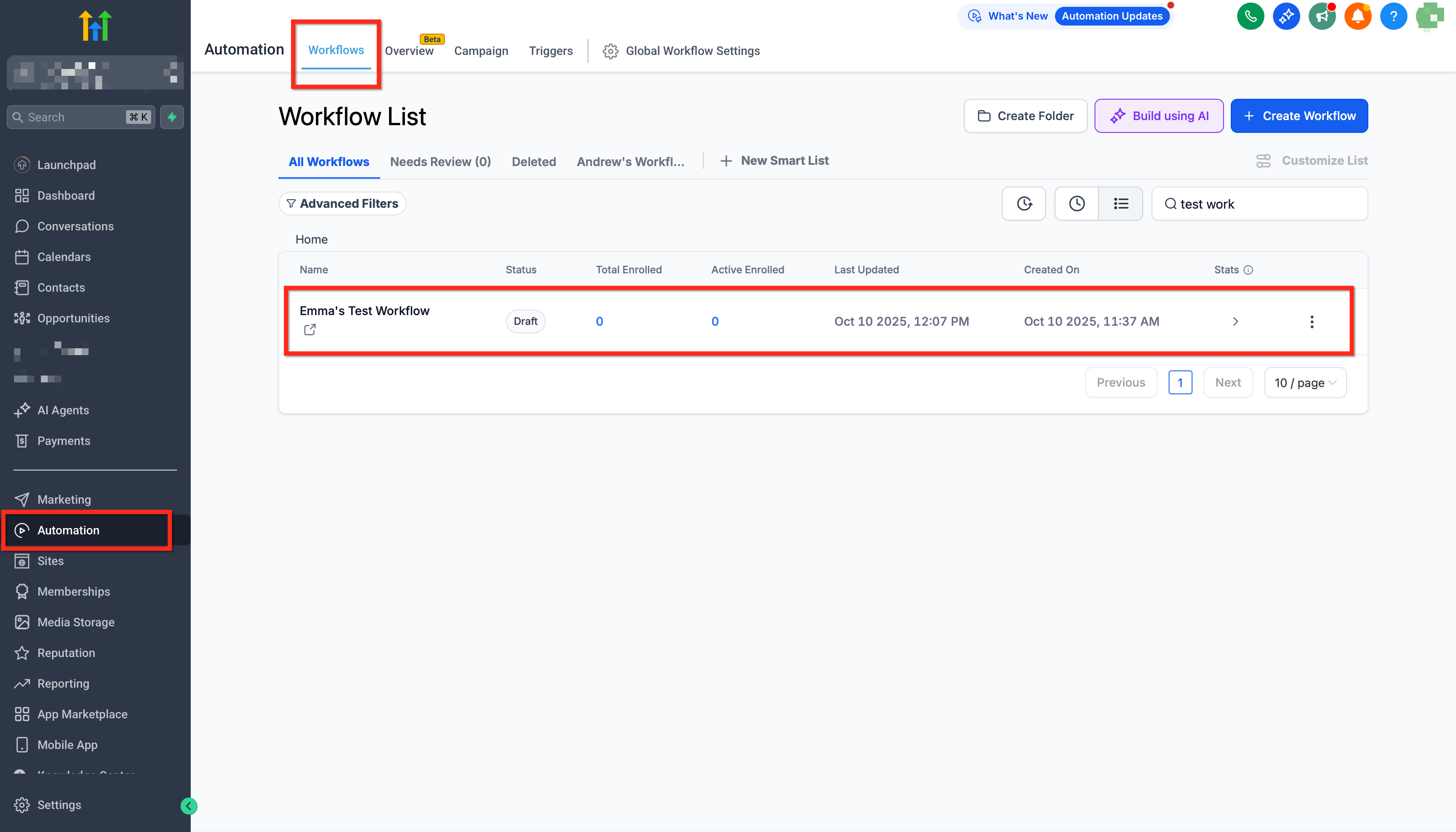
- Open Automation > Workflows, then create a new workflow or open an existing one.
- Add a trigger such as Opportunity Status Changed, Form Submitted, or Schedule, and configure any needed filters.
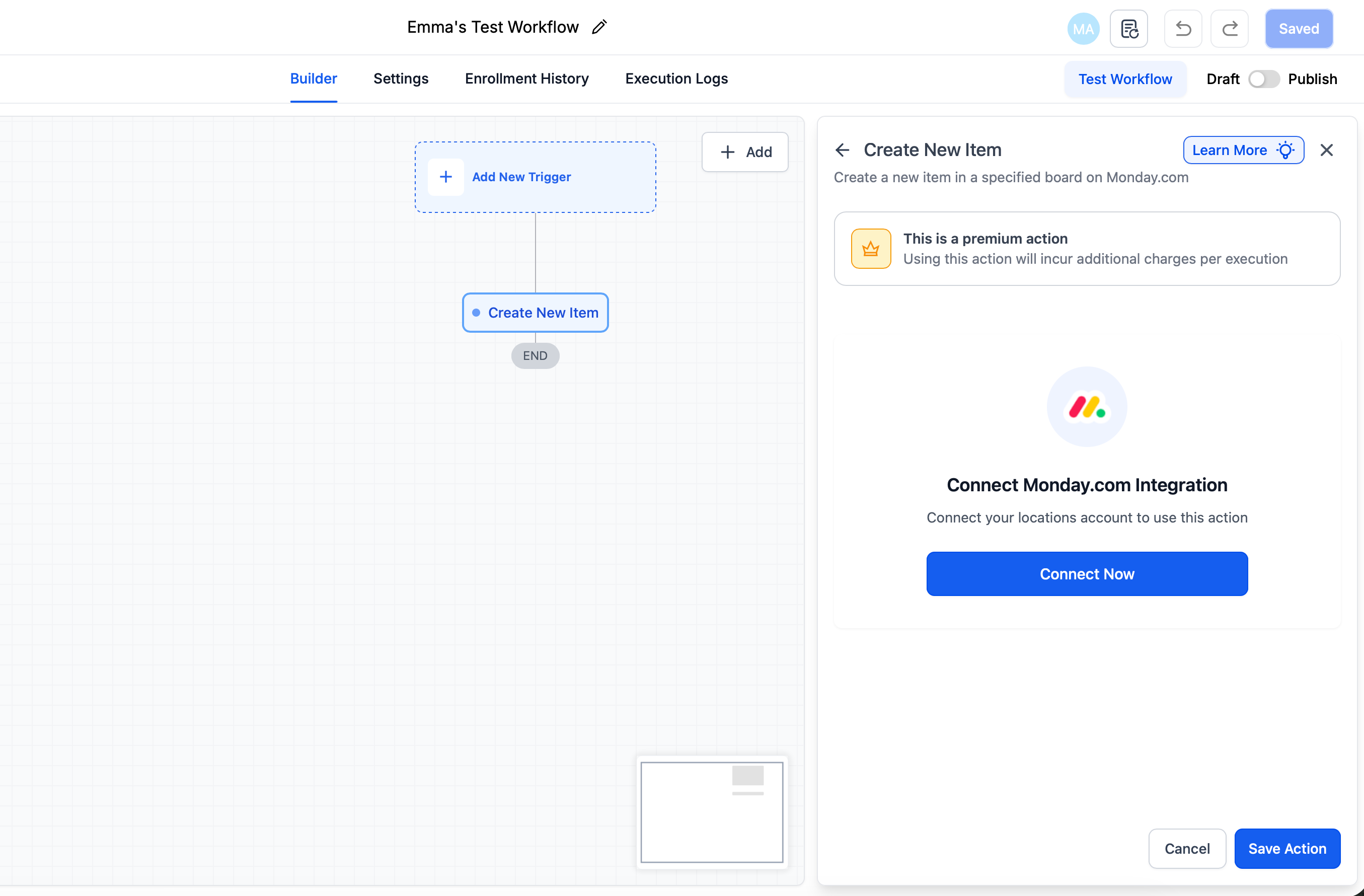
- Click the + icon, search for Monday.com, and select the required action (for example Create New Item).
- If the connection is not yet established, click Connect Now and sign in with your Monday.com credentials.
- Choose the Workspace, then the Board, and select the Group where the action will apply.
- Map the necessary fields to Monday.com columns, providing Item name and any column values; include IDs for update or delete actions.
- Click Save, then Publish the workflow, and run a test by moving a deal to the targeted stage.
06What it looks like in HighLevel
07Settings that matter
- Monday.com API key. Authenticates HighLevel to access your Monday.com workspace and permits actions such as creating or updating items.
08Things to know before you rely on it
- Triggers are listed as Coming Soon and are not yet usable.
- Delete Item and Delete Group actions are irreversible once executed.
- Get Board Items may paginate on large boards, requiring additional handling for full data sets.
- Monday.com steps count toward premium workflow features and may affect billing.
09How it connects to the rest of HighLevel
- Introduction to HighLevel workflow automation Workflow basics
- HighLevel workflow premium feature billing details Premium billing
- Start a 30 day HighLevel trial Free trial
Michael's take

The Monday.com integration adds real value for agencies that need tight sync between CRM and project boards.