
01Who this is for
- Founders who want to embed AI generated replies into their client communication without building separate services.
- Marketing teams that need multilingual content creation on the fly for email and SMS campaigns.
- Operations managers looking to extract data from uploaded receipts or IDs automatically.
02Mistral AI actions, explained
Mistral AI actions are native workflow steps that send prompts, text, or image URLs to Mistral models and receive the result as a workflow output variable. The integration works after a standard HighLevel trigger starts the automation; the AI step can be followed by any other action that accepts variables.
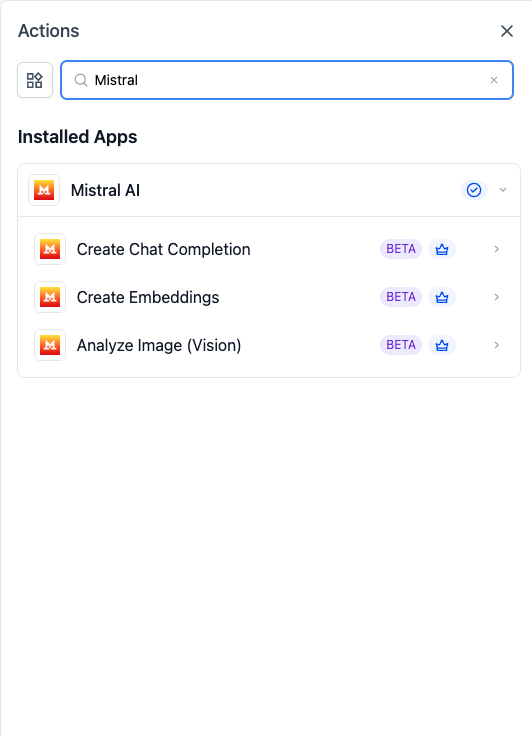
The actions include Create Chat Completion for text generation, Create Embeddings for vector conversion, and Analyze Image for vision tasks. Each action provides fields for prompts, system prompts, model selection, and optional tuning parameters. The output variable can be inserted into messages, stored in contact fields, or evaluated in conditional logic.
03How businesses use mistral AI actions
- Ecommerce store. When a customer submits a review, the store adds a Create Chat Completion step that rewrites the review into a friendly reply. The generated text is then placed in a Send Email action to thank the buyer.
- Legal practice. A client uploads a scanned contract image via a form. The workflow uses Analyze Image with a Pixtral model to extract key dates and parties, then updates custom fields on the client record automatically.
- Real estate agency. Incoming inquiries are turned into embeddings with Create Embeddings, enabling the workflow to match the question to a pre indexed FAQ vector and send the best answer using Send SMS.
04The numbers and rules that matter
- Embedding output dimension is 1024 dimensions.
- Models include Large, Medium, Small, Ministral 8B/3B, Pixtral Large, Pixtral 12B.
05Before you start
- A Mistral API key must be generated in console.mistral.ai.
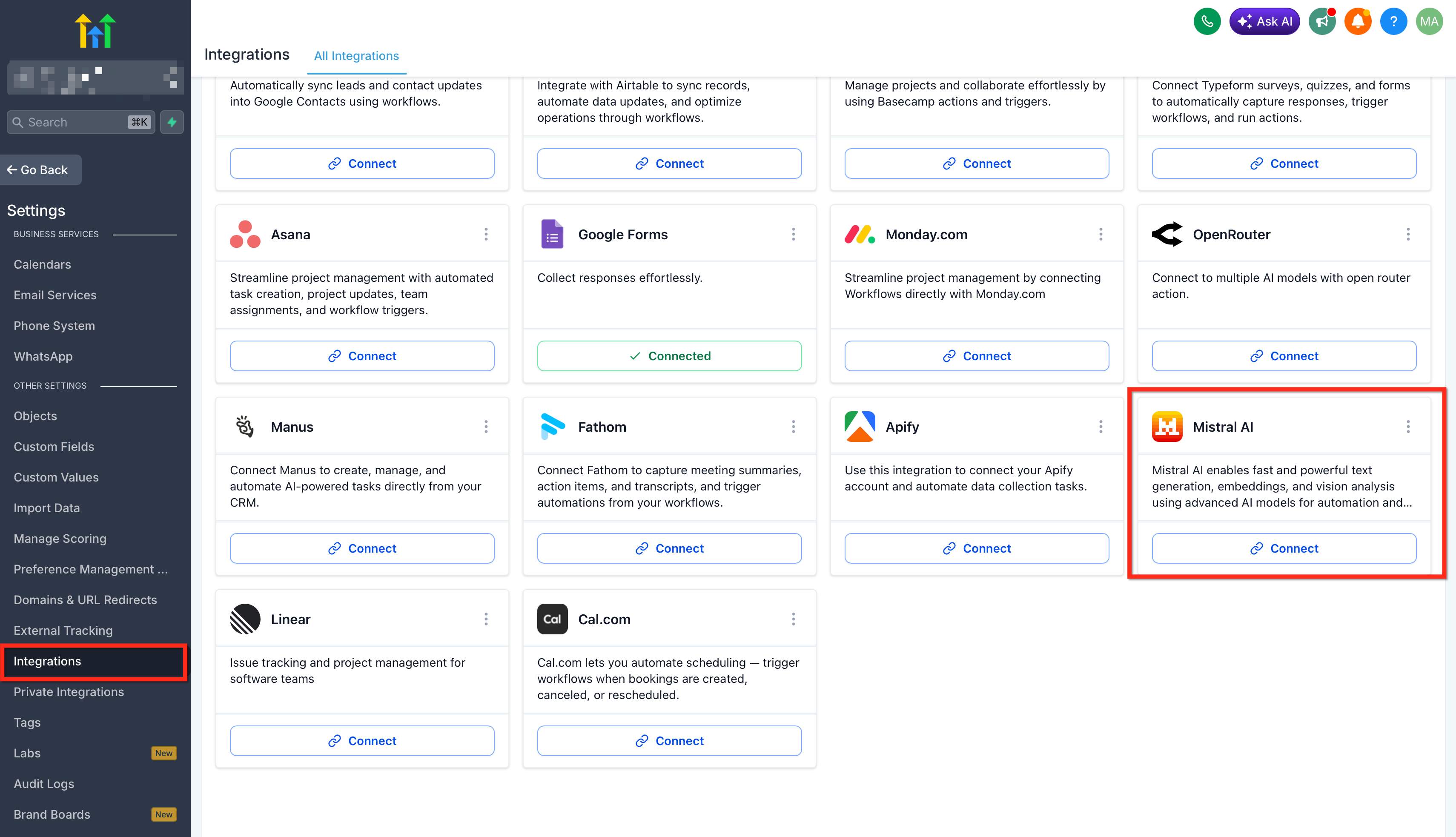
- The Mistral integration must be connected in HighLevel via Settings > Integrations > Mistral AI or from a workflow step.
- The workflow must contain a trigger such as Customer Replied, Form Submitted, or Inbound Webhook.
06How to set up and use mistral AI actions in HighLevel
Set up Mistral AI in a HighLevel workflow
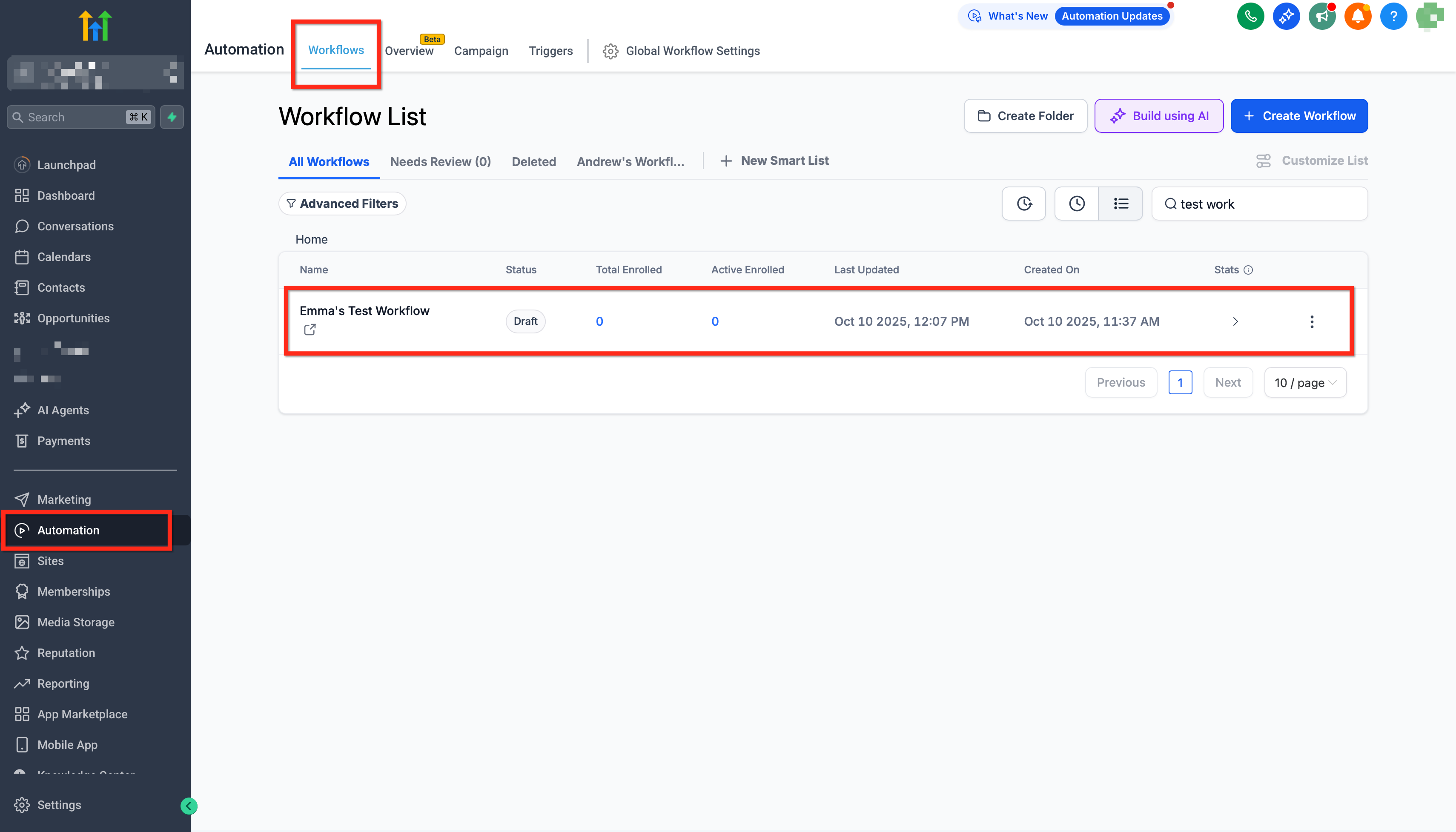
- Open Automation > Workflows and create a new workflow or edit an existing one.
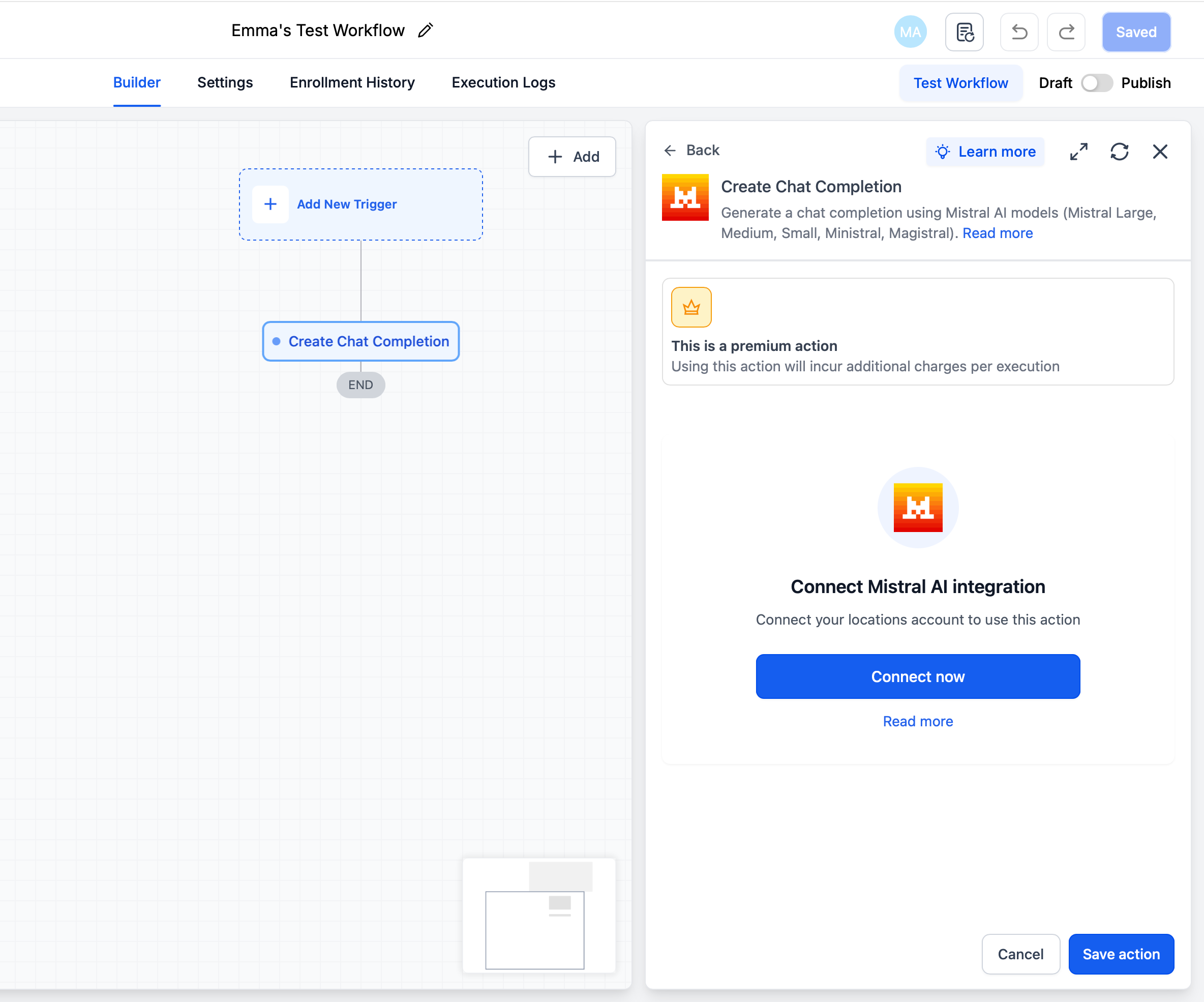
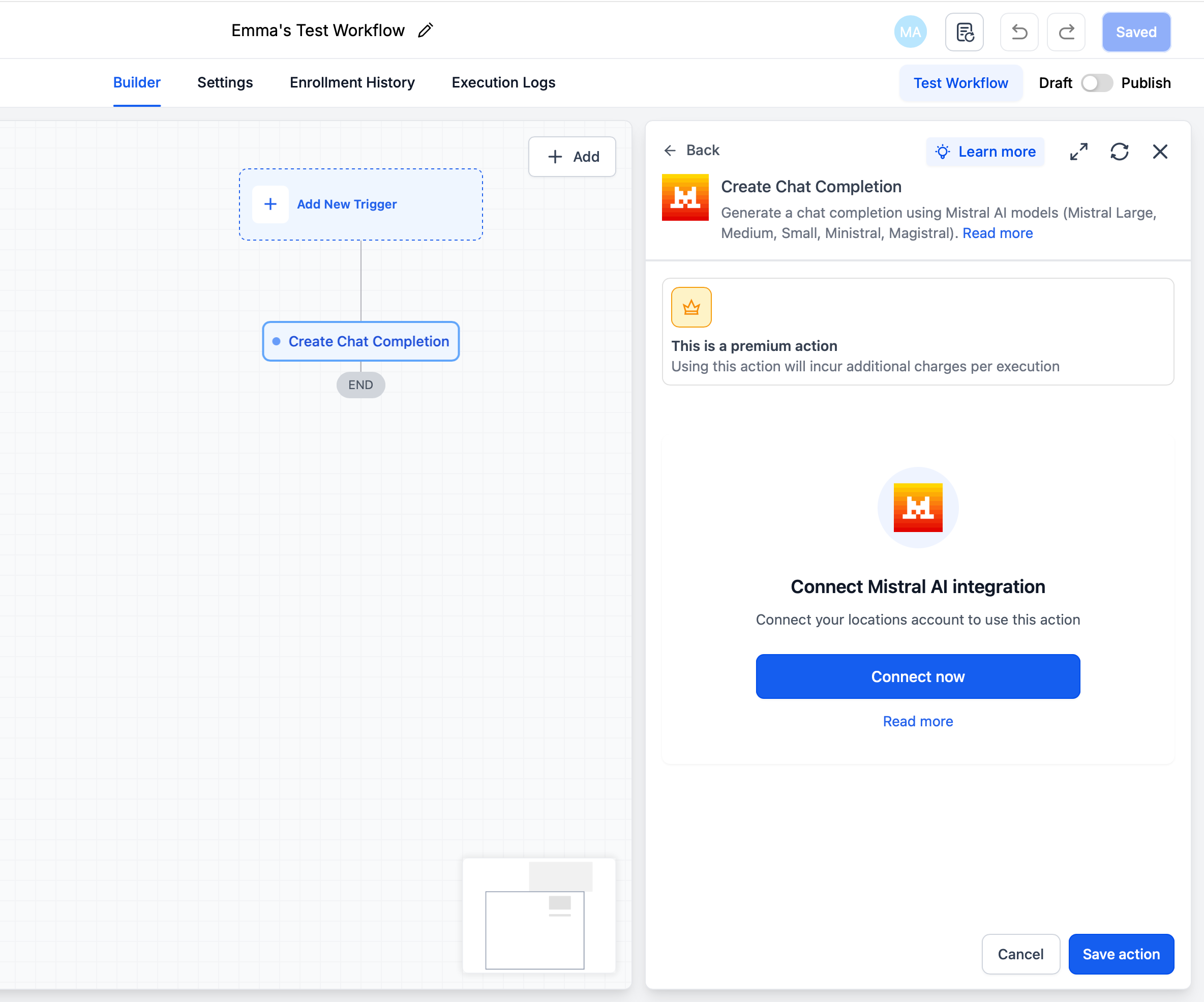
- Add a Mistral AI step and click Connect Now, or go to Settings > Integrations > Mistral AI > Connect to authorize the integration.
- Select the required Mistral AI action, Create Chat Completion, Create Embeddings, or Analyze Image.
- Fill in the action fields such as Action Name, System Prompt, Prompt, Model, and any tuning parameters, inserting workflow variables where needed.
- Add a following step like Send SMS, Send Email, Update Contact Field, Custom Webhook, or If/Else and reference the Mistral output variable.
- Trigger a test event, run the workflow on a test record, and review the Run Logs for inputs and outputs.
- Click Publish to activate the workflow.
07What it looks like in HighLevel
08Settings that matter
- Action Name. A label you assign to the step to identify its purpose in the workflow.
- System Prompt. Defines the AI’s role, tone, or formatting rules for the model response.
- Prompt. The specific task description that the model will execute; you can embed workflow variables.
- Model. Chooses which Mistral model family (Large, Medium, Small, Ministral 8B/3B, etc.) the action will call.
- Tuning Parameters. Controls output style, length, and other generation settings provided by the model.
09Things to know before you rely on it
- Mistral AI actions are in Beta; models, fields, and behavior may change over time.
- Each action consumes premium workflow action credits in addition to Mistral usage charges.
- Mistral rate limits and usage quotas are enforced by your Mistral workspace, not by HighLevel.
- Free Mistral plans may have stricter usage limits than paid plans.
10How it connects to the rest of HighLevel
- Review HighLevel premium feature pricing for workflow credits Pricing
- Start a free 30 day trial to test Mistral AI actions 30 day trial
- Founders can access all workflow features through the Founder Plan Founder Plan
Michael's take

Mistral AI actions let you automate multilingual communication and extract information from images without writing code.
If your team only needs occasional text tweaks or you already have an integration that handles document parsing, you might prefer native HighLevel tools until the beta matures.