
01Who this is for
- Agency owners who need to embed AI generated content in client workflows, because the integration removes the need for external middleware.
- Founders of SaaS businesses that want to automate prospect research or onboarding messaging directly from their platform.
- Marketing teams that require repeatable AI driven copy generation for ads, emails, or proposals.
02Manus actions & triggers, explained
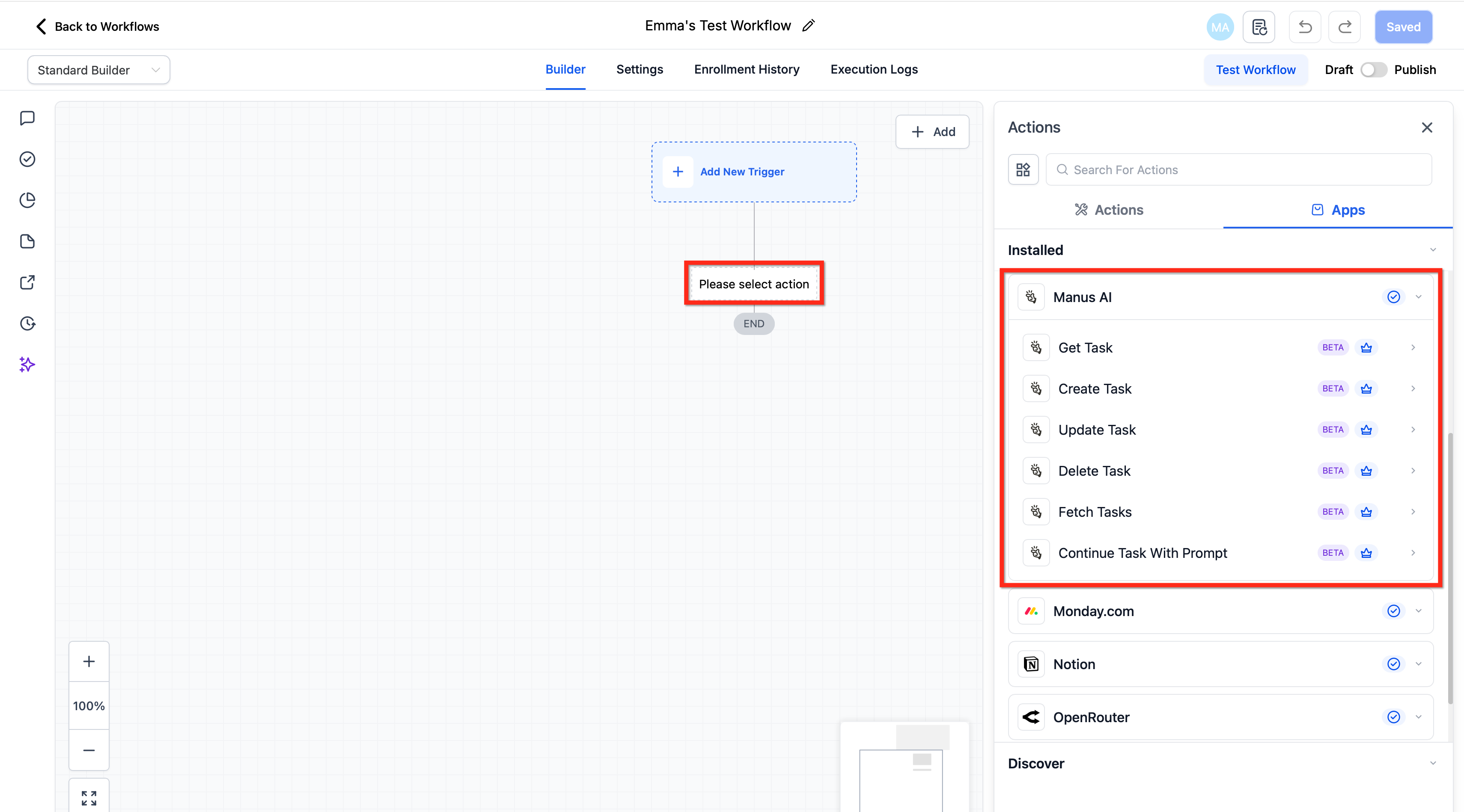
Manus supplies a task based AI engine where each task starts with a prompt and returns structured output. Within HighLevel, the integration adds premium workflow steps that communicate with Manus through a secure API. Users can create a new task, retrieve its details, modify its parameters, fetch multiple tasks, delete a task, or add a follow up prompt to an existing one.
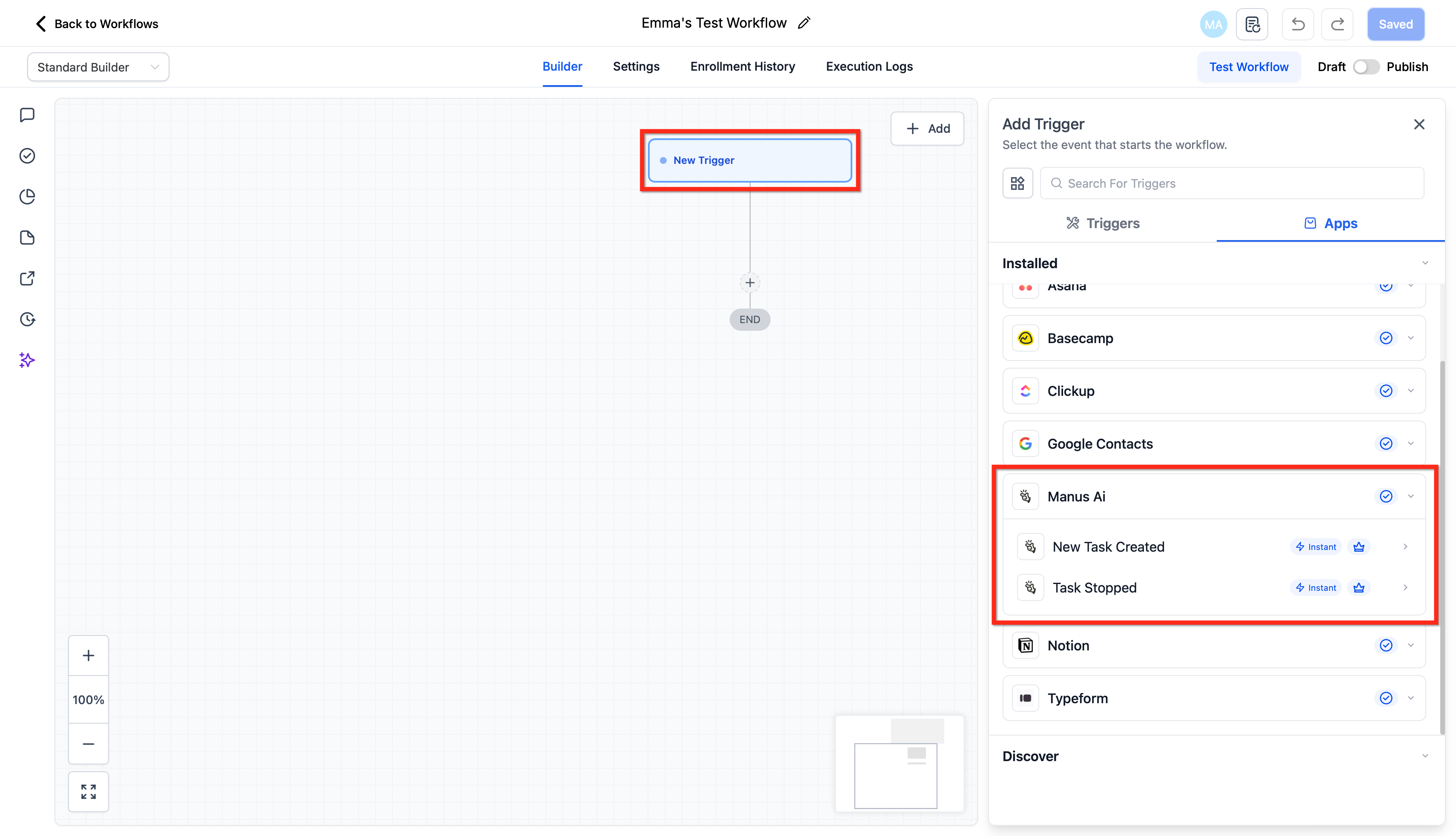
Both triggers and actions appear in the workflow builder. Triggers fire the moment a Manus task is created or stopped, but only for tasks that originated from a HighLevel workflow. Actions require a stored Task ID so that subsequent steps know which task to reference. All communications occur in real time, and task logs are viewable in the Manus dashboard.
The connection is established once per subaccount. After linking, the workflow fields populate automatically, allowing merge fields such as contact name, email, or custom values to be passed into prompts.
03How businesses use manus actions & triggers
- Marketing agency. The agency adds a Create Task action that prompts Manus to draft a proposal based on contact and opportunity data. After a short wait, a Get Task action pulls the draft, which is then saved as an internal note and sent to a review tool. All steps run inside the same workflow without extra connectors.
- Lead research and enrichment. When an inbound lead form is submitted, the workflow creates a Manus task to research the company. The task ID is stored, then a Get Task action retrieves the research summary, which is added to the contact record and notifications are sent to the sales rep.
- SaaS startup prospecting. Upon an opportunity entering the prospecting stage, the startup creates a task that scrapes the prospect’s website, extracts positioning, and generates a personalized cold email. The email is retrieved via Get Task and automatically sent, while the task ID is stored for any needed follow up prompts.
04The numbers and rules that matter
- Task limits depend on your Manus subscription plan and API usage caps.
05Before you start
- Access to Automation > Workflows in the subaccount.
- Premium workflow features must be turned on at the agency level.
- A valid Manus subscription is required for task processing.
- An API key must be generated from the Manus dashboard.
06How to set up and use manus actions & triggers in HighLevel
Connect from Workflow Builder
- Open Automation > Workflows in HighLevel.
- Add any Manus trigger or action to the workflow canvas.
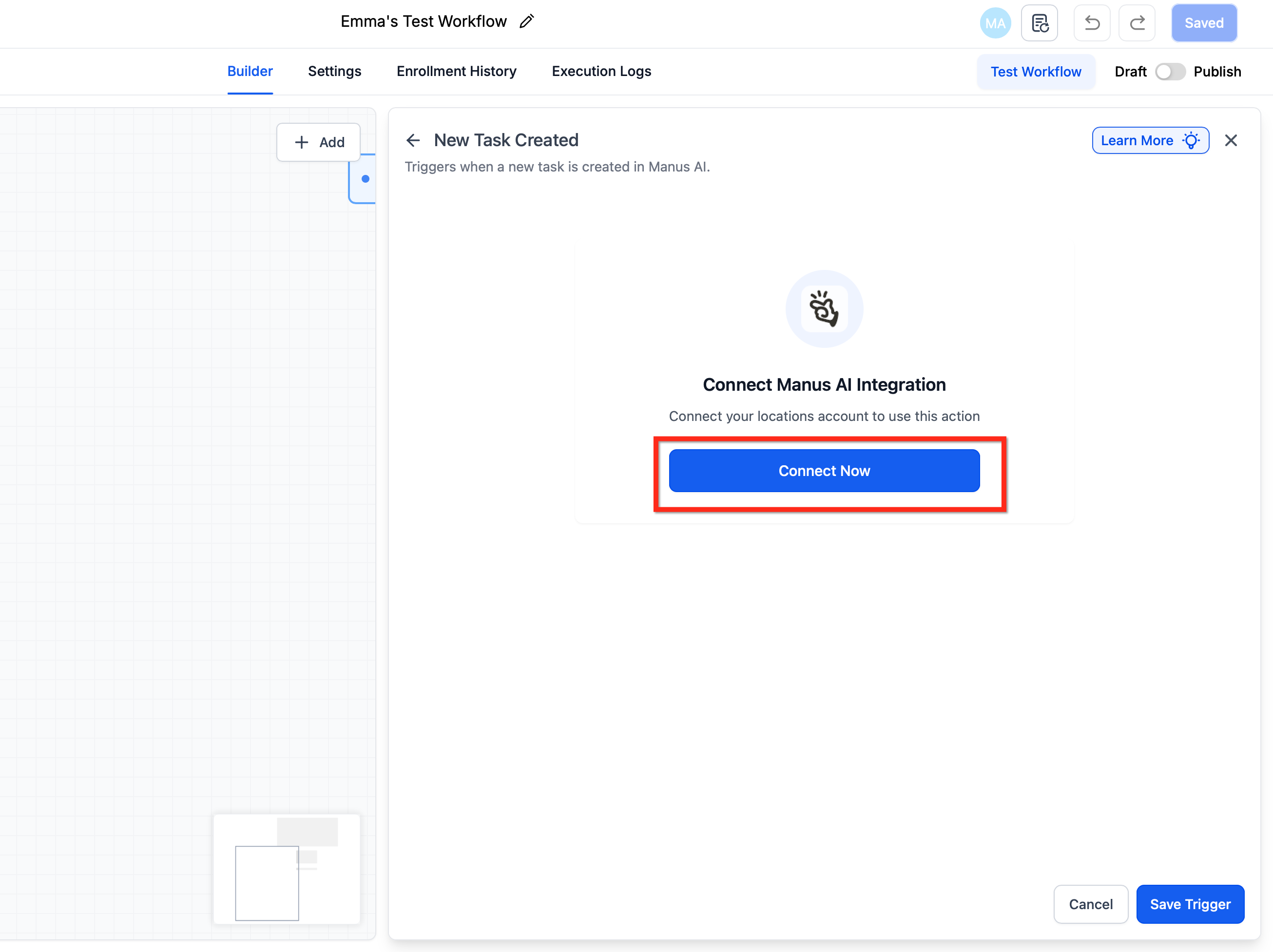
- If the connection is missing, click the Connect Now button that appears.
- Sign in to the Manus portal and approve the access request.
Connect from Integrations Page
- Open Subaccount settings in HighLevel.
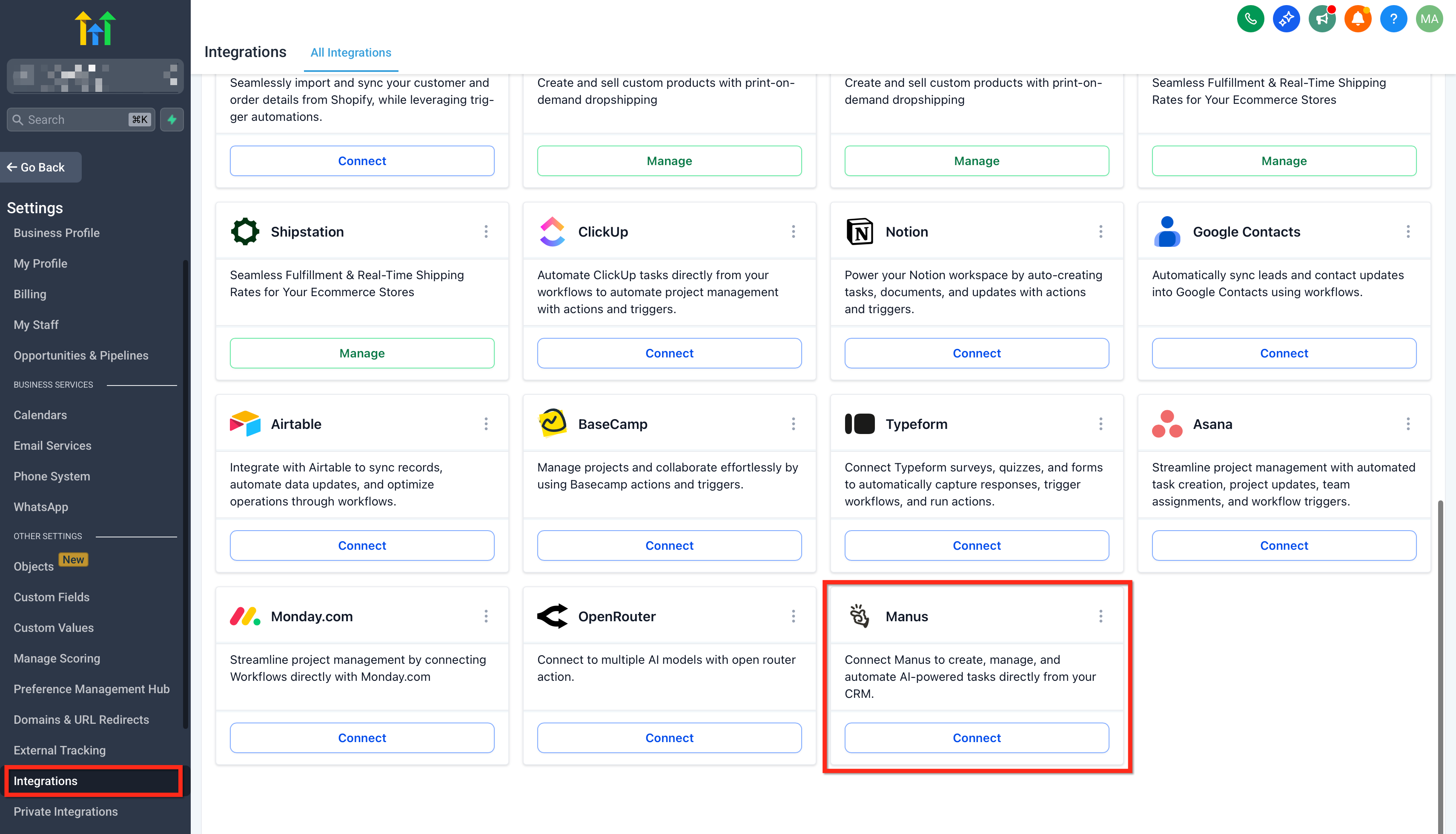
- Navigate to Integrations and select Manus.
- Click Connect and follow the sign in flow to authorize HighLevel.
Get your Manus API key
- Log in to the Manus dashboard and go to the API Settings section.
- Select the option to create a new key.
- Copy the newly generated key to the clipboard.
- Paste the copied key into the API key field when HighLevel prompts for it.
Use Manus in a workflow
- Navigate to Automation > Workflows and start a new workflow or edit an existing one.
- Choose a trigger, either a Manus trigger or any other supported workflow trigger.
- Insert a Manus action such as Create Task and map the required merge fields.
- Optionally save the returned Task ID to a custom contact or opportunity field.
- Add any Wait steps or conditional branches needed for the process.
- Add a Get Task, Update Task, or Continue Task action that references the stored Task ID.
- Test the workflow and publish it when the steps behave as expected.
07What it looks like in HighLevel
08Settings that matter
- API key. Authenticates HighLevel’s requests to the Manus API, allowing workflow steps to interact with AI tasks.
- Task ID. Identifies a specific Manus task so that actions like Get Task, Update Task, Continue Task, or Delete Task can target the correct record.
09Things to know before you rely on it
- Triggers activate only for tasks that were created via HighLevel workflows; tasks made directly in the Manus app do not start workflows.
- Every action that references an existing task requires a stored Task ID; missing this value can cause downstream steps to fail.
- The number of tasks you can create is governed by the limits of your Manus subscription and any API usage caps.
- Manus actions and triggers are premium workflow steps and follow HighLevel’s premium billing rules.
10If something goes wrong
- Task fails because the integration is disconnected. Re establish the connection from the workflow builder or the Integrations page.
- Invalid Task ID supplied to an action. Verify that the Task ID was saved correctly in a custom field after the Create Task step.
- Missing prompt input causes a task to stop. Ensure all required merge fields are mapped and contain values before the Create Task action runs.
- API authorization error. Check that the API key entered in HighLevel matches the one generated in the Manus dashboard.
11How it connects to the rest of HighLevel
- Learn the basics of HighLevel workflow automation Workflow basics
- Enable premium workflow features and set up rebilling for agencies Enable premium steps
- View pricing and plan options for using premium workflow steps Pricing tiers
- Start a thirty day trial of HighLevel Free trial
- Details on the HighLevel Founder Plan Founder Plan
Michael's take

Jumping into AI automation without a clear understanding of task IDs can quickly lead to broken flows. If a task ID isn’t stored correctly, downstream steps may reference the wrong task or fail outright, leaving you with silent errors.
When you have the ID captured, you can generate proposals, research leads, scrape websites and produce ad creatives within HighLevel, giving you end to end visibility and control over your AI driven processes.