
01Who this is for
- Founders of ecommerce brands who need new email sign ups to become HighLevel contacts within minutes.
- Marketing managers at SaaS companies who want a draft campaign to launch automatically when a milestone is reached.
- Customer success teams that must tag high value customers as soon as they enter a VIP segment.
02Klaviyo workflow actions and triggers, explained
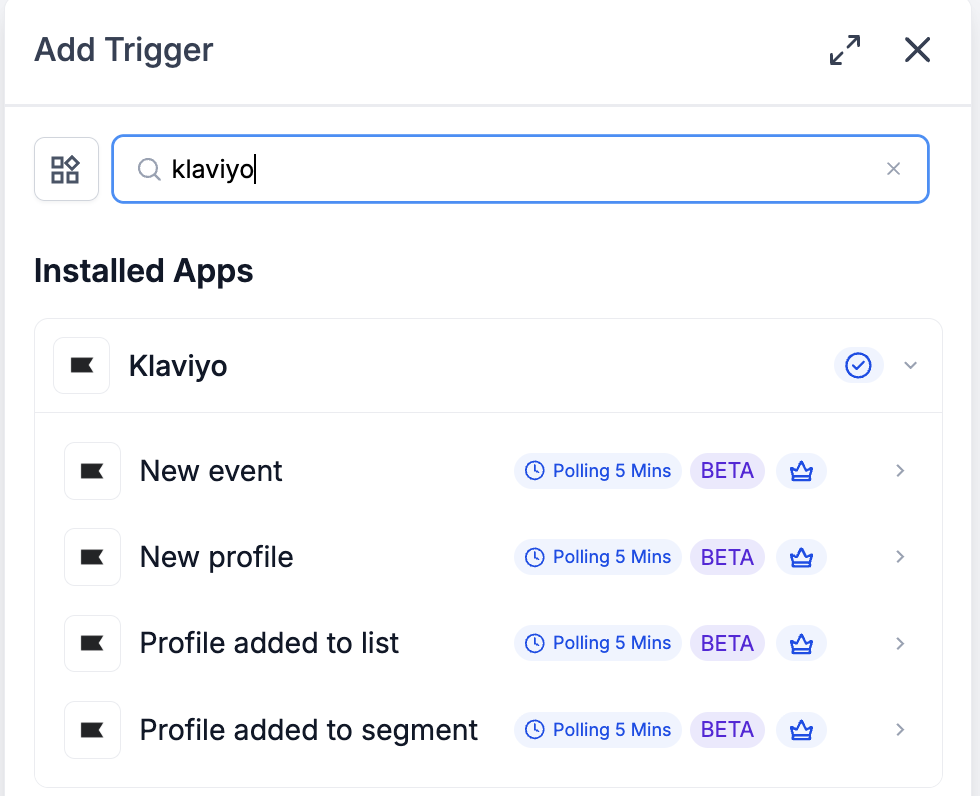
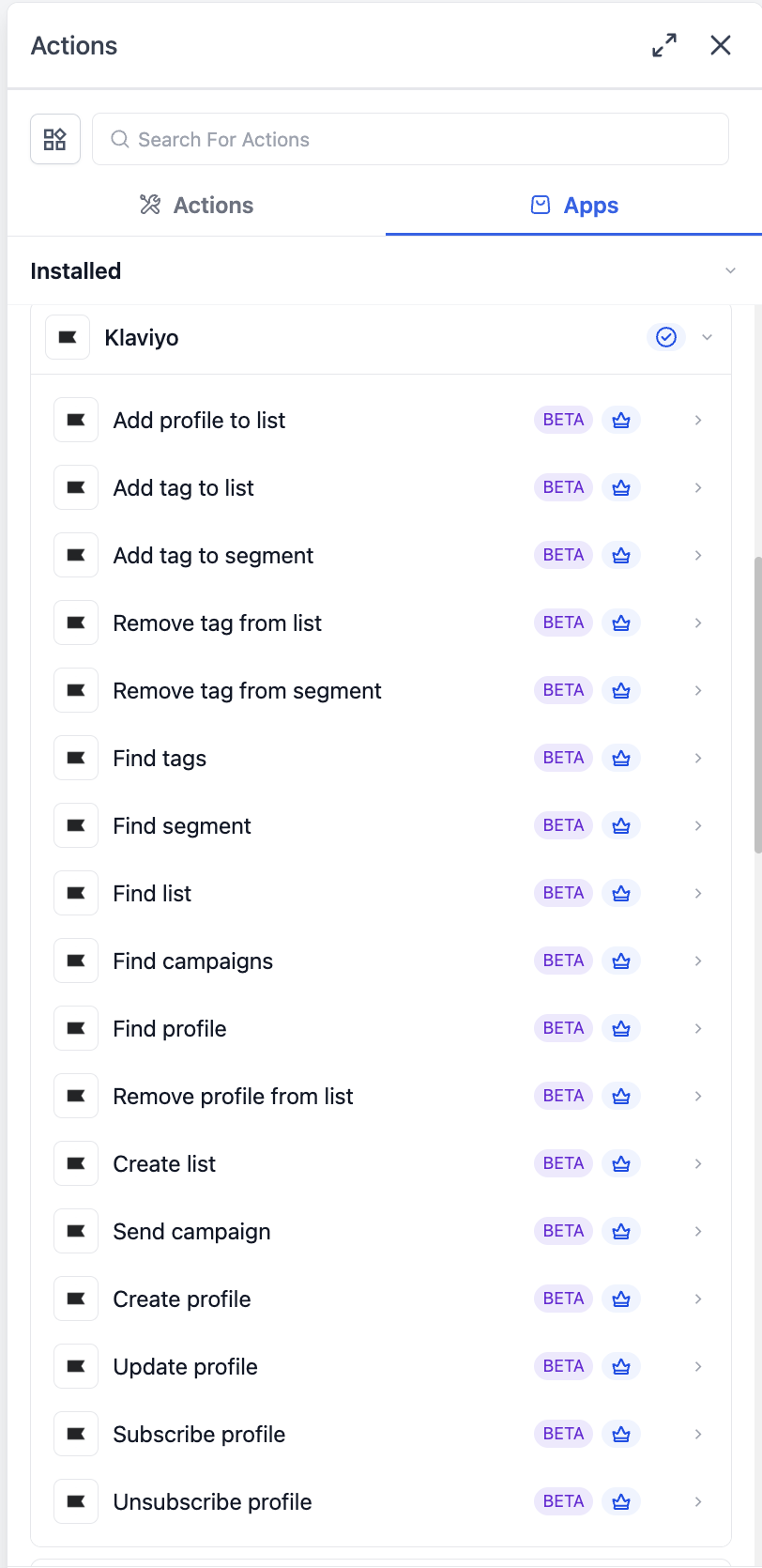
The Klaviyo integration adds two halves to the workflow builder. The first half supplies four polling triggers, New event, New profile, Profile added to list, Profile added to segment, that run every five minutes and return any matching records since the last poll. The second half offers seventeen actions that cover the full profile lifecycle, list and segment management, tag handling and the ability to send a draft campaign on demand.
All triggers and actions appear in the Apps tab of the workflow builder. They are marked as premium components, so they consume premium action credits at the standard automation rate. Klaviyo specific billing such as active profiles or SMS credits is handled directly by the Klaviyo account, not by HighLevel.
03How businesses use Klaviyo workflow actions and triggers
- Ecommerce store. Create a workflow that uses the Profile added to list trigger to catch new newsletter sign ups. Add a Create profile action to add the shopper as a Klaviyo profile, then a Subscribe profile action to enroll them in email only. This keeps the store’s email list current without manual exports.
- SaaS company. Configure a workflow with a New event trigger filtered to the "Placed Order" metric. Follow with a Send campaign action that selects a pre staged draft in Klaviyo. When a customer makes a purchase, the workflow automatically sends a welcome email campaign.
- Local service business. Set up a Profile added to segment trigger for a VIP segment. Add actions to Find the matching contact in HighLevel, Update the contact with a "VIP" tag, and send an internal Slack notification. The team gets alerted within five minutes of a client qualifying for the segment.
04The numbers and rules that matter
- Triggers poll Klaviyo every 5 minutes and surface matching records since the last poll.
05Before you start
- A Klaviyo account must exist and be linked to HighLevel via OAuth.
- At least one draft campaign must be created in Klaviyo before using the Send campaign action.
06How to set up and use Klaviyo workflow actions and triggers in HighLevel
Connect via the Workflow Builder (recommended)
- Open Automation > Workflows and select or create a workflow.
- Add a Klaviyo trigger or action by searching for Klaviyo in the Apps tab.
- Select any Klaviyo trigger or action from the results.
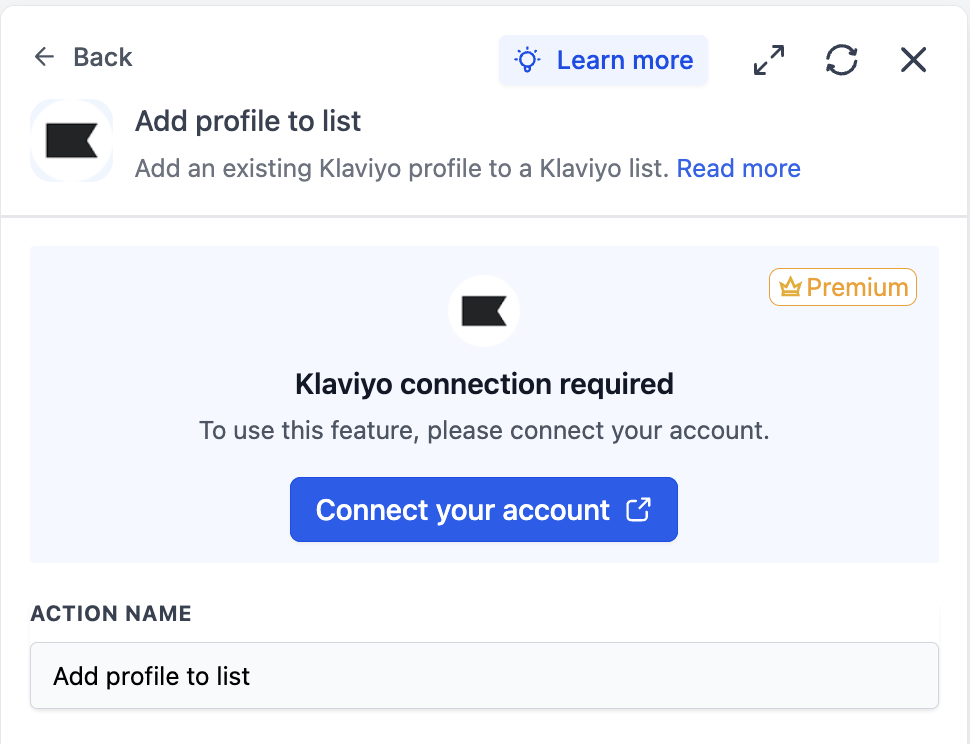
- On the action card, click Connect your account.
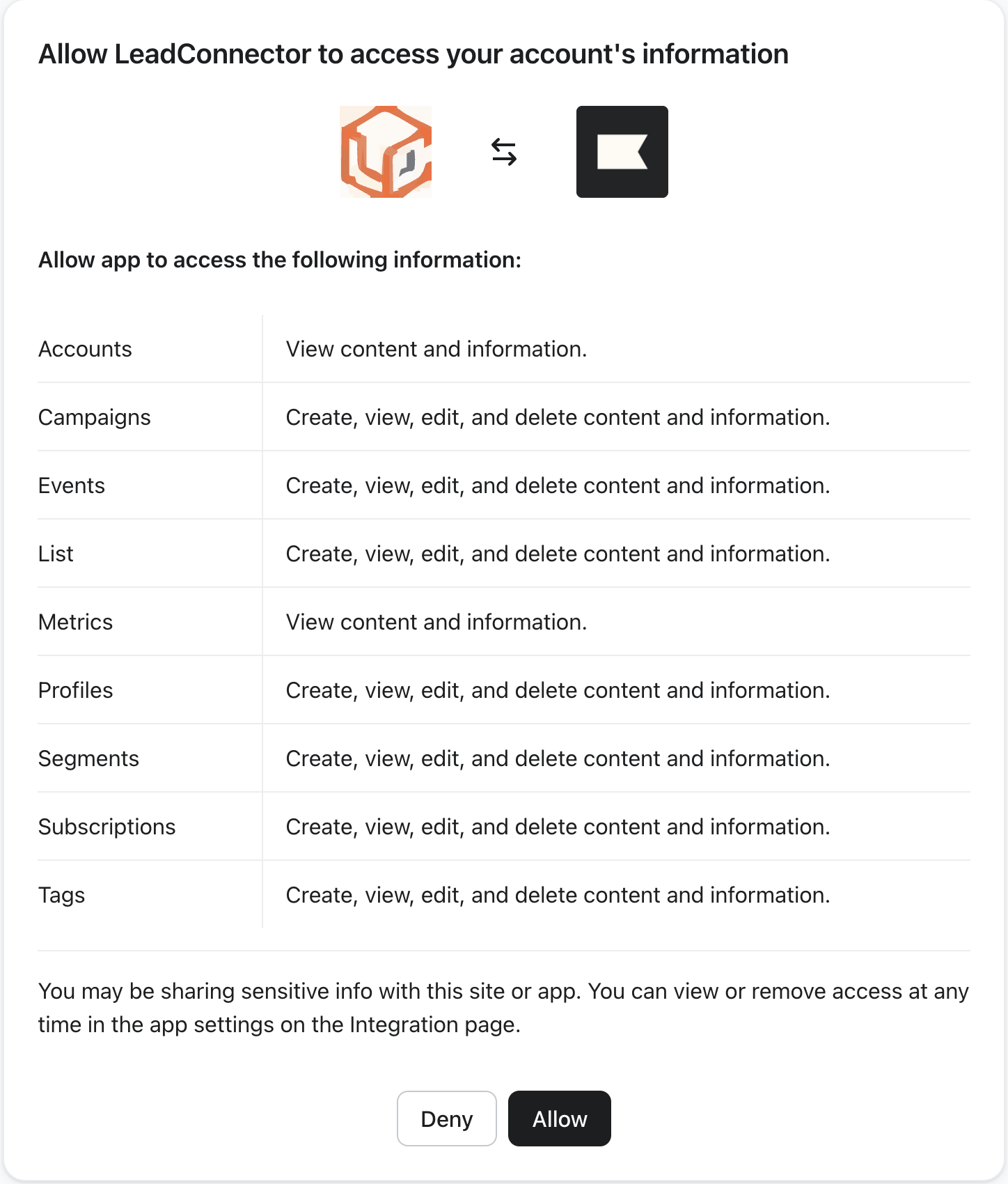
- Review the requested scopes, Accounts, Campaigns, Events, List, Metrics, Profiles, Segments, Subscriptions, Tags, and click Allow.
- Return to the Workflow Builder and verify that the panel shows Connected.
Connect via Settings (alternative path)
- Go to Settings > Integrations.
- Locate Klaviyo and click Connect.
- Complete the OAuth flow on Klaviyo’s authorization screen.
- Return to the HighLevel platform.
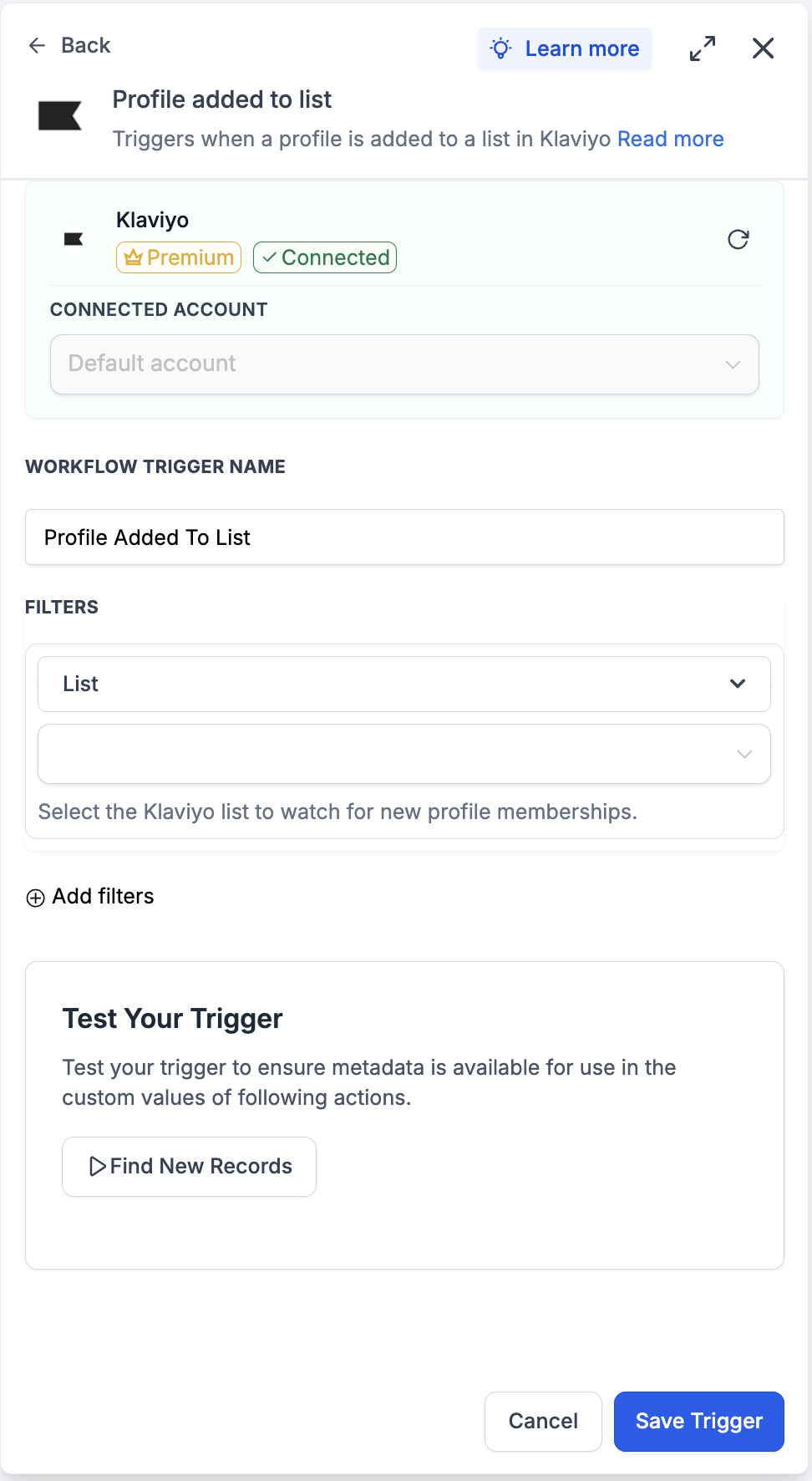
Set up a trigger (Profile added to list)
- Open the workflow and click Add Trigger.
- Switch to the Apps tab and search for Klaviyo.
- Select Profile added to list from the trigger list.
- Choose the Connected Account for this trigger.
- Enter a Workflow Trigger Name.
- In Filters, select the List to watch.
- Optionally add additional filters.
- Click Find New Records in the Test Your Trigger panel.
- Pick a returned record from the Records, Select Mapping Reference dropdown.
- Click Save Trigger to finish.
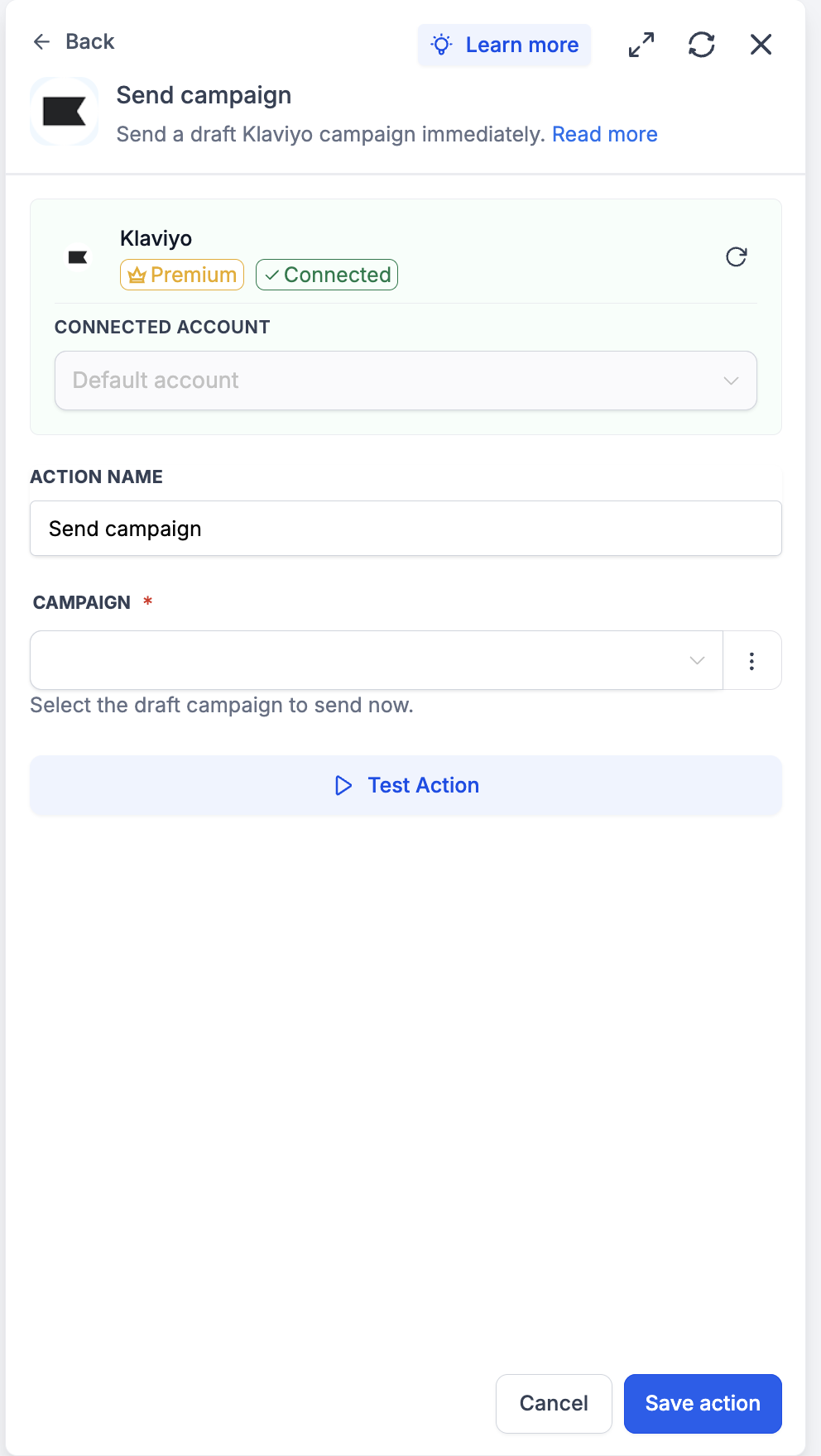
Set up an action (Send campaign)
- Inside the workflow, click Add to insert a new step.
- Open the Apps tab and select Klaviyo.
- Choose Send campaign from the action list.
- Pick the Connected Account for the action.
- Enter an Action Name.
- Select the draft campaign from the Campaign dropdown.
- Click Test Action.
- Confirm the send when prompted.
- Click Save the action.
Test trigger and action
- Inside the trigger panel, click Find New Records.
- If no records appear, perform the corresponding event in Klaviyo and refetch.
- Select a returned record as the mapping reference.
- Verify that the profile payload fields show in the preview.
- Inside the action panel, click Test Action.
- Open Klaviyo to confirm the expected result, then click Save action.
07What it looks like in HighLevel
08Settings that matter
- Connected Account. Selects which Klaviyo account the trigger or action talks to.
- Workflow Trigger Name. Provides a label for the trigger so it can be identified in the workflow.
- Filters → List. Limits the Profile added to list trigger to a specific Klaviyo list.
- Add filters (optional). Adds extra conditions that must be true for the trigger to fire.
- Action Name. Gives a readable label to the Send campaign action.
- Campaign. Selects which draft campaign in Klaviyo will be sent when the action runs.
09Things to know before you rely on it
- All Klaviyo triggers poll every five minutes; they are not instant.
- Triggers and actions are premium workflow components and use premium action credits.
- Only draft campaigns appear in the Campaign dropdown for the Send campaign action.
- Subscribe profile treats email and SMS consent independently; each channel must be opted in separately.
10If something goes wrong
- No records appear when testing a trigger.. Perform the matching action in Klaviyo (e.g., add a profile to the list) and click Find New Records again.
- The action result looks incorrect after testing.. Double check the field mappings in the action and run Test Action again.
11How it connects to the rest of HighLevel
- Workflow basics and set up guide Workflow introduction
- Understanding Workflow Pro Plan pricing tiers Pricing tiers
- How to enable and rebill workflow premium features Enable premium features
Michael's take

When leads pour in through a Klaviyo signup form, you need them in your HighLevel account right away so you can nurture, assign owners and report without a manual export. The Klaviyo workflow actions let you mirror those new profiles into HighLevel within five minutes, keep consent flags straight and even fire a welcome campaign automatically.
The first setting I would lock in is the Connected Account on any trigger or action. If the account isn’t linked correctly, nothing will fire and you’ll waste premium credits. Once that’s solid, I would run a quick test of the New profile trigger to make sure the payload maps to the fields my downstream steps expect.