
01Who this is for
- Automation engineers benefit because shortcuts let them build and modify complex flows without repetitive mouse clicks.
- Marketing agencies save time editing client workflows by navigating large canvases with arrow keys and instant zoom.
- SMB Founders who prefer keyboard input gain faster workflow creation and reduced strain.
02Keyboard shortcuts, explained
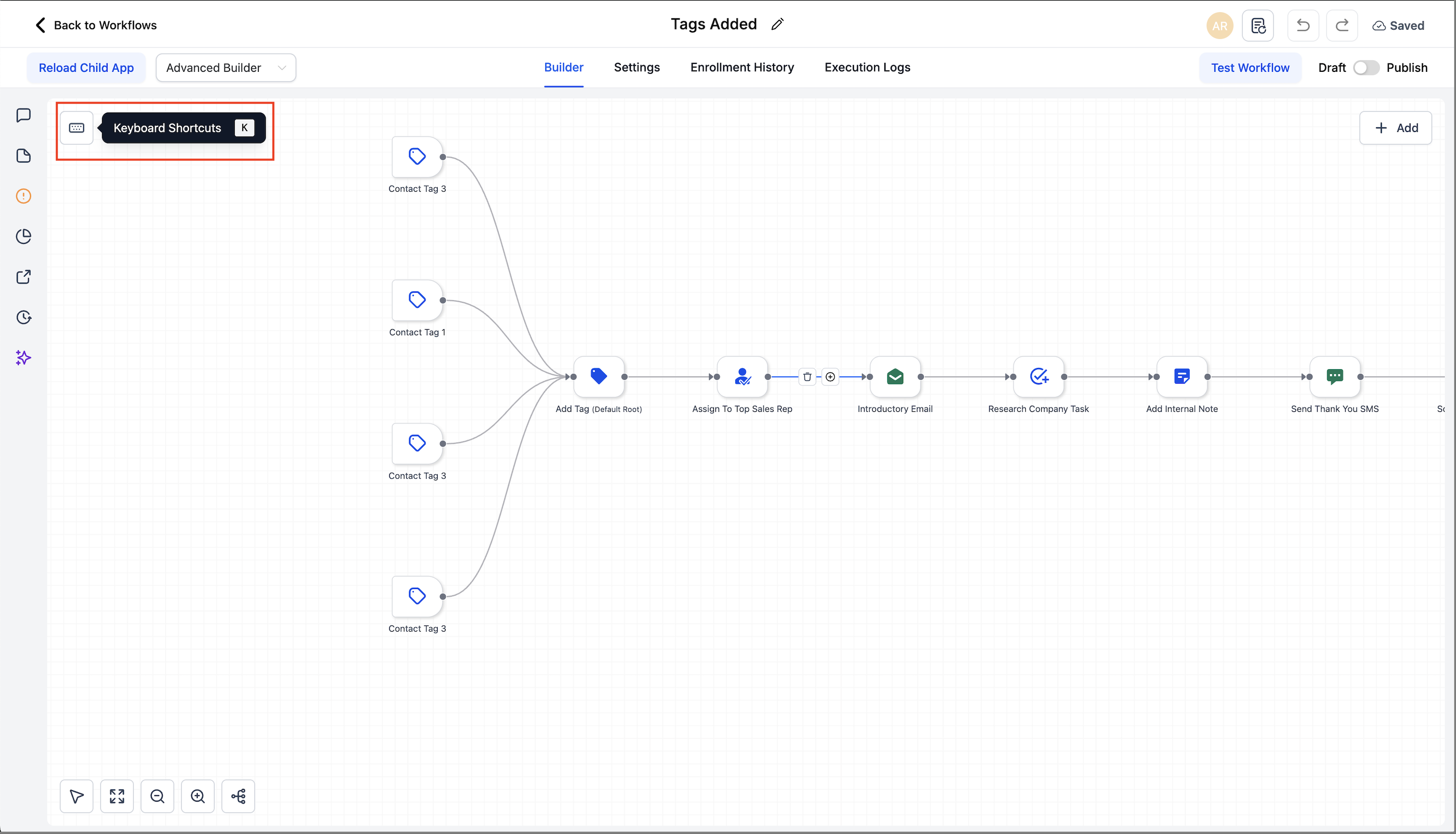
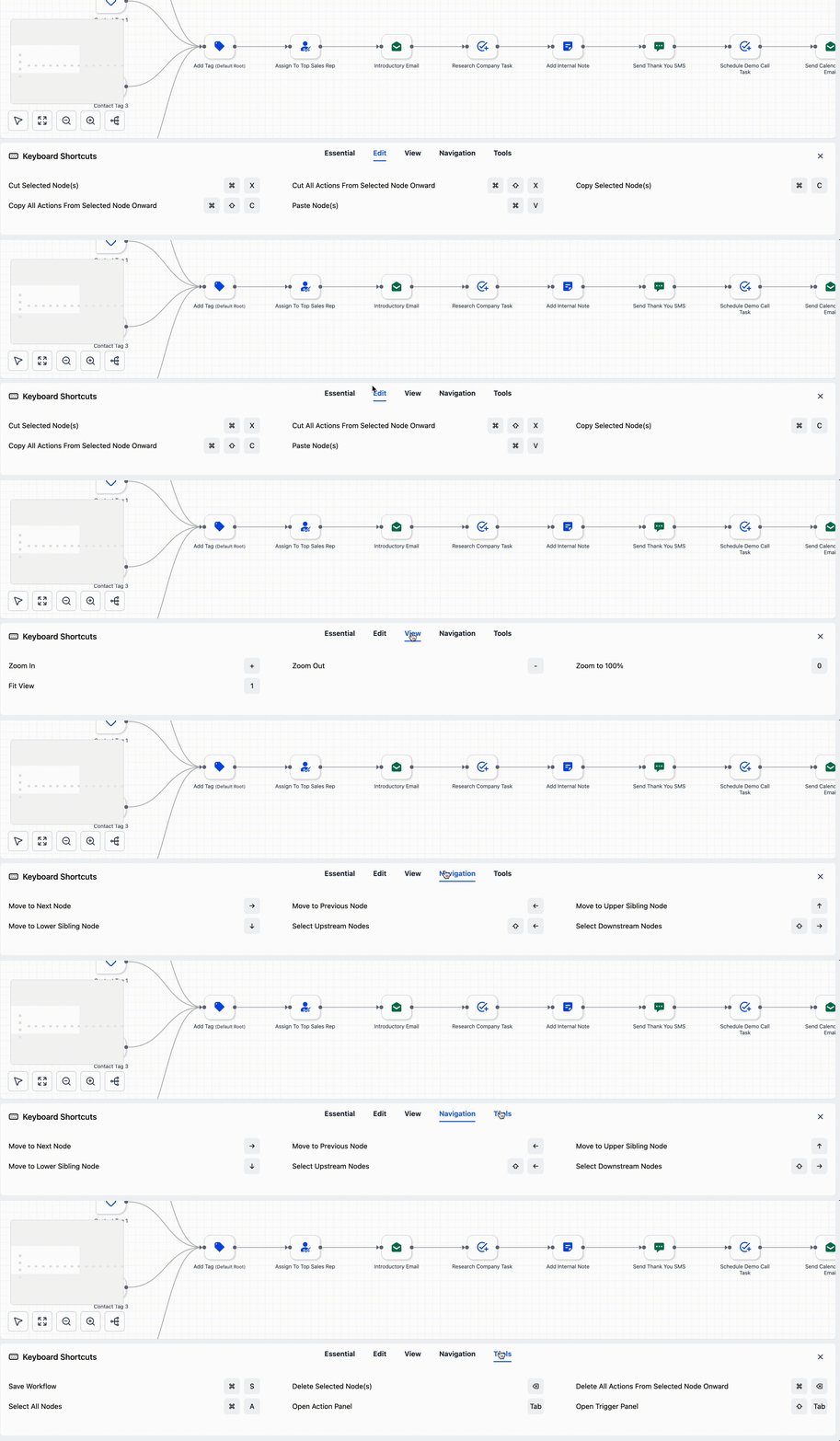
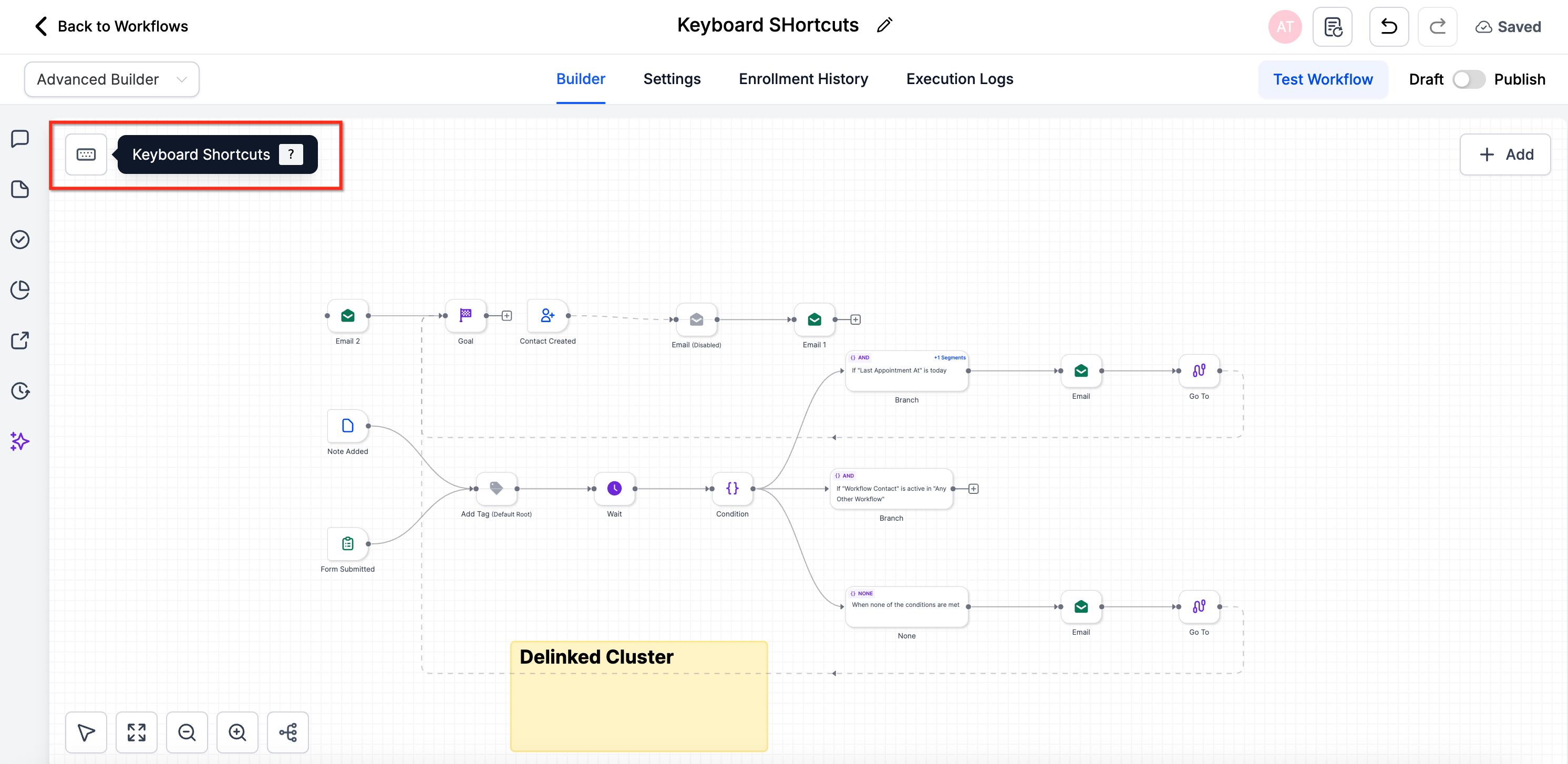
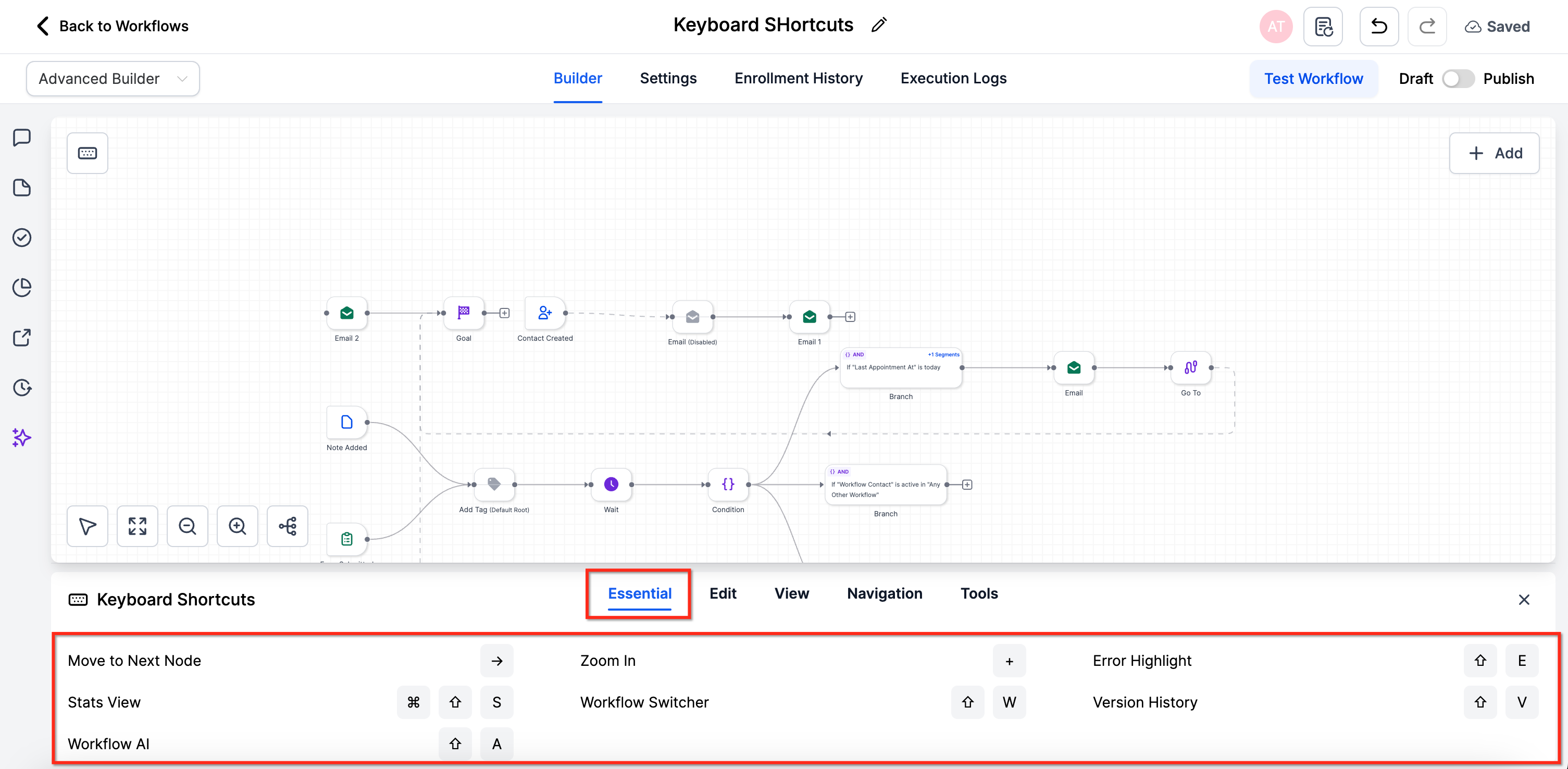
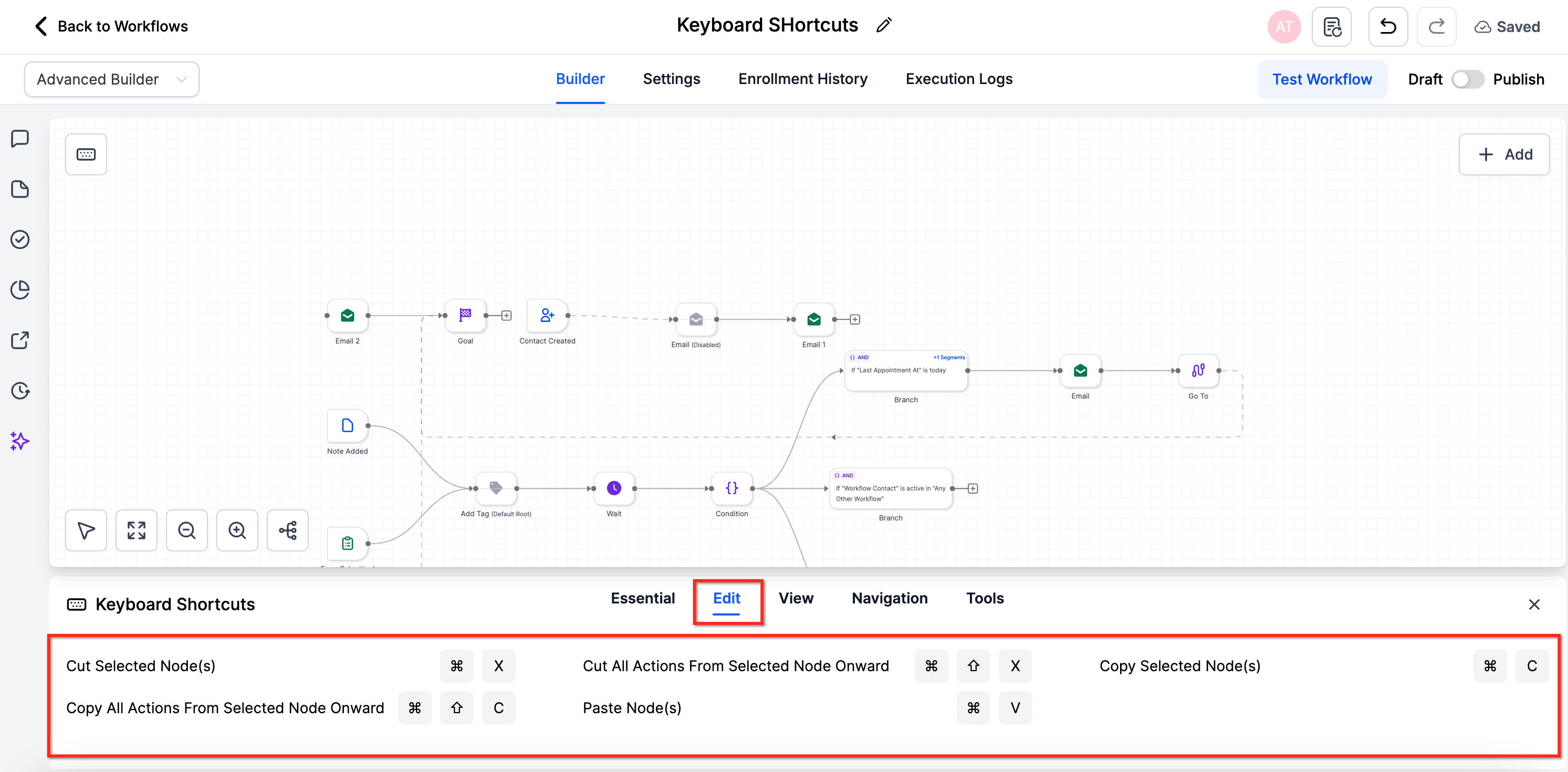
Keyboard shortcuts are built in key combinations that trigger common builder commands, cut, copy, paste, zoom, save, and more, without touching the mouse. Pressing K or clicking the keyboard icon pill opens an overlay that groups shortcuts into Essential, Edit, View, Navigation, and Tools tabs.
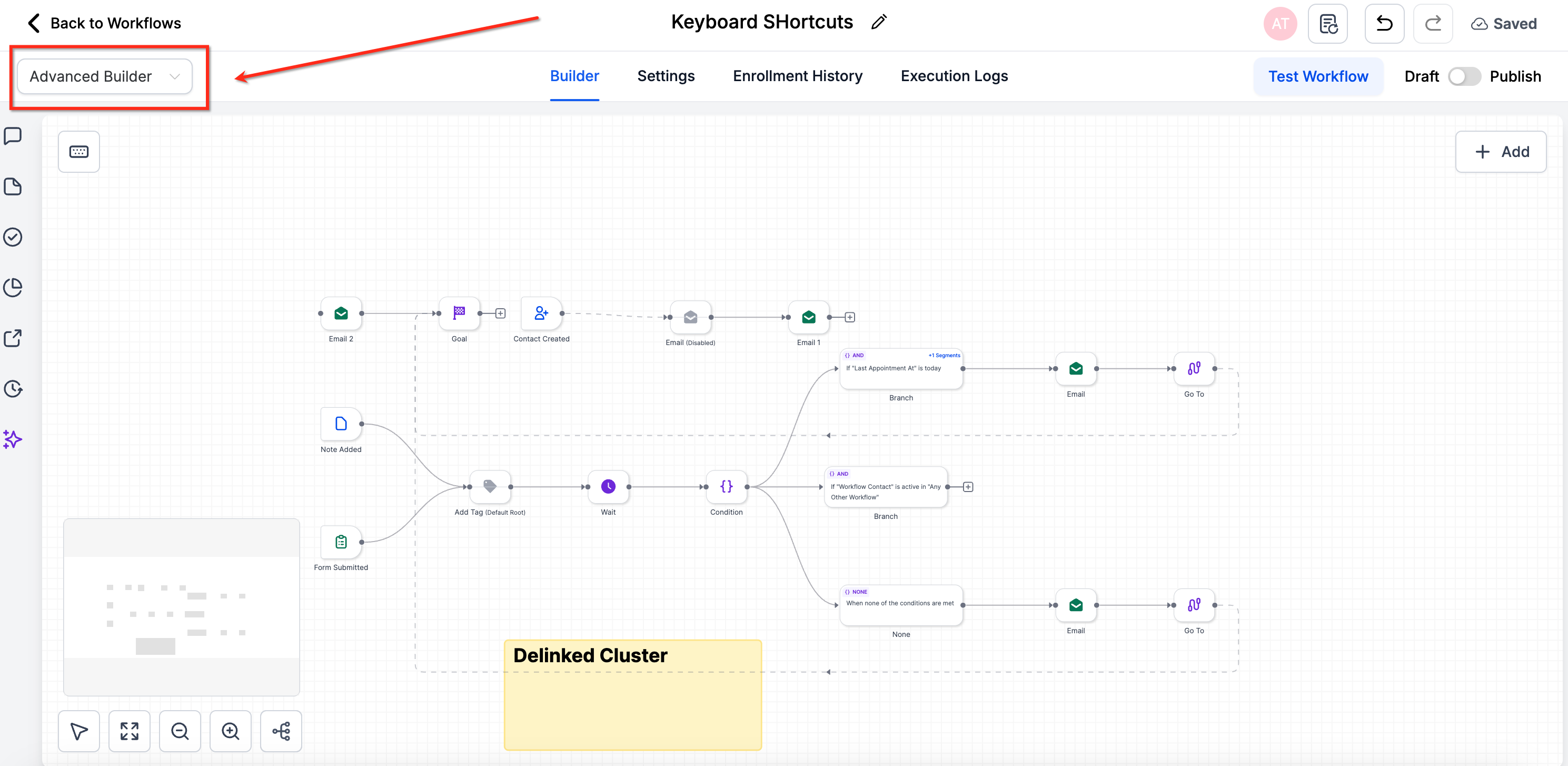
The shortcuts act on the selected node or on all actions downstream from the selected node, depending on the command. They work only while the Advanced Builder canvas is focused and are currently limited to the Advanced Builder version of the workflow editor.
03How businesses use keyboard shortcuts
- Digital marketing agency. Use Edit shortcuts to cut or copy entire branches of campaign automations, then paste them into new workflows, speeding up template creation without using a mouse.
- Ecommerce store. Navigate the workflow canvas with arrow keys and zoom controls to quickly locate order fulfillment triggers and actions, keeping hands on the keyboard while refining checkout automations.
- Co working space management. Save workflows and open the Action or Trigger panels using Tools shortcuts, allowing staff to adjust member onboarding steps without switching to the mouse.
04The numbers and rules that matter
- Finish complex builds up to 50% faster by eliminating repetitive clicks.
05Before you start
- A workflow must be open in Advanced Builder.
- Select the node(s) you intend to act on before using shortcuts that depend on selection.
06How to set up and use keyboard shortcuts in HighLevel
Set up keyboard shortcuts
- Open any workflow and switch to Advanced Builder.
- Press K or click the keyboard shortcuts button in the upper left corner to launch the overlay.
- Browse the Essential tab to learn the most important commands.
- Use Edit shortcuts to cut, copy, or paste nodes or whole branches.
- Apply View and Navigation keys to zoom, fit, and move around the canvas.
- Use Tools shortcuts to save the workflow or open panels without leaving the keyboard.
07What it looks like in HighLevel
08Things to know before you rely on it
- Keyboard shortcuts are only available in the Advanced Builder when the feature launched; the standard builder does not support them yet.
- Some shortcuts require a node to be selected first; they have no effect otherwise.
- Key combinations may differ slightly based on the operating system or keyboard layout.
- Customizing or disabling shortcuts is not possible at this time.
09How it connects to the rest of HighLevel
- Getting started with workflows in HighLevel Workflow basics
- Workflow settings overview for controlling contacts and timing Workflow settings
- HighLevel pricing and plans for accessing Advanced Builder Pricing
Michael's take

Keyboard shortcuts feel like a small convenience that can become a real shift for anyone spending hours stitching together workflows. They let you keep your hands on the keyboard, cut down on mouse fatigue, and move through massive canvases without pausing to click.
A SaaS company that builds custom onboarding sequences for new users will love this. Jump from node to node, duplicate whole branches, and zoom in to fine tune actions all with a few keystrokes. In my view, the potential speed improvement makes the feature worth turning on.