
01Marketplace apps, explained
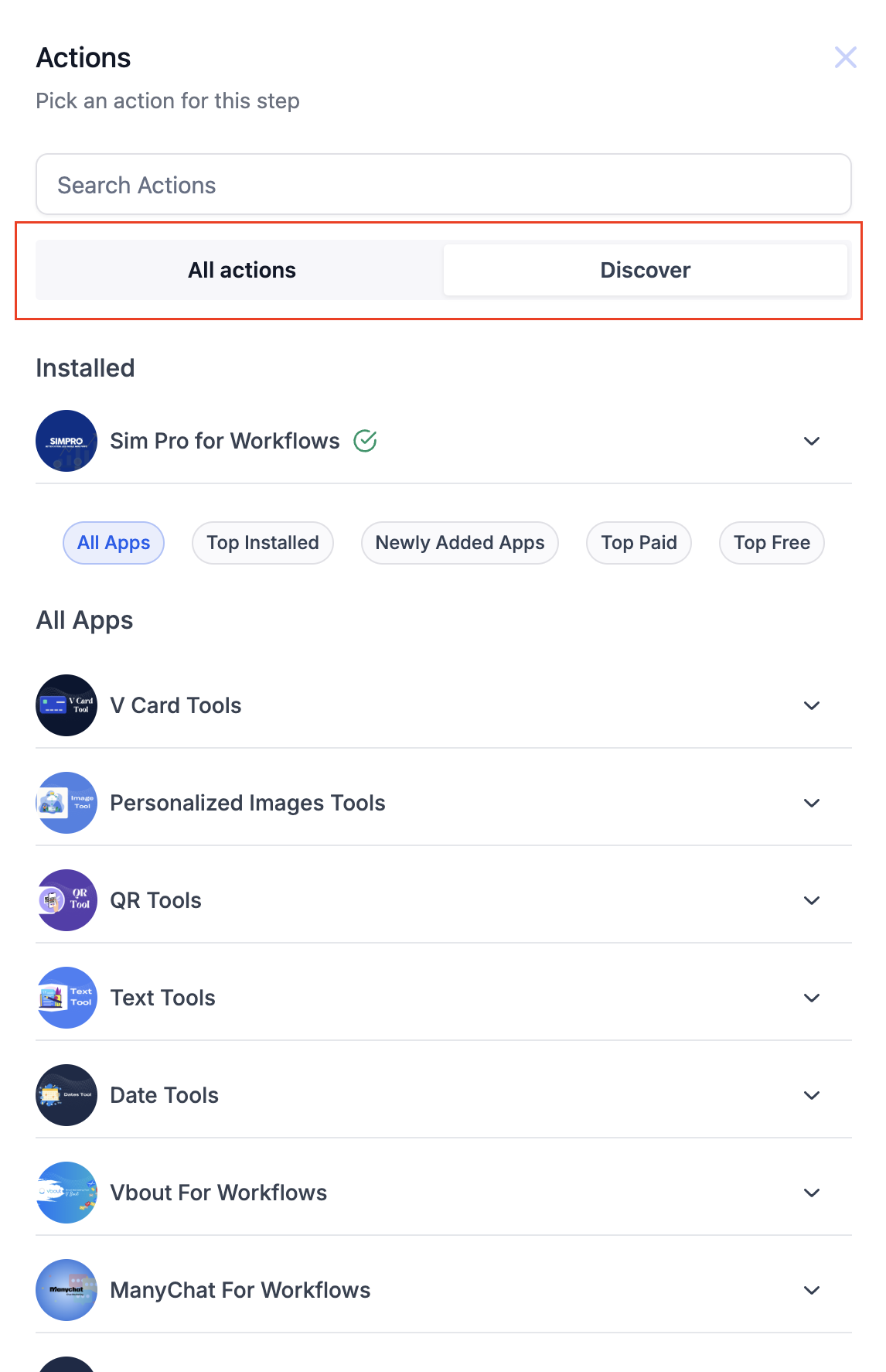
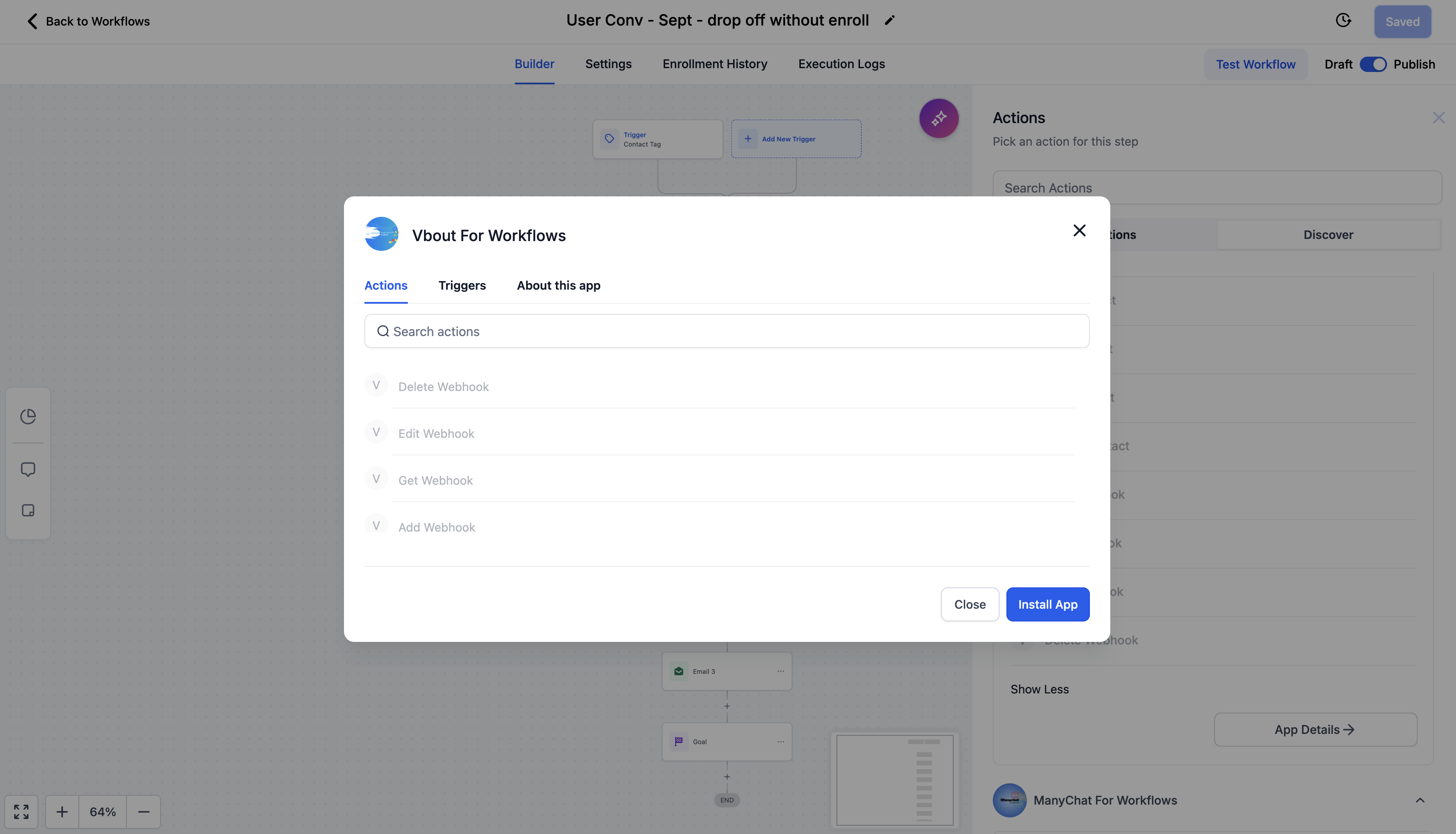
The Workflow Builder includes a Discover button in the action panel. Clicking it opens an in workflow app directory that lists all marketplace apps, so you never have to switch to the separate marketplace page. The directory shows categories, a global search bar, and app details.
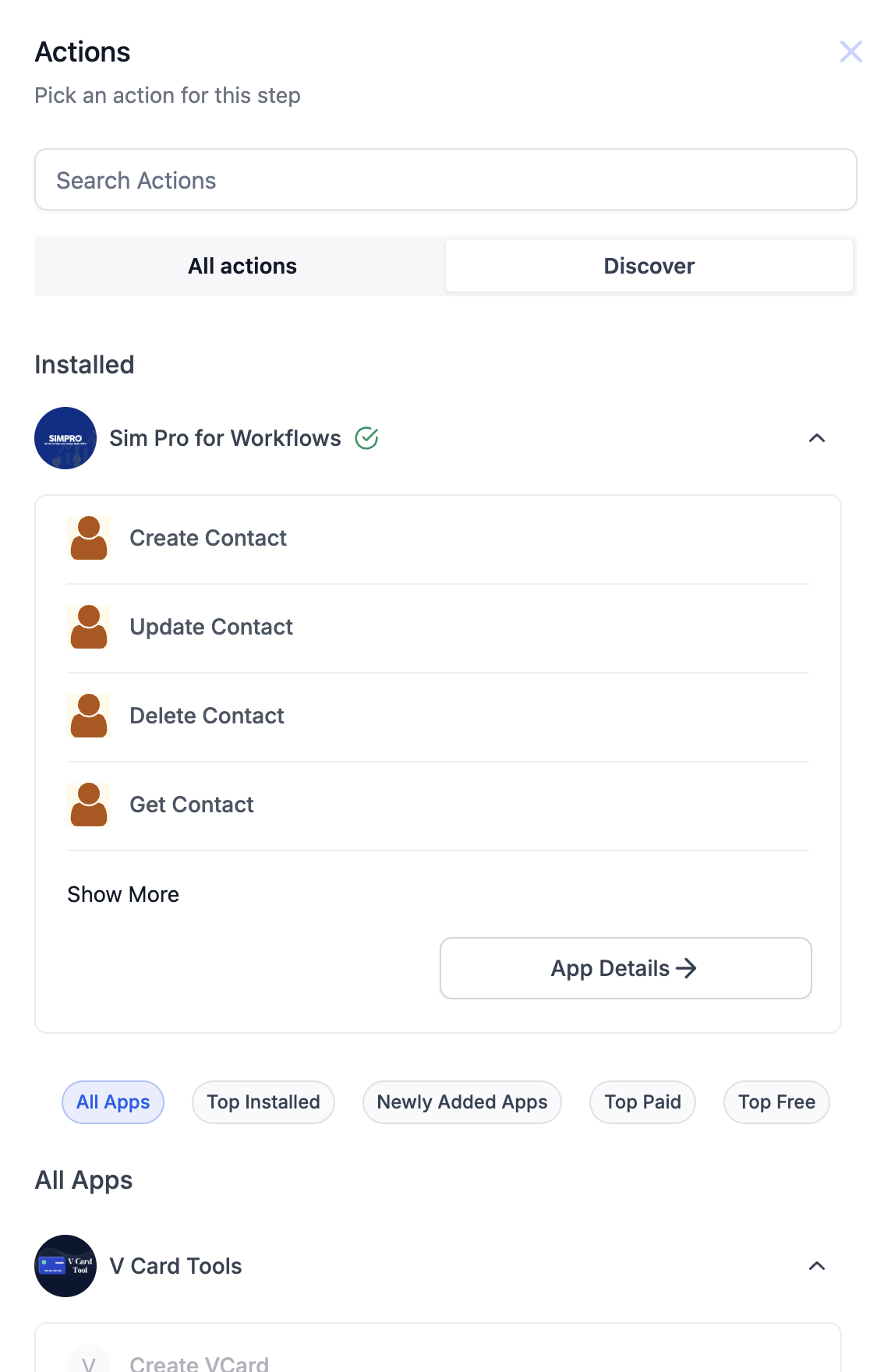
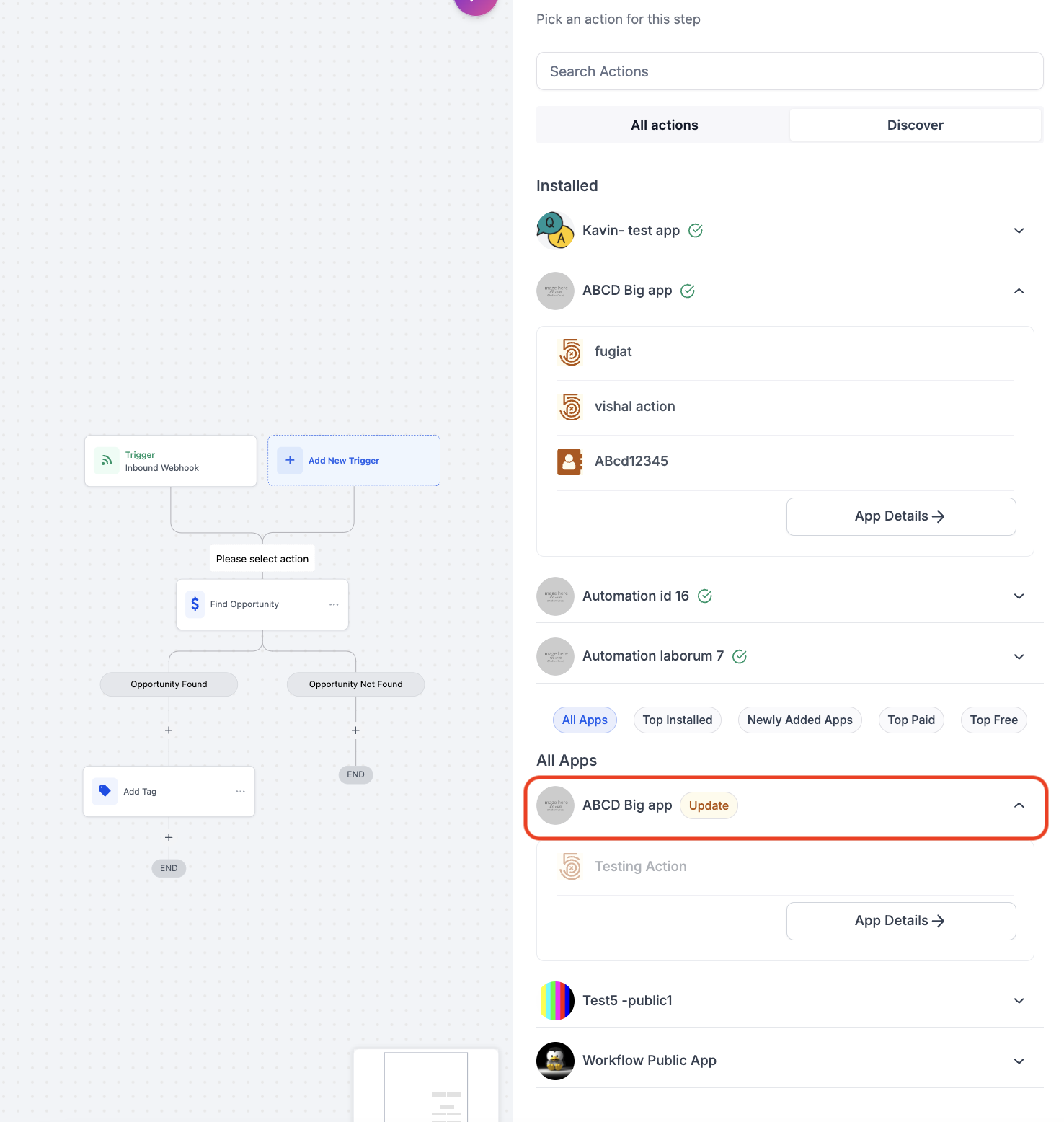
When you install an app, its actions and triggers appear in the All Actions panel just like native steps. If a developer adds new actions, an Update tag appears next to the app in Discover, letting you use the new capabilities without reinstalling the app.
02How businesses use marketplace apps
- Adding third party integrations. Open Discover, browse or search for the needed integration, view its overview and pricing, then click Install. The new actions show up in All Actions, ready to be placed in any workflow.
- Updating installed apps. In Discover, look for an Update tag next to an already installed app. New actions or triggers become available in the All Actions panel without reinstalling the app.
03The numbers and rules that matter
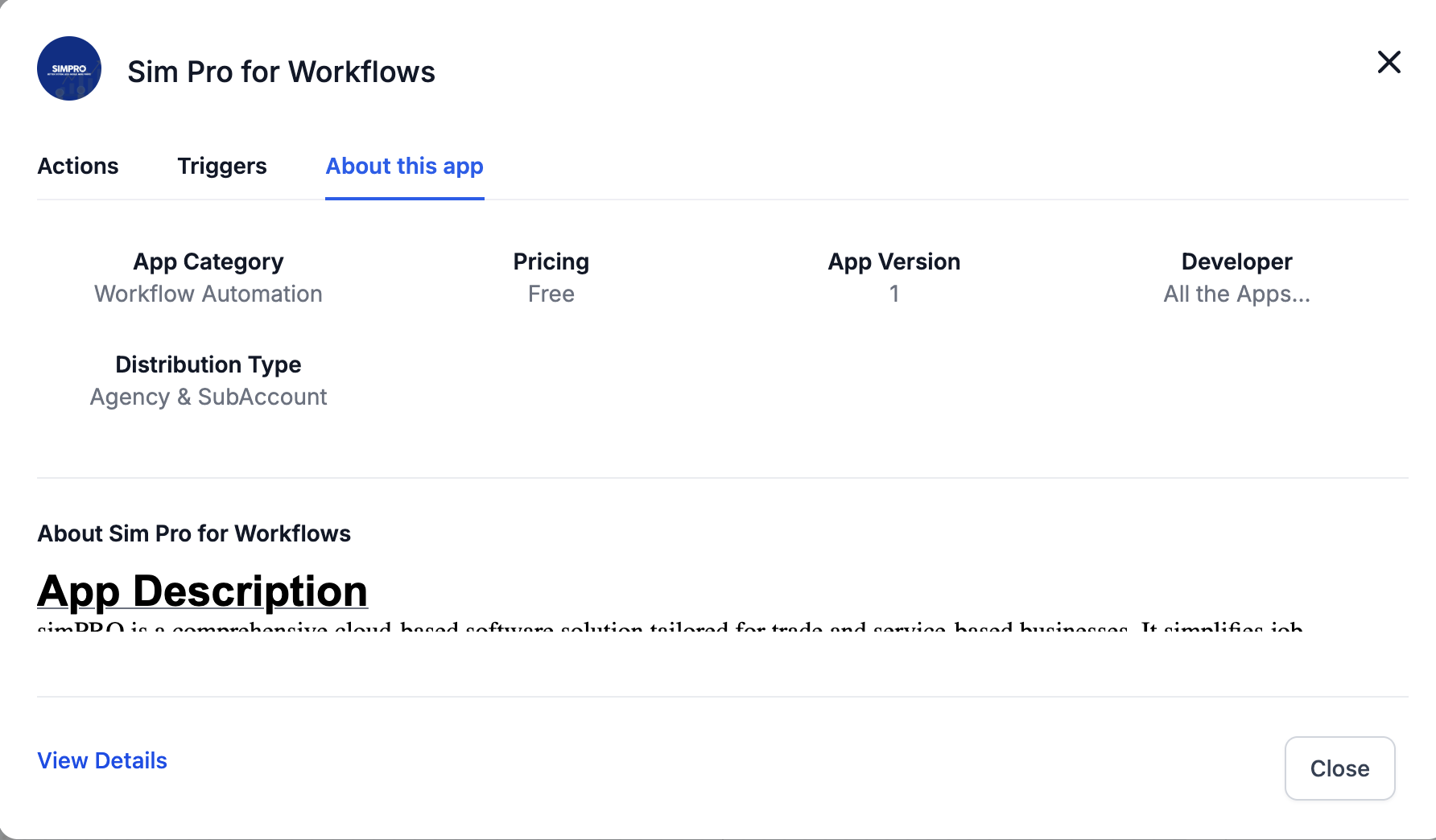
- App details show overview, available actions and triggers, pricing, reviews and ratings.
04How to set up and use marketplace apps in HighLevel
Install marketplace app from Workflow Builder
- Open the Workflow Builder.
- Click the Discover button in the action panel.
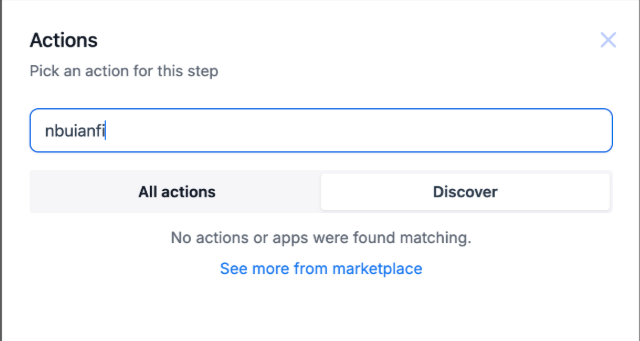
- Browse categories or type a term in the Global Search Bar.
- Select an app to view its details.
- Click the Install button.
- Find the new app’s actions and triggers in the All Actions panel.
05What it looks like in HighLevel
Michael's take

Jumping straight into the Discover button can feel like a shortcut, but it also means you might miss a deeper dive into app documentation before installing. Take a moment to read the overview and pricing info so you know exactly what you’re adding to your automation stack.
When you use the built in app directory, you keep your workflow building flow uninterrupted and stay on top of new features with the Update tag. It’s a tidy way to keep integrations fresh without juggling separate tabs.