
01Who this is for
- Marketing teams can automatically push leads captured in HighLevel forms into HubSpot for later nurturing.
- Sales operations can keep HubSpot contact records clean by checking for duplicates before creating new entries.
- Customer support groups can associate HubSpot contacts with companies or deals to view full account history from either system.
02HubSpot workflow actions & triggers, explained
HubSpot actions and triggers appear inside the HighLevel Workflow Builder. A trigger watches for a specific HubSpot event, such as a new contact being added, and starts the workflow when that event occurs. Actions run after the workflow starts and can create, find, retrieve, or associate HubSpot contacts.
The trigger and actions require a connected HubSpot account, field mapping between HighLevel and HubSpot, and optional filters or conditions inside the workflow. Premium credits are consumed for actions, while the New Contact Created trigger itself does not use credits.
03How businesses use HubSpot workflow actions & triggers
- Digital marketing agency. The agency builds a workflow that fires when a form is submitted in HighLevel. It first searches HubSpot by email, then creates a new HubSpot contact only if no match exists. This keeps the agency’s marketing list synchronized without duplicate records.
- Software SaaS startup. When a new prospect is added in HubSpot, the New Contact Created trigger launches a HighLevel workflow that tags the contact, sends an internal notification, and creates a follow up task. The startup can right away begin its onboarding sequence.
- Enterprise sales team. After a HighLevel event creates a contact, the workflow runs a Create Association action to link that contact with the appropriate HubSpot company record. This gives sales reps a full view of the account across both platforms.
04The numbers and rules that matter
- Five HubSpot actions are available: Create Contact, Find Contact, Get Contact by ID, Search Contact by Email, Create Association.
05How to set up and use HubSpot workflow actions & triggers in HighLevel
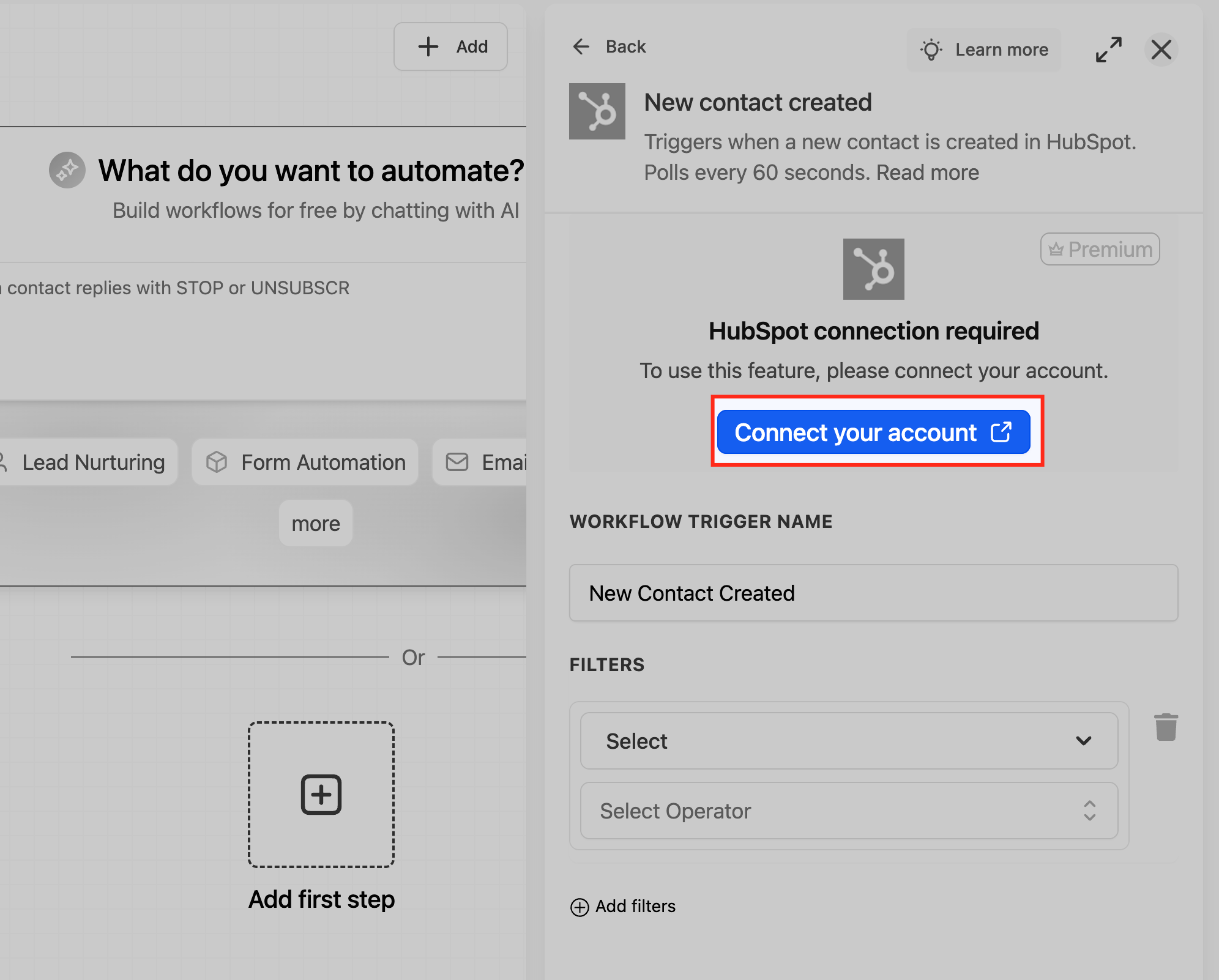
Connect HubSpot in Workflow Builder
- Navigate to the Automation area inside HighLevel.
- Open an existing workflow or start a new one.
- Select Add New Trigger or Add Action depending on the next step you need.
- Choose the Apps option from the list.
- Pick HubSpot as the application to connect.
- Click the Connect button or Connect Now link.
- Authorize the HubSpot account you want to link.
- Review the list of permissions that HubSpot requests.
- Complete the authorization process.
- Return to HighLevel and verify that the HubSpot connection is confirmed.
Set up the HubSpot New Contact Created trigger
- Go to Automation in HighLevel.
- Open the workflow that should start when HubSpot creates a contact.
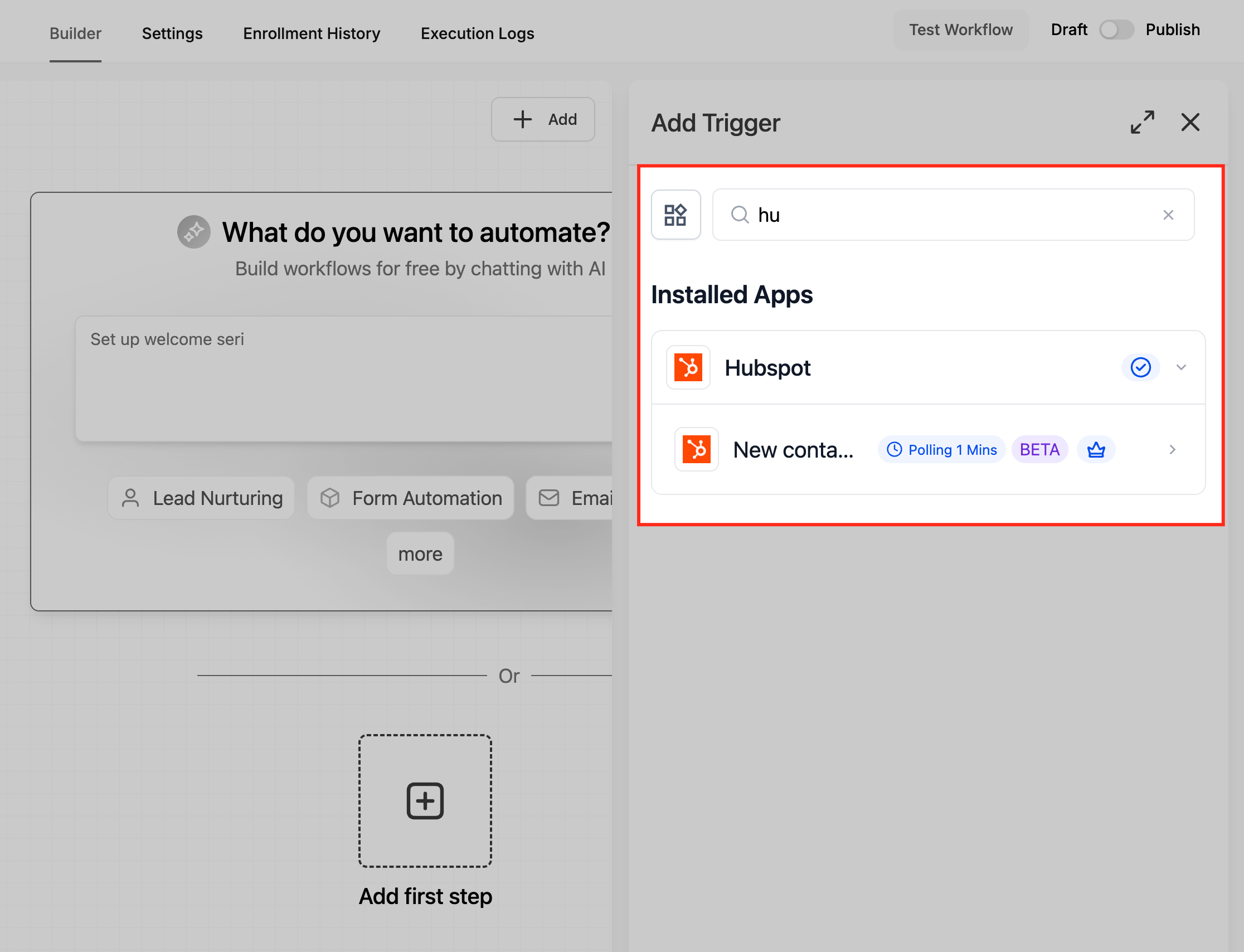
- Click Add New Trigger.
- Select HubSpot from the trigger options.
- Choose the New Contact Created event.
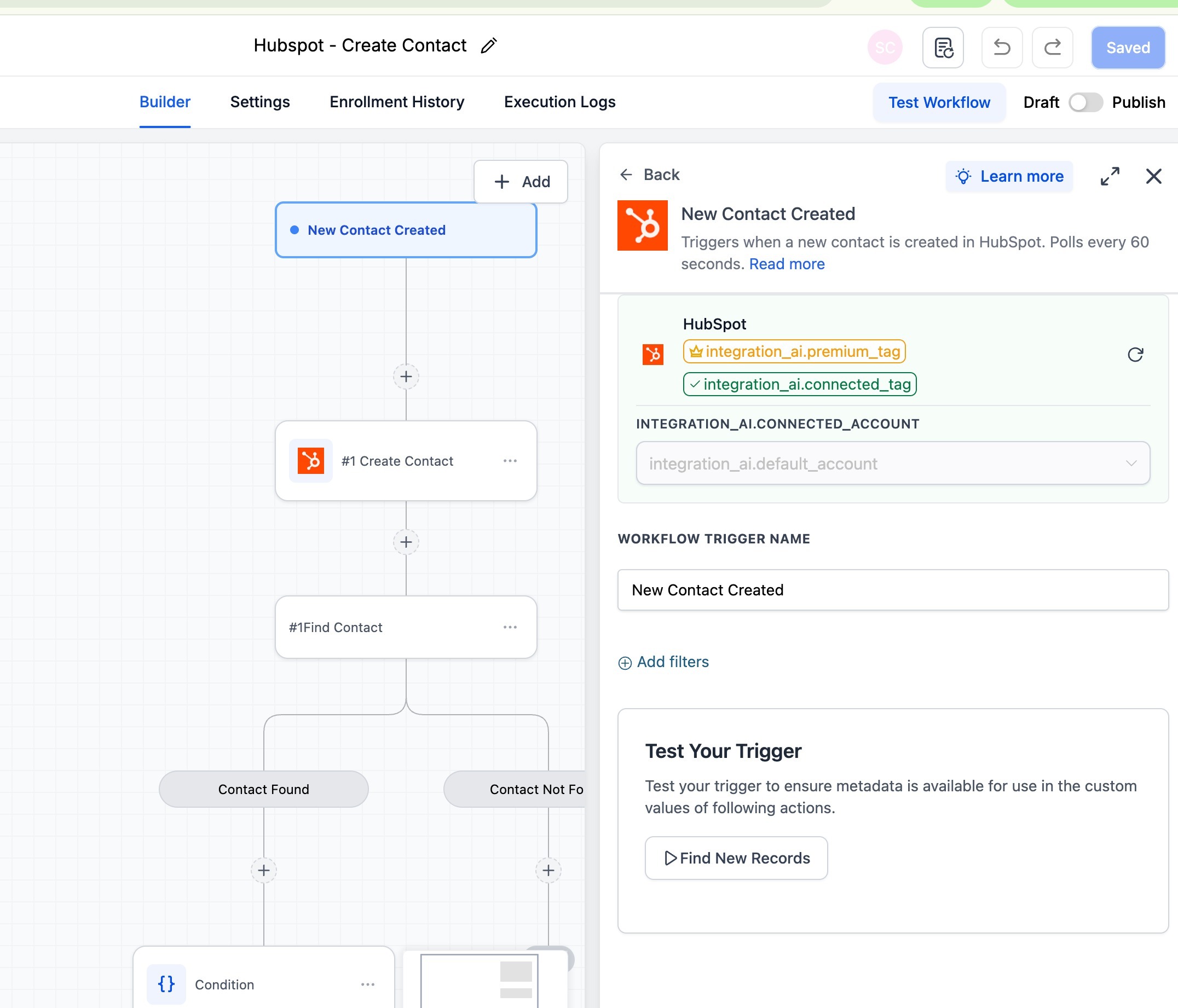
- Confirm which HubSpot account is linked.
- Adjust any available trigger settings as needed.
- Save the trigger by clicking Save Trigger.
- Test the trigger using Test Trigger or Find New Records to ensure HighLevel sees HubSpot contacts.
- Publish the workflow once the test succeeds.
Set up the HubSpot Create Contact action
- Open the workflow where you need to add a HubSpot contact.
- Add the workflow trigger that will initiate the process.
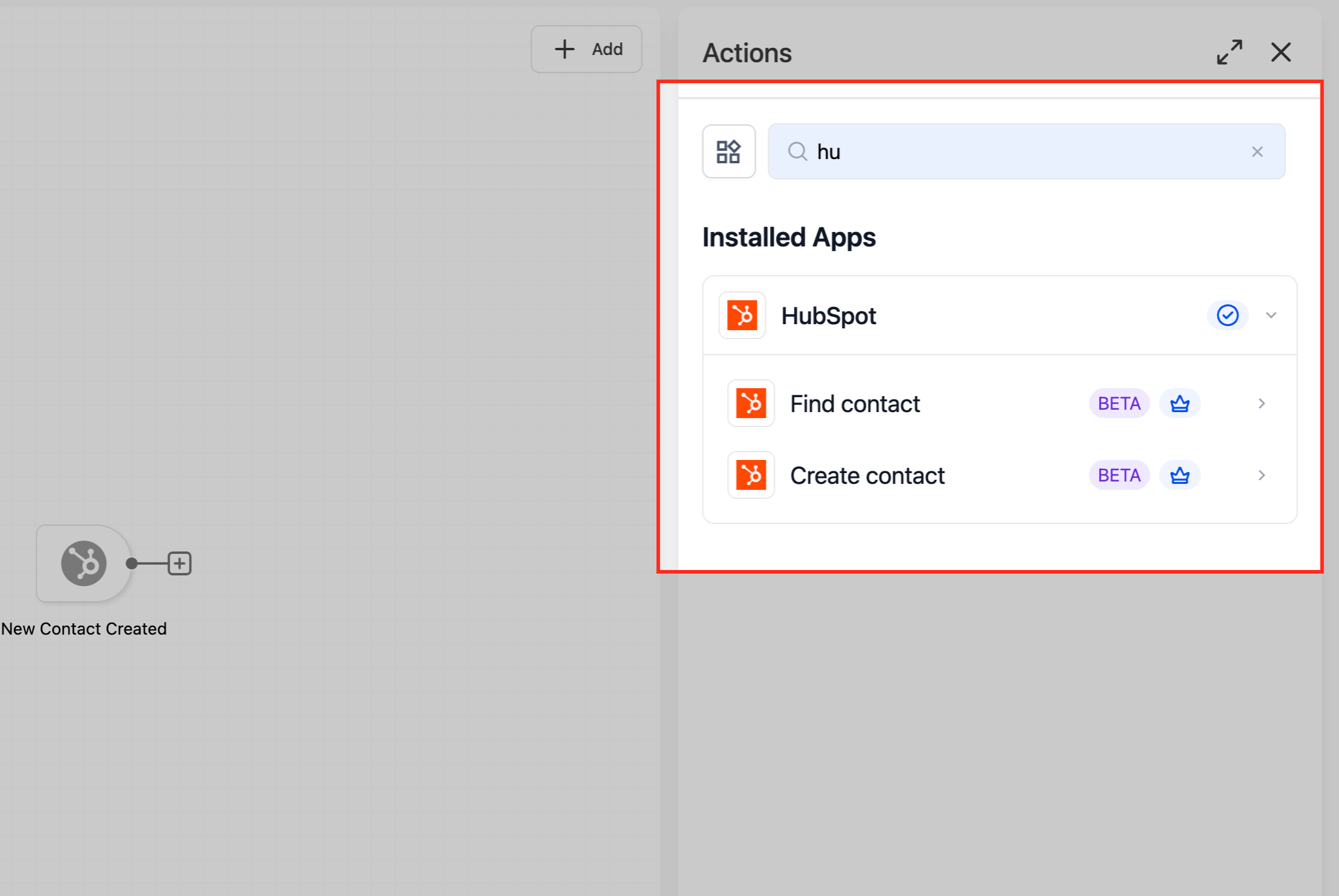
- Click Add Action.
- Select HubSpot as the action type.
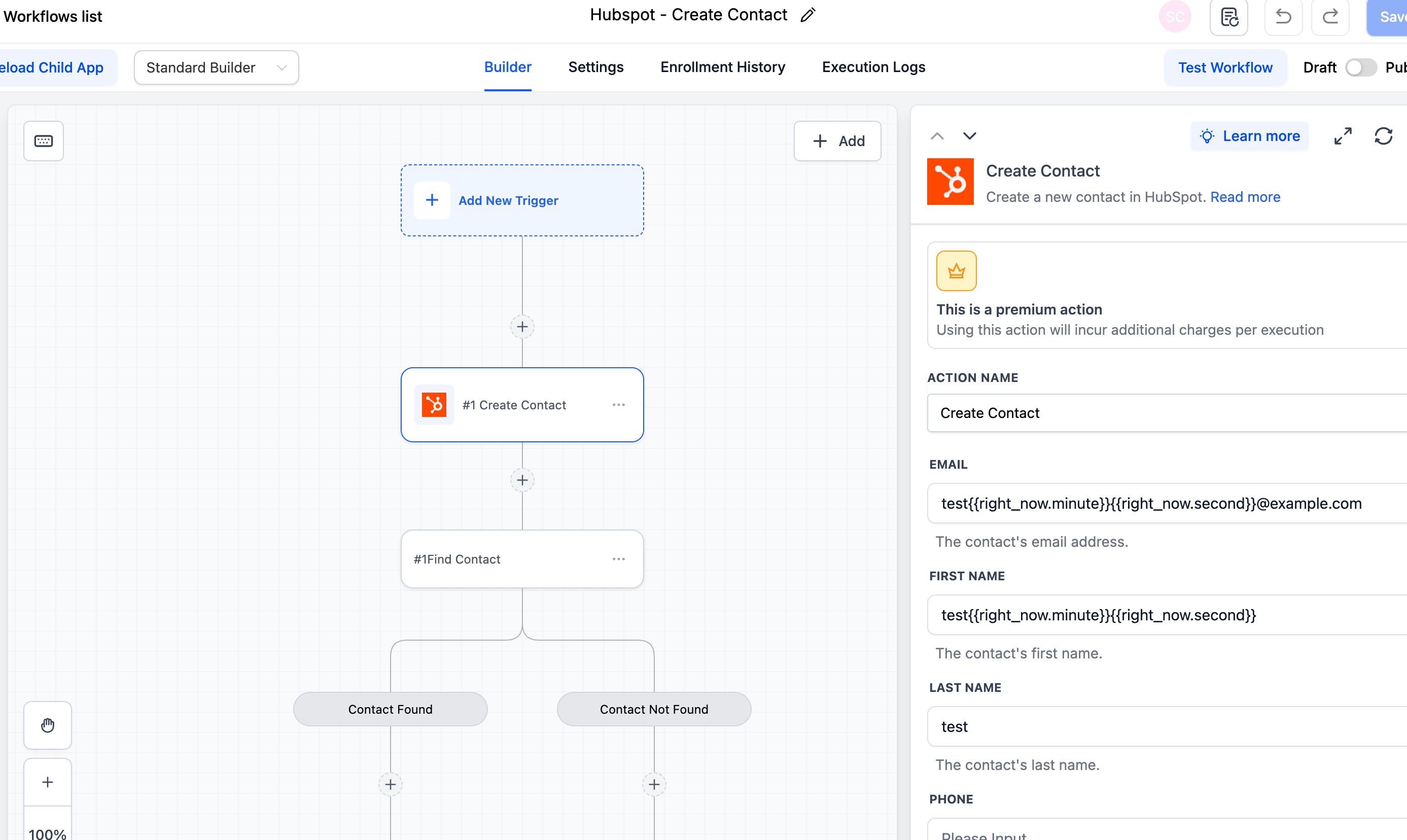
- Choose Create Contact from the HubSpot actions.
- Confirm the HubSpot account that will receive the new contact.
- Map each required HubSpot field to a HighLevel value.
- Map any optional HubSpot properties that your process requires.
- Save the action configuration.
- Run a test of the action.
- Check the test outcome in HighLevel and verify that the contact appears in HubSpot.
06What it looks like in HighLevel
07Settings that matter
- New Contact Created. Determines which HubSpot event starts a HighLevel workflow when a contact is first added in HubSpot.
- Create Contact. Controls how HighLevel sends contact information to HubSpot to generate a new contact record.
08Things to know before you rely on it
- All HubSpot actions are premium and consume premium action credits at the standard automation rate.
- The New Contact Created trigger is not premium and runs on a HubSpot webhook without using credits.
- The integration works with HubSpot’s free CRM tier; advanced HubSpot features may need a paid HubSpot plan.
09If something goes wrong
- A HubSpot action fails, such as when an email address is invalid.. Review the error details in the workflow execution log and add a fallback branch to handle the failure, for example by notifying an administrator.
10How it connects to the rest of HighLevel
- HighLevel workflow automation basics and set up guide Workflow basics
- Understanding HighLevel Workflow Pro Plan pricing tiers Pricing tiers
- The HighLevel Founder Plan overview Founder Plan
Michael's take

When you have both HubSpot and HighLevel handling different parts of the customer journey, this integration reduces the endless copy paste of contacts, stops duplicate records from piling up, and lets each system fire the other's automations without a human in the loop.
If you only use one platform for CRM and marketing, the extra steps of connecting and mapping may not add enough value. The premium action credits also count against your automation budget, so small teams with limited credits should weigh the cost against the convenience.