
01Who this is for
- Users can switch among workflows without losing their place, preserving continuity while building.
- Team members can quickly access related automations to compare or copy logic branches.
02Workflow switcher, explained
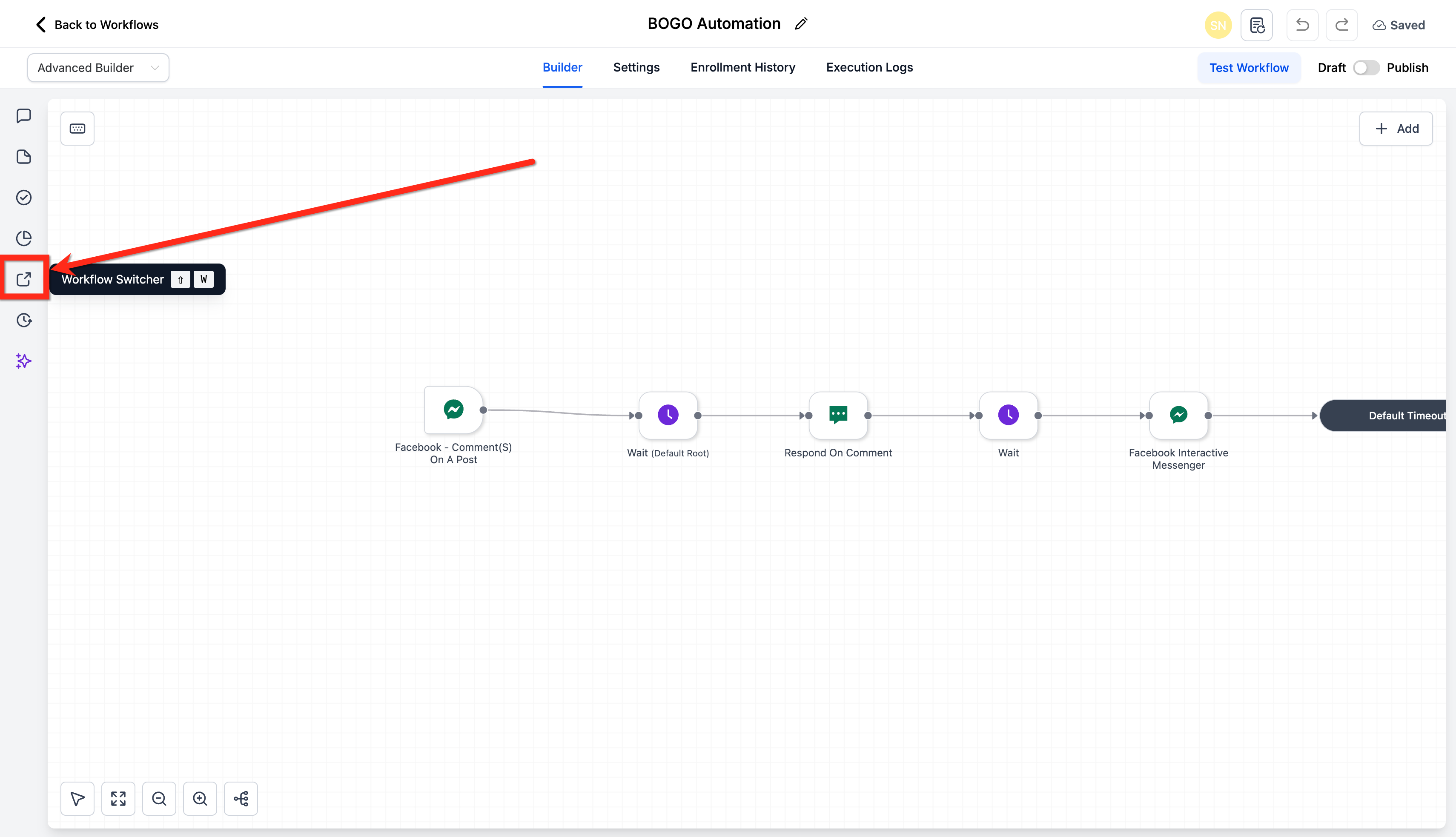
Workflow Switcher appears in the left sidebar of the Advanced Builder. It displays recent workflows and a Quick Search box that finds workflows by name. Selecting a workflow opens it in a new browser tab while the existing canvas stays visible. The feature works only in Advanced Builder; it is not available in the standard builder. The panel opens by clicking its button or using the Shift + W shortcut when the builder tab has focus.
03How businesses use workflow switcher
- Digital marketing agency. The agency opens a client’s email nurture workflow, then uses the Switcher to pull up a related SMS campaign workflow. They copy a set of actions from the SMS workflow into the email flow to ensure consistent messaging across channels.
- SaaS startup. The product team works on a trial onboarding workflow and quickly jumps to the paid conversion workflow using the Switcher. They compare the decision branches side by side before publishing changes.
- Real estate brokerage. The brokerage’s lead manager opens a new lead capture workflow and right away switches to the follow up workflow. They paste a series of follow up actions into the new workflow to standardize the outreach process.
04How to set up and use workflow switcher in HighLevel
Open another workflow using the Workflow Switcher
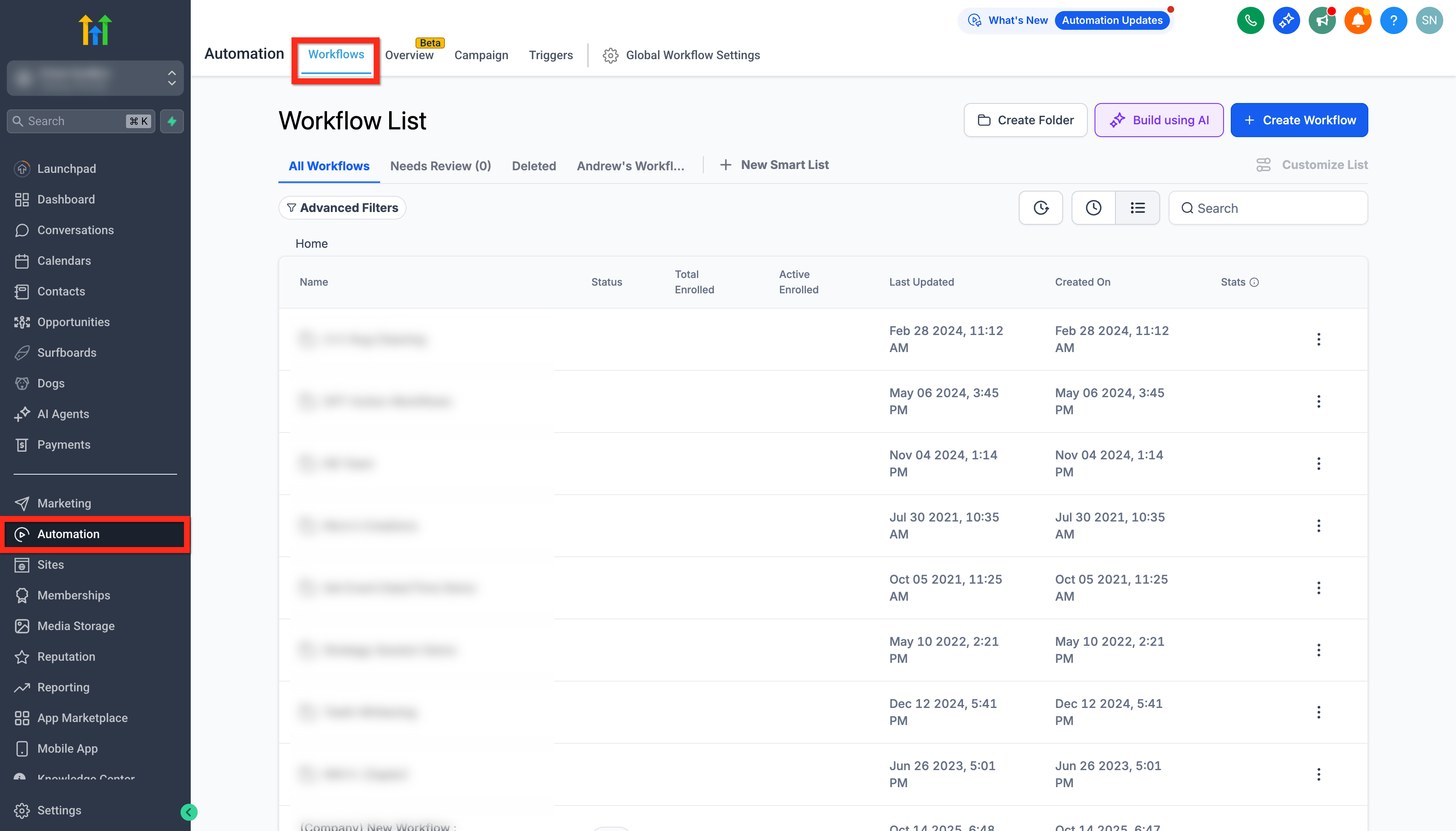
- Navigate to Automations > Workflows.
- Create a new workflow or open an existing one.
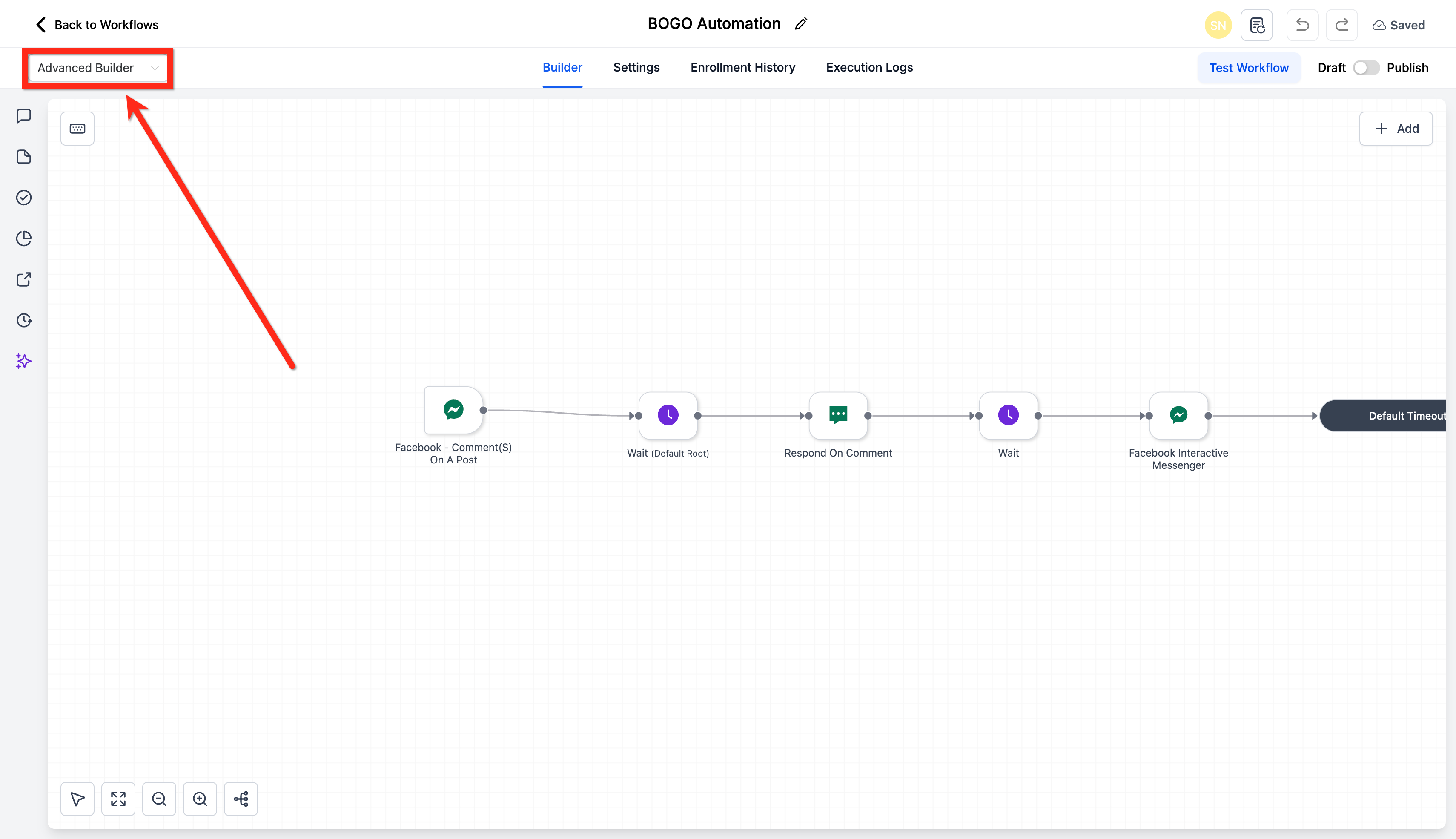
- Confirm the builder is set to Advanced Builder mode; otherwise the Switcher will not appear.
- Click the Workflow Switcher button on the left sidebar or press Shift + W.
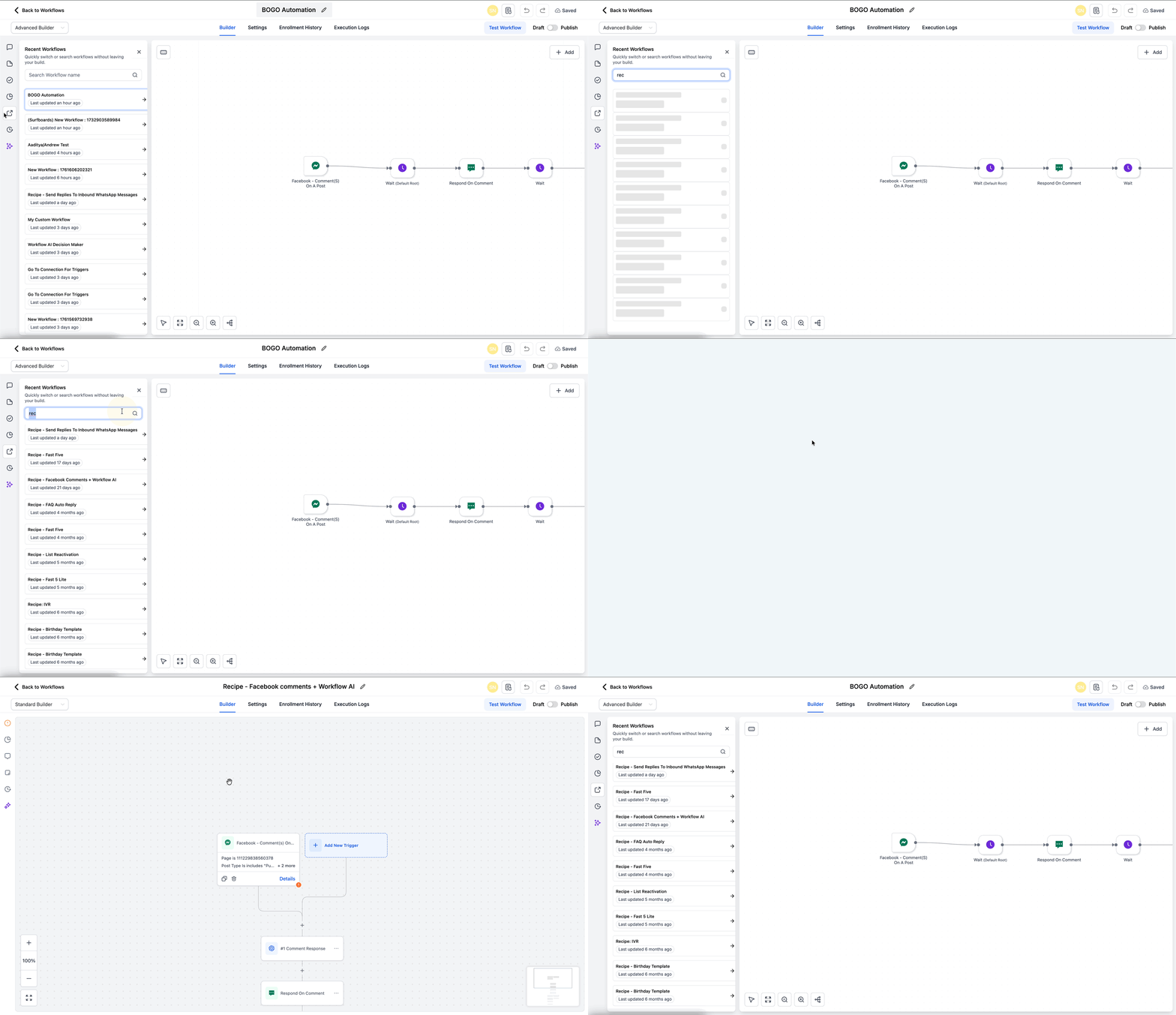
- Enter a workflow name in Quick Search or select one from Recent Workflows.
- Click the chosen workflow; it opens in a new browser tab while the current canvas remains open.
05What it looks like in HighLevel
06Things to know before you rely on it
- Workflow Switcher is available only in the Advanced Builder; it does not appear in the standard builder.
- Quick Search finds workflows solely by their names.
07How it connects to the rest of HighLevel
- Getting started with HighLevel workflows Workflow creation guide
- Control contacts and timing in workflow settings Workflow settings overview
- Explore HighLevel pricing and plan options Pricing page
Michael's take

Workflow Switcher is worth the time it saves for a small business that builds many automations. No more reloading pages or losing focus, just quick jumps between jobs. It makes copying logic a breeze and cuts the chance of mistakes when you’re juggling several workflows.
Don’t forget to stay in Advanced Builder; the switcher won’t appear in the standard view.