
01Who this is for
- Home service businesses can automate confirmations and follow ups by using Housecall Pro triggers that fire on job scheduling or completion.
- Marketing teams benefit from actions that push new leads or customers into Housecall Pro, keeping operational data in sync with campaign lists.
02Housecall Pro integration, explained
The integration pulls job, estimate, lead and customer events from Housecall Pro into HighLevel workflows as premium triggers. Each trigger polls the Housecall Pro API on a set cadence and returns a payload that includes the related customer record. Actions work in the opposite direction: a workflow step can create, retrieve, update or find customers, jobs, estimates or leads inside Housecall Pro.
All triggers and actions require a connected Housecall Pro account via API key. Once linked, they appear in the Apps tab of the Workflow Builder. The platform treats them as premium components, so they consume premium action credits at the standard automation rate. Housecall Pro usage such as jobs or invoicing is billed directly by Housecall Pro.
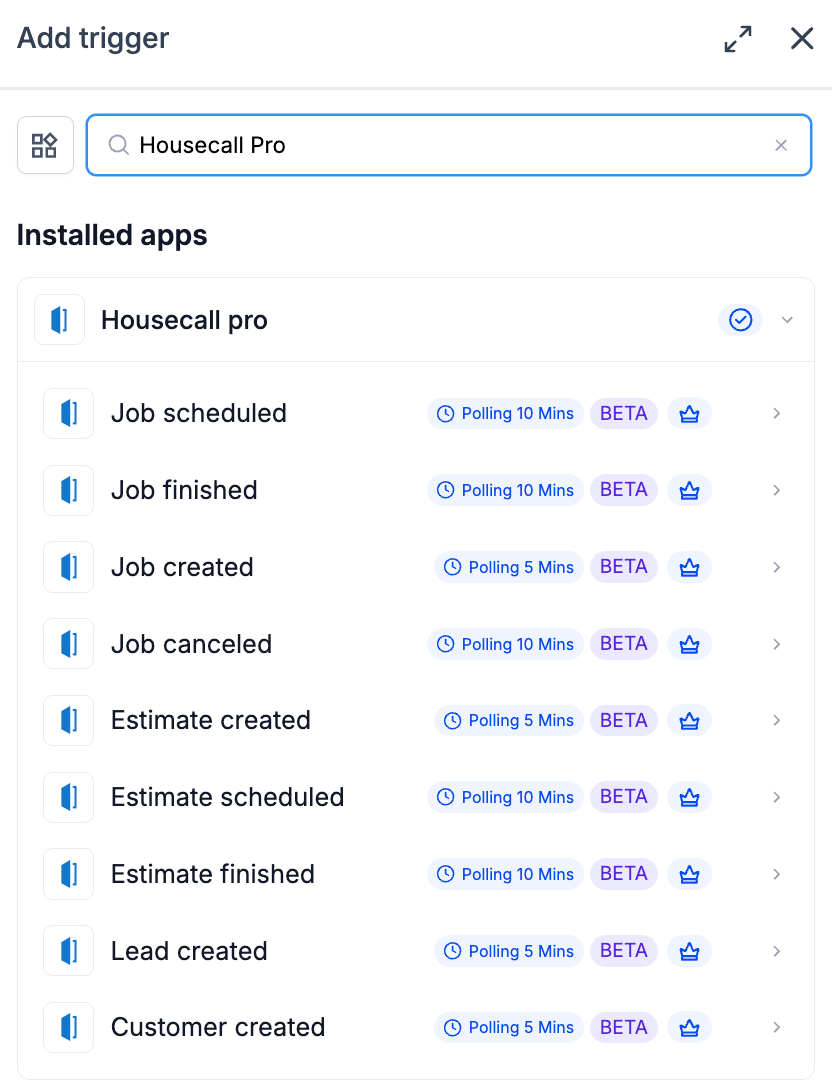
Triggers fire on a fixed schedule, creation events every five minutes, and schedule, finish or cancel events every ten minutes, so workflows react promptly to changes in the field service system.
03How businesses use Housecall Pro integration
- Plumbing company. The plumber adds a Job scheduled trigger to send a confirmation SMS when a new job is booked. The workflow also creates a matching customer record in Housecall Pro using the Create new customer action, ensuring the dispatch team sees up to date information.
- Lawn care service. The business configures a Lead created trigger to capture web form leads. An action then creates a new lead in Housecall Pro, allowing the crew to schedule service visits directly from the Housecall Pro calendar.
- HVAC contractor. The contractor uses a Job finished trigger to launch a thank you message and a review request. The same workflow can update the customer record in Housecall Pro with a note that the job was completed successfully.
04The numbers and rules that matter
- Creation triggers poll every 5 minutes.
- Schedule, finish and cancel triggers poll every 10 minutes.
- Mobile Number must be exactly 10 digits, numbers only.
05Before you start
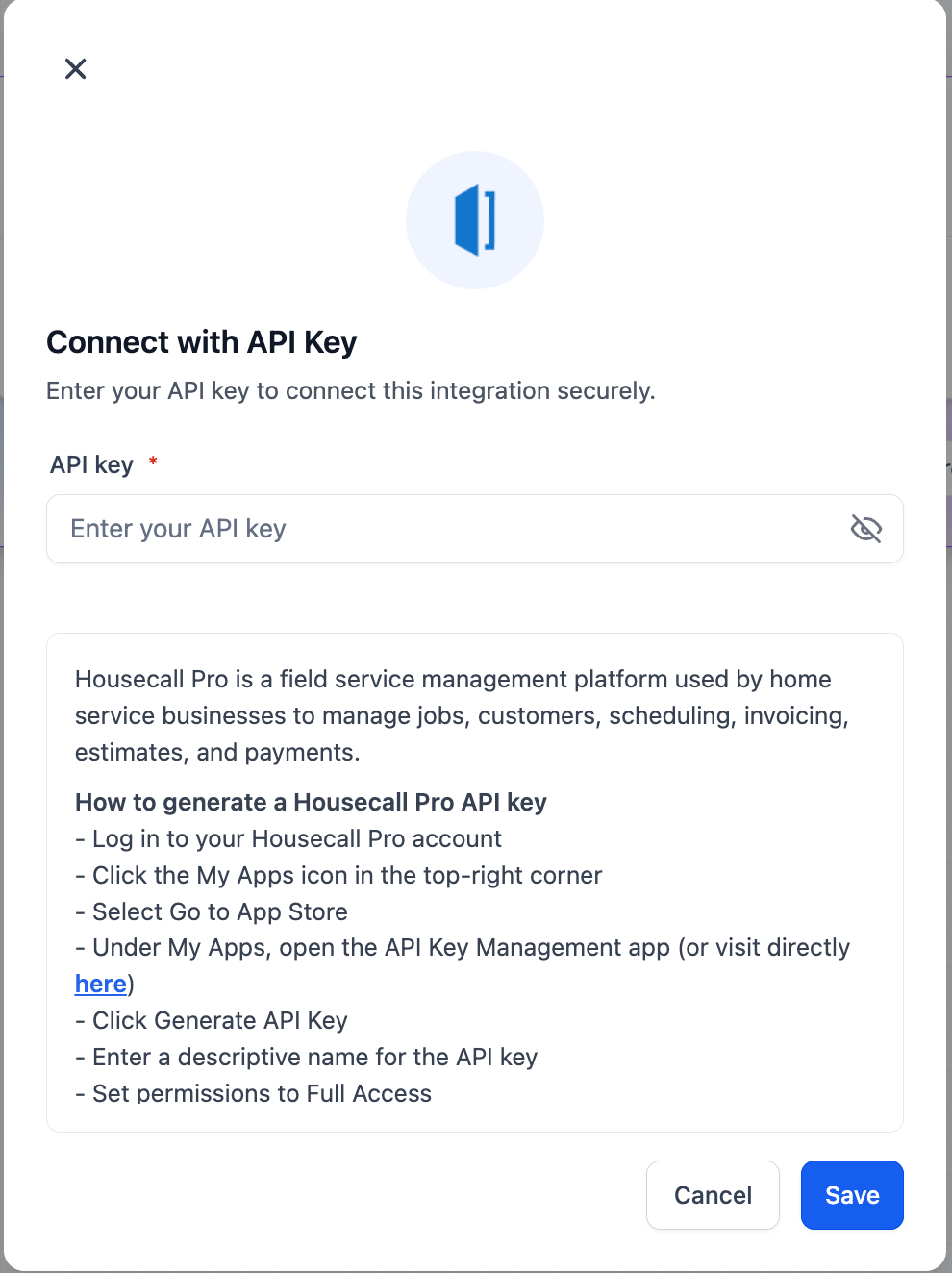
- An active Housecall Pro API key must be generated and available before connecting the integration.
06How to set up and use Housecall Pro integration in HighLevel
Connect via the Workflow Builder (recommended)
- Open Automation > Workflows and select an existing workflow or create a new one.
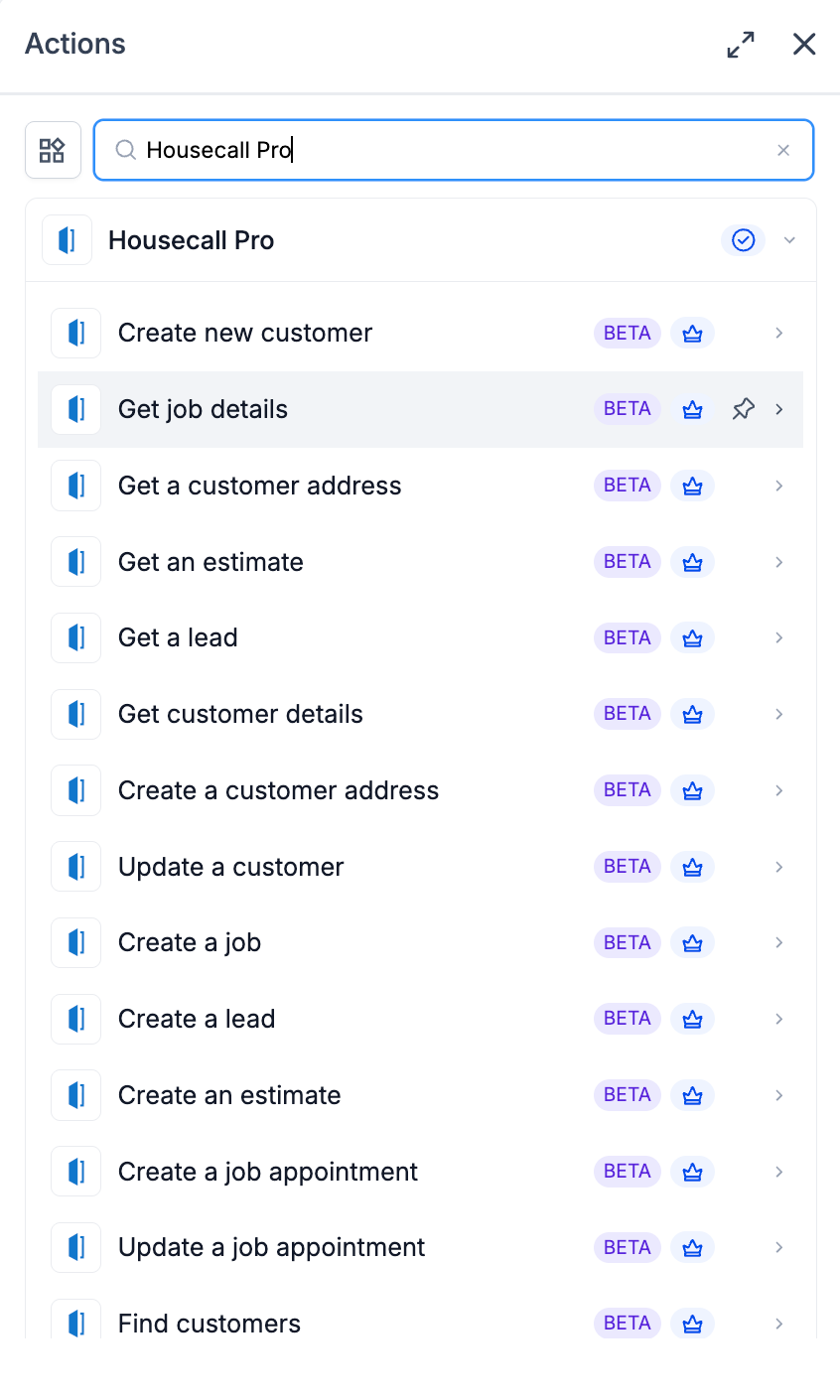
- Click Add Trigger or Add Action, go to the Apps tab, and search for Housecall Pro.
- Choose either the Job scheduled trigger or the Create new customer action.
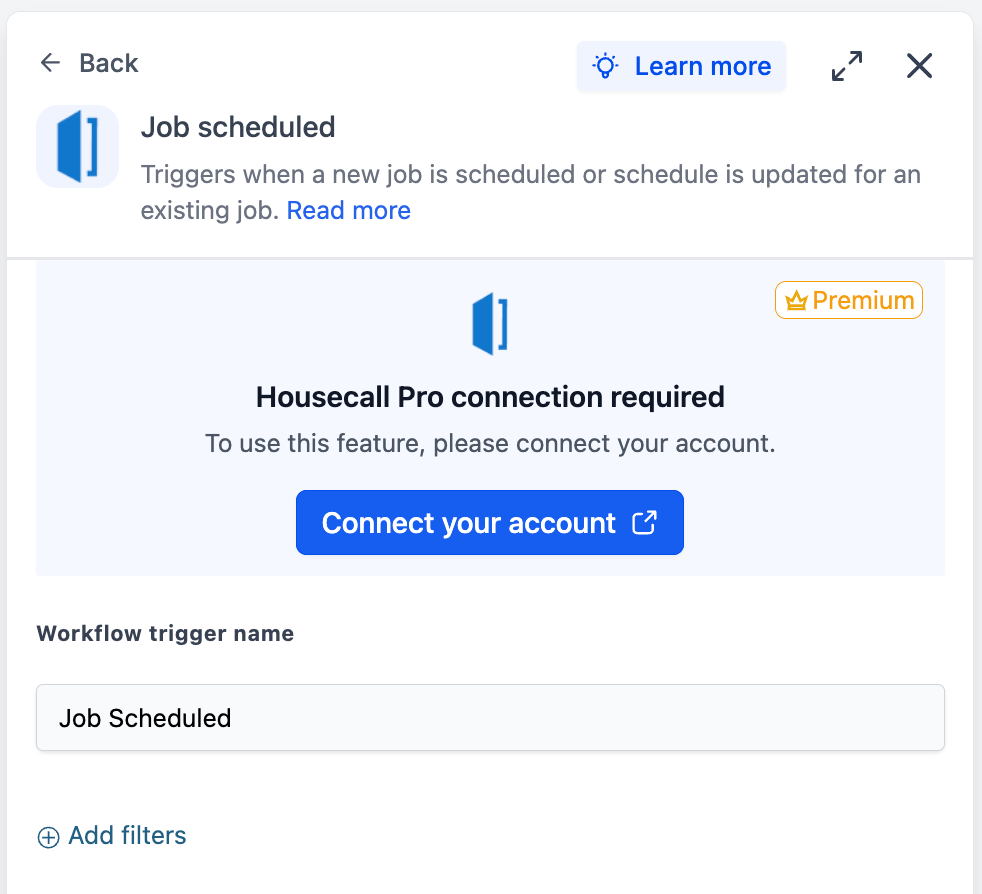
- In the side panel, press Connect your account.
- Paste the Housecall Pro API key into the Connect with API Key window.
- Save the connection; the panel will indicate it is Connected.
Connect via Settings (alternative path)
- Navigate to Settings > Integrations.
- Find Housecall Pro in the list and click Connect.
- Enter the API key and click Save.
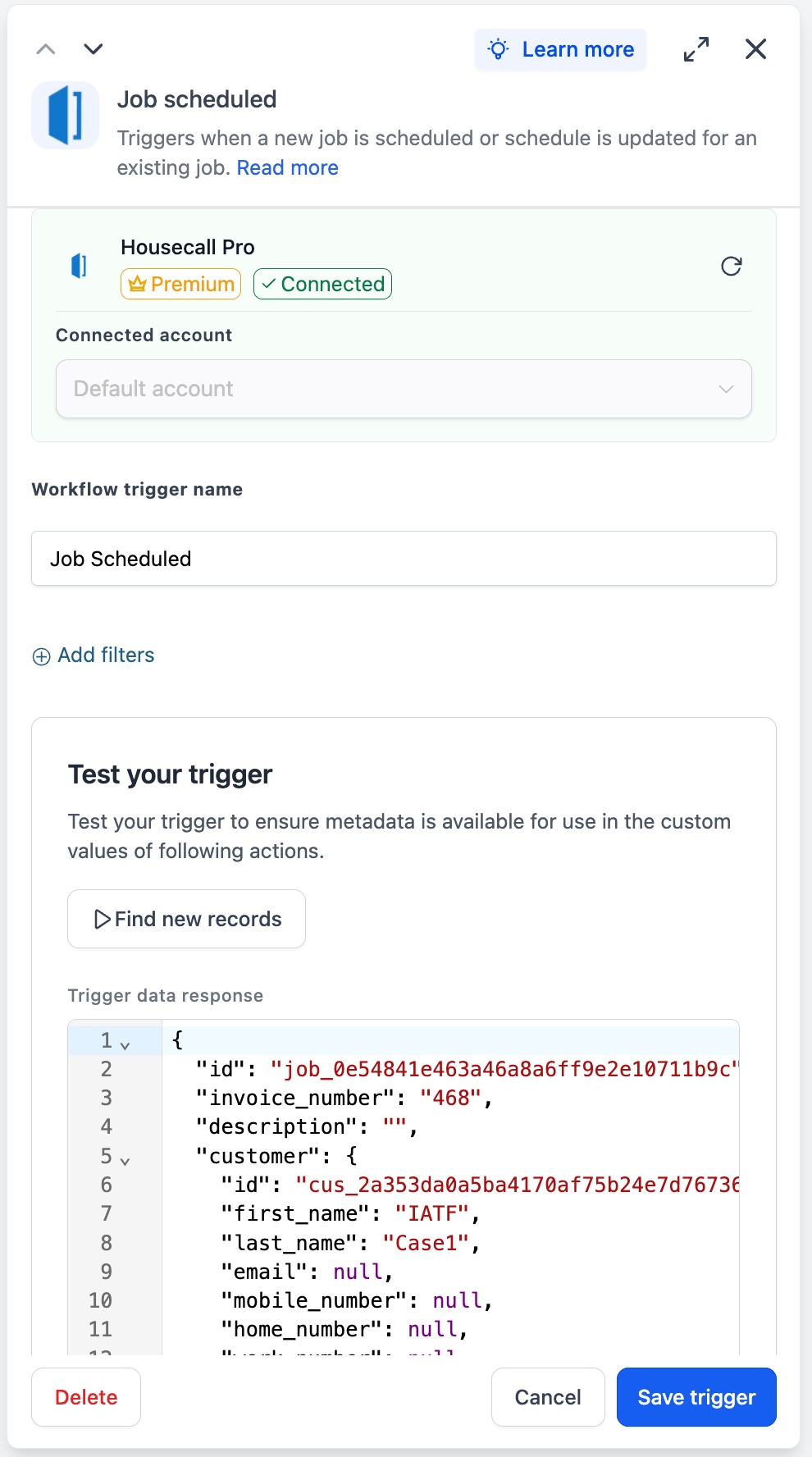
Set up a Job scheduled trigger
- Open the workflow and click Add Trigger.
- Switch to the Apps tab and search for Housecall Pro.
- Select Job scheduled from the trigger options.
- Choose the Housecall Pro account for Connected Account (or accept the default).
- Enter a descriptive Workflow Trigger Name.
- Add filters if you need to limit when the trigger fires.
- Click Find new records in the test panel.
- The system pulls recent scheduled jobs from Housecall Pro.
- Pick a returned record from the Mapping Reference dropdown.
- Click Save trigger to complete the setup.
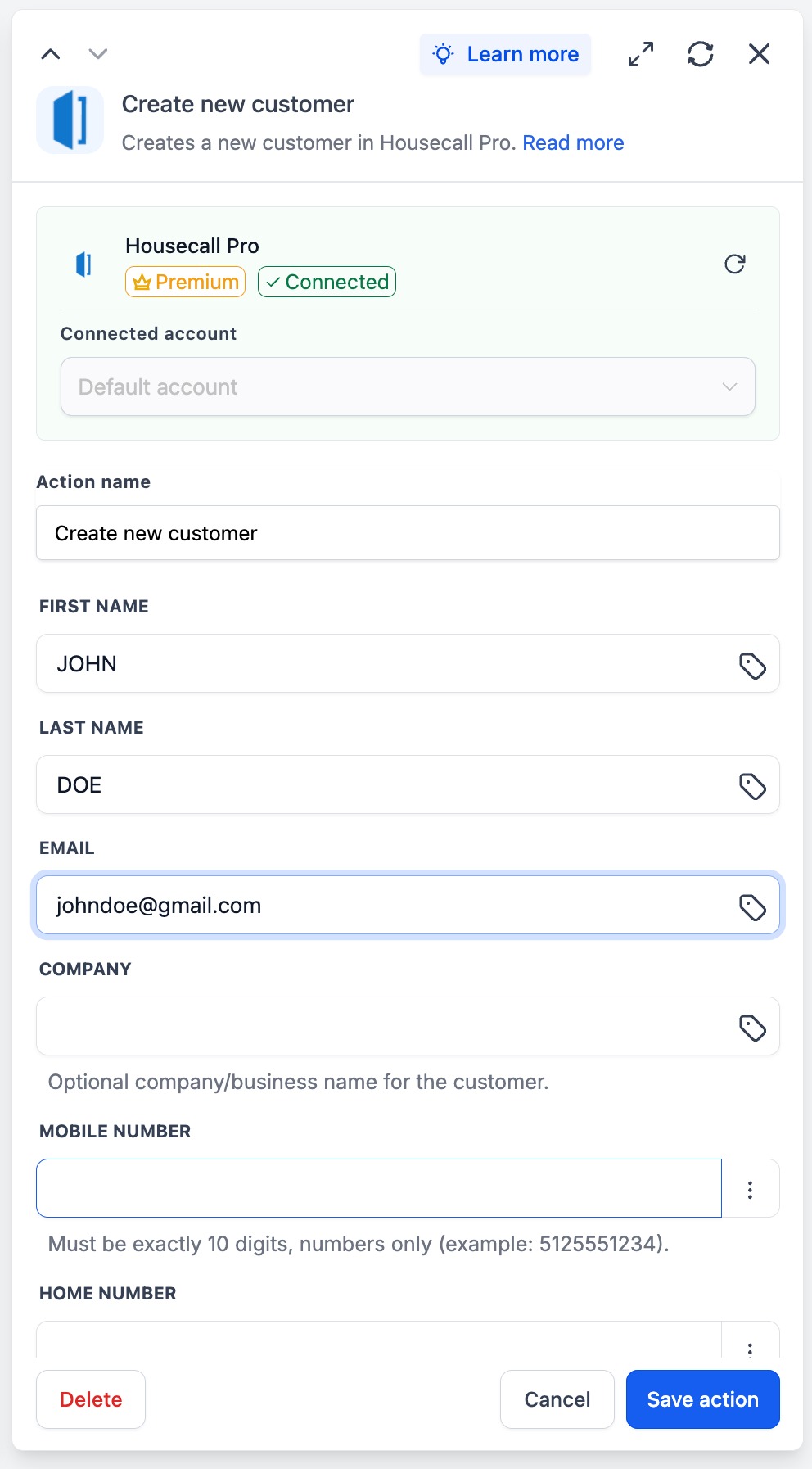
Set up a Create new customer action
- Inside the workflow, click Add to insert a new step.
- Open the Apps tab and locate Housecall Pro.
- Choose Create new customer from the action list.
- Select the Housecall Pro account for Connected Account.
- Provide an Action Name for the step.
- Map a workflow variable to First Name (required).
- Map a workflow variable to Last Name (required).
- Optionally map a value to Email.
- Optionally map a 10 digit numeric value to Mobile Number.
- Click Test Action to run a live API call.
- Save the action after confirming the response contains a new customer ID.
Test the trigger (either one)
- Inside the trigger panel, click Find new records.
- If no records appear, manually schedule a test job in Housecall Pro, then click Find new records again.
- Select the returned record as the Mapping Reference and verify the job and customer fields appear.
Test the action
- Inside the action panel, click Test Action.
- The call creates a real customer record in Housecall Pro; verify it appears in the Housecall Pro Customers list.
- If the call fails, check field mappings (Mobile Number must be exactly ten digits) and re test.
- Clean up the test record in Housecall Pro after confirming it worked.
07What it looks like in HighLevel
08Settings that matter
- Connected Account. Selects which Housecall Pro account the trigger or action will communicate with.
- Workflow Trigger Name. Provides a readable label for the trigger inside the workflow.
- Add filters. Restricts the trigger to fire only when specified conditions are met.
- Action Name. Gives the action a clear identifier for reporting and debugging.
- First Name. Required field that supplies the customer's first name to the create action.
- Last Name. Required field that supplies the customer's last name to the create action.
- Email. Optional field that stores the customer's email address.
- Company. Optional field for B2B relationships that records the customer's company name.
- Mobile Number. Optional field that must contain exactly ten digits; non conforming values are rejected.
- Home Number. Optional field that also requires exactly ten digits, numbers only.
09Things to know before you rely on it
- Triggers poll Housecall Pro on a fixed schedule: creation events every five minutes, schedule/finish/cancel events every ten minutes.
- All Housecall Pro triggers and actions are flagged as premium workflow components and consume premium action credits.
- Mobile Number and Home Number fields accept only ten digit numeric strings; invalid inputs cause the API call to fail.
- Housecall Pro usage charges (jobs, customers, invoicing, payments) are billed directly by Housecall Pro, not by HighLevel.
10If something goes wrong
- Find new records returns no matching jobs.. Manually schedule a test job in Housecall Pro, then click Find new records again to retrieve it.
- Mobile Number field is rejected during testing.. Ensure the value contains exactly ten digits with no symbols or spaces before re testing.
11How it connects to the rest of HighLevel
- Learn the basics of workflow automation in HighLevel. Workflow basics
- Review pricing tiers for premium workflow features. Workflow pricing
- Explore the Founder Plan for unlimited workflow usage. Founder Plan
Michael's take

Housecall Pro integration can fire a confirmation, a review request or a receipt when a job is scheduled, completed or other events occur.
Avoid connecting the wrong API key. A mismatched account will cause triggers and actions to fail silently.