
01Who this is for
- Marketing agencies on any HighLevel plan can automate lead notifications so team members receive alerts right away in Slack.
- Customer support teams use the action to push new ticket alerts to a designated Slack channel, keeping agents aware of incoming work.
- HR departments can trigger onboarding or policy update messages directly to new hires or HR staff via Slack.
02Slack premium actions, explained
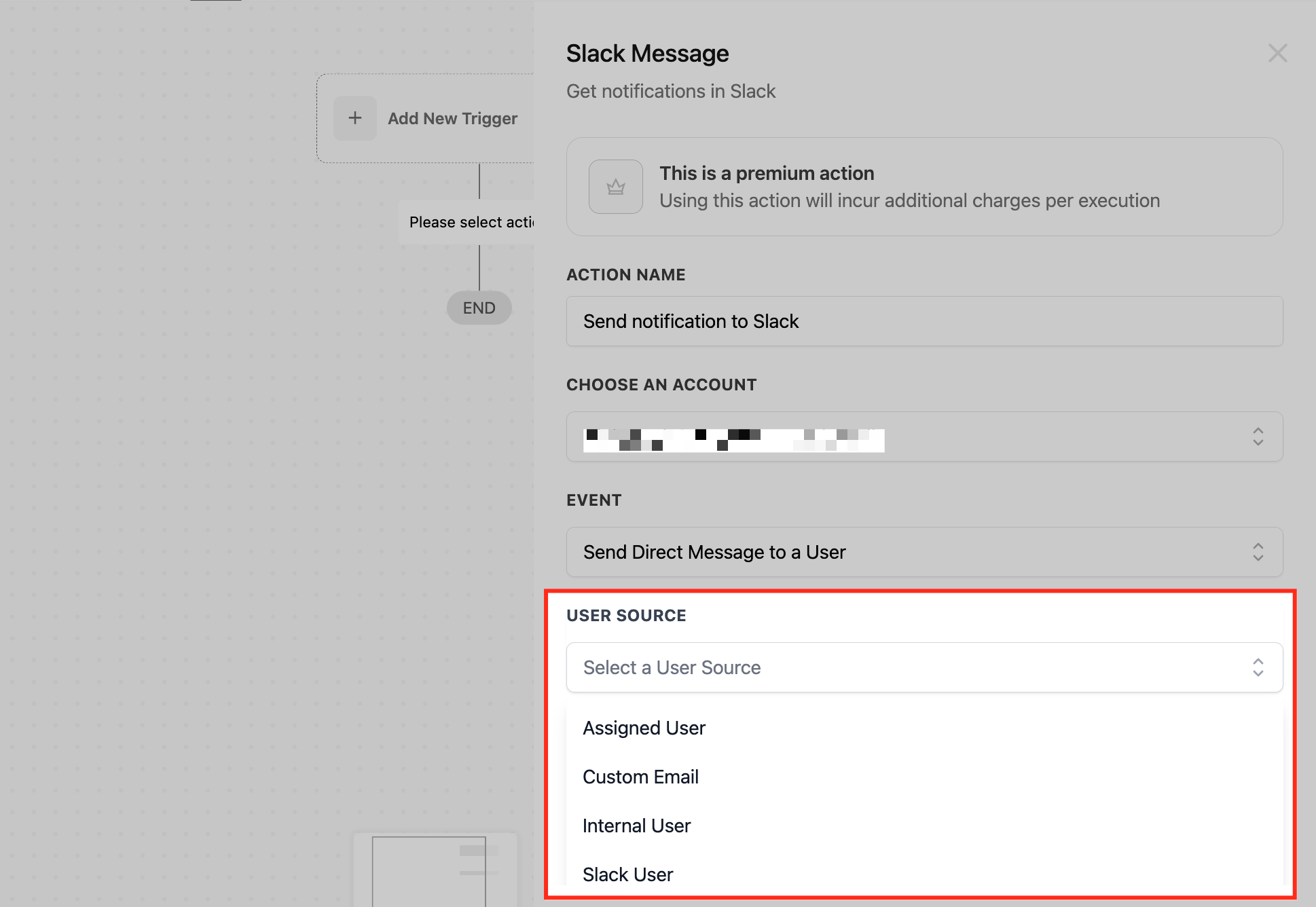
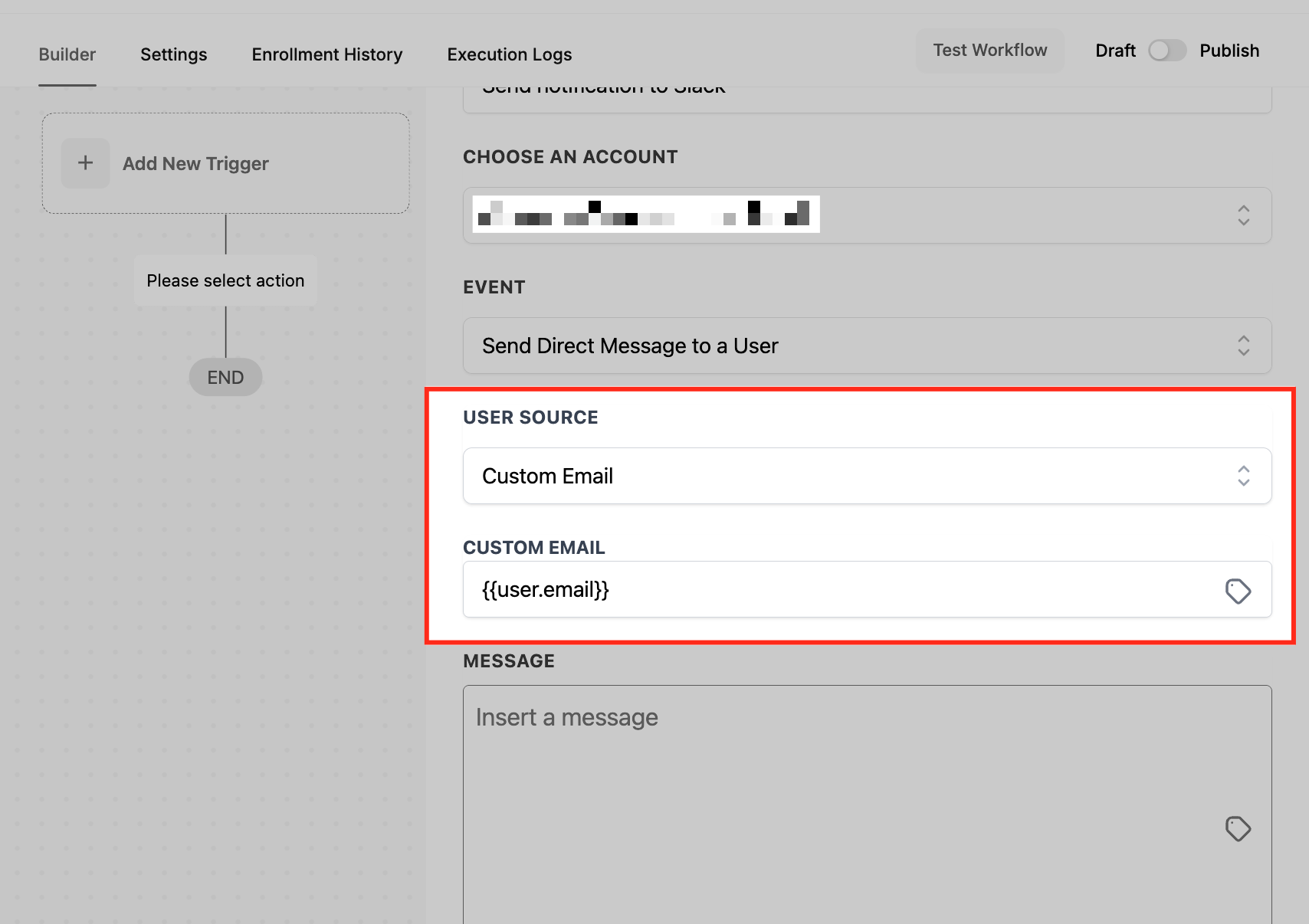
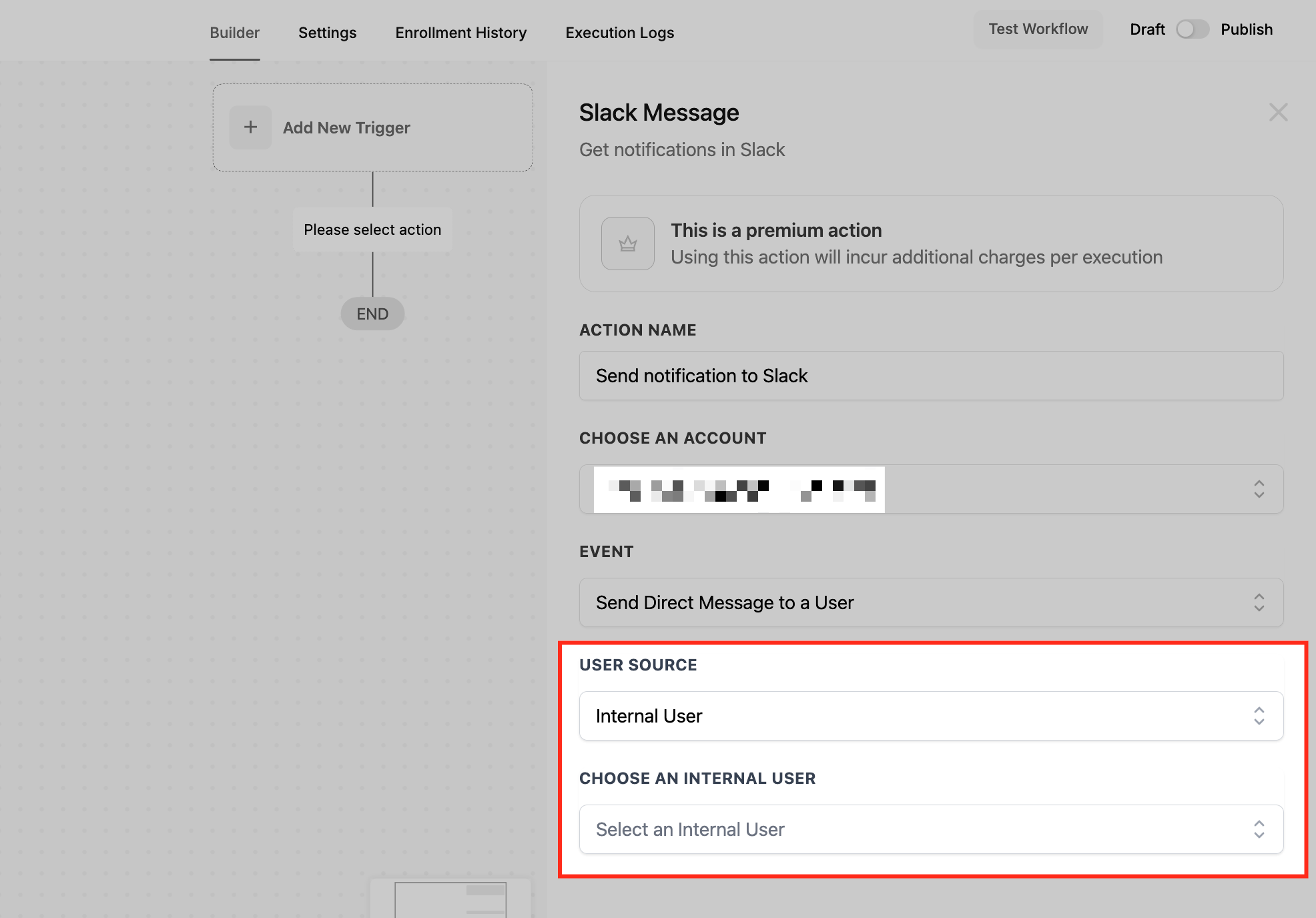
The Slack Premium action is a workflow step that posts messages to Slack based on triggers in HighLevel. It offers three event types: direct message to a user, message to a private channel, and message to a public channel. For direct messages you can select the contact’s assigned user, enter a custom email, pick an internal user, or search the Slack workspace for a user.
When sending to channels you choose a specific public or private channel from a searchable list. The message body can include any text and you can insert custom variables to pull contact or deal information. Messages to private channels are posted as the HighLevel user who created the integration, not as a bot.
The action is managed under the Slack integration panel in a Subaccount. After connecting a Slack workspace via the marketplace, you add the Slack Premium action to a workflow and configure the event, recipient, and message content.
03How businesses use Slack premium actions
- Digital marketing agency. The agency adds a Slack Premium action to a workflow that runs when a new lead is created. It selects the "Send Direct Message to User" event, chooses the Assigned User option, and inserts the lead’s name into the message. The designated salesperson receives the Slack DM right away.
- Customer support center. Support staff set up a workflow that triggers on a new ticket. They use the "Send Public Channel Message" event, pick the support team channel, and include ticket details via custom variables. The whole support team sees the notification in the channel.
- IT development team. The development team configures a workflow that fires when a bug is reported. They select the "Send Private Channel Message" event, choose the private engineering channel, and add the bug description and priority using variables. The message appears as if posted by the user who set up the integration.
04The numbers and rules that matter
- $97, $970, $297, $2970, $497, $4970 agency plans (per HighLevel's help center, checked November 2026).
- 100 free executions per subaccount once premium actions are enabled.
- Limited number of users fetched at once; use Load More for workspaces over 1000 users.
- Limited number of public or private channels fetched at once; use Load More for workspaces over 1000 channels.
05Before you start
- Premium Actions & Triggers must be enabled in the Agency settings.
- If you want executions beyond the free 100 per subaccount, rebilling must be enabled manually for each subaccount.
06How to set up and use Slack premium actions in HighLevel
Connect Slack via marketplace
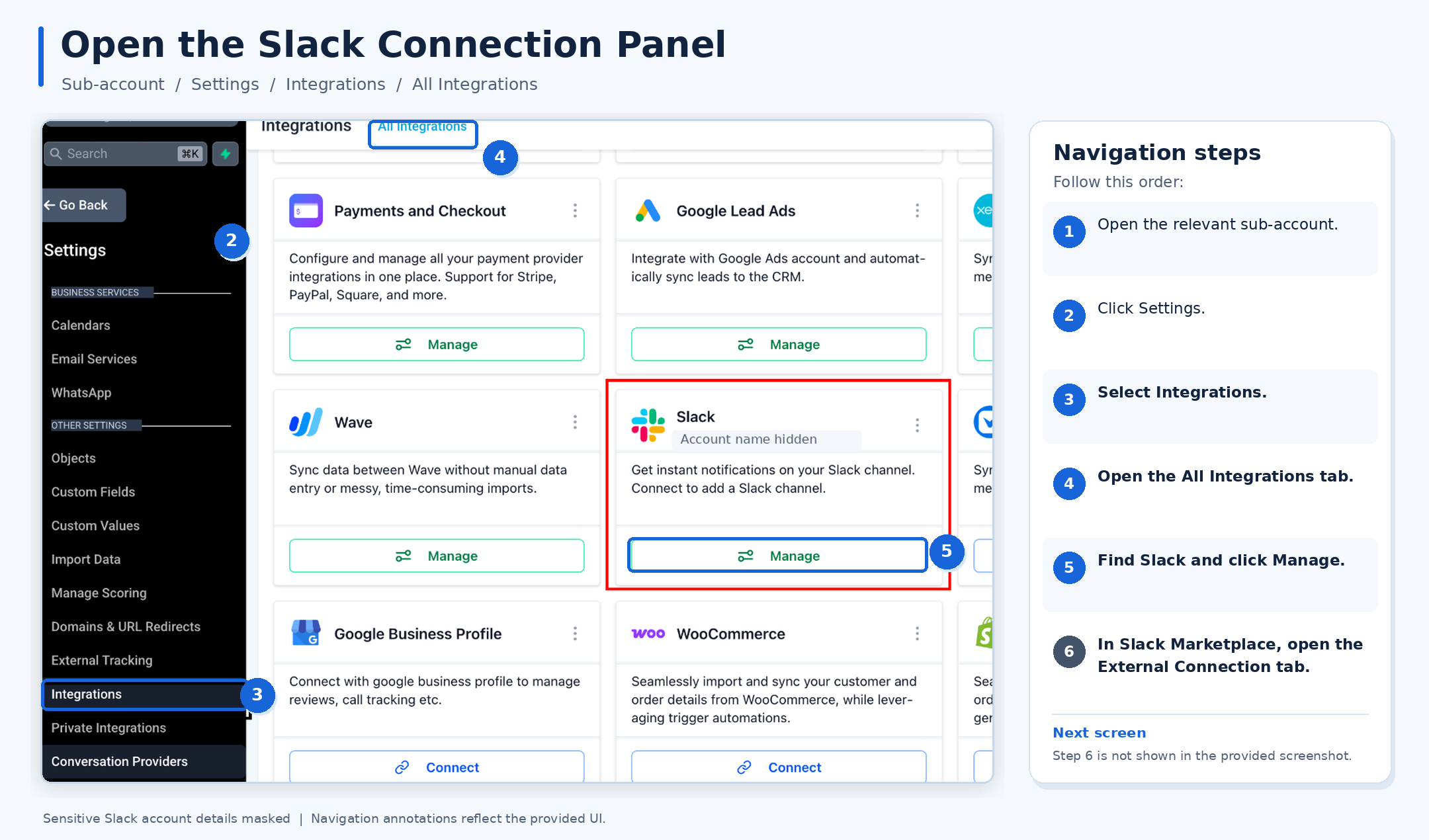
- Open the relevant HighLevel Subaccount.
- Click Settings.
- Select Integrations.
- Open the All Integrations tab.
- Locate the Slack integration card and click Manage.
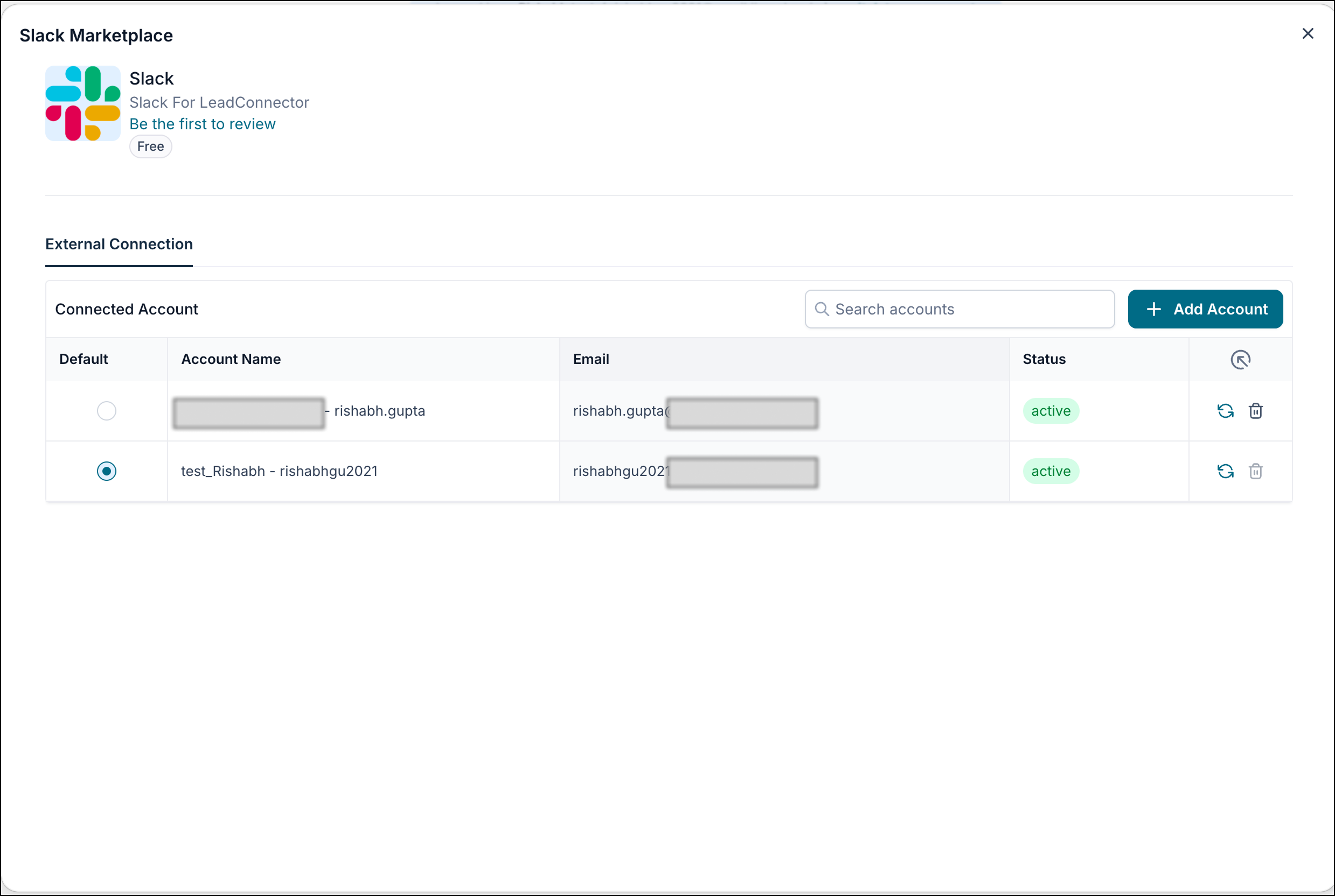
- In Slack Marketplace, open the External Connection tab.
- If no account is connected, the panel shows Connection Pending and a Connect to Slack button; click it.
Configure a Slack premium action
- Add the Slack Premium action to a workflow.
- Choose the event type: Direct Message, Public Channel, or Private Channel.
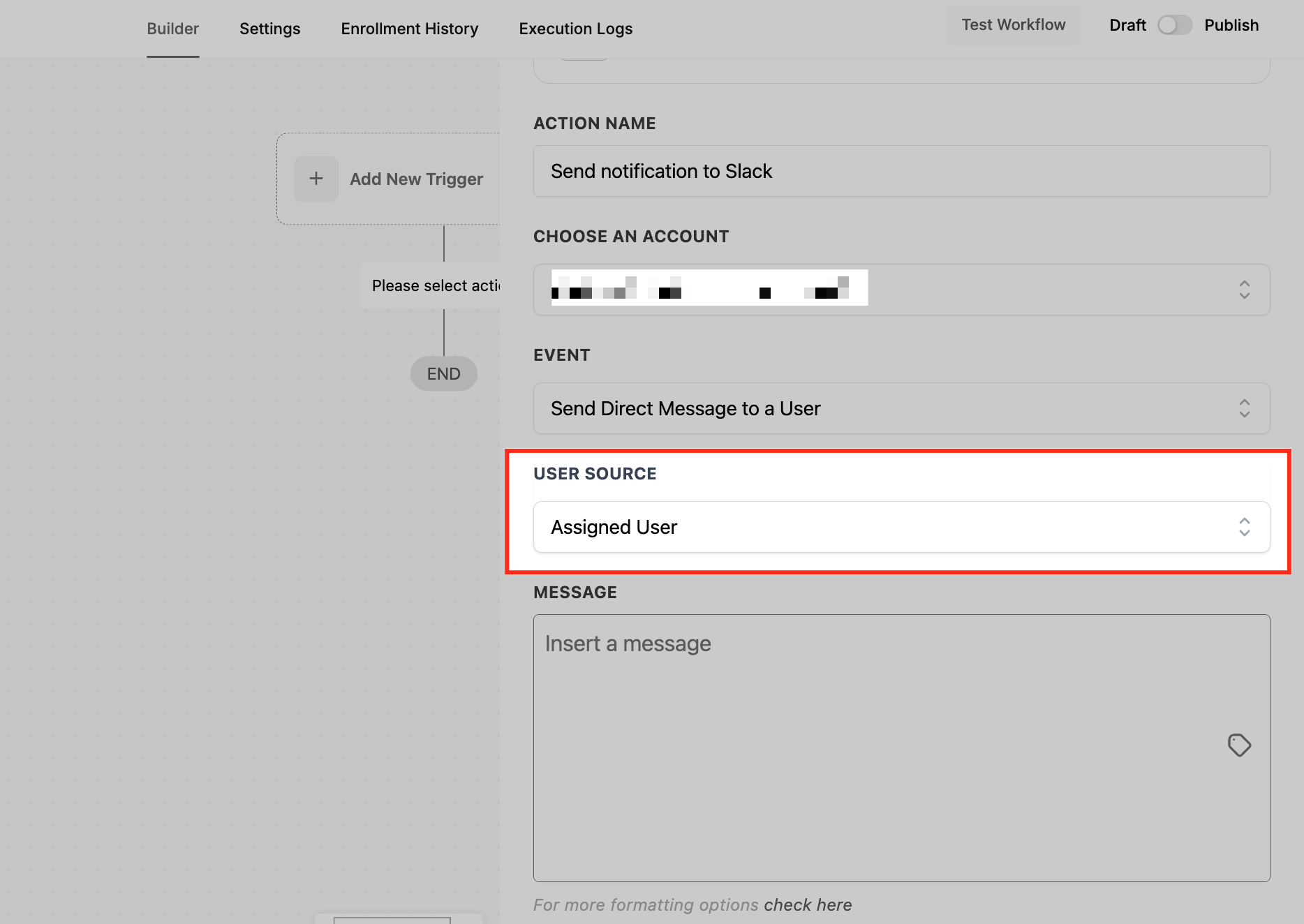
- For direct messages, select a recipient option (Assigned User, Custom Email, Internal User, or Slack User).
- For channel messages, pick the desired public or private channel from the list.
- If the workspace has more than 1,000 users or channels, use the Load More button repeatedly until the entry appears.
- Enter the message content and insert any custom variables needed.
- Save the action to finish configuration.
Migration and existing connections
- Existing Slack connections continue working without reconfiguration after the marketplace rollout.
- No need to disconnect or reconnect accounts solely for this migration.
07What it looks like in HighLevel
08Settings that matter
- Event. Determines whether the message is sent to a user, a private channel, or a public channel.
- Recipient. Specifies who receives a direct message, using one of four options: Assigned User, Custom Email, Internal User, or Slack User.
- Message Content. The text that will be posted in Slack; can include custom variables to pull contact or deal information.
09Things to know before you rely on it
- Each existing and new subaccount receives 100 free executions after Premium Actions are enabled; additional executions incur charges.
- Workspaces with more than 1,000 users or channels require clicking the Load More button repeatedly to find the desired entry.
- Messages to private channels appear as the user who set up the integration, not as a bot.
10If something goes wrong
- Will I be charged for every Slack message sent using this action?. Charges apply per execution, but the first 100 executions per subaccount are free.
- What if I don’t see my Slack user or channel in the dropdown?. Use the Load More button to continue searching; multiple clicks may be needed for workspaces with over 1,000 entries.
- Can I use Slack Premium Action without rebilling enabled?. Only the free 100 executions are available without rebilling; beyond that, rebilling must be turned on for the subaccount.
11How it connects to the rest of HighLevel
- Create workflows with triggers, filters, and actions in HighLevel. Workflow creation guide
- Adjust workflow settings to control contacts and timing. Workflow settings overview
- Review pricing and plan options for accessing Premium Actions. HighLevel pricing and plans
Michael's take

I find the Slack Premium Action useful when my team heavily uses Slack for daily coordination.