
01Who this is for
- Digital marketing agencies benefit by quickly drafting client emails or ad copy inside automated sequences.
- Ecommerce operators can classify large numbers of product reviews with a low cost model.
- Legal consultants use the longer context model to summarize contracts or extract key clauses within a workflow.
02GPT 5 in workflows, explained
The GPT 5 workflow action lets any automation create or modify text using one of four model options. Selecting the action inserts an AI step where you provide a prompt or map incoming data fields.
The action processes the input in real time, returning the model’s response as a workflow variable. It appears in the workflow builder alongside other triggers, filters and actions, and is billed per token through the platform’s AI wallet.
03How businesses use GPT 5 in Workflows
- Digital marketing agency. Add the GPT 5 action to a client onboarding workflow and ask the model to write personalized welcome emails. The workflow pulls the contact’s name, feeds it to the prompt, and stores the generated email for sending.
- Ecommerce store. Insert the GPT 5 Nano model into an order review automation to classify each review as positive, neutral or negative. The workflow sends the raw review text to the action and records the classification for reporting.
- Legal consultancy. Use the GPT 5 model with its 256k context window in a document analysis workflow to summarize lengthy contracts. The contract text is passed to the action, and the returned summary is attached to the client record.
04The numbers and rules that matter
- Model options: GPT 5, GPT 5 Mini (default), GPT 5 Nano, GPT 5.1.
- Max context windows: GPT 5 256k, GPT 5 Mini 128k, GPT 5 Nano 64k, GPT 5.1 128k.
- Input cost per 1M tokens: GPT 5 $1.25, GPT 5 Mini $0.25, GPT 5 Nano $0.05, GPT 5.1 $1.25 (per HighLevel's help center, checked November 2026).
- Output cost per 1M tokens: GPT 5 $10.00, GPT 5 Mini $2.00, GPT 5 Nano $0.40, GPT 5.1 $10.00 (per HighLevel's help center, checked November 2026).
- Charges are prorated to the nearest thousandth of a million tokens (0.001 M).
05How to set up and use GPT 5 in Workflows in HighLevel
Set up GPT 5 in a workflow
- Open the workflow where the AI step will be added.
- Click the plus icon to create a new action.
- Search for “GPT powered by OpenAI” and select the action.
- In the Model dropdown, keep the default or pick another GPT 5 variant.
- Enter a prompt or map inbound fields; be sure to compose the prompt according to best practice tips.
- Save the step and publish the workflow.
06What it looks like in HighLevel
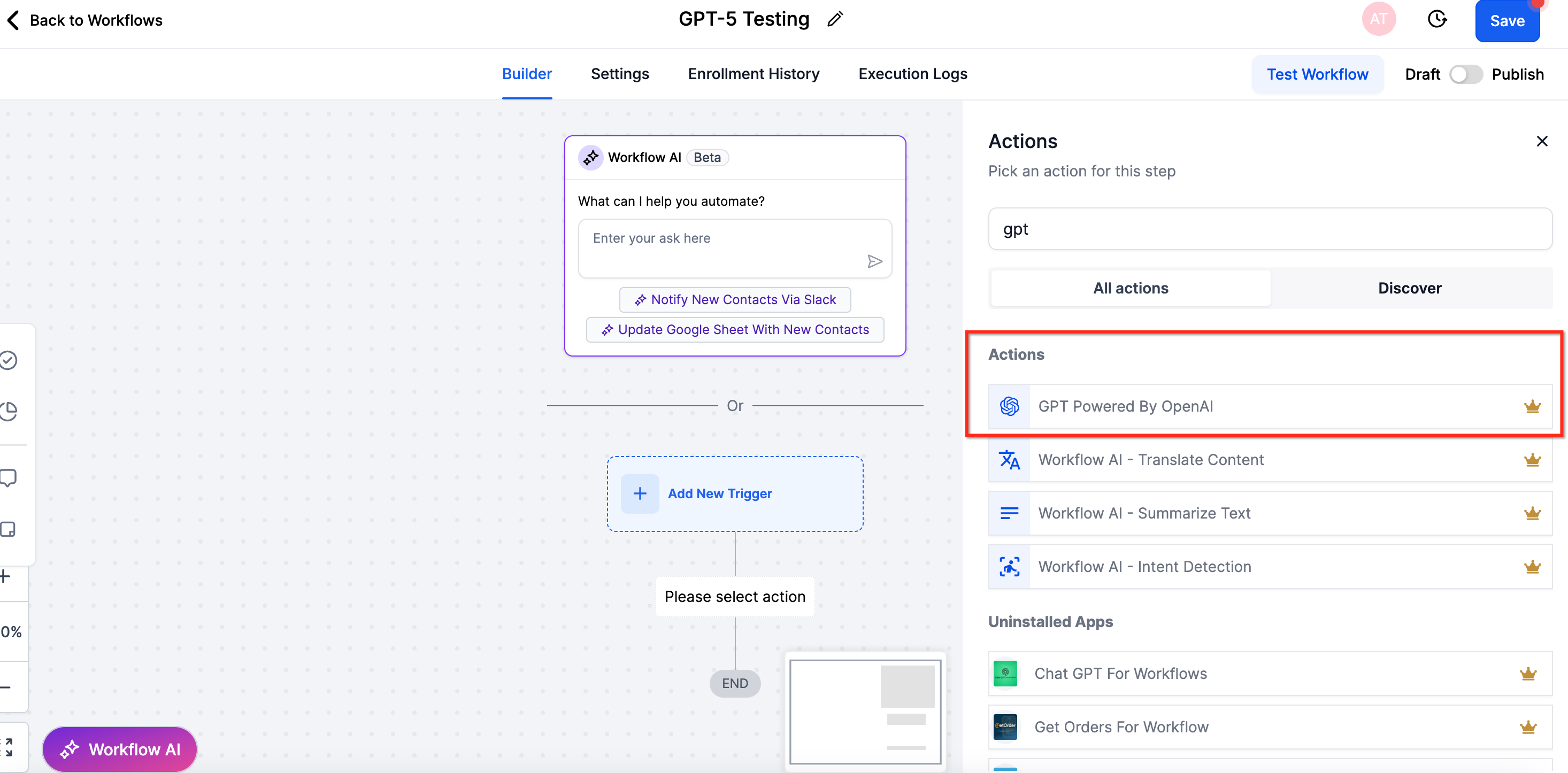
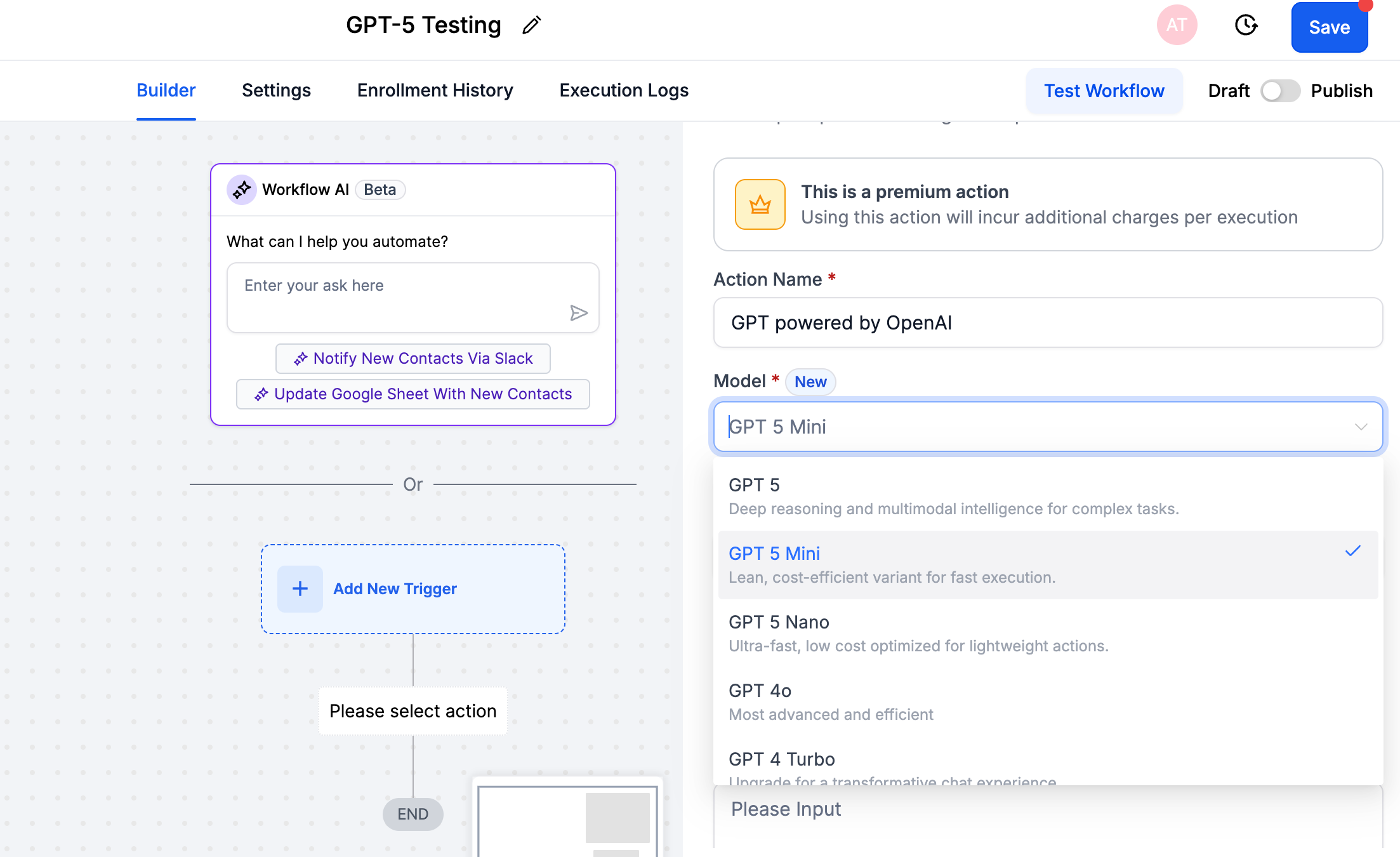
07Settings that matter
- Model. Determines which GPT 5 variant runs, affecting context size, speed and token cost.
08Things to know before you rely on it
- Pricing follows OpenAI rates and is charged by the token via the HighLevel AI wallet.
- Input and output tokens are counted separately; one token equals roughly four English characters.
- HighLevel applies the same request rate limits as OpenAI, which may queue calls during peak traffic.
- Model context windows top out at 256k tokens for the full GPT 5 model.
09How it connects to the rest of HighLevel
- How to add a workflow action in HighLevel step by step Add workflow action
- HighLevel workflow creation: triggers, filters, actions Workflow basics
- HighLevel workflow settings guide: control contacts and timing Workflow settings
Michael's take

Jumping into AI driven automation can feel risky if you haven’t mapped out cost expectations. The token pricing and rate limit notes mean you should keep an eye on usage, especially with high volume workflows.
When the numbers line up, GPT 5 in Workflows adds real value by handling drafting, summarizing, and classification without manual effort. The click to configure action makes it easy to experiment and see instant returns.