
01Who this is for
- Marketing managers who need instant follow up emails after a questionnaire is completed.
- Sales teams that want to automatically create or update contacts when a request form is submitted.
- Operations coordinators who require form details to be passed to internal tasks or pipeline stages.
02Google Forms actions and triggers, explained
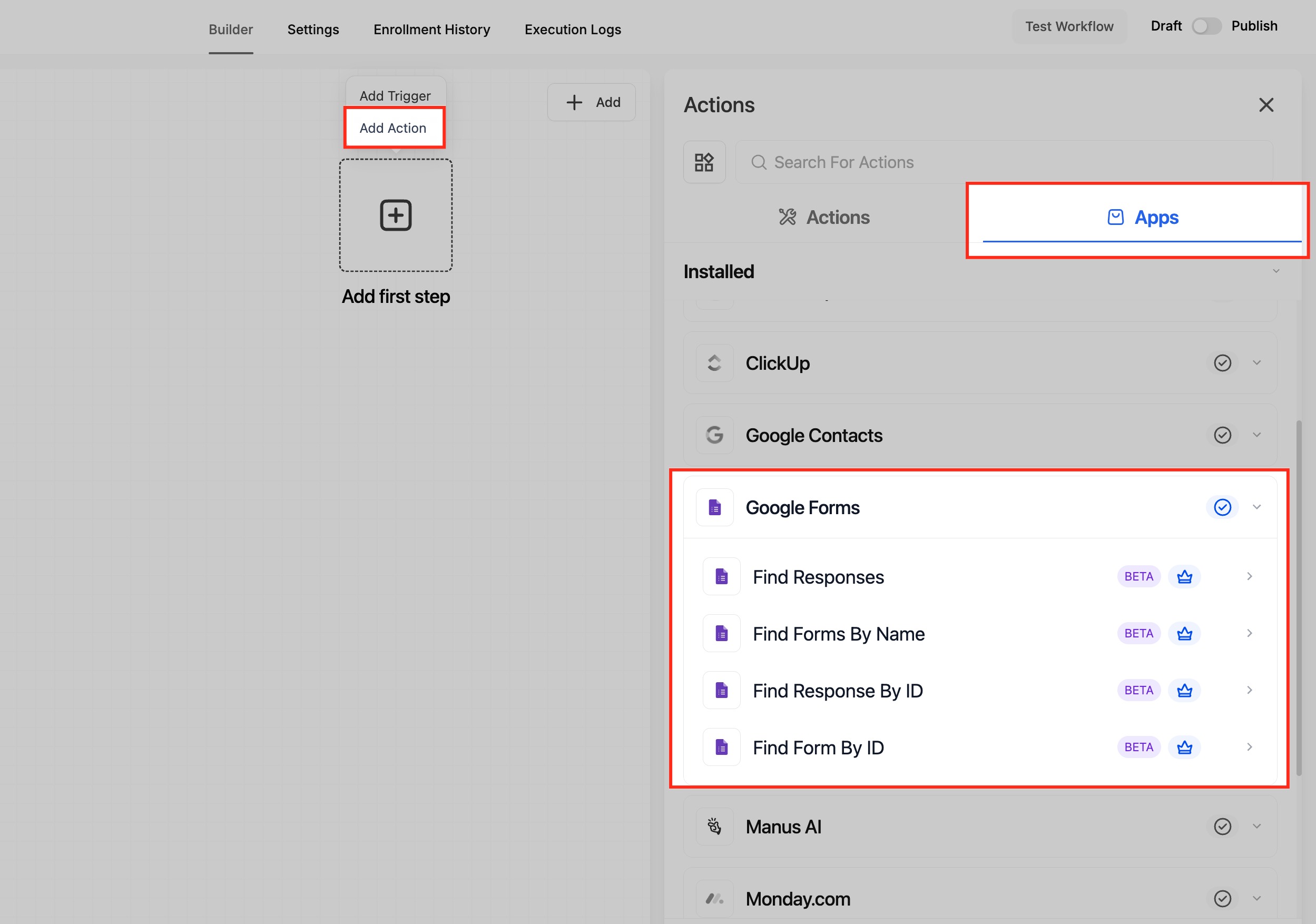
Google Forms can be linked to HighLevel automations. When a response arrives, the platform can begin a workflow or later pull the response data for use in other actions. The integration appears as an app inside the workflow builder.
Both a trigger (New or Updated Response) and several actions (Find Form, Find Response by ID, Find Responses by Form Name) are available. The trigger checks for changes roughly every five minutes, while actions retrieve data on demand within the flow.
03How businesses use Google Forms actions and triggers
- Automated follow up. A workflow starts when a new Google Forms response is detected, checks if a contact exists, creates one if needed, and sends a personalized email.
- Internal task creation. After a form trigger, the workflow uses a Find Responses action to pull answers and creates a task for the internal team with those details.
- Pipeline update. The workflow retrieves form data with Find Form and updates an opportunity stage based on the submitted information.
04The numbers and rules that matter
- The trigger checks for new or updated responses on an approximate 5 minute polling interval.
- Available actions: Find Form, Find Response by ID, Find Responses by Form Name.
05Before you start
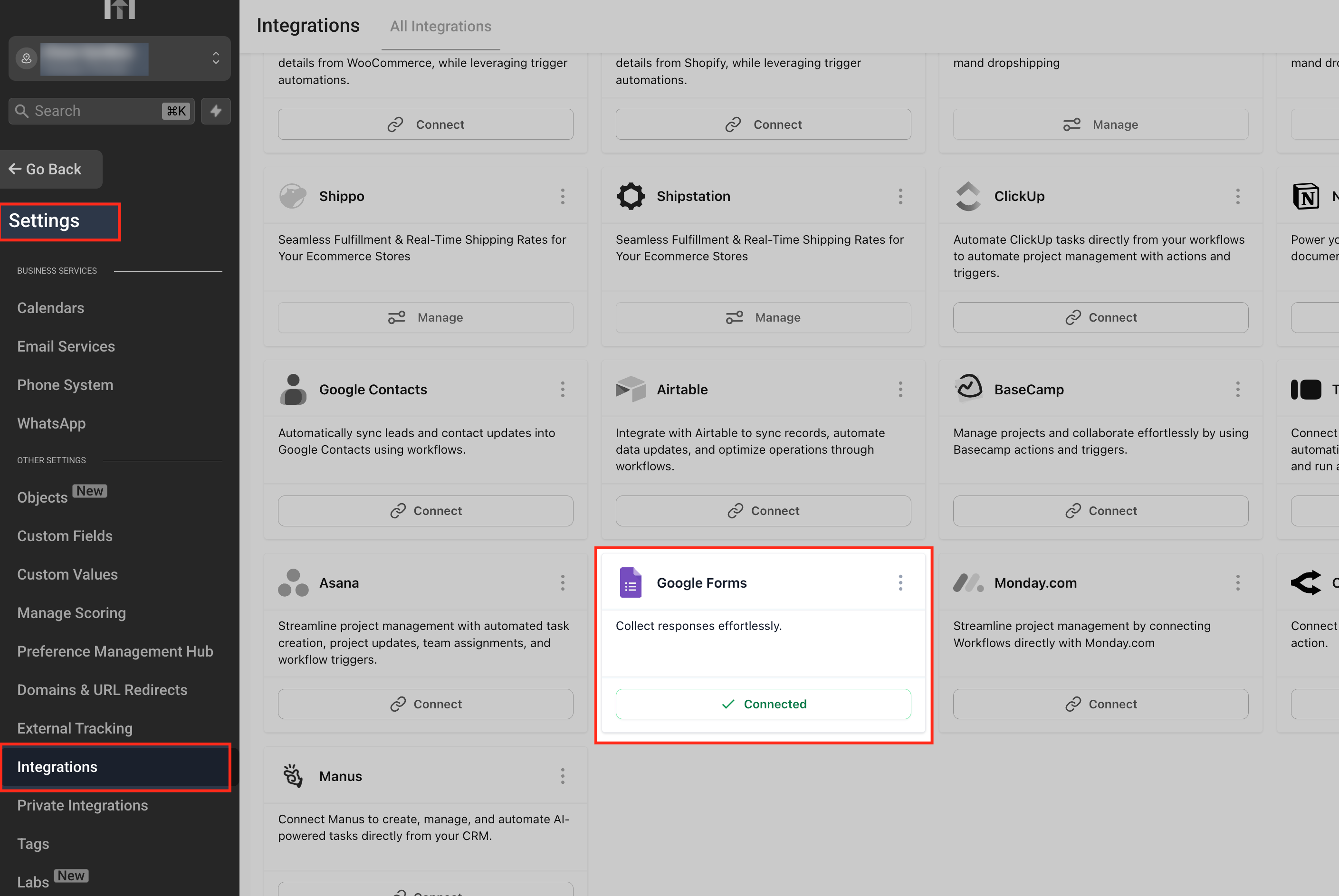
- Connect the Google Forms integration in the subaccount via Settings > Integrations > All Integrations > Google Forms > Connect.
- Sign in with the appropriate Google account and approve the requested permissions.
- Confirm the integration status shows Connected before building any workflow.
06How to set up and use Google Forms actions and triggers in HighLevel
Connect Google Forms in the workflow builder
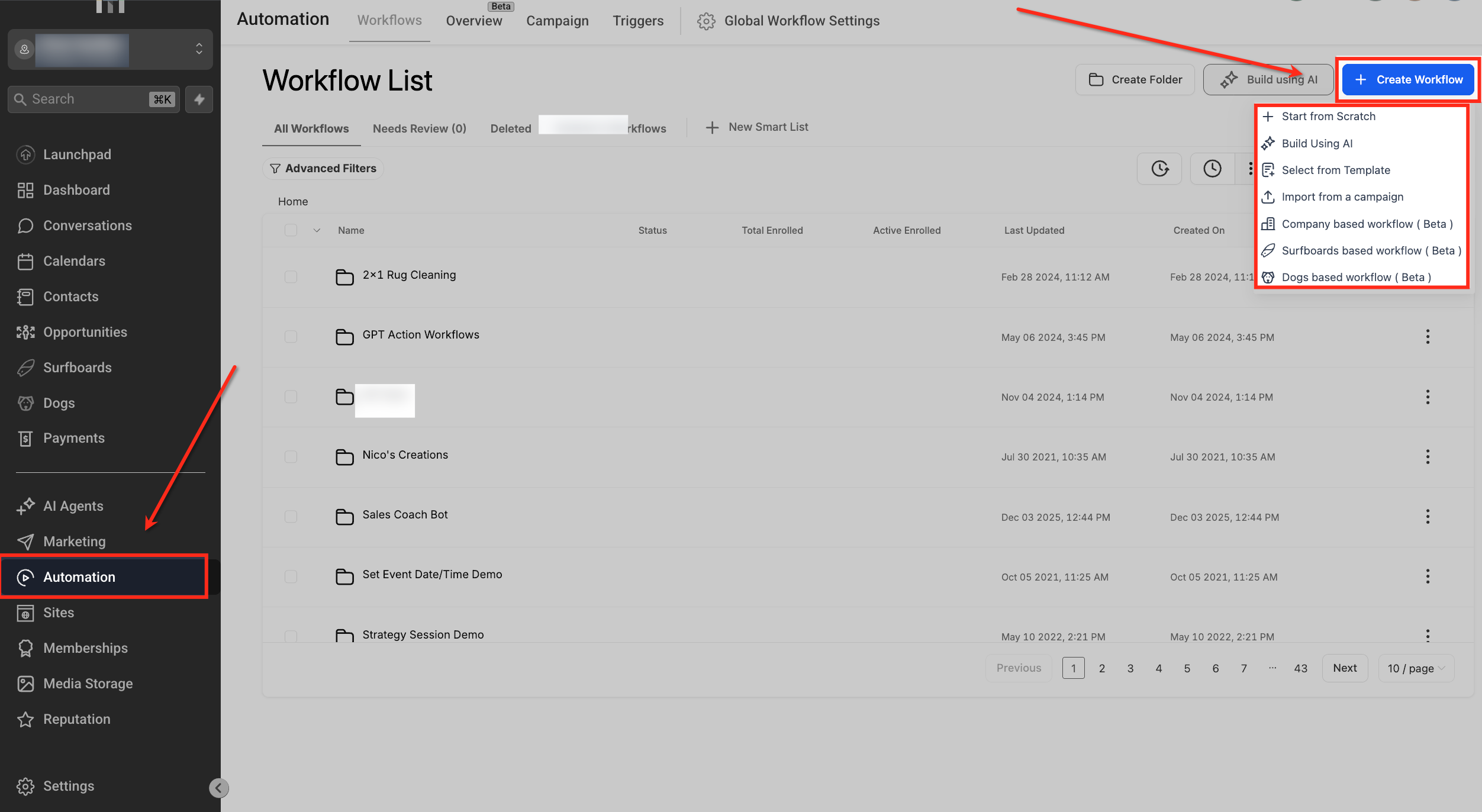
- Open Automation > Workflows in the platform.
- Start a new workflow or edit an existing one.
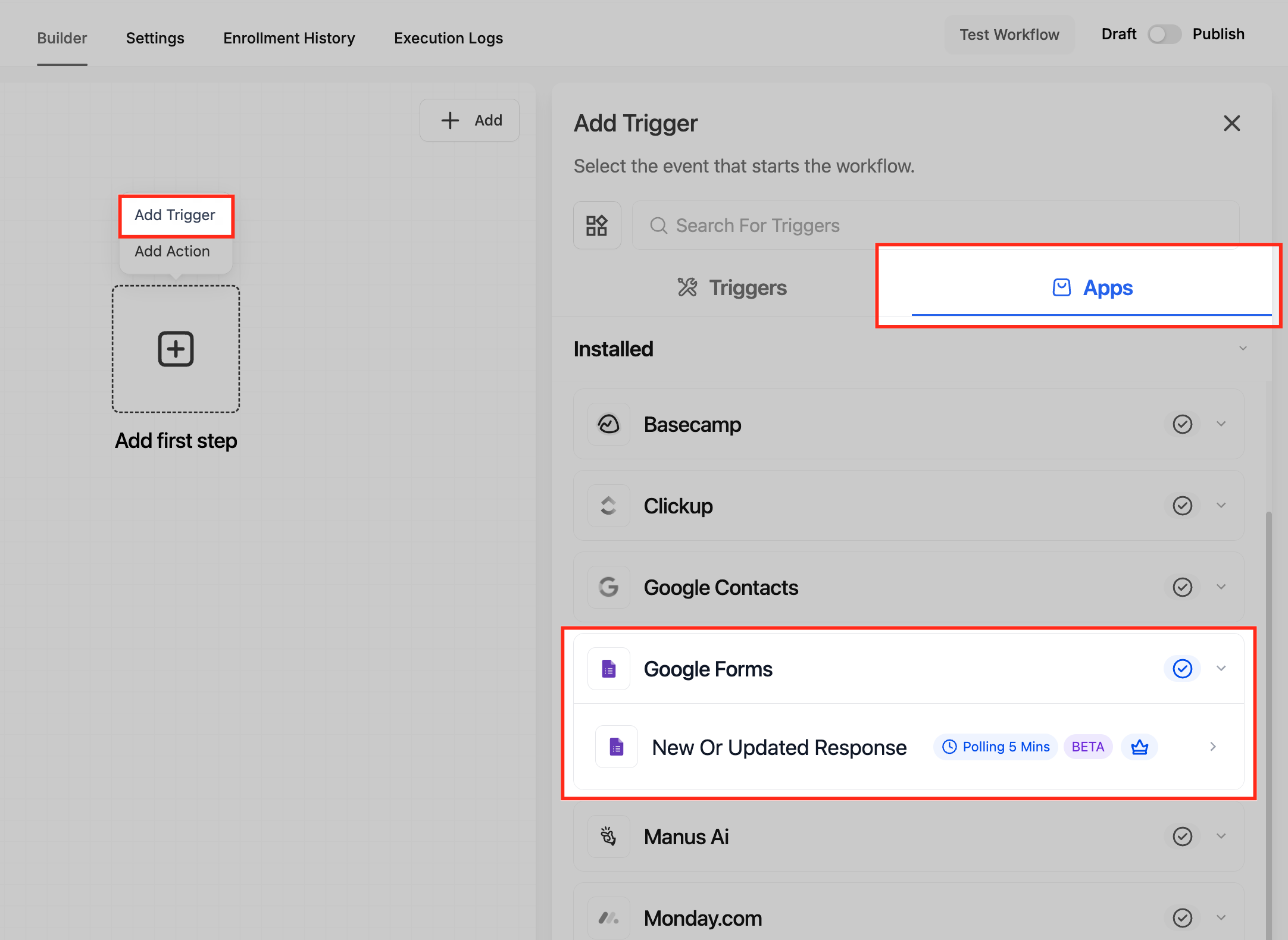
- Enter the search field within the builder and type “Google Forms”.
- Select the Google Forms application from the results.
- Link the correct Google account if it is not already connected.
- Decide whether the next step will be a trigger or an action.
Set up a Google Forms trigger
- Add the New or Updated Response trigger to the workflow canvas.
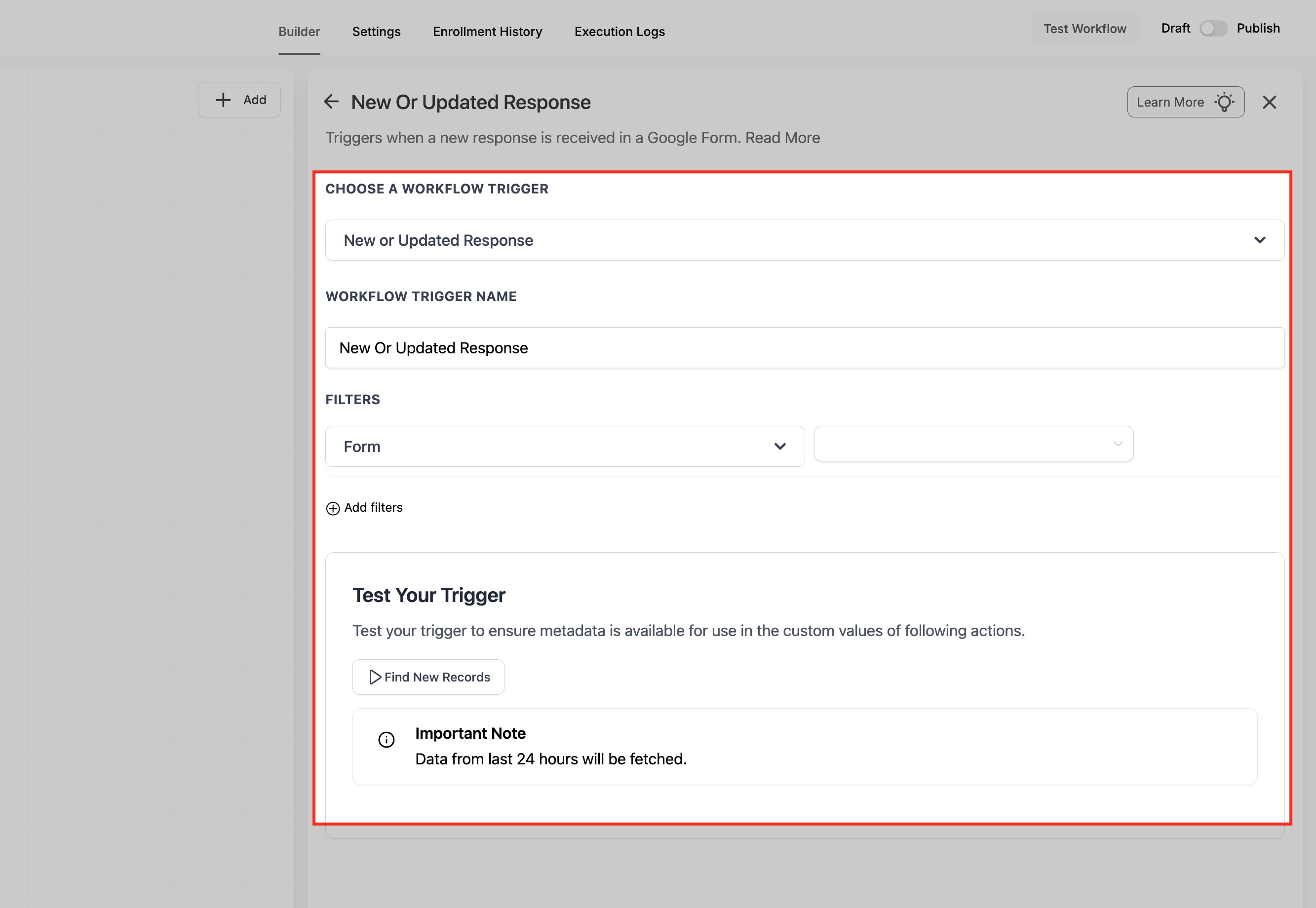
- Choose the specific Google Form whose responses should start the automation.
- Save the trigger configuration.
- Publish the workflow so it becomes active.
- Send a test submission or modify an existing response in the selected form.
- Wait for the approximate five minute polling interval to allow detection.
Set up a Google Forms action
- Click the plus icon inside the workflow to insert a new action.
- Search for “Google Forms” and select the app.
- Pick one of the available actions such as Find Form or Find Response by ID.
- Enter the required information for the chosen action.
- Save the action settings.
- Reference the returned values in later steps like email, contact update, or task creation.
07What it looks like in HighLevel
08Settings that matter
- New or Updated Response. Controls when a workflow starts based on a new submission or a change to an existing Google Form response.
- Find Form. Searches for a Google Form and returns its metadata for use later in the workflow.
- Find Response by ID. Retrieves a single response using its unique identifier.
- Find Responses by Form Name. Looks up all responses associated with a form identified by its name.
09Things to know before you rely on it
- The trigger runs on an approximate five minute polling cycle, so the workflow may not launch right away after a submission.
- Both new and updated responses are detected, but only after the polling interval checks for changes.
- Google Forms actions are unavailable until the integration is connected in the subaccount.
10If something goes wrong
- Workflow does not start immediately after a form is submitted.. Allow up to five minutes for the polling interval to detect the new or updated response.
11How it connects to the rest of HighLevel
- Introduction to Workflows and Automations Workflow basics
Michael's take

People often assume the form to workflow link fires the second the user hits submit. The poll based trigger adds a few minutes of latency that catches many off guard. I skip that expectation and build a quick test submission to see exactly when the workflow fires before I roll it out to prospects.
Once I confirm the timing, I wire the trigger to a contact check step, then follow with a personalized email that pulls the answer fields. That gives the automation real value without surprises.