
01Who this is for
- Sales teams benefit because they can automatically generate follow up emails that include real meeting details.
- Project managers gain by converting meeting summaries into tasks without manual data entry.
- Customer support groups use the feature to notify internal staff when important call notes become available.
02Fathom actions & triggers, explained
Fathom integrates with HighLevel as a premium workflow component. The integration adds one trigger, New Recording, and three actions: List Recordings, Fetch Transcript and Fetch Summary. The trigger activates after a Fathom recording is processed, while each action retrieves specific data for later use in a workflow.
The trigger and actions appear in the Workflow Builder under the Apps tab. Selecting the New Recording trigger lets you filter which recordings start the workflow, such as personal meetings or team meetings. After the trigger fires, you can add any of the three actions to pull the full recording list, the text transcript, or the AI generated summary. The retrieved data can be passed to email, notification, AI or task creation actions.
All Fathom actions are marked as premium and may add a charge each time they run. They do not automatically match recordings to contacts; you must use participant details in your workflow logic if needed.
03How businesses use fathom action & triggers
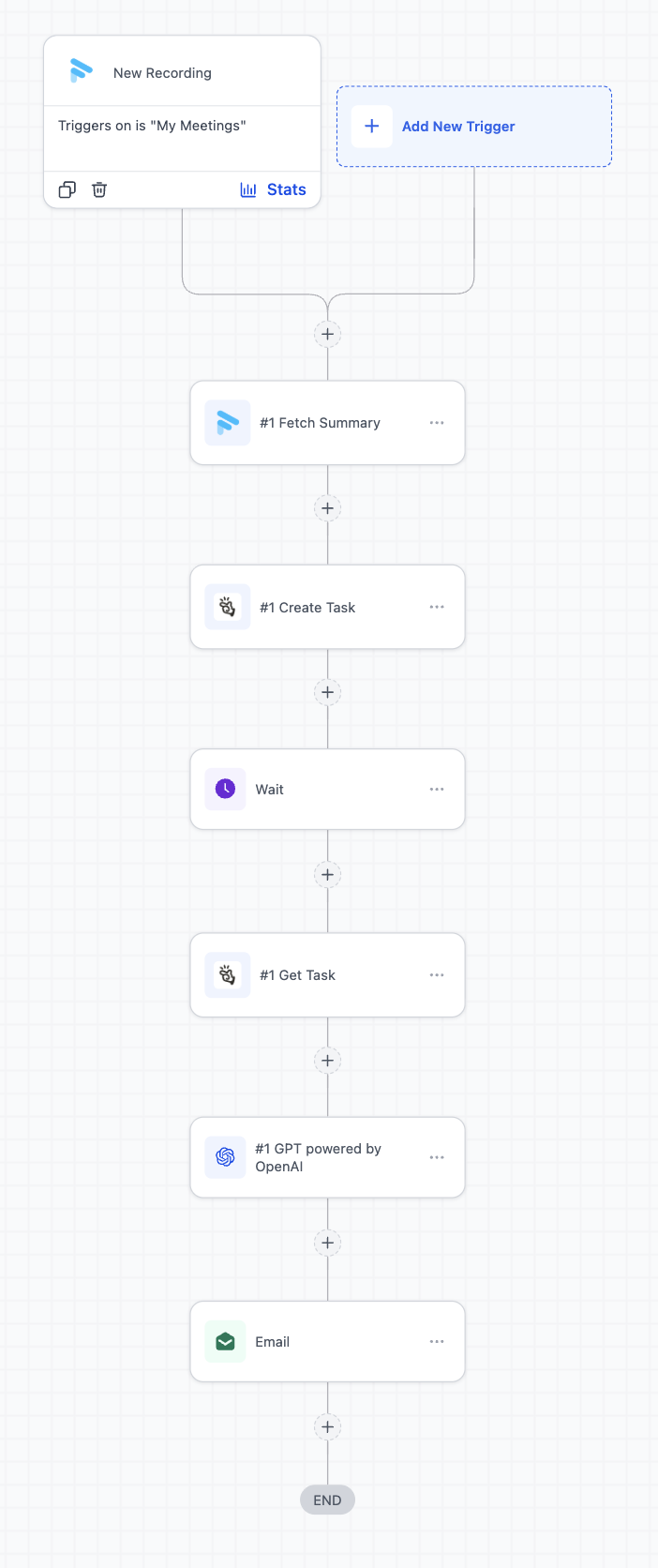
- SaaS sales organization. After a sales call, the workflow uses the New Recording trigger, fetches the transcript, passes it to an AI action to draft a personalized follow up email, and sends the email automatically.
- Digital marketing agency. When a client call finishes, the workflow pulls the meeting summary, extracts action items with an AI step, creates tasks in ClickUp, and notifies the internal team via a HighLevel notification.
- Consulting firm. The firm attaches the Fetch Transcript action to a workflow that records meeting details, then uses the transcript in a subsequent AI action to generate internal briefing notes for project leads.
04The numbers and rules that matter
- Fathom actions are premium workflow actions and may incur additional charges per execution.
05Before you start
- Fathom must be connected to HighLevel either through the Workflow Builder or via Settings > Integrations before any trigger or action can be used.
06How to set up and use fathom action & triggers in HighLevel
Set up Fathom trigger and actions
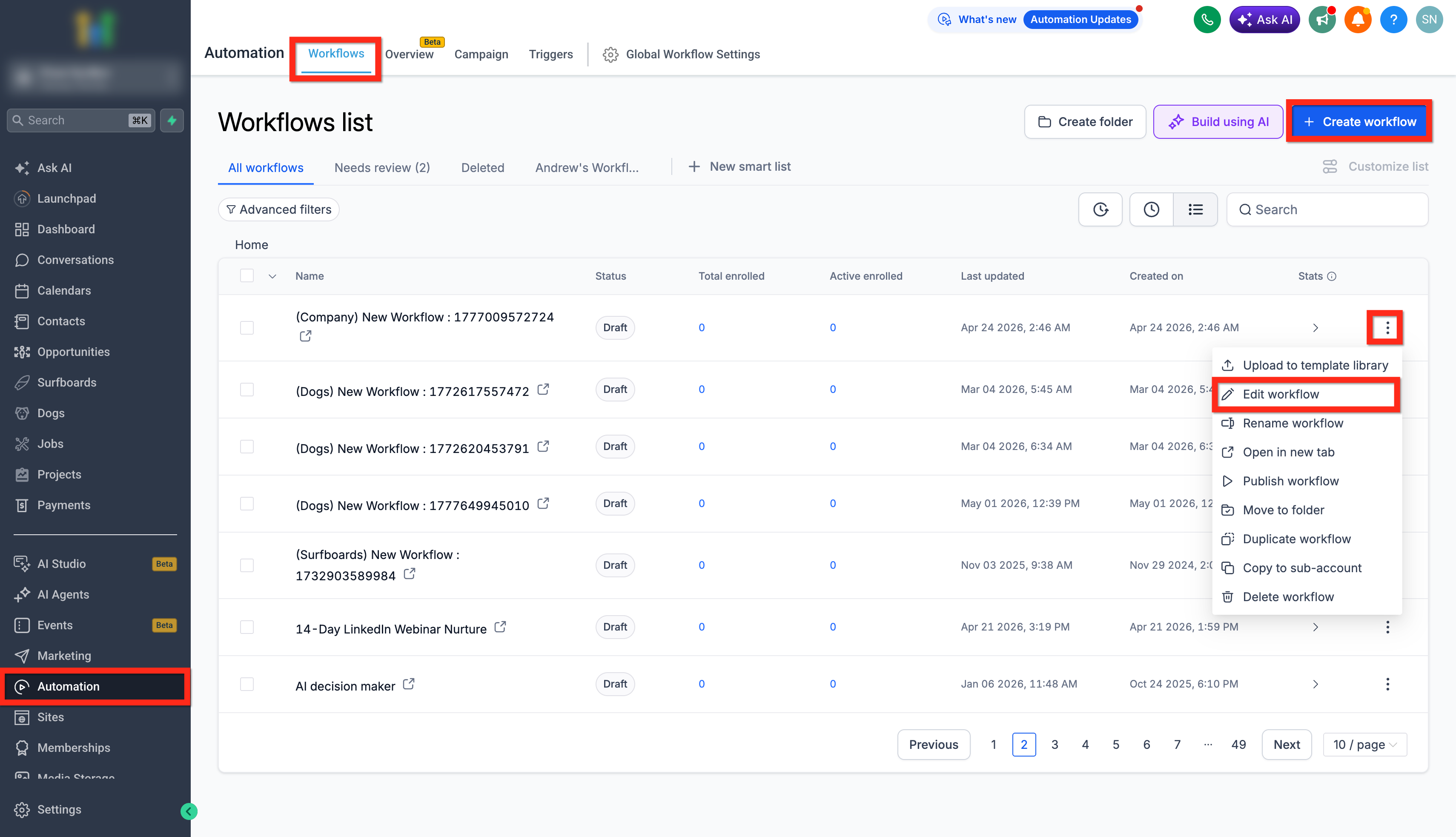
- Open Automation > Workflows.
- Create a new workflow or edit an existing one.
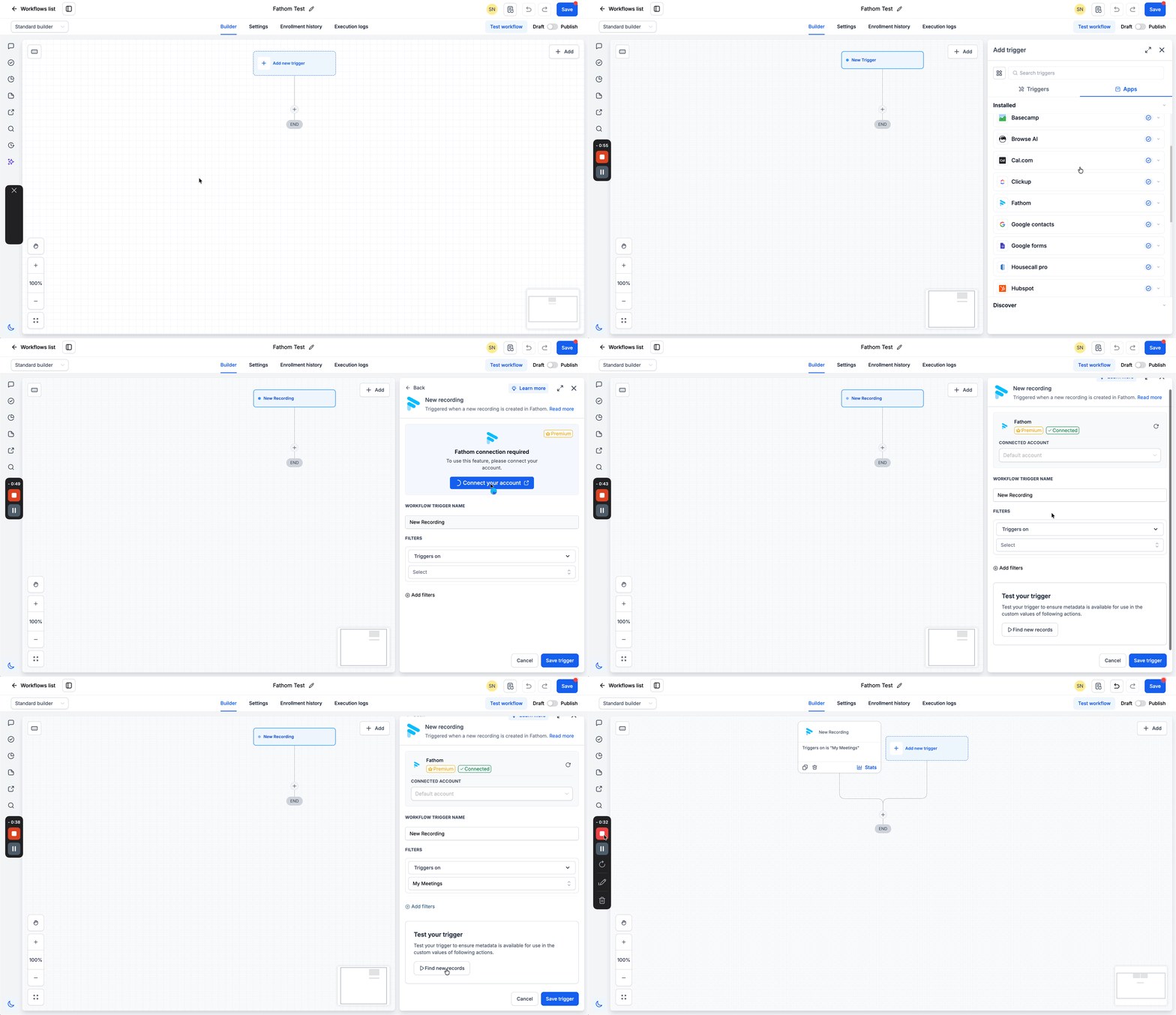
- Click Add New Trigger or add a new workflow action.
- Select the Apps tab.
- Search for and select Fathom.
- Choose the New Recording trigger.
- If Fathom is not connected, click Connect Your Account.
- Under filters, pick the recording source such as My Meetings or Team Meetings.
- Click Find New Records to test the trigger.
- Review the data returned from the test.
- Click Save Trigger.
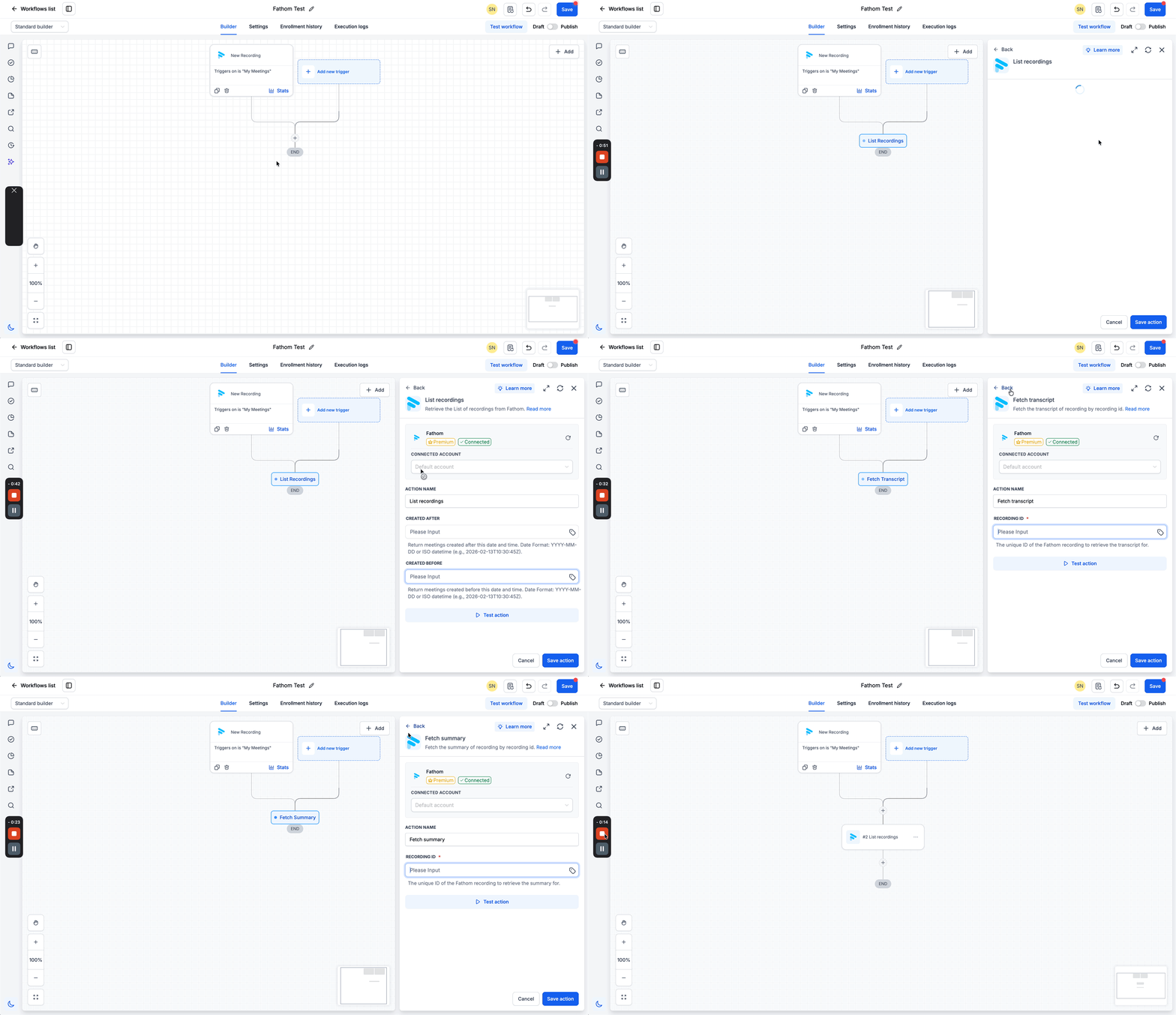
- Click the + button to add an action.
- Select the desired Fathom action, List Recordings, Fetch Transcript, or Fetch Summary.
- Test the chosen action and then save it.
07What it looks like in HighLevel
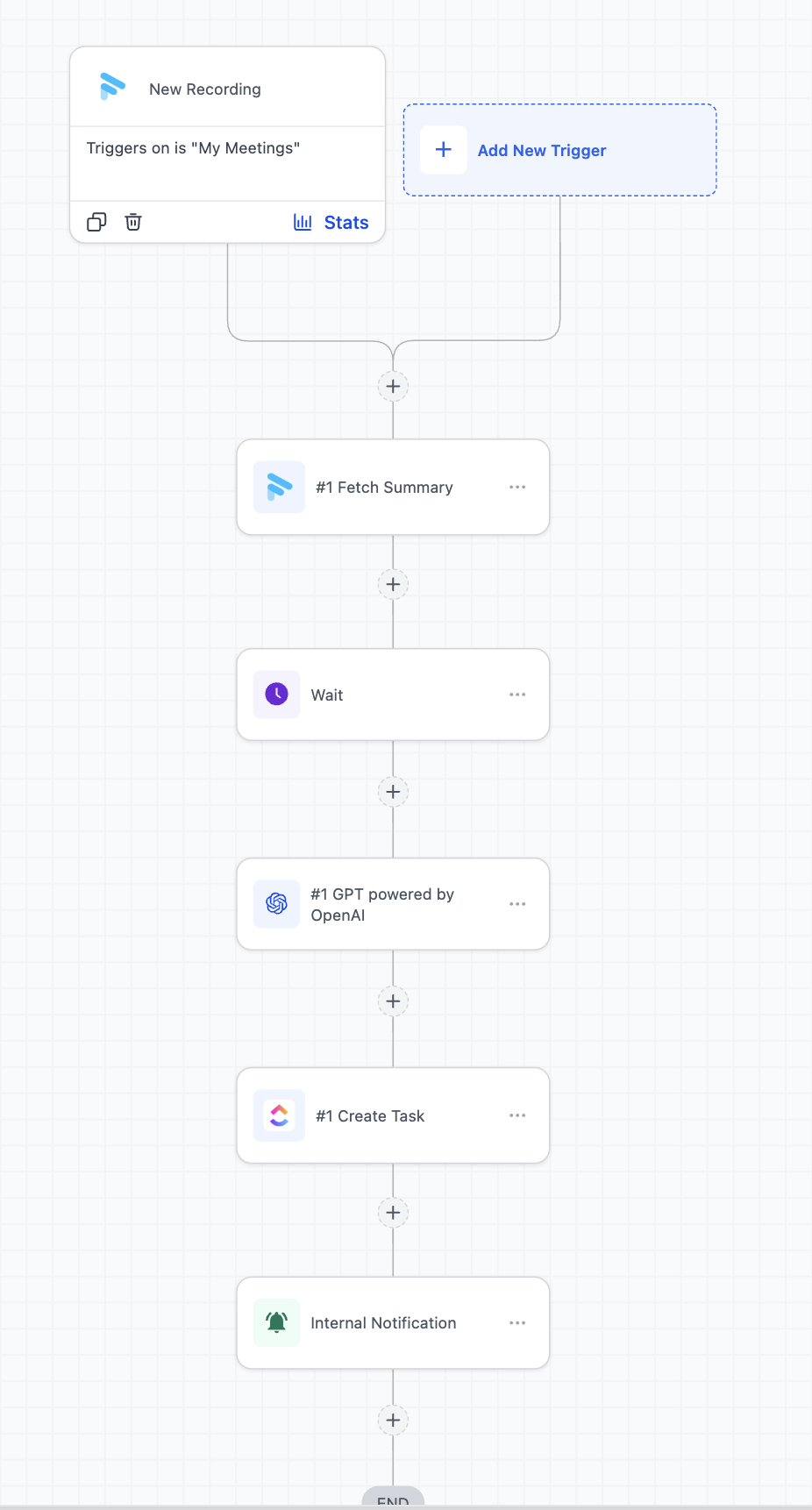
08Settings that matter
- Filters. Controls which group of recordings the New Recording trigger monitors, allowing you to limit the workflow to personal meetings, team meetings or other defined sources.
09Things to know before you rely on it
- Fathom actions are premium workflow actions and may incur an extra charge each time they run.
- The New Recording trigger fires only after the recording is created and processed, which can take several minutes after a meeting ends.
- Automatic matching of recordings to contacts does not occur; you must use participant data in the workflow to link records.
- The feature is available only when a Fathom account is connected to HighLevel.
10If something goes wrong
- No test records are found when testing the trigger. Confirm that Fathom is connected, that the selected recording source contains recent processed recordings, and that the trigger filters are not too restrictive.
11How it connects to the rest of HighLevel
- Learn the basics of building workflows in HighLevel Workflow basics
- Enable and rebill premium workflow features such as Fathom actions Enable premium features
- Review pricing plans and see which tiers include premium workflow actions Pricing and plans
Michael's take

Fathom actions & triggers feel like a small convenience that can turn a handful of meeting recordings into a steady stream of follow up emails, tasks and alerts. The automation removes the manual copying step and lets the team focus on the next move instead of hunting for notes.
A consultancy that runs weekly strategy calls with clients will love this. After each call, the workflow pulls the summary, extracts action items and creates tasks in ClickUp while notifying the project lead. It ties the conversation directly to execution without any extra admin work.