
01Who this is for
- Founders who run multiple companies and need onboarding emails without extra workflow steps.
- Marketing managers who want to send follow up messages based on custom object events.
- Support leads who require internal approval notifications tied to company records.
02Send email actions, explained
The Send Email action adds email capability to Company and Custom Object workflows. When a workflow triggers, the platform looks at the relationships stored between the record and its contacts and sends the configured email to the selected contacts.
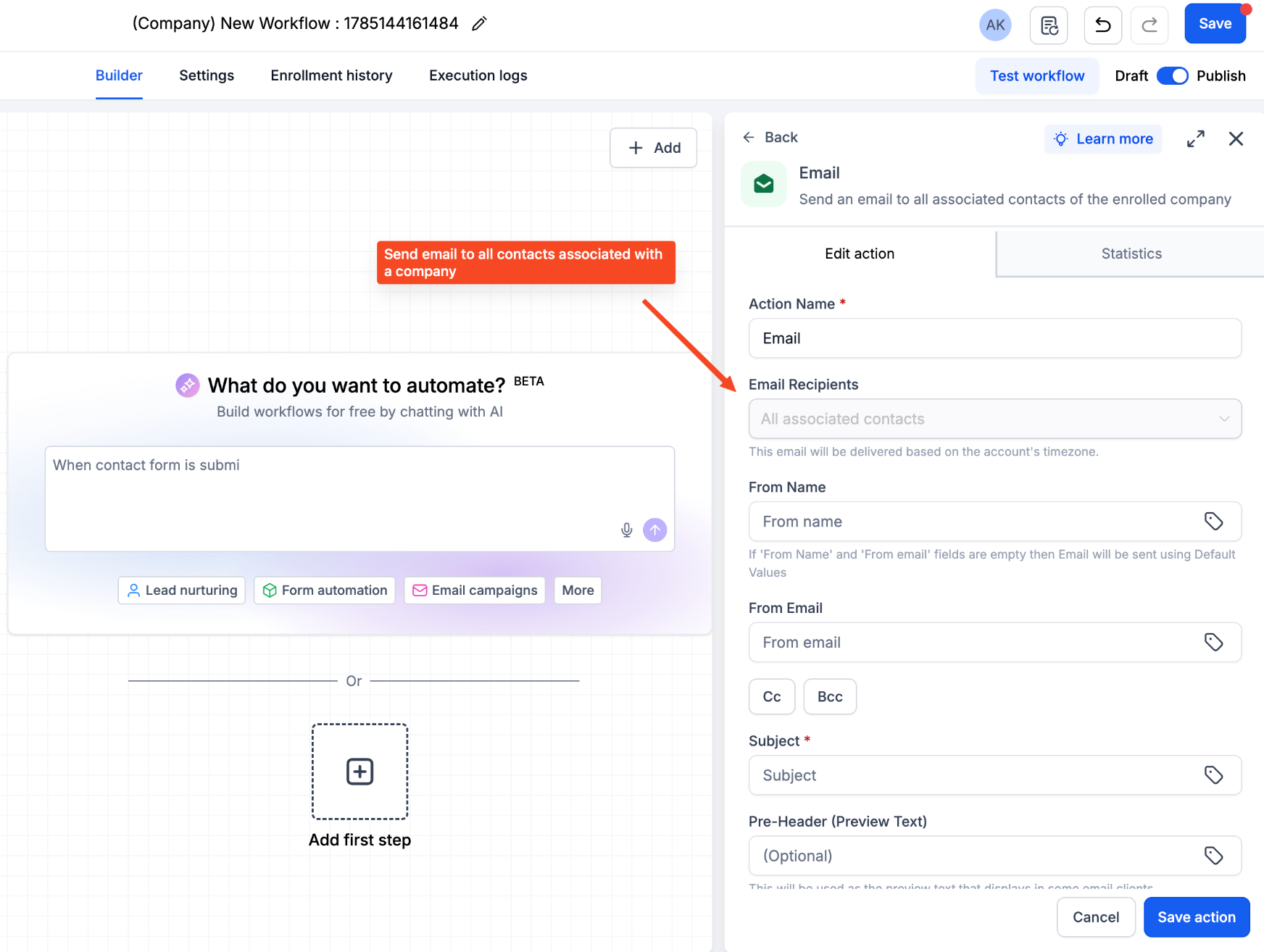
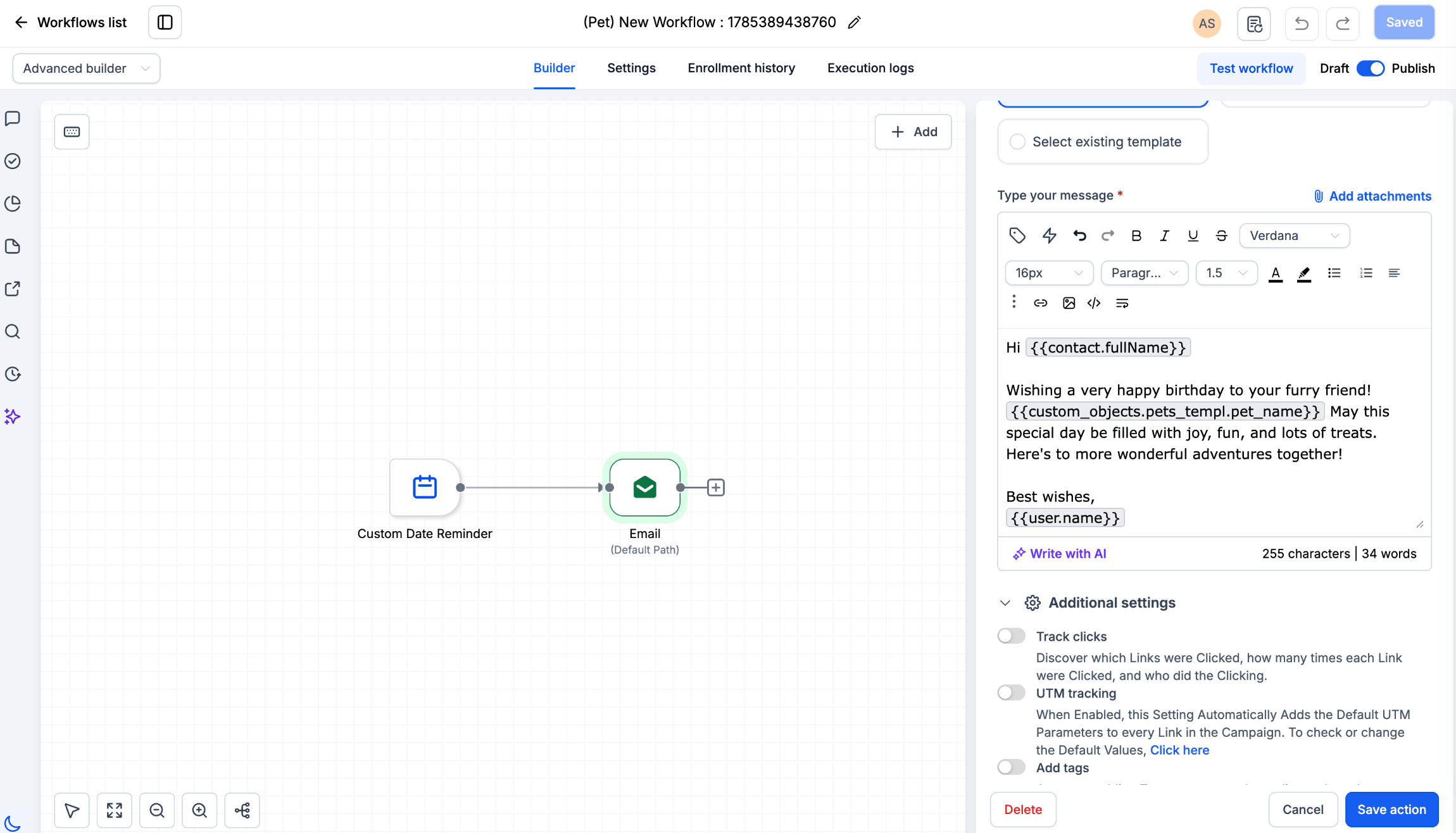
You find the action after you enable it in Settings > Labs. In the workflow builder, click the + Add button, open the Communication section, and choose Send email. From there you set the sender details, choose recipients, optionally filter by association labels, compose the message, and save the action before publishing the workflow.
03How businesses use send email actions
- Real estate brokerage. The brokerage creates a Custom Object for each property listing. When a new listing is added, the workflow sends an email with the property details to all contacts labeled as "buyer" for that listing, using association labels to target only prospective buyers.
- Pet grooming service. When a new pet record is created, the workflow sends a birthday email to the owner by selecting the most recently associated contact in the Custom Object workflow, ensuring the greeting reaches the correct client.
- Insurance agency. The agency sets up a Company workflow that fires when a policy renewal date approaches. The workflow uses the All associated contacts option to email every contact linked to the policy holder, delivering renewal reminders automatically.
04Before you start
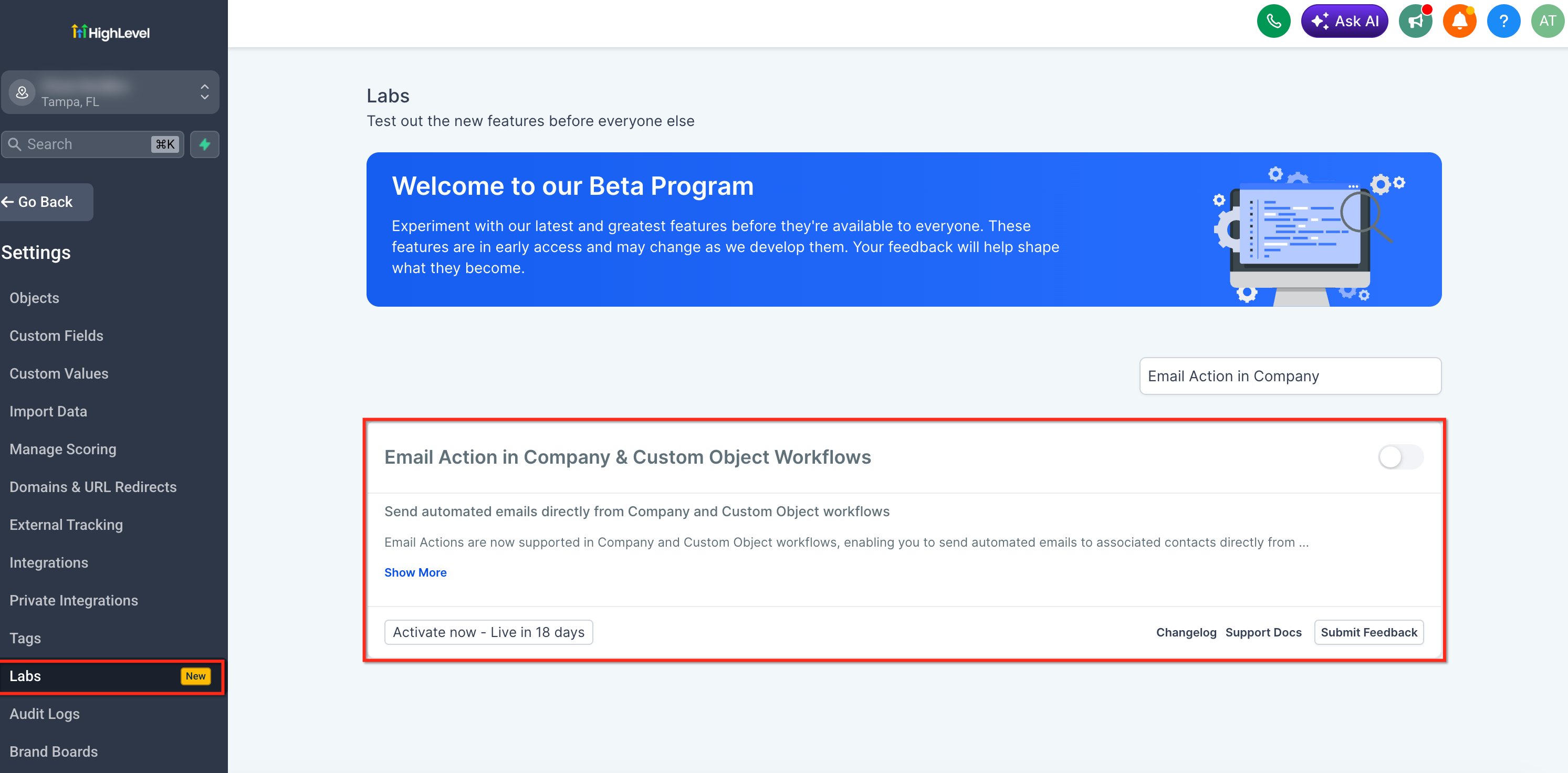
- Enable the feature in Settings > Labs by turning on “Email Action in Company & Custom Object Workflows”.
- Configure a Bulk Email sending domain for the account.
- Ensure contacts are associated with the relevant Company or Custom Object records.
05How to set up and use send email actions in HighLevel
Set up send email action
- Go to Settings > Labs and activate “Email Action in Company & Custom Object Workflows”.
- Create a new or edit an existing Company or Custom Object workflow in the Automation section.
- Click the + Add button, locate the Communication section, and select “Send email”.
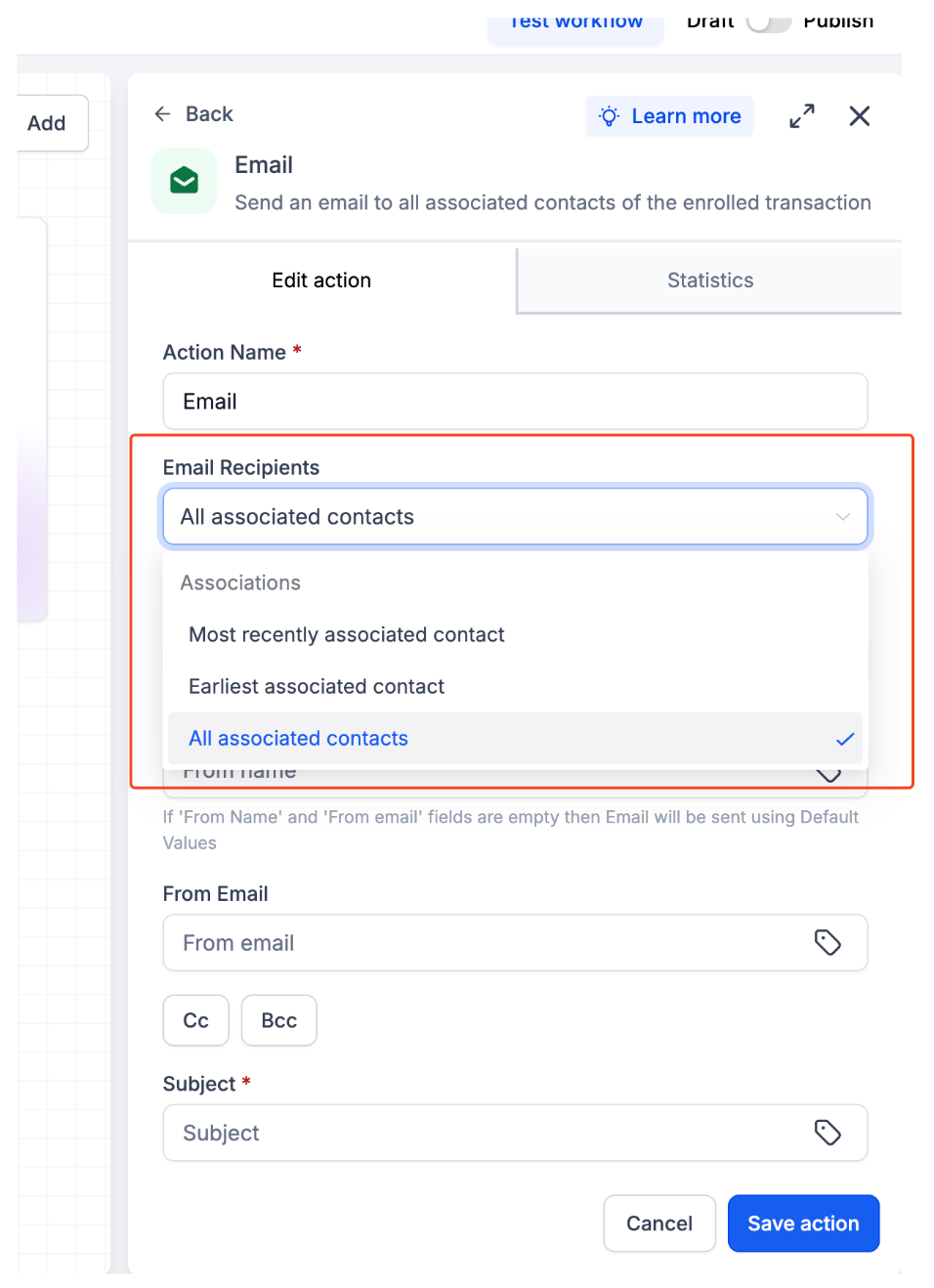
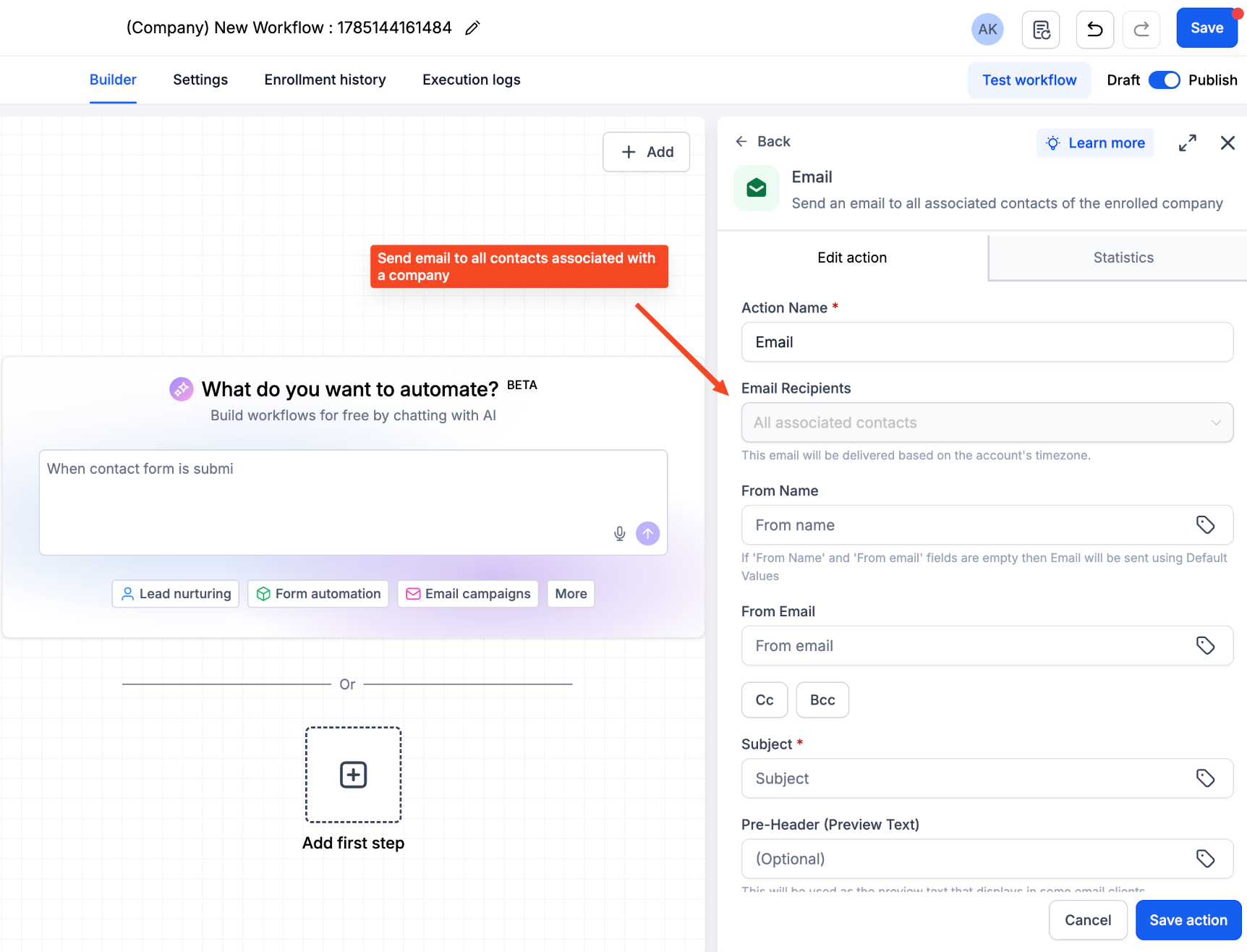
- Choose the Email Recipients option, all associated contacts, most recent, or earliest as appropriate.
- If needed, pick one or more Association Labels to filter contacts (available only for Custom Object workflows).
- Enter the sender name, sender email address, subject line, and any Cc/Bcc addresses.
- Compose the email body in the editor, adding personalization tokens from Contact, Company, or Custom Object records.
- Verify that a Bulk Email sending domain is set and the account timezone is correct; if From fields are empty default values will be used, duplicate contacts are deduplicated automatically, and if no contacts match the selected labels the action is skipped without error.
- Click “Save action” and then publish the workflow to activate the automation.
06What it looks like in HighLevel
07Settings that matter
- From Name. Defines the display name that appears as the email sender.
- From Email. Specifies the email address used as the sender.
- Subject. Sets the subject line of the outgoing email.
- Cc/Bcc. Adds optional carbon copy or blind carbon copy recipients.
- Email Recipients. Determines which associated contacts receive the email, all, most recent, or earliest.
- Association Label. Filters contacts by their relationship label to the company or custom object.
08Things to know before you rely on it
- Association Label filtering works only in Custom Object workflows; it does not appear for Company workflows.
- Earliest and most recent recipient options are available only for Custom Object workflows.
- The feature is in Labs and may be updated based on user feedback.
- If a contact matches multiple selected association labels, the system sends only one email.
- When no contacts match the chosen labels, the workflow skips the email action without error.
09If something goes wrong
- Send Email action does not appear in the workflow builder.. Enable the feature in Settings > Labs under “Email Action in Company & Custom Object Workflows”.
- Emails are not being delivered after the workflow runs.. Verify that a Bulk Email sending domain is configured and that associated contacts exist for the selected labels.
10How it connects to the rest of HighLevel
- Step by step guide to add the Send Email action in any workflow. Send Email action guide
- Overview of workflow triggers, filters, and actions in HighLevel. Workflow basics
- Current pricing options and plan eligibility for Labs features. HighLevel pricing
Michael's take

Wondering if you really need a separate contact workflow just to email a client linked to a company record? The Send Email action lets you skip that extra step and fire off messages directly from your company or custom object workflows.
If I were setting it up, I’d start with a simple onboarding email that goes to every contact tied to a new company. The association labels give you the flexibility to narrow the audience later without rebuilding the whole flow.