
01Who this is for
- Founders of marketing agencies benefit by giving AI Agents the ability to pull real time search data, reducing manual research.
- Small business owners running a real estate brokerage can let AI Agents retrieve property listings from external databases during a workflow.
- Ecommerce entrepreneurs can enable AI Agents to call custom inventory APIs, keeping product information current without extra coding.
02MCP connections, explained
The feature adds a new tab in the AI Agent action where you can create Model Context Protocol connections. After you enter the server address, transport type, and authentication details, HighLevel validates the link and lists the tools the external server offers.
During workflow execution the AI Agent can call the enabled tools, such as web search or browser automation, to fetch live information or perform actions outside the native HighLevel data set. Tool permissions are managed per connection, so each agent only sees the tools you allow.
03How businesses use MCP connections
- Marketing agency. Create an MCP connection to a web search provider, enable only the search tool, and let the AI Agent pull current industry news while processing lead qualification workflows.
- Real estate brokerage. Add a connection to a property listing API, enable the data fetch tool, and configure the AI Agent to retrieve up to date listing details as part of a client onboarding workflow.
- Ecommerce store. Set up a custom MCP server that wraps your inventory management system, enable the update stock tool, and allow the AI Agent to adjust product quantities automatically when orders are processed.
04The numbers and rules that matter
- Supported authentication methods: None, API Key, Bearer Token, OAuth2, Custom Header.
- Supported MCP servers include Exa, Tavily, Browserbase, and custom MCP servers.
05Before you start
- A workflow containing an AI Agent action must be opened before adding an MCP connection.
06How to set up and use MCP connections in HighLevel
Configure an MCP connection
- Open the desired Workflow.
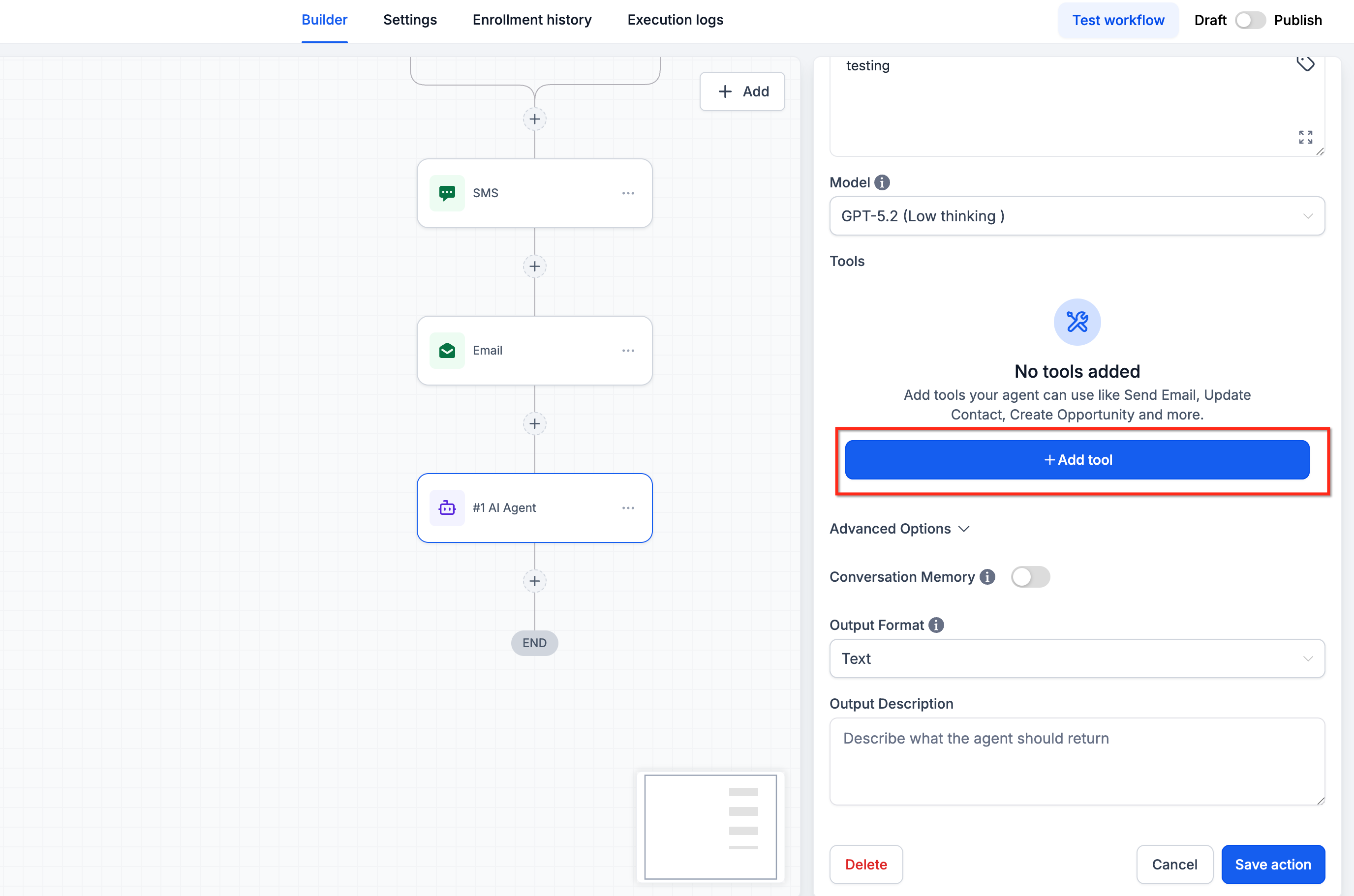
- Add or edit an AI Agent action.
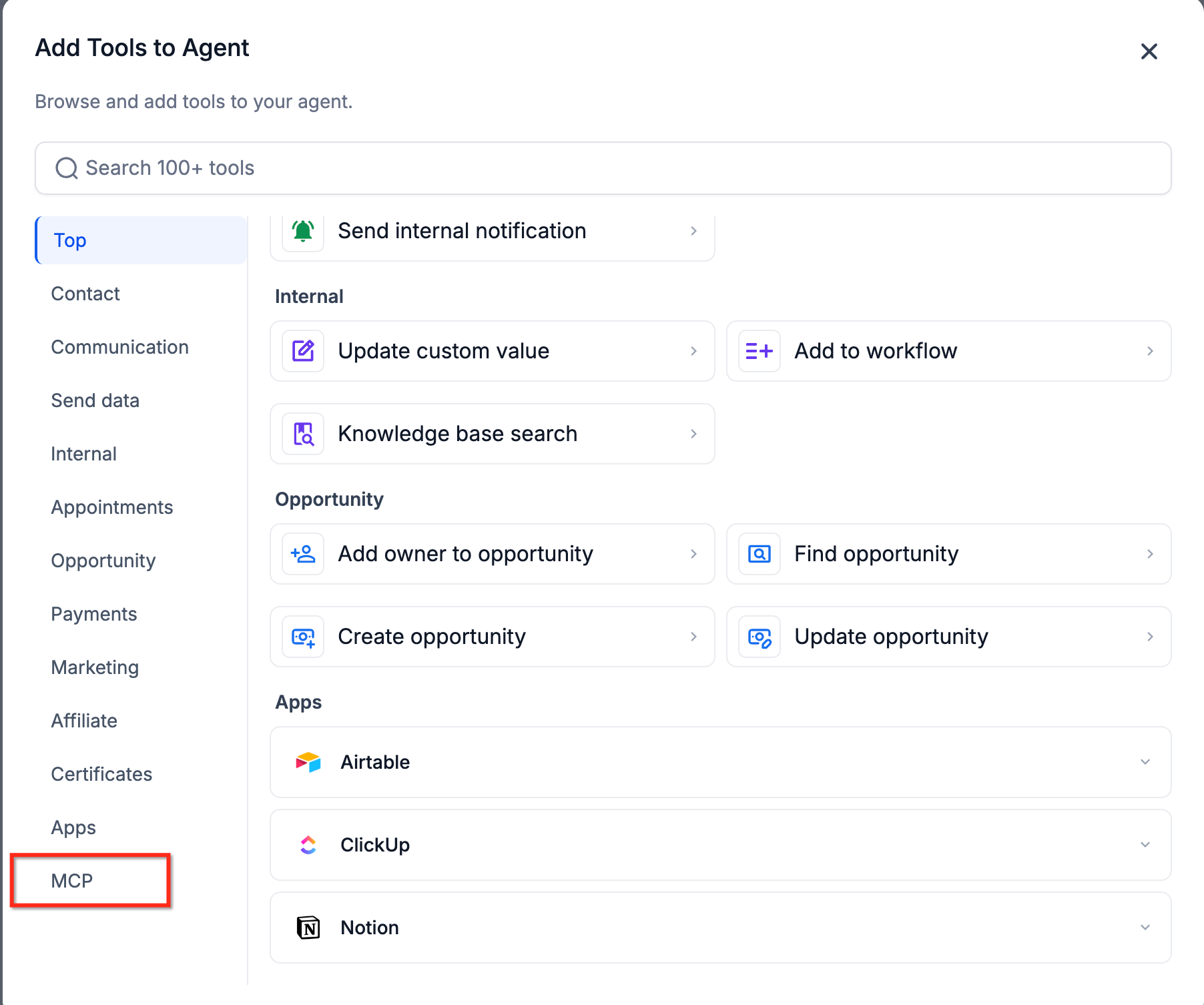
- Select Add Tools.
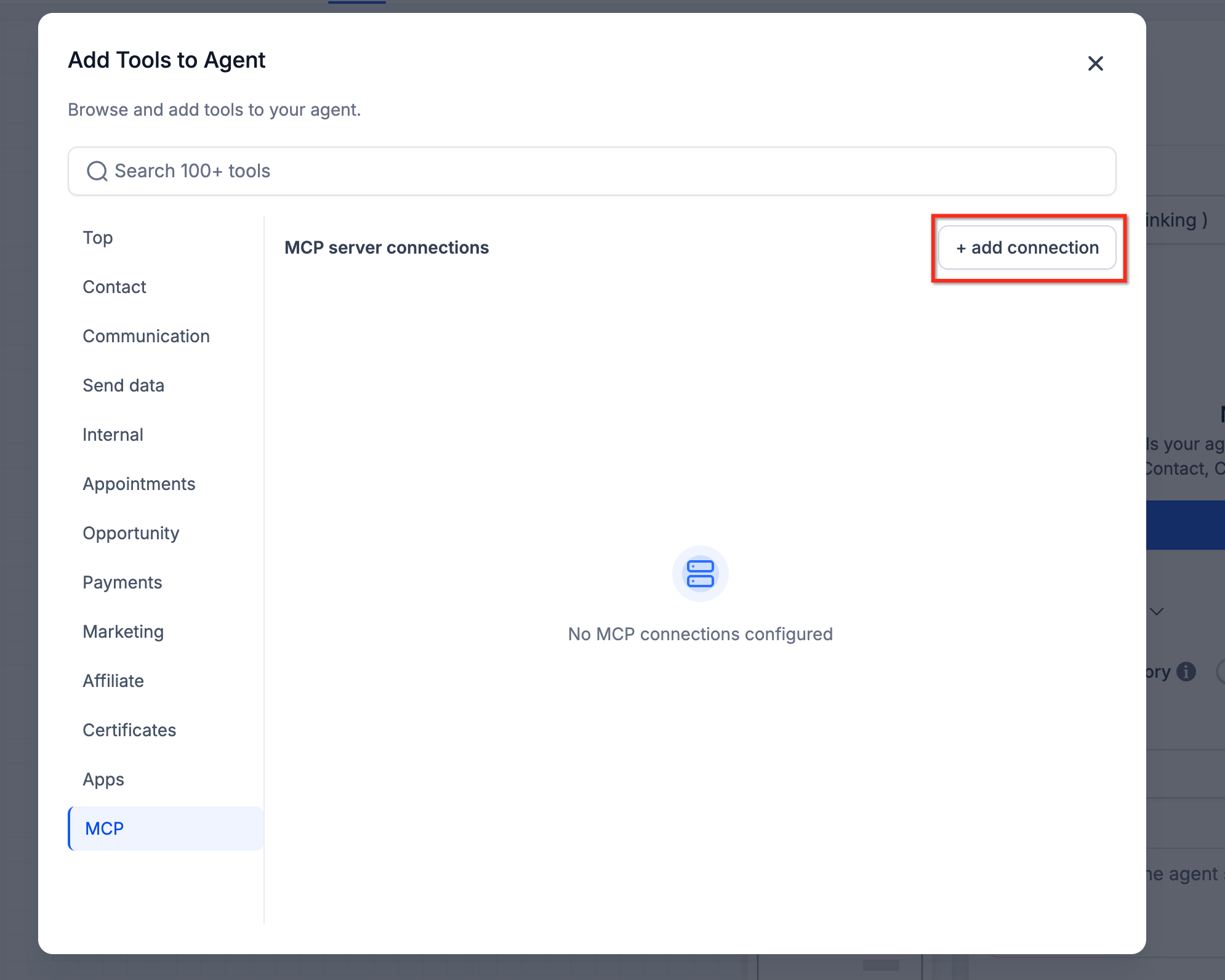
- Open the MCP tab.
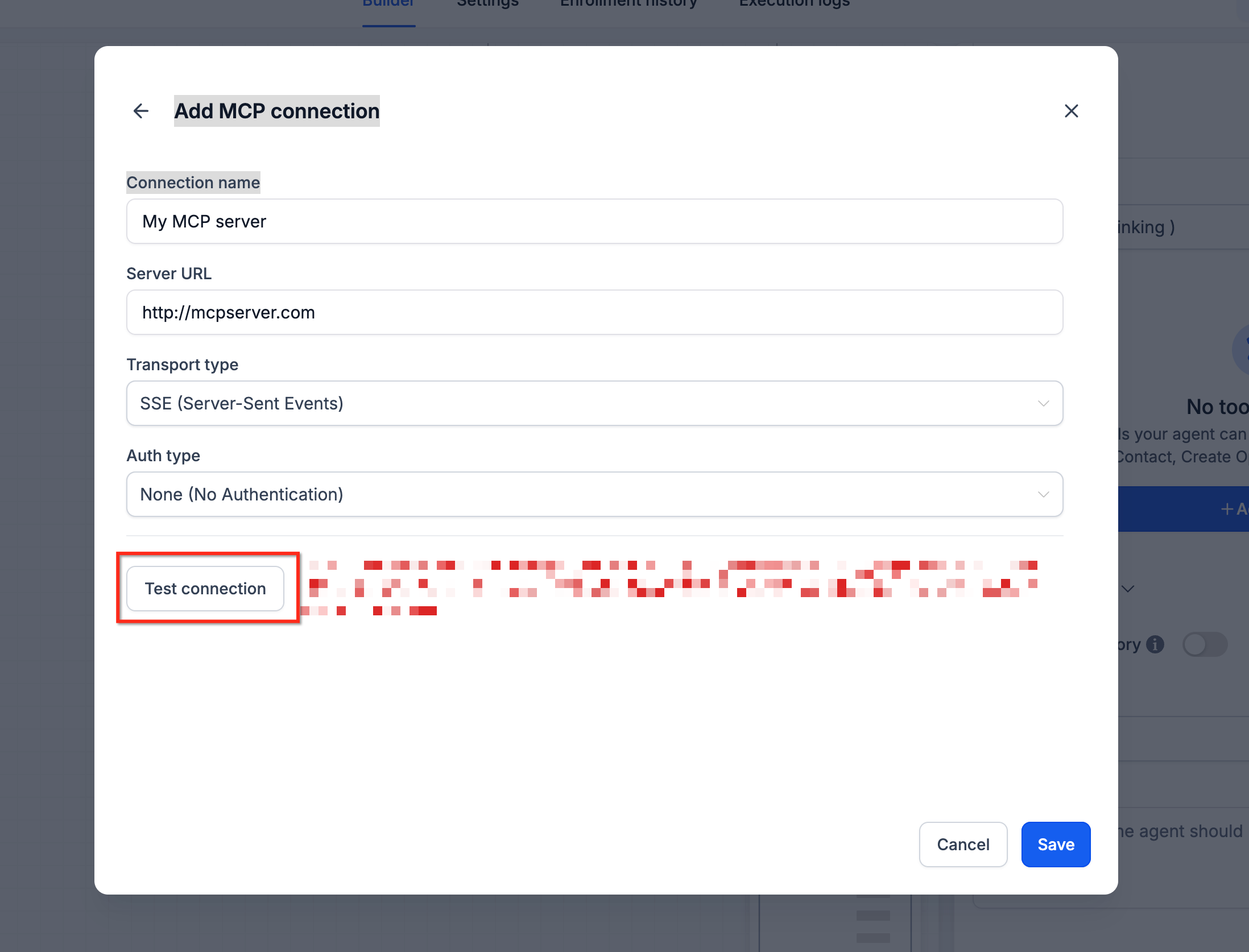
- Click Add Connection.
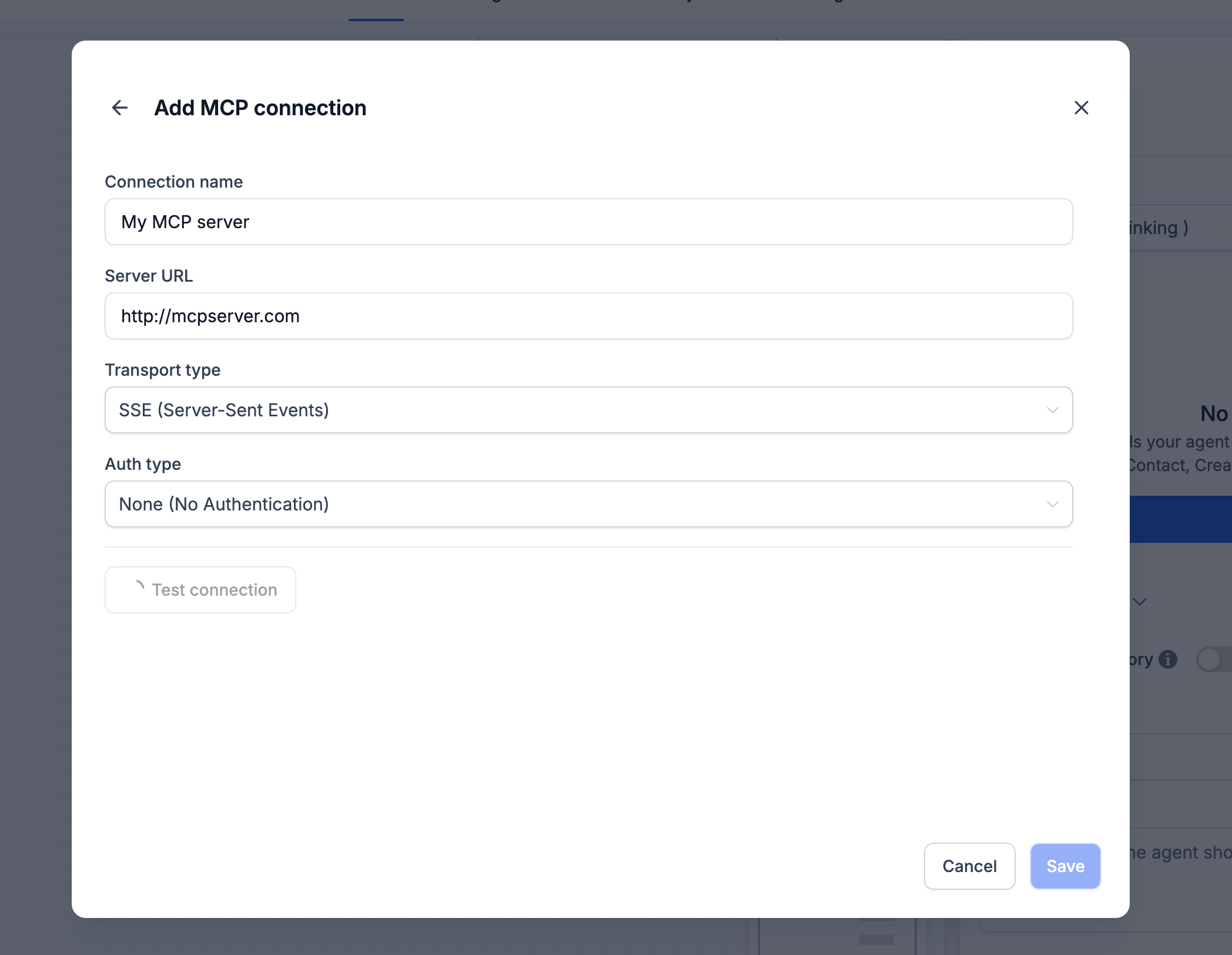
- Enter a descriptive Connection Name.
- Enter the Server URL supplied by your MCP provider.
- Select the appropriate Transport Type.
- Choose the required Authentication Type.
- Enter any required credentials.
- Click Test Connection.
- Review the discovered tools.
- Enable only the tools the AI Agent should be allowed to use.
- Save the connection.
07What it looks like in HighLevel
08Settings that matter
- Connection Name. A label you assign to identify the MCP connection within the workflow.
- Server URL. The address of the external MCP server that provides the tools.
- Transport Type. Defines how HighLevel talks to the server; options are HTTP Streamable (default) or Server Sent Events.
- Authentication Type. Specifies the method used to authorize requests, such as API Key, Bearer Token, OAuth2, Custom Header, or None.
- Credentials. The values required by the selected authentication method, entered as keys, tokens, or custom headers.
09Things to know before you rely on it
- Only MCP compatible servers can be connected; HighLevel does not host or manage third party servers.
- Use HTTP Streamable unless the provider explicitly requires Server Sent Events; the former is the recommended default.
- Multiple MCP connections may be added if the AI Agent configuration permits it.
- Third party MCP services may have their own subscription or usage fees; they are not included in the HighLevel subscription.
10If something goes wrong
- Test Connection fails. Verify the server URL, authentication settings, API credentials, transport type, and confirm that the MCP server is online and reachable.
11How it connects to the rest of HighLevel
- Learn how AI Agent actions fit into overall workflow design Workflow creation guide
- Configure the GPT action that can be combined with MCP tools GPT action setup
- Use inbound webhooks to trigger workflows that may call external MCP tools Inbound webhook trigger
Michael's take

Michael ReimerFounder of CRM Pros, HighLevel Commander and Certified Admin
People often assume the built in AI tools are enough for every workflow and skip connecting external services. That usually leaves them wrestling with stale data or manual research steps.
Get More InformationOpens on HighLevelPublished November 2, 2026 · Updated November 17, 2026