
01Who this is for
- Agency owners who need to keep client projects aligned with CRM stages, eliminating manual data entry.
- Service businesses that want new ClickUp spaces or tasks to appear as soon as a deal reaches a key pipeline stage.
02ClickUp actions & triggers, explained
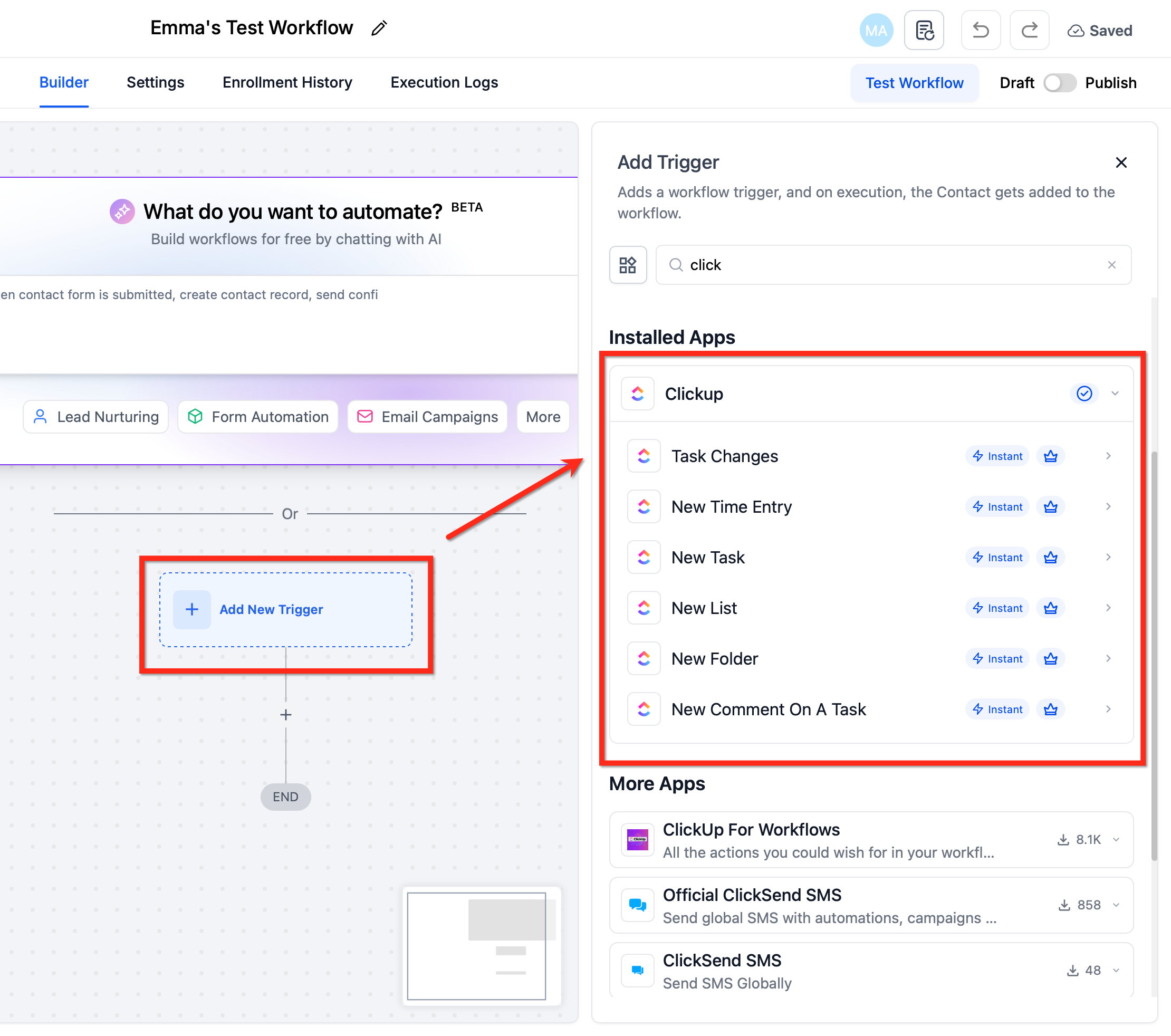
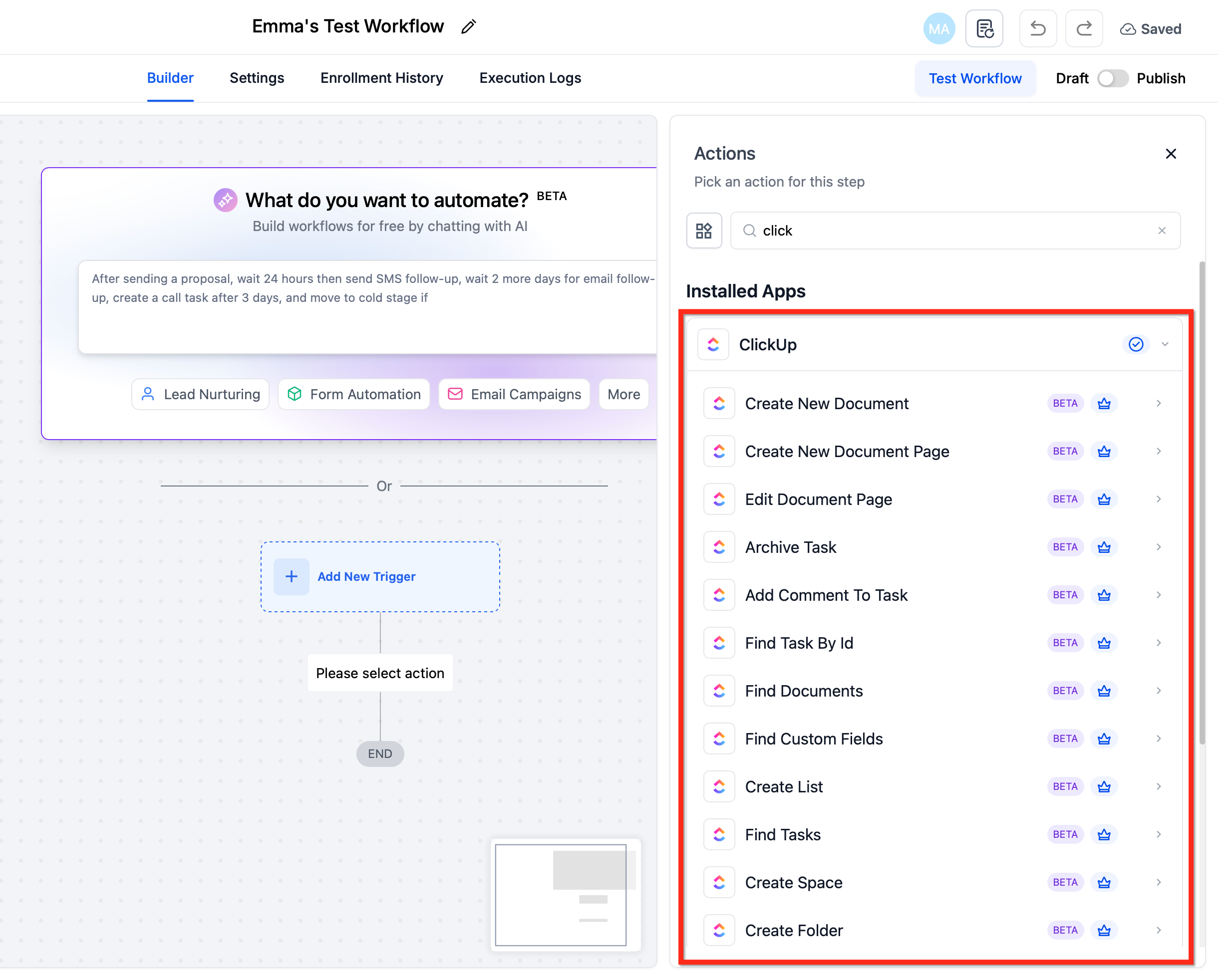
The integration adds two new step types inside the workflow builder, ClickUp triggers and ClickUp actions. A trigger watches a ClickUp event, like a fresh task or a comment, and can launch a HighLevel workflow. An action runs inside a workflow and sends information to ClickUp, creating or updating tasks, spaces, folders, lists, comments, attachments or documents.
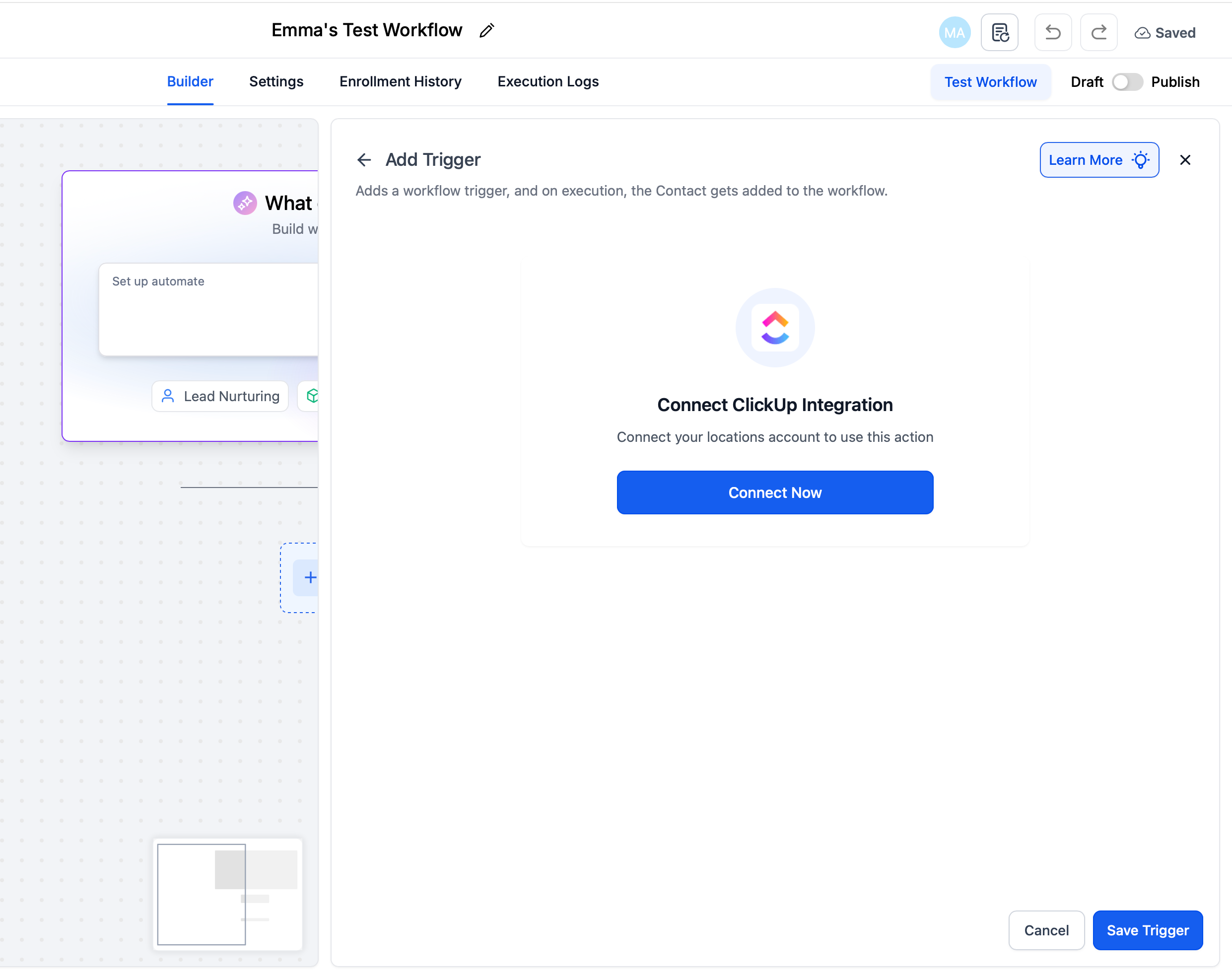
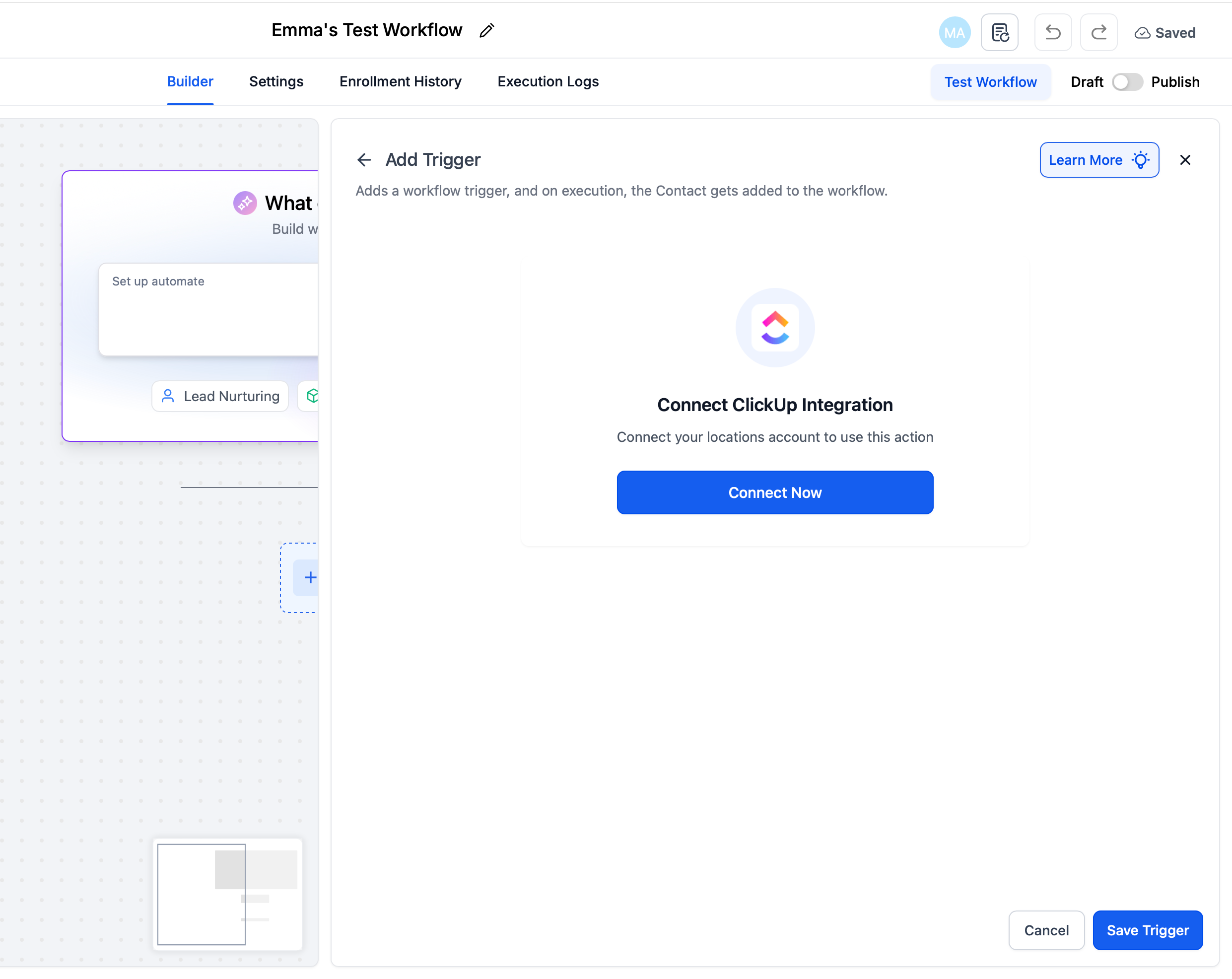
These steps live alongside all other workflow components under Automation > Workflows. When a step is added, the builder shows a Connect Now button if the ClickUp account has not yet been authorized. Once linked, fields such as workspace, list or assignee become selectable, and data from contacts, opportunities or forms can be mapped into the ClickUp item.
03How businesses use ClickUp actions & triggers
- Digital marketing agency. The agency adds a ClickUp trigger for New Task to start a workflow that assigns the lead to a marketing specialist. It also uses a Create Task action to generate a task in a client specific list whenever a new onboarding form is submitted.
- Consulting firm. When a proposal stage changes, the firm adds a GPT action to draft a proposal, then follows it with a Create New Document action that places the draft into a ClickUp document folder for review.
- Web development studio. The studio configures a pipeline stage trigger that launches a series of actions: Create Space, Create Folder, Create List and then multiple Create Task actions to build a ready to work project layout in ClickUp.
04The numbers and rules that matter
- There are no workflow limits from HighLevel; ClickUp API rate caps apply.
05Before you start
- Access to Workflows and Integrations at the subaccount where the automation will run.
- A ClickUp user who can create or update items in the target workspace.
- Premium Features enabled for the agency if premium actions or rebilling are required.
06How to set up and use ClickUp actions & triggers in HighLevel
Set up ClickUp actions and triggers in a workflow
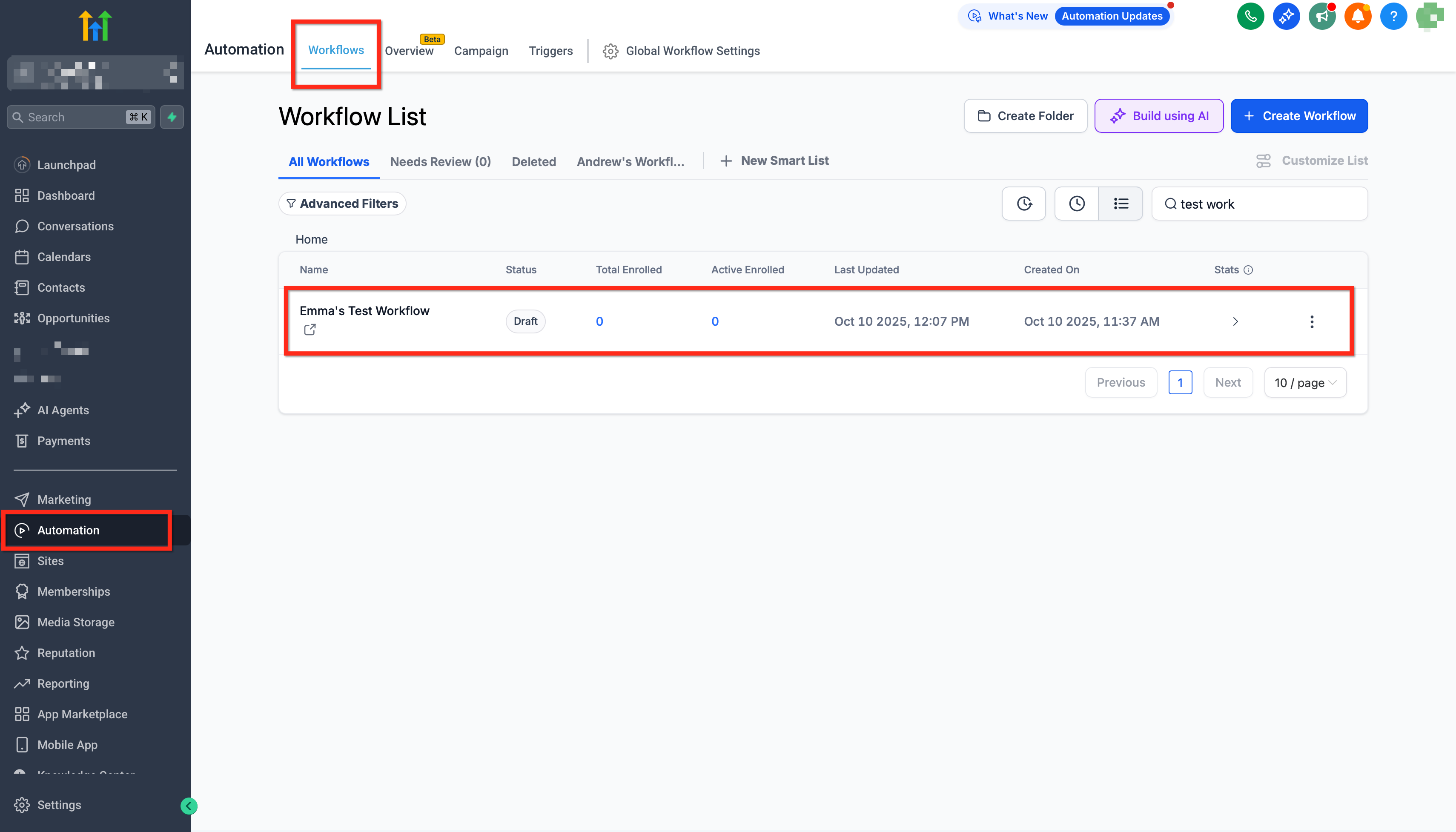
- Navigate to Automation > Workflows and start a new workflow or edit an existing one.
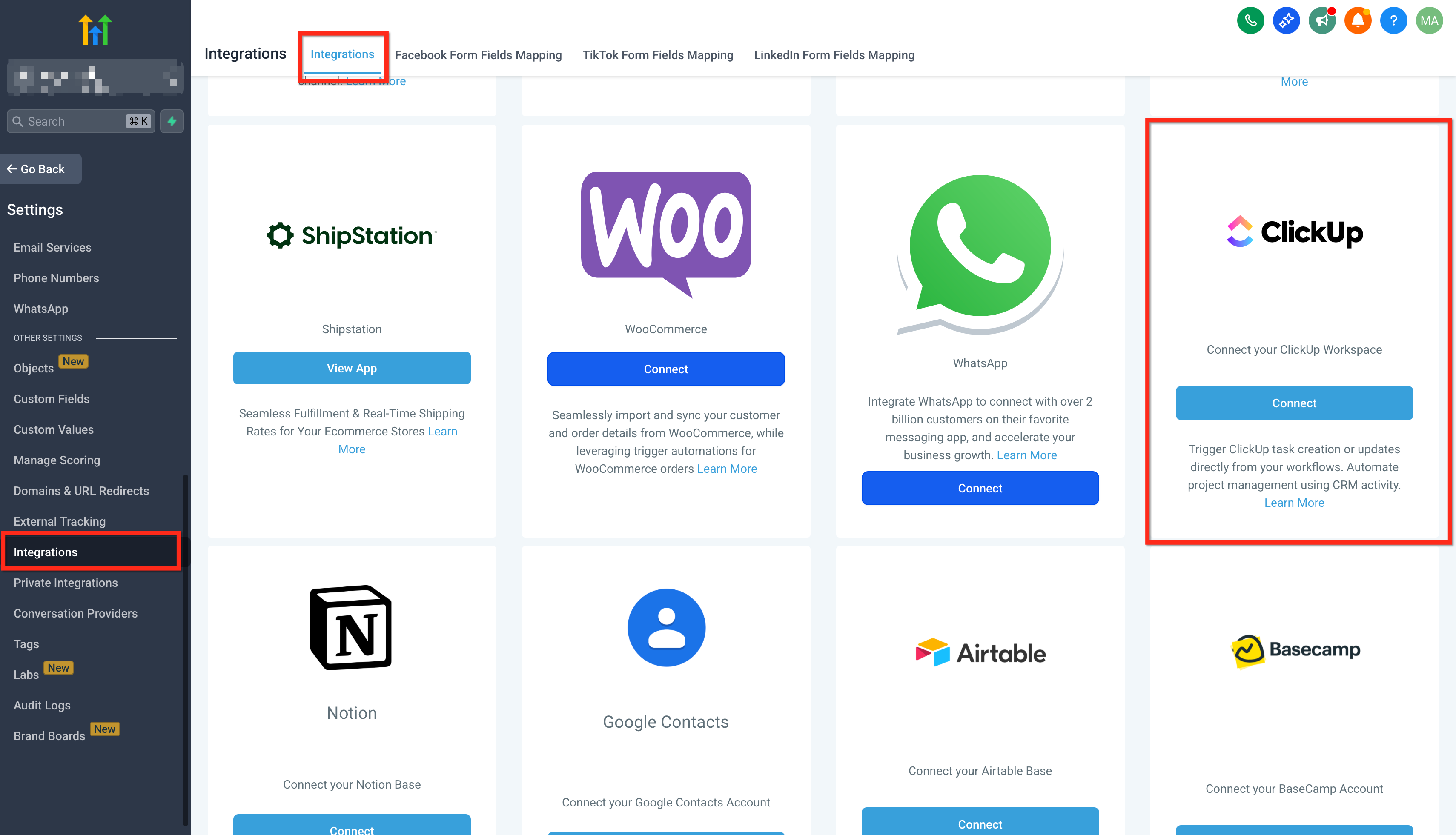
- Add a ClickUp step, then click Connect Now or open Settings > Integrations > ClickUp to authorize via OAuth.
- Select a ClickUp trigger (for example New Task) to launch a HighLevel workflow when the event occurs in ClickUp.
- Add a ClickUp action (such as Create Task) to perform work in ClickUp from a HighLevel workflow and map the required fields.
- Apply If/Else filters to narrow execution based on pipeline stage, service type, or tags.
- Insert a Wait step after creating objects like lists to ensure they exist before subsequent actions run.
- Use space creation actions when generating many items to stay within ClickUp rate limit limits.
- Create test events in ClickUp and run the workflow on test records to verify both trigger and action paths.
- Click Publish on the workflow and monitor the execution using the Run Logs and Enrollment History.
07What it looks like in HighLevel
08Settings that matter
- Premium Features. Enables the use of premium ClickUp actions and triggers and allows optional rebilling of usage to clients.
- If/Else filters. Controls conditional branching within a workflow based on values such as pipeline stage or tags.
09Things to know before you rely on it
- Custom field creation and value updates are marked as Coming Soon and cannot be used yet.
- Premium actions are billed per usage; the cost follows the standard rates for the Pro plan.
- ClickUp API rate caps may affect bulk creation, so using space actions is recommended to reduce bursts.
10If something goes wrong
- Workflow execution produces errors. Open the Run Logs or Enrollment History for the affected workflow to see input, output and any error messages.
11How it connects to the rest of HighLevel
- Learn the basics of HighLevel workflow automation Workflow basics
- Review pricing for Workflow premium features Workflow pricing
- Enable and rebill premium workflow features Enable rebilling
Michael's take

In my experience, the integration can reduce manual data entry and keeps project setup aligned with sales stages.
For very small teams, the overhead of configuring premium actions may not be worth it compared to a few simple Zapier connections.