
01Who this is for
- Sales teams can automatically generate follow up Calendly links when a prospect books a discovery call, eliminating manual scheduling.
- Customer support groups can send a reschedule link the moment an appointment is cancelled, helping maintain service continuity.
- Recruiters can flag no shows and right away deliver recovery invitations, improving candidate engagement.
02Calendly triggers and actions, explained
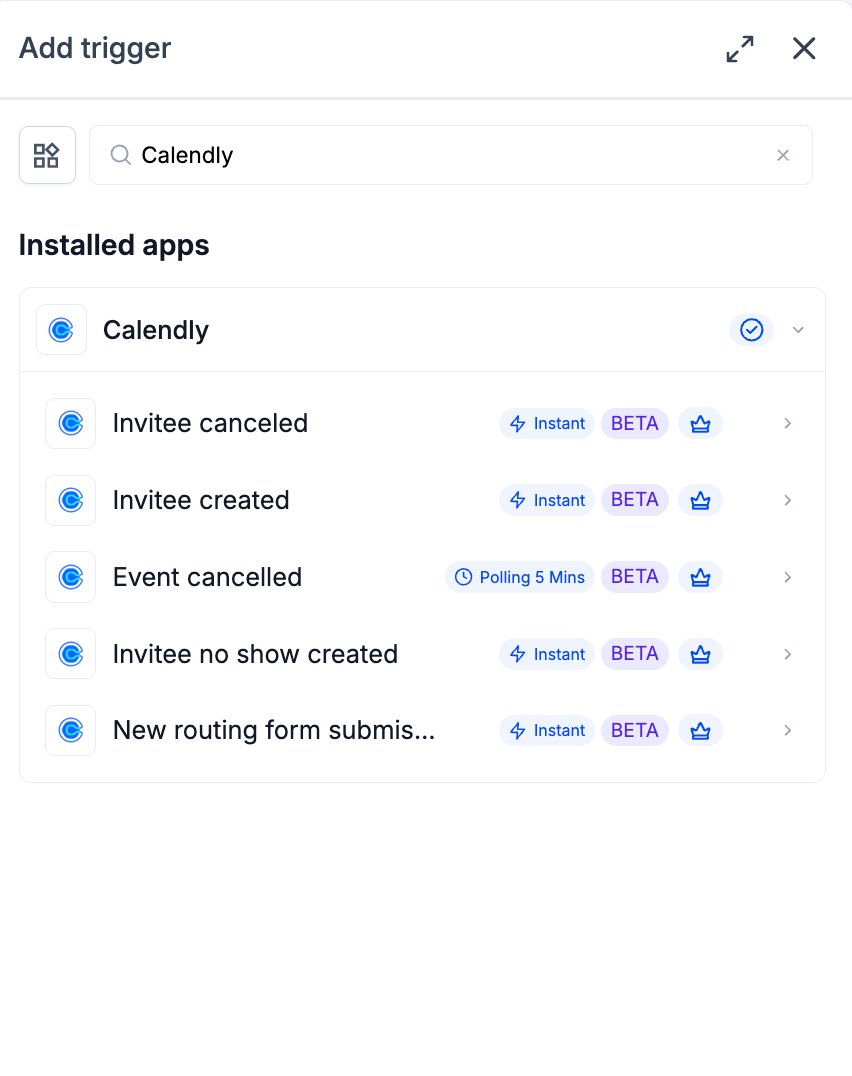
The Calendly integration lives inside the HighLevel Workflow Builder. It provides five premium triggers that listen for scheduling events, invitee created, invitee canceled, invitee no show created, new routing form submission, and host initiated event cancellation (polled every five minutes). Each trigger can be scoped to a single user or an entire organization and can include optional filters such as event type or invitee email domain.
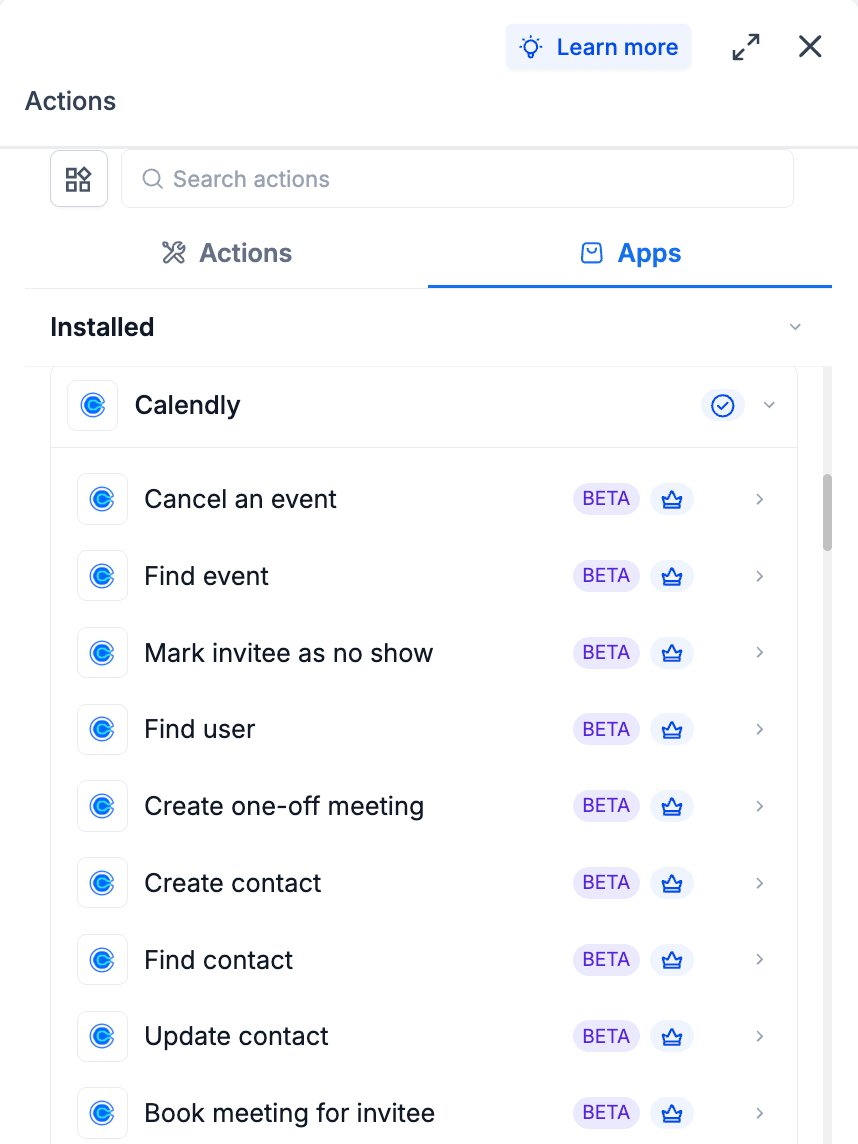
On the action side, the integration offers nine premium actions. Actions cover the full event lifecycle, creating one off meeting types, booking meetings for invitees, finding or canceling events, as well as contact and user management functions. All triggers and actions consume premium workflow credits at the standard rate, while any Calendly plan fees are billed directly by Calendly.
03How businesses use Calendly triggers and actions
- SaaS startup. When a prospect books a demo through a Calendly link, the workflow triggers the Invitee created event, creates or updates a contact in HighLevel, and sends a pre call email with the one off meeting link generated by the Create one off meeting action.
- Recruiting agency. If a candidate cancels an interview, the Invitee canceled trigger fires, the workflow then creates a one off meeting with the recruiter’s Calendly account and sends the candidate a new booking link to reschedule.
- Medical clinic. When a patient no shows for an appointment, the Invitee no show created trigger marks the patient as a no show via the Mark invitee as no show action and follows up with a recovery message containing a one off meeting link.
04The numbers and rules that matter
- One polling trigger checks every 5 minutes.
- Maximum meeting duration is 720 minutes.
05Before you start
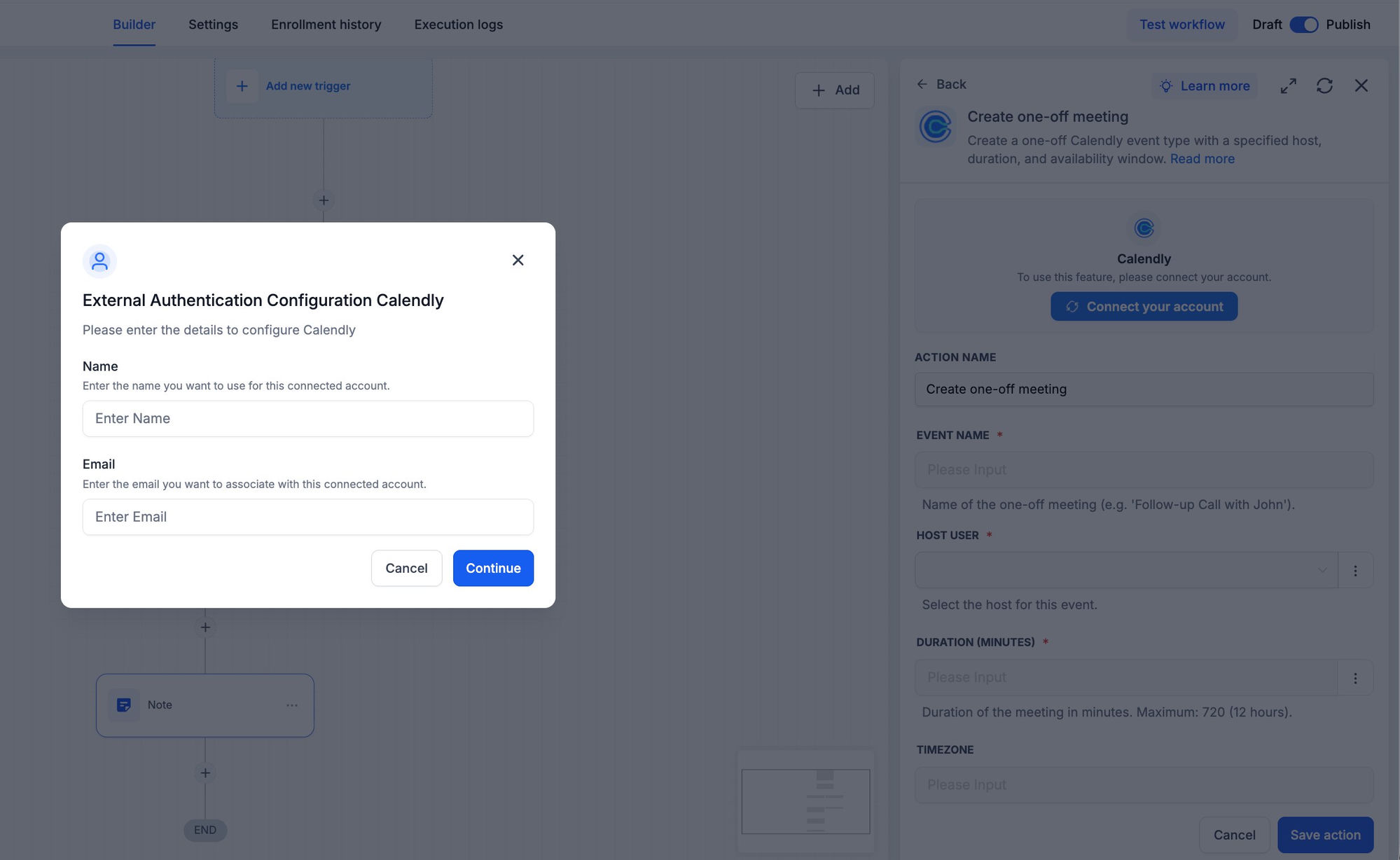
- The Calendly integration must be connected to HighLevel via OAuth before any trigger or action can run.
06How to set up and use Calendly triggers and actions in HighLevel
Set up a trigger
- Open Automation > Workflows and select the workflow to edit.
- Click Add trigger.
- Switch to the Apps tab and search for Calendly.
- Select Invitee created (or another Calendly trigger) from the list.
- Choose the Connected Account that should be watched.
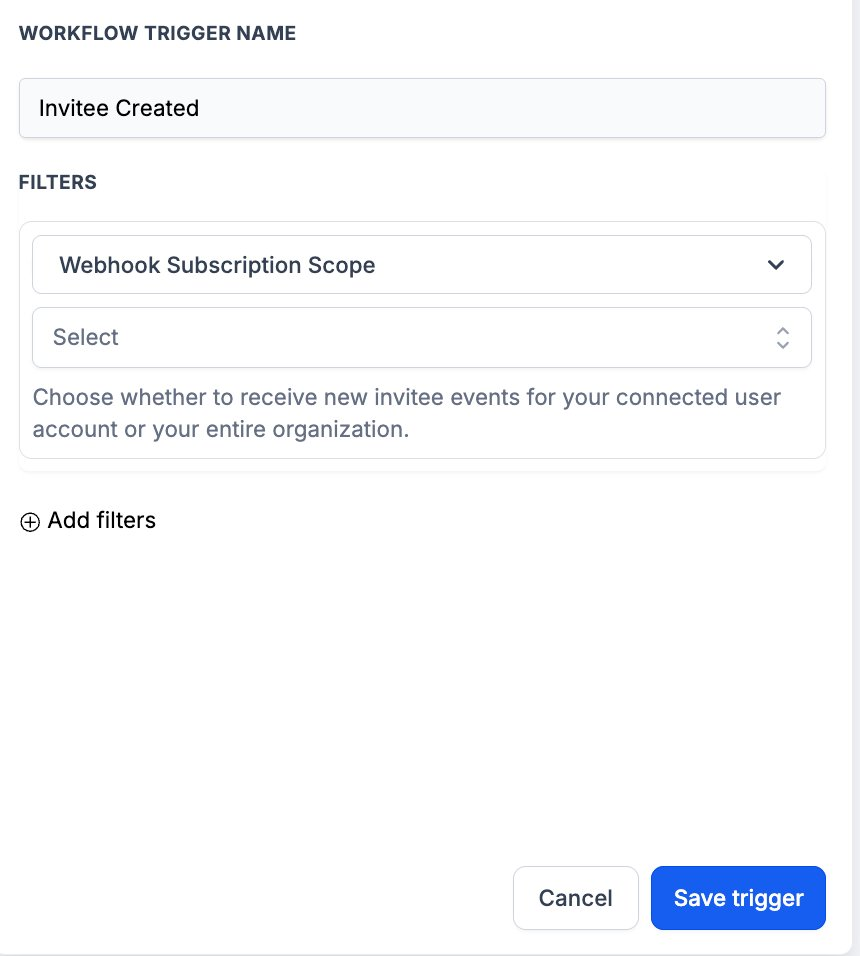
- Enter a Workflow Trigger Name that describes the purpose.
- In Filters, set Webhook Subscription Scope to User or Organization.
- Optionally add additional filters such as event type or invitee email domain.
- In the Test Your Trigger panel, click Find new records.
- Select the returned record and click Save trigger.
Set up an action
- Inside the same workflow, click Add to insert a new step.
- Open the Apps tab and select Calendly.
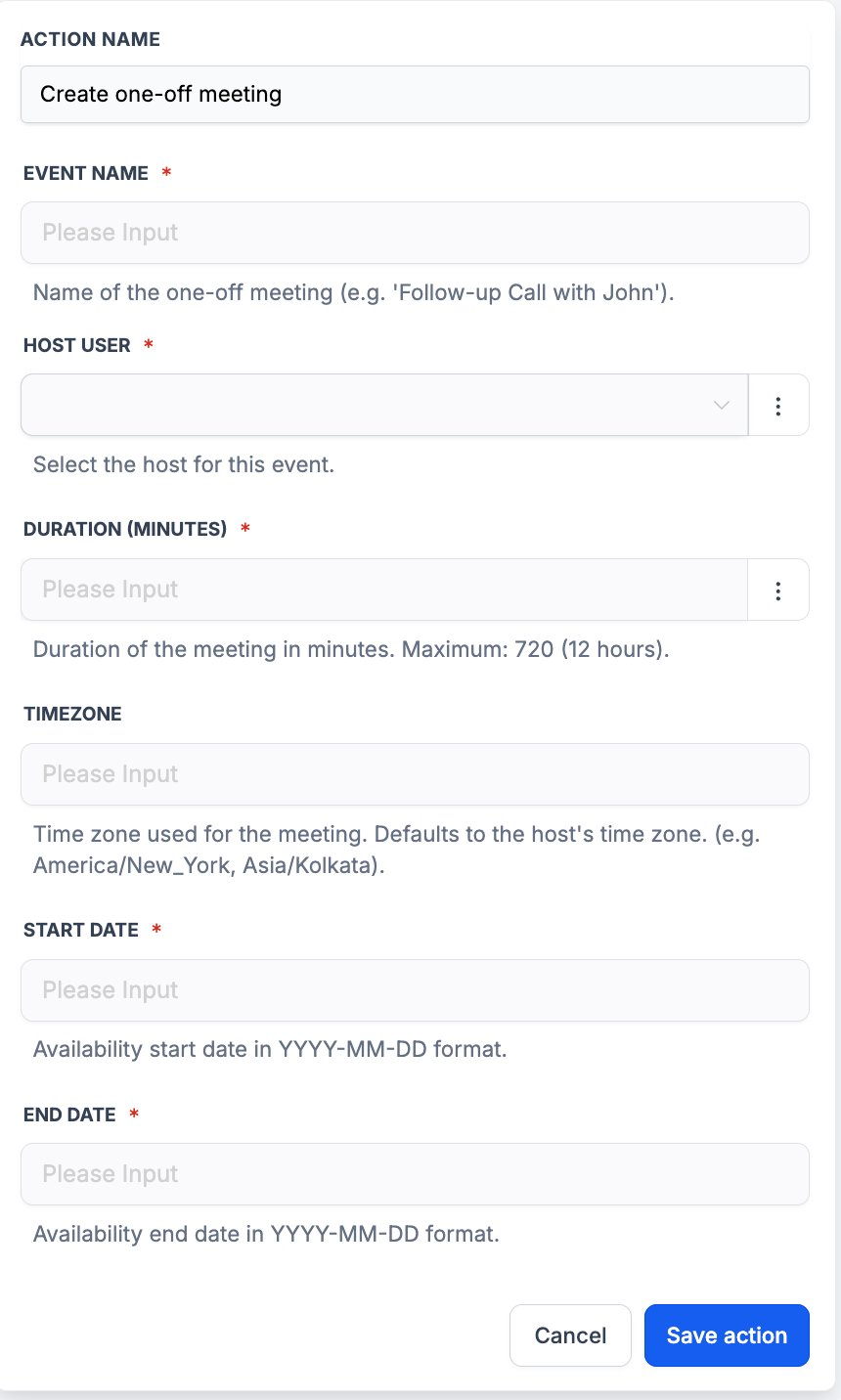
- Choose Create one off meeting from the action list.
- Select the Connected Account that will host the meeting.
- Enter an Action Name that identifies this step.
- Provide the Event Name that the invitee will see.
- Select the Host User, using a Find user step upstream if needed.
- Enter the Duration in minutes (maximum 720).
- Optionally set a Timezone; leave blank to use the host’s timezone.
- Enter a Start Date in YYYY MM DD format.
- Enter an End Date in YYYY MM DD format.
- Click Test action to confirm the meeting is created, then Save the action.
Test triggers and actions
- In the trigger panel, click Find new records to fetch recent events.
- If no records appear, perform the corresponding action in Calendly (book, cancel, or submit a form) and re fetch.
- Select the returned record to lock the payload schema.
- In the action panel, click Test action to run the configured action against Calendly.
- Verify the result in Calendly (new event type, booking, contact update) and then run a full Test workflow before publishing.
07What it looks like in HighLevel
08Settings that matter
- Connected Account. Identifies which Calendly account the trigger or action will use.
- Workflow Trigger Name. A label for the trigger that appears within the workflow.
- Filters → Webhook Subscription Scope. Controls whether the trigger watches events for a single user or the whole organization.
- Event Name. The title shown to the invitee for a one off meeting.
- Host User. Specifies which Calendly user will host the generated meeting.
- Duration (minutes). Sets the length of the meeting; cannot exceed 720 minutes.
- Timezone. Defines the time zone for the meeting window; defaults to the host’s zone if left blank.
- Start Date. The beginning date of the availability window for the one off meeting.
- End Date. The ending date of the availability window for the one off meeting.
09Things to know before you rely on it
- The Create one off meeting action caps duration at 720 minutes.
- The Event cancelled trigger polls every five minutes because Calendly does not emit a native webhook for host initiated cancellations.
- All Calendly triggers and actions are premium workflow components and consume premium action credits.
- Calendly plan usage, such as active users and paid event types, is billed directly by Calendly.
10If something goes wrong
- Instant trigger does not return any records. Book a test invite through the Calendly link in the connected account, then click Find new records again.
- Polling trigger fails to fire. Cancel an event as the host in Calendly, wait up to five minutes for the next poll, then click Find new records.
- Test action does not produce a result. Confirm the inputs in the action panel, run Test action, and verify the expected change in Calendly (e.g., a new event type or booking).
11How it connects to the rest of HighLevel
- Start a 30 day HighLevel trial to explore workflow automation. 30 day trial
- Review workflow premium pricing tiers to understand credit usage. Workflow pricing
- Enable and rebill premium workflow features, including Calendly integration. Enable premium features
Michael's take

Scheduling chaos slows every team that has to go back and forth with prospects. Linking Calendly to HighLevel lets the moment a prospect books, cancels, or no shows trigger an automated follow up without any manual steps.
The first thing I would set straight is the Connected Account label. A clear name and email keep you from sending a reschedule link from the wrong calendar.
Once the account is labeled, I would build a simple new booking trigger that finds or creates the contact and shoots a precall SMS. It gives you a proof of concept that the webhook is working and shows immediate value.