
01Who this is for
- Operations managers who need real time booking updates to keep team calendars synchronized.
- Marketing teams that want to enroll new meeting participants into email sequences automatically.
- Customer success reps who must follow up on cancellations or no shows without manual tracking.
02Cal.com actions & triggers, explained
The integration connects Cal.com scheduling events to HighLevel’s Workflow Builder. When a booking event occurs, a Cal.com trigger fires a webhook that starts a workflow inside HighLevel. The workflow can then use downstream actions such as sending messages, updating contacts, or branching logic.
Conversely, workflow steps can call Cal.com via premium actions. Create Booking adds a meeting to a selected event type, Cancel Booking removes an existing slot, Reschedule Booking moves a meeting to a new time, and Find Booking retrieves booking details for further processing. All actions consume premium workflow credits.
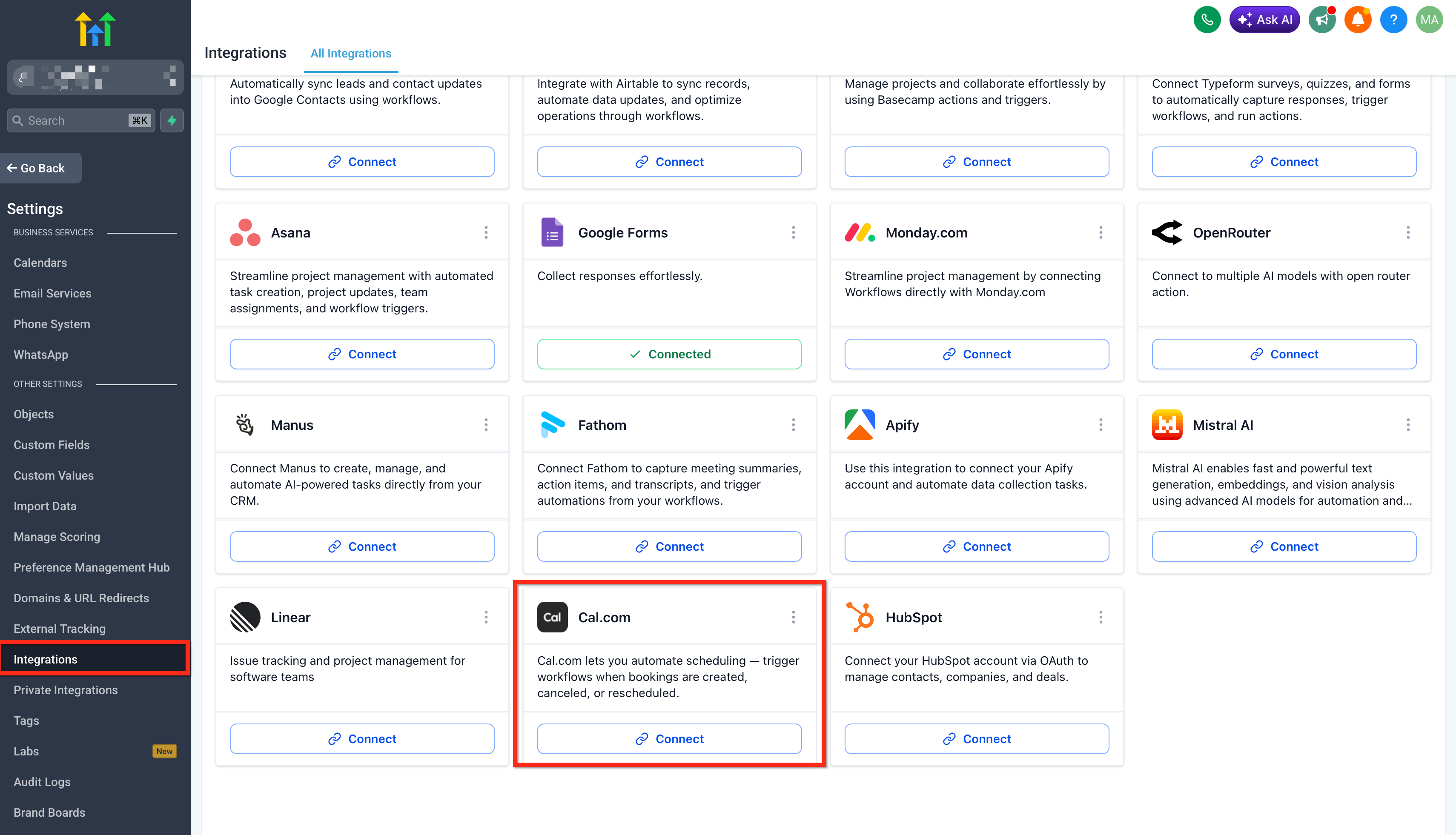
The connection is established either from a workflow step or via Subaccount Settings > Integrations > Cal.com. Once linked, the same Cal.com triggers and actions are available in any workflow across the subaccount.
03How businesses use cal.com actions & triggers
- Digital marketing agency. The agency adds a Booking Created trigger to a workflow that automatically creates a new contact, tags them with the event type, and enrolls them in a welcome email series. This captures lead information the moment a prospect books a discovery call.
- SaaS customer success team. A Meeting Ended trigger runs a Find Booking action to check for a no show flag. If the attendee missed the session, the workflow sends a reschedule link and tags the contact for follow up, ensuring no missed opportunities.
- Consulting practice. When a high intent form is submitted, a workflow uses the Create Booking action to book a consultation on the consultant’s calendar, then sends a confirmation SMS, eliminating the manual back and forth of scheduling.
04The numbers and rules that matter
- Booking payload can include booking URL, title, start time, end time, notes, event type, attendees, organizer.
- Start Time accepts format like 12-21-2026 08:30 AM or ISO 8601 strings.
05Before you start
- A Cal.com account with an available API key or OAuth credentials.
- HighLevel subaccount permissions to add integrations.
06How to set up and use cal.com actions & triggers in HighLevel
Set up Cal.com integration
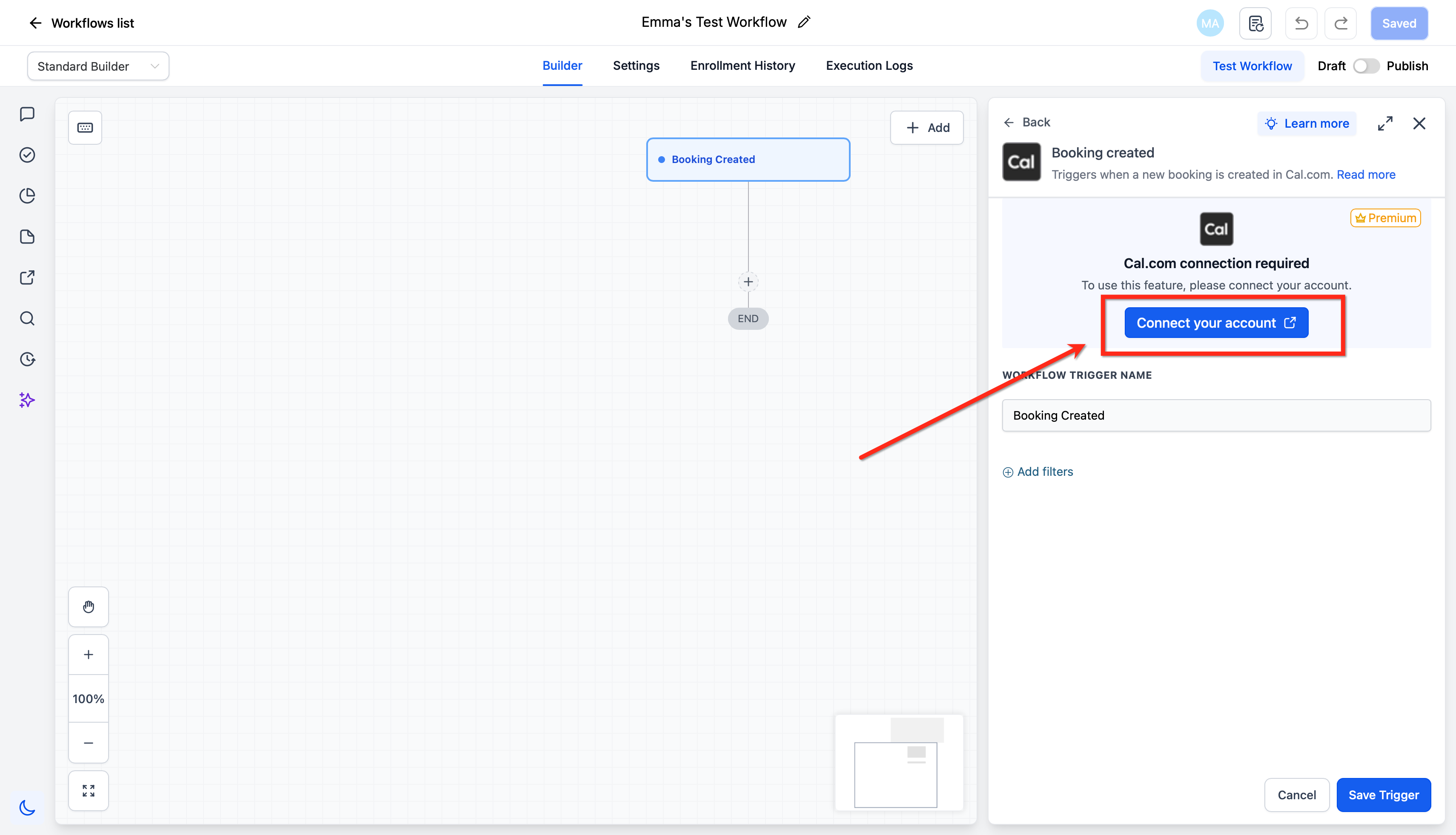
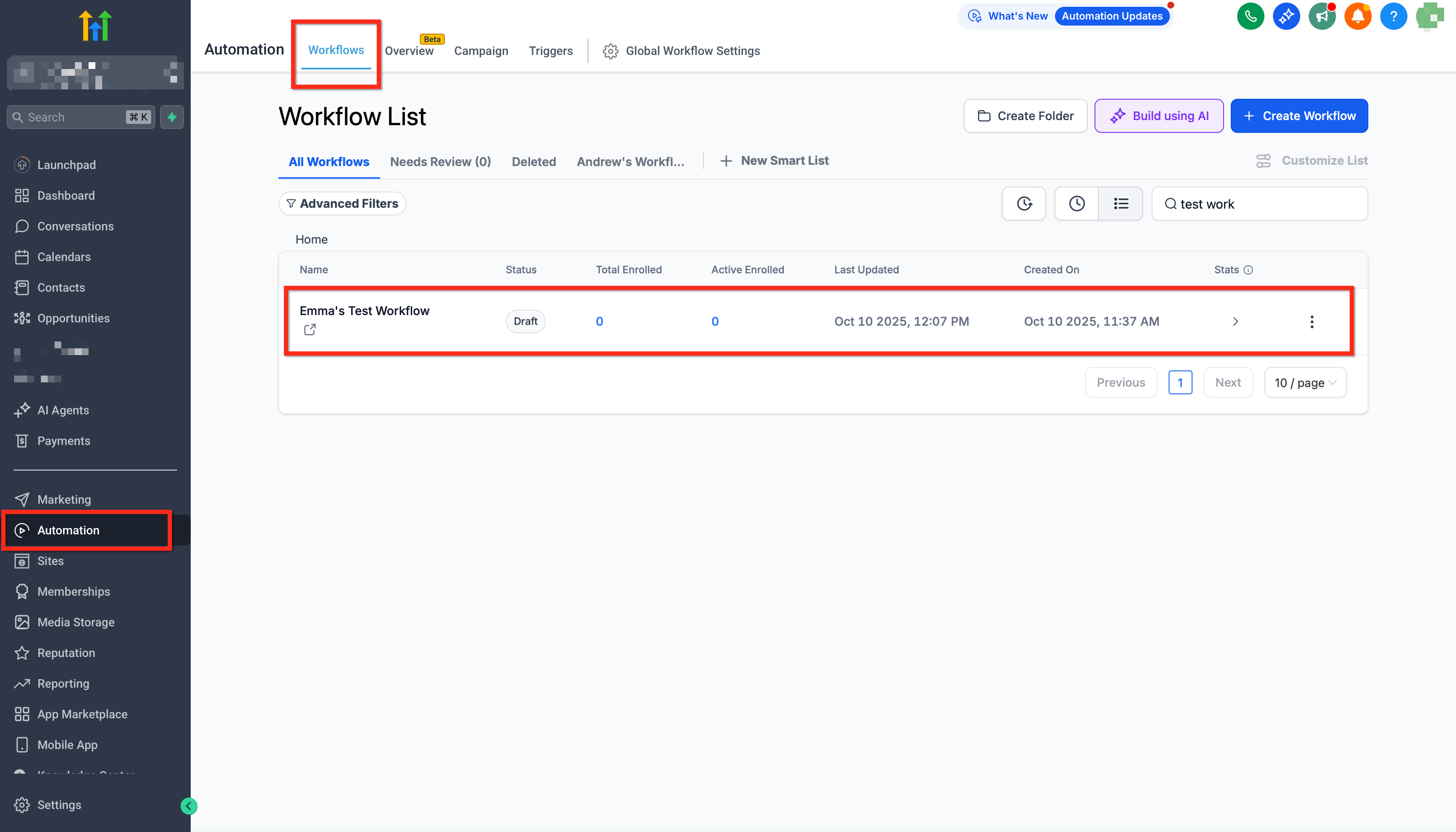
- Open Automation > Workflows and add any Cal.com trigger or action.
- If the integration is not yet linked, click Connect Now and sign in with your Cal.com API key or OAuth.
- Authorize the workspace and select the event types HighLevel should access.
- Alternatively, go to Subaccount Settings > Integrations > Cal.com > Connect to establish the link.
Test a Cal.com trigger
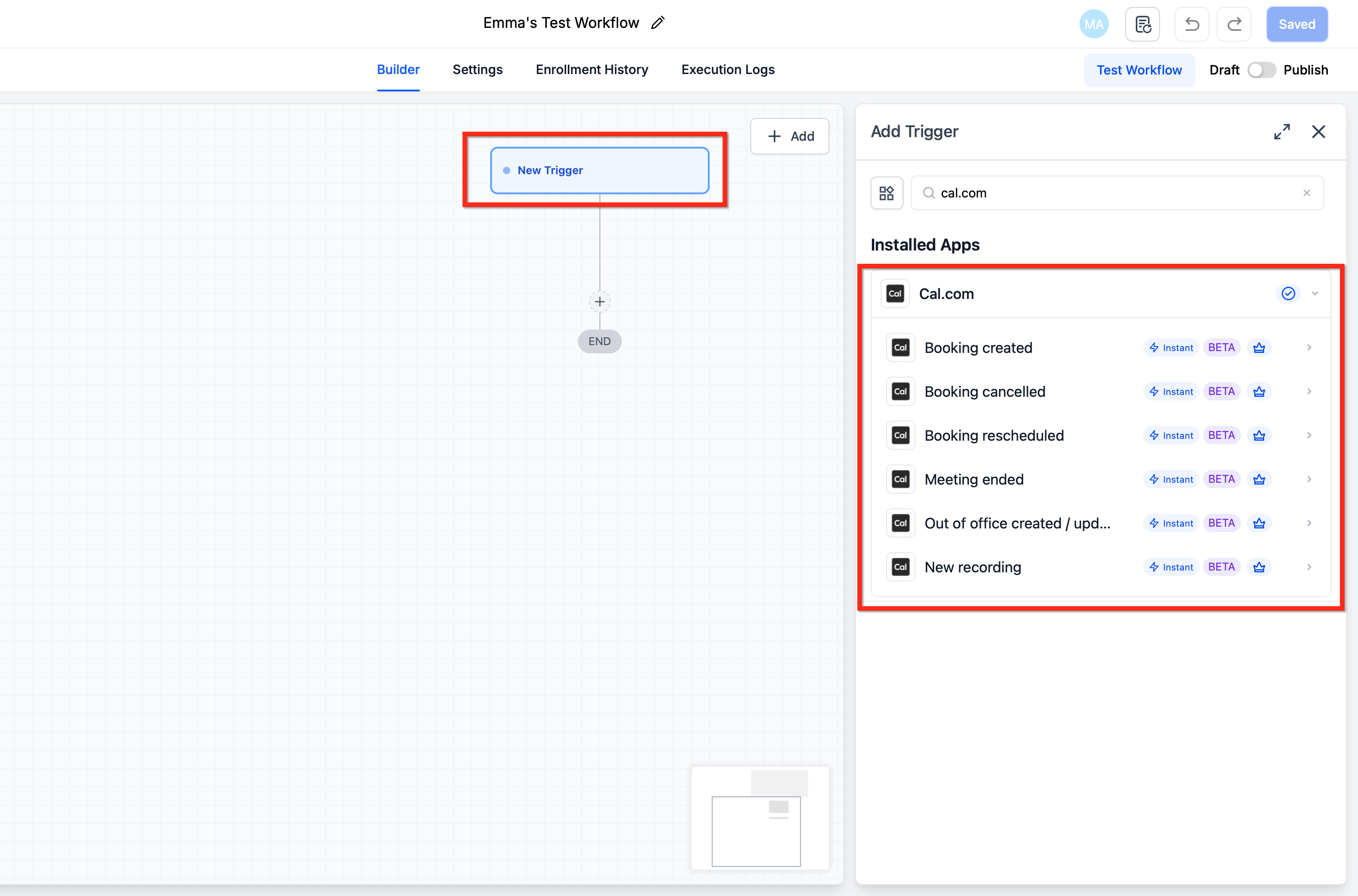
- Open the workflow and click Add Trigger.
- Select the Apps tab.
- Search for Cal.com.
- Choose Booking Created from the Cal.com trigger list.
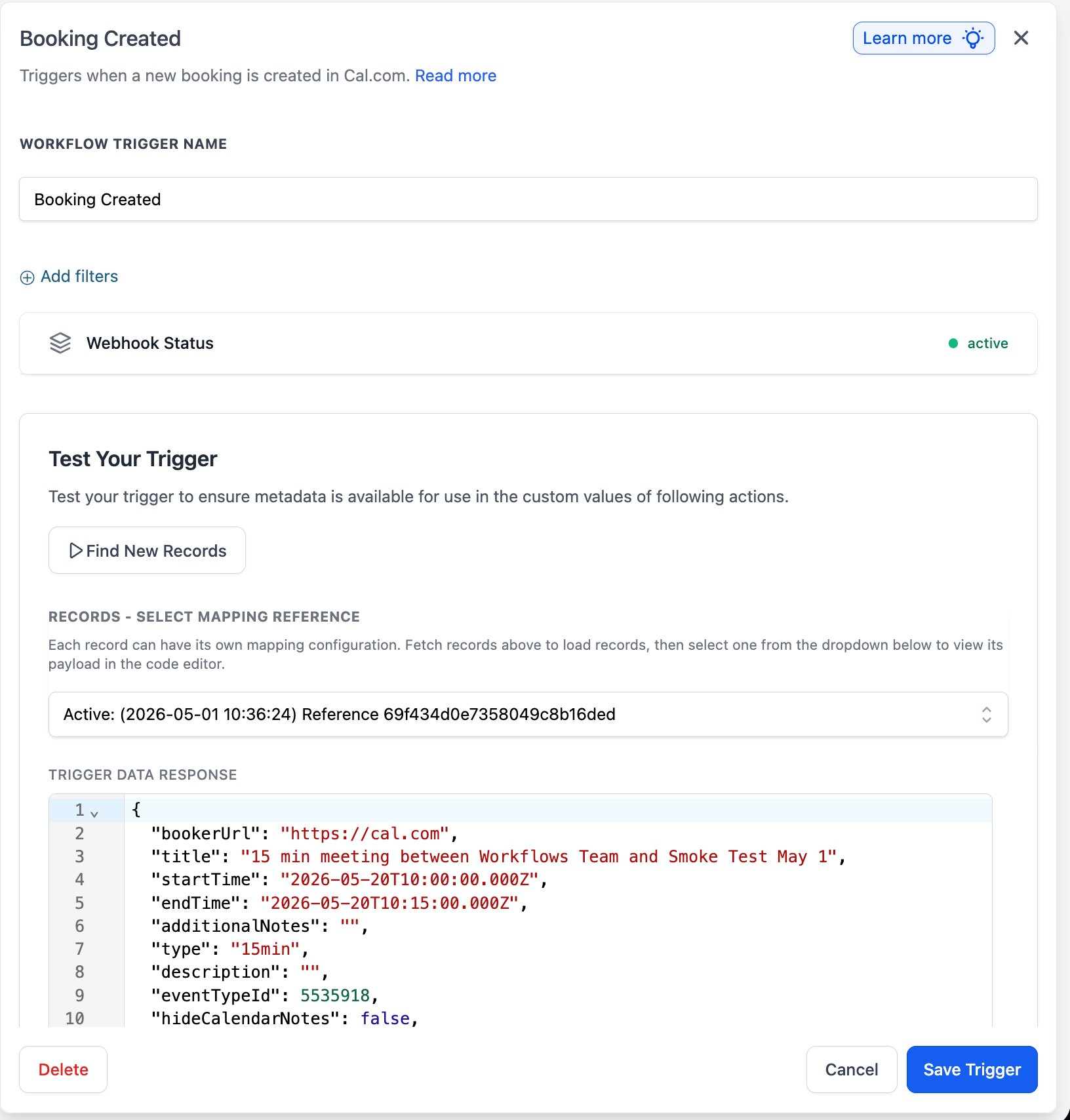
- Enter a descriptive Workflow Trigger Name.
- Optionally add filters to limit the trigger scope.
- Verify the Webhook Status indicator shows active.
- Click Find New Records in the Test Your Trigger panel.
- Pick a record from the Records, Select Mapping Reference dropdown.
- Review the Trigger Data Response panel and click Save Trigger.
Test a Cal.com action
- Inside the workflow, click Add to insert a new step.
- Open the Apps tab.
- Select Cal.com from the list.
- Choose Create Booking as the action.
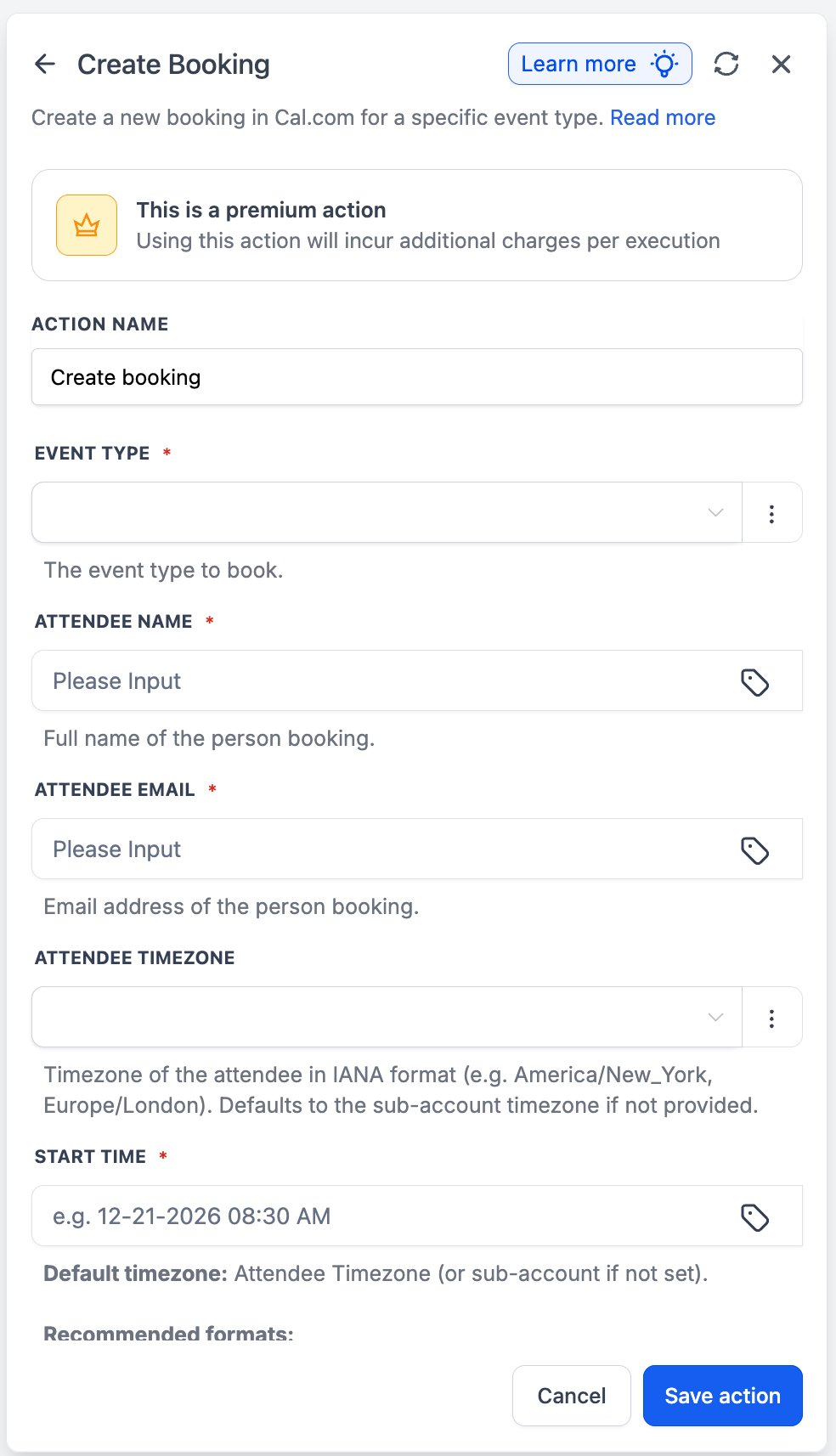
- Enter an Action Name.
- Pick the Event Type from the dropdown.
- Provide Attendee Name using a workflow variable.
- Provide Attendee Email using a workflow variable.
- Optionally set Attendee Timezone in IANA format.
- Enter Start Time in the required format.
- Click Save action.
Create a workflow with Cal.com
- Go to Automation > Workflows and create a new workflow or open an existing one.
- Click Add Trigger, go to the Apps tab, search Cal.com, and select the desired trigger such as Booking Created.
- Click the + icon to add the next step and choose a HighLevel or Cal.com action.
- If adding a Cal.com action, select Create Booking and fill Event Type, Attendee Name, Attendee Email, and Start Time.
- Optionally add Attendee Timezone in IANA format.
- Add any follow up steps like Send Email, Tag contact, or If/Else branches.
- Save the workflow, run a final test, and publish it.
07What it looks like in HighLevel
08Settings that matter
- Event Type. Specifies which Cal.com event template the booking should use.
- Attendee Name. Sets the name of the person being booked; can use workflow variables.
- Attendee Email. Sets the email address of the person being booked; can use workflow variables.
- Attendee Timezone. Defines the time zone for the booking using an IANA identifier; defaults to the subaccount time zone if left blank.
- Start Time. Provides the date and time for the new booking in either the suggested format or ISO 8601.
- Webhook Status. Shows whether the underlying Cal.com webhook is currently active; inactive status requires reconnection.
- Workflow Trigger Name. A label for the trigger step that helps identify it in the workflow editor.
- Action Name. A label for the action step that appears in the workflow overview.
09Things to know before you rely on it
- All Cal.com actions are premium workflow actions and consume premium action credits when executed.
- Booking Created does not fire again after a booking is rescheduled; use the Booking Rescheduled trigger for that scenario.
- If the Webhook Status becomes inactive, the integration must be reconnected in Cal.com settings.
- Self hosted Cal.com supports the same webhook surface, but Meeting Started or Meeting Ended behavior may differ and should be tested.
- When Attendee Timezone is omitted, Cal.com falls back to the subaccount default time zone.
10If something goes wrong
- Webhook Status shows inactive. Reconnect the Cal.com integration in the Cal.com settings.
11How it connects to the rest of HighLevel
- Learn the basics of HighLevel workflow automation Workflow basics
- Review pricing tiers for premium workflow actions Workflow pricing
- Enable and rebill premium workflow features Enable premium actions
Michael's take

The real time triggers keep your HighLevel account up to date and reduce manual steps of confirming, rescheduling, or logging each appointment.
If your business only schedules occasional internal calls, the premium action credits and extra setup may not bring enough return. In that case you might stick with the native Cal.com platform and only use HighLevel for broader marketing automation.