
01Who this is for
- Marketing teams can monitor competitor pages and receive alerts when data changes.
- Customer support groups can run on demand scrapes from forms submitted by clients.
- Agencies can bulk enrich contact records by processing CSV files through a robot.
02Browse AI actions and triggers, explained
The Browse AI integration adds a webhook backed trigger called New Completed Task. The trigger activates each time a selected robot finishes a task and can be filtered by robot and status. It lives in the workflow builder under the Apps tab.
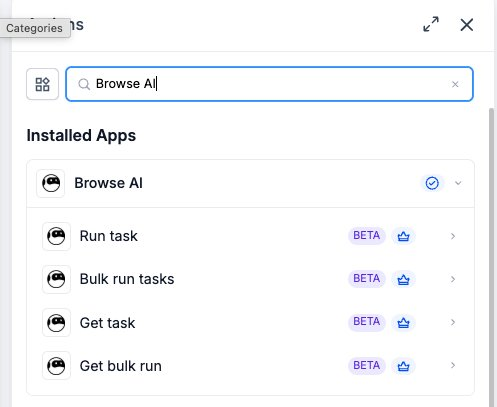
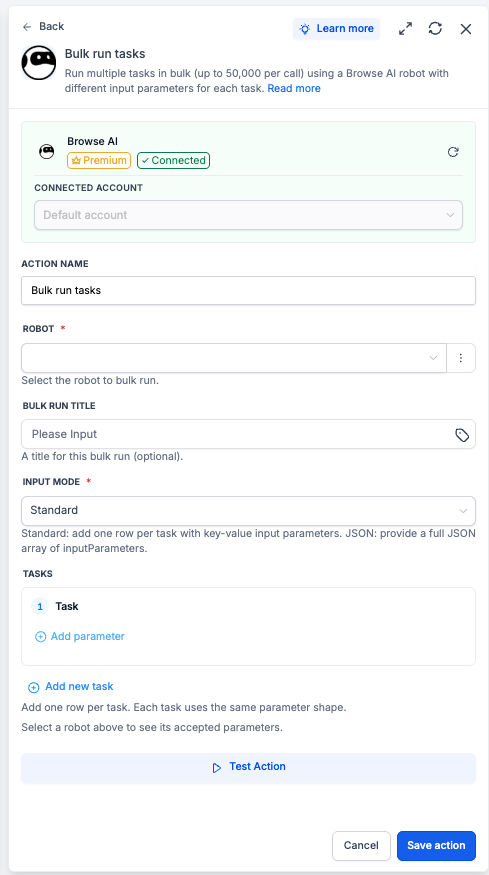
Four actions are available: Run Task, Bulk Run Tasks, Get Task, and Get Bulk Run. They allow a workflow to start a single robot, start many robots in one batch, or fetch the data from a completed task. All actions appear as steps in the workflow builder and require an API key to connect the Browse AI account.
Both the trigger and the actions are marked as premium workflow components, so they consume premium action credits. Browse AI usage itself is billed directly by Browse AI on the linked account.
03How businesses use browse AI actions and triggers
- Marketing agency. The agency adds a New Completed Task trigger, filters it to a competitor page robot, and follows it with a notification step. The workflow runs each time the robot finishes and passes the captured fields to the notification.
- Customer service team. A form submission step collects a URL from a client. The workflow then adds a Run Task action, selects the appropriate robot, and maps the URL field into the robot’s input parameters. The task ID is stored for later retrieval.
- Lead enrichment service. A file upload trigger brings in a CSV of URLs. The workflow uses a Bulk Run Tasks action to queue one robot run per row, then a Get Bulk Run action fetches all results for downstream contact updates.
04Before you start
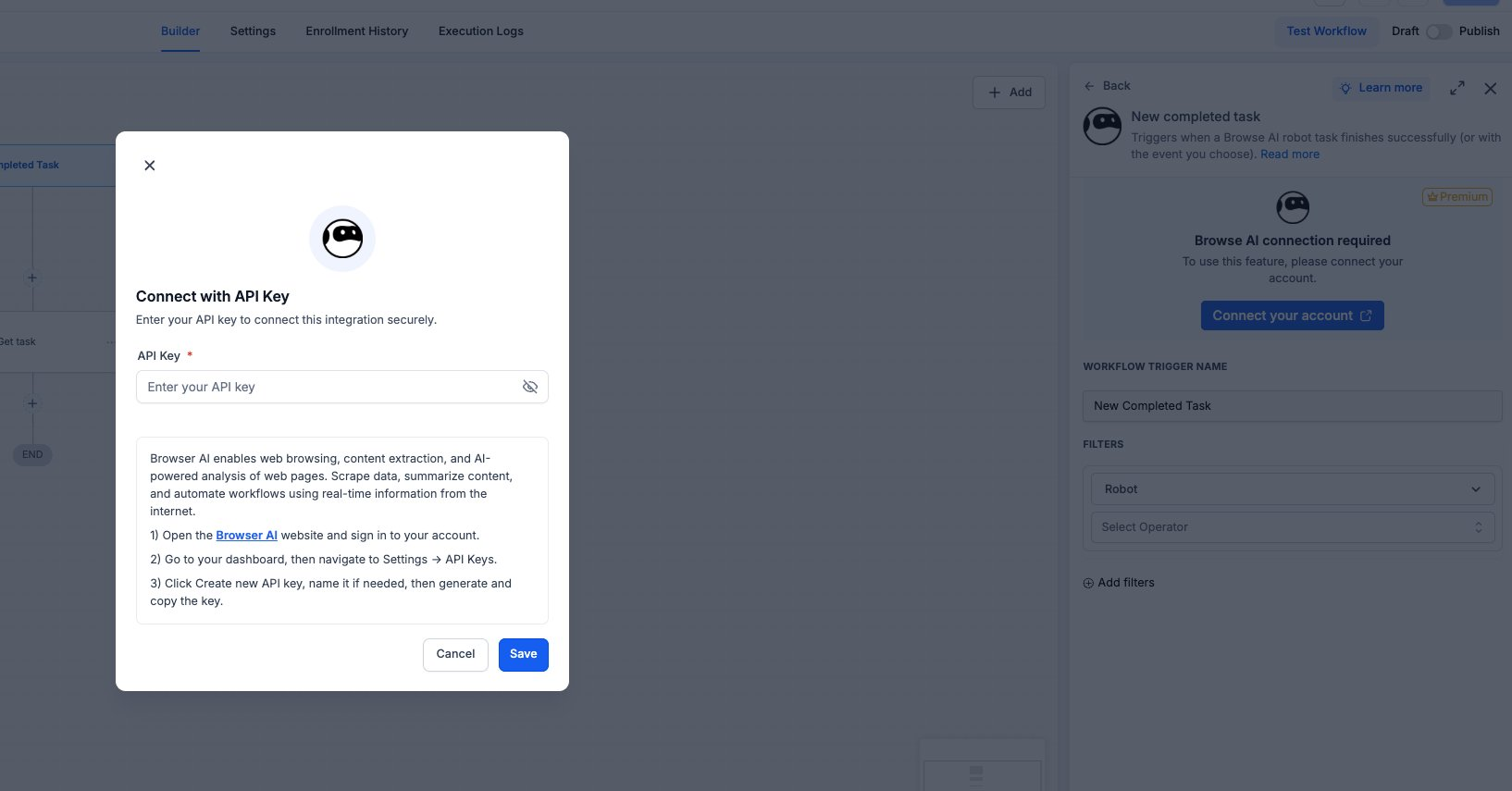
- A Browse AI API key must be generated in your Browse AI dashboard under Settings > API Keys.
05How to set up and use browse AI actions and triggers in HighLevel
Connect via the Workflow Builder
- Open Automation > Workflows and select or create a workflow.
- Search for Browse AI in the Apps tab and add a Browse AI trigger or action.
- Select the desired Browse AI component from the list.
- Click Connect your account on the component card.
- Paste the API key, then click Save to establish the connection.
Connect via Settings
- Open Settings > Integrations.
- Find Browse AI and click Connect.
- Enter the API key and click Save.
Set up a New Completed Task trigger
- Open the workflow and click Add Trigger.
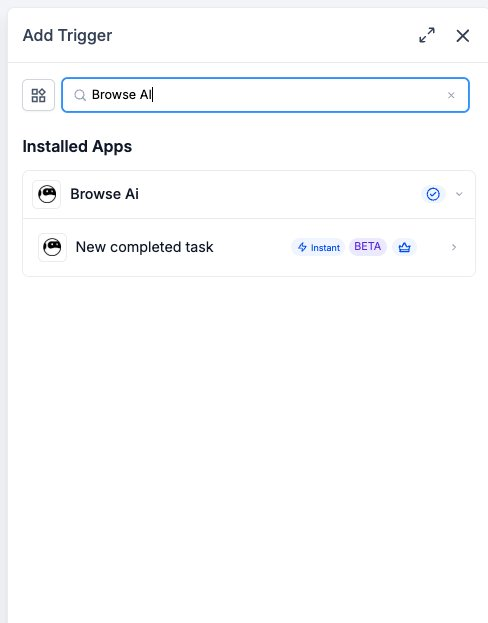
- Switch to the Apps tab and search for Browse AI.
- Select New Completed Task from the trigger list.
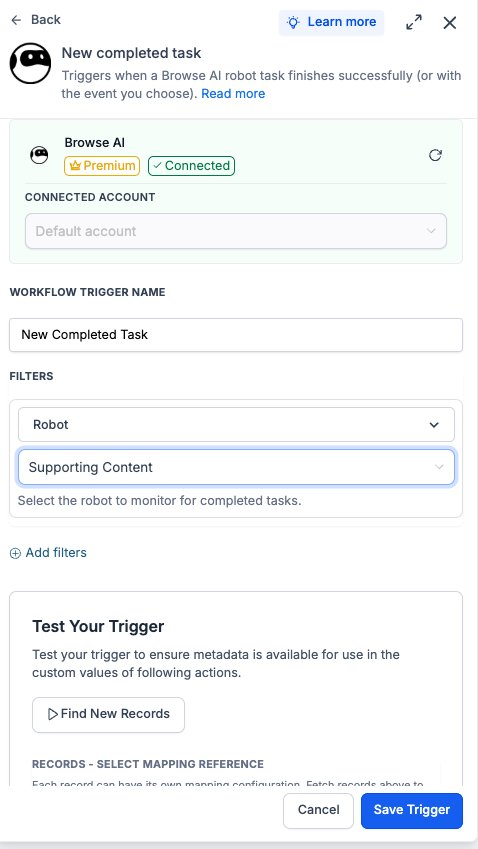
- Choose the Connected Account for this trigger.
- Enter a name for the workflow trigger.
- Select the Robot to monitor.
- Optionally set a Select Operator filter.
- Add any additional filters needed.
- Click Find New Records in the Test Your Trigger panel.
- Pick a record as the mapping reference and click Save Trigger.
Set up a Run Task action
- Click Add Action in the workflow builder.
- Open the Apps tab and locate Browse AI.
- Choose Run Task from the action list.
- If required, click Connect your account on the action card.
- Paste the API key and click Save.
- Enter an Action Name to label the step.
- Select the robot to run in the Robot field.
- Provide input parameters, mapping workflow variables as needed.
Test trigger and action before publishing
- Inside the trigger panel, click Find New Records and verify a record appears.
- Inside the action panel, click Test Action and confirm the task appears in Browse AI.
- Run a full Test Workflow to ensure the end to end flow works before publishing.
06What it looks like in HighLevel
07Settings that matter
- Connected Account. Selects which Browse AI account the step communicates with.
- Workflow Trigger Name. A label that identifies the trigger inside the workflow.
- Filters → Robot. Specifies the robot whose completed tasks will fire the trigger.
- Filters → Select Operator. Further narrows trigger firing by status or captured field values.
- Add filters. Adds extra conditions that must be met before the trigger activates.
- Action Name. A label that identifies the action inside the workflow.
- Robot. Chooses the robot to run when the action executes.
- Input Parameters. Maps workflow data into the robot’s required input fields.
08Things to know before you rely on it
- Only one trigger type (New Completed Task) is available.
- Four actions are provided: Run Task, Bulk Run Tasks, Get Task, Get Bulk Run.
- All trigger and actions are premium workflow components and consume premium credits.
- Browse AI usage is billed separately on the Browse AI account.
09If something goes wrong
- No records appear when testing the trigger. Run the robot manually in Browse AI to generate a completed task, then retry the test.
- The action returns an error or wrong data. Verify the selected Robot ID and ensure input parameters are mapped correctly, then re test.
10How it connects to the rest of HighLevel
- Learn the basics of HighLevel workflow automation. Workflow basics
- Review pricing for premium workflow features. Workflow pricing
- Start a 30 day HighLevel trial to test this integration. Free trial
Michael's take

Don’t forget to test the trigger after connecting a new account, or you’ll end up with empty payloads downstream.