
01Who this is for
- Support managers need to route new requests automatically to the correct agents, ensuring each ticket follows the right process.
- Customer success teams use ticket actions to send standard replies and log internal notes without leaving the platform.
- Operations leaders rely on SLA based triggers to alert staff before service targets are missed.
02Ticket automations, explained
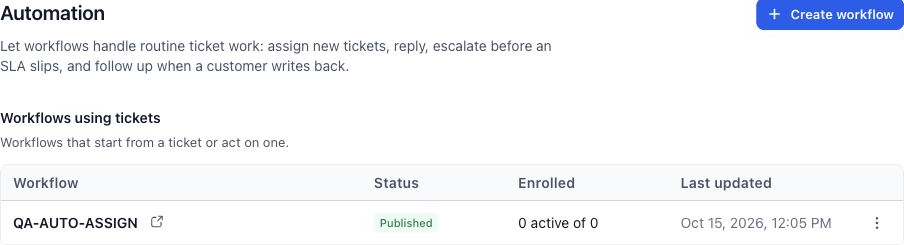
The feature lives inside the Automation area of HighLevel. From Settings > Automation you can create, edit and publish workflows that start when a ticket is created, updated, a customer replies, or an SLA warning or breach occurs. Each workflow receives the ticket that caused the enrollment, so actions such as updating fields or sending replies act only on that ticket.
Workflow actions specific to tickets include creating a new ticket, finding an existing one, updating properties, assigning owners, adding internal notes, and sending email replies. Triggers and actions are selected from the action picker and can be filtered by ticket properties like priority, category, status, or assignee. Conditions and custom value pickers let you branch logic and insert ticket data into messages.
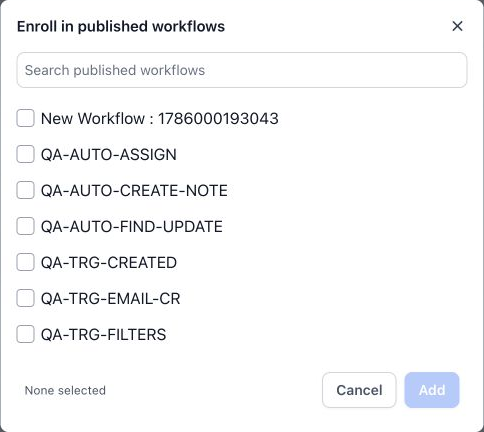
You can also enroll an existing ticket manually. From a ticket’s detail view or the ticket list page you can add the ticket to any published workflow, which then processes the ticket using the same actions and conditions as an automatically triggered workflow.
03How businesses use ticket automations
- IT support firm. When a new support request arrives, the firm creates a workflow with the Ticket Created trigger filtered by category. The workflow automatically assigns the ticket to the appropriate specialist and sends an acknowledgment reply using the ticket's email thread.
- Ecommerce store. The store sets up an SLA Breached trigger to monitor order related tickets. If the SLA is missed, the workflow sends a notification to the manager with the ticket ID, priority and a link, allowing quick escalation.
- Healthcare clinic. Clinicians use the Add internal note to ticket action inside a workflow that runs on Ticket Updated. When a patient updates their appointment request, the workflow records a team only note with the new details while leaving the patient unaware.
04Before you start
- Create any needed SLA policies and configure their warning behavior before using SLA triggers.
- Publish the workflow you intend to enroll tickets into; only published workflows appear in the Add to workflow picker.
05How to set up and use ticket automations in HighLevel
Create a ticket workflow
- Navigate to Settings > Automation and select Create workflow.
- Enter a descriptive name for the workflow that reflects its purpose.
- Choose the ticket trigger that matches the scenario and set any filter criteria.
- Pick a ticket action, notification or condition from the action picker and add it to the canvas.
- Fill out the action fields and use the custom value picker to pull values from the ticket or contact.
- Examine the branch logic and confirm the correct ticket and contact contexts are used.
- Save the draft, run a test with a sample ticket, and review the execution history for expected results.
- When the test behaves as intended, publish the workflow.
Add an existing ticket to a workflow from a ticket
- Open the ticket you want to enroll.
- Click Ticket actions in the top panel.
- Choose Add to workflow.
- Search for the published workflow you wish to use and select it.
- Confirm the selection and click Add.
Add existing tickets to a workflow from the list page
- Mark the desired tickets with their checkboxes and click Add to workflow on the bulk toolbar.
- Check the count of selected tickets and the workflows you chose, then confirm the operation.
- Note that each ticket provides its own context; review the workflow’s re entry settings and execution records for customers with multiple tickets.
06What it looks like in HighLevel
07Settings that matter
- Ticket Created. Starts a workflow when a new ticket is opened; filters can narrow it by priority, category, status, assignee or name.
- Ticket Updated. Triggers a workflow when a ticket changes; you can specify change conditions such as a field becoming a certain value.
- Customer Replied with Ticket as the reply channel. Runs a workflow when a customer adds a reply to a ticket, using the ticket channel and optional ticket filters.
- SLA Warning. Initiates a workflow as a service target approaches its deadline; must align with a configured SLA policy.
- SLA Breached. Activates a workflow when an SLA target is missed; filters can target specific policies.
- Create ticket. Creates a new ticket with defined fields and associates it with a contact.
- Find ticket. Searches for a ticket using conditions and provides separate paths for found and not found results.
- Update ticket. Modifies properties on the ticket that is currently in context.
- Assign ticket. Routes the ticket to selected users based on the action’s assignment options.
- Add internal note to ticket. Adds a team only note to the ticket without sending an email to the customer.
- Send email reply to ticket. Sends a reply that appears in the ticket’s email thread and is visible to the customer.
08Things to know before you rely on it
- Ticket Updated triggers generated by actions inside a workflow are suppressed to prevent infinite loops; do not rely on repeated updates as a substitute for explicit workflow logic.
- Only workflows that are published appear in the Add to workflow enrollment picker.
09If something goes wrong
- A workflow is missing from Add to workflow. Confirm that the workflow is published and belongs to the intended subaccount.
- A ticket event does not start the workflow. Check the publication state, trigger filters, event type, and enrollment/re entry settings.
- An action affects an unexpected ticket. Review the triggering ticket and verify whether a Find ticket action changed the context.
- Create ticket is skipped. Ensure the enrollment includes the required contact and examine execution log details.
- A reply is not sent. Verify the email integration, ticket context, recipient, required action inputs, and execution result.
- An SLA notification is missing. Check the SLA policy, target, warning or breach event, and the configured notification action.
10How it connects to the rest of HighLevel
- Learn how tickets are organized and tracked in HighLevel. Ticketing overview
- Set up email integrations that allow sending replies from tickets. Email integration guide
- Configure SLA policies and business hours that drive warning and breach triggers. SLA configuration
- Explore all workflow capabilities and how to publish automations. Workflow features
- Start a trial to test ticket automations before committing. 30 day trial
Michael's take

Ticket automations are a small convenience that can become a real shift for teams that juggle many support requests.