
01Who this is for
- Support managers can record requests right away when callers call in, ensuring every issue has a ticket.
- Small business owners can route customer emails to tickets, keeping their support inbox organized.
- Administrators can control which email addresses create tickets and prevent spam from opening new requests.
02Tickets and email integrations, explained
The ticket feature records support requests inside HighLevel. A ticket can be entered manually or generated when a customer emails a connected address. The system links the email thread to the ticket, so all replies stay in one place.
Ticket creation screens use the subaccount’s saved ticket form, which defines fields such as status, priority, and assignee. Email integrations live under Tickets > Settings > Integrations, where you choose either a default domain or Gmail as the provider. Blocked senders are managed in the same integration area to stop unwanted mail from turning into tickets.
03How businesses use tickets and email integrations
- Digital marketing agency. The agency creates tickets manually for client specific requests that come in via phone. It also connects its agency domain so client emails automatically become tickets, letting the team track all communication in one view.
- Ecommerce store. The store links a Gmail mailbox that handles order related questions. Incoming order emails generate tickets, and the store blocks generic spam domains to keep the ticket list clean.
- Consulting firm. The firm adds several support addresses, support@consult.com, billing@consult.com, on its verified domain. Each address routes different request types to separate tickets, allowing specialists to own the right queue.
04Before you start
- Use a user account that has permission to manage tickets.
- An administrator must set up email integrations and configure the ticket form before creating tickets.
05How to set up and use tickets and email integrations in HighLevel
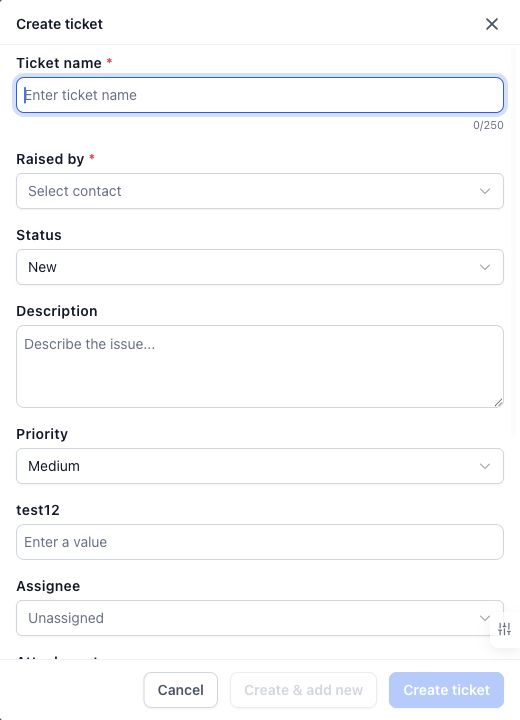
Create a ticket manually
- Open Tickets in the subaccount.
- Select New ticket.
- Enter a clear Ticket name that describes the request.
- Choose the customer contact under Raised by.
- Fill the description and any required fields such as status, priority, category, assignee, and due date.
- Add supporting files using the Attachment field if it is shown.
- Click Create ticket or Create & add new.
- If the contact does not exist, create the contact in Contacts then return to the form.
- If you need to cancel, click Cancel and respond to the discard prompt.
Choose your email provider
- Open Tickets > Settings > Integrations.
- Find the Default email system and the Gmail option under Additional providers.
- Read any provider switching message to see which provider is currently active.
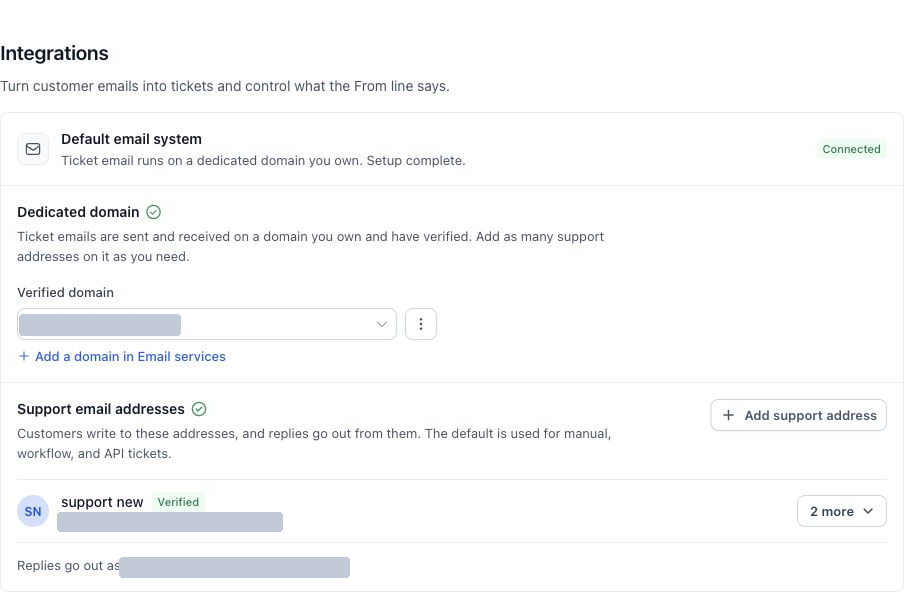
Connect the default email system and add support addresses
- Open Settings > Integrations.
- In Default email system, view the dedicated domain configuration.
- Select your domain from Verified domain.
- If no domain is listed, click Add a domain in Email services and complete its verification.
- Return to Ticketing and verify the connection state.
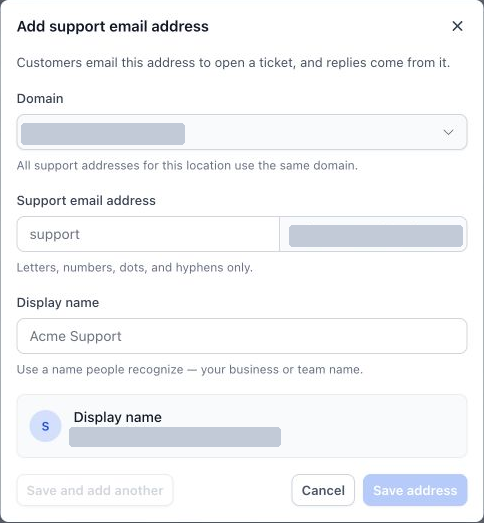
- Click Add support address.
- Confirm the displayed domain.
- Enter the local part of the address (for example, support).
- Provide a recognizable Display name.
- Choose Save address or Save and add another.
- Review the resulting address list to ensure the new address appears.
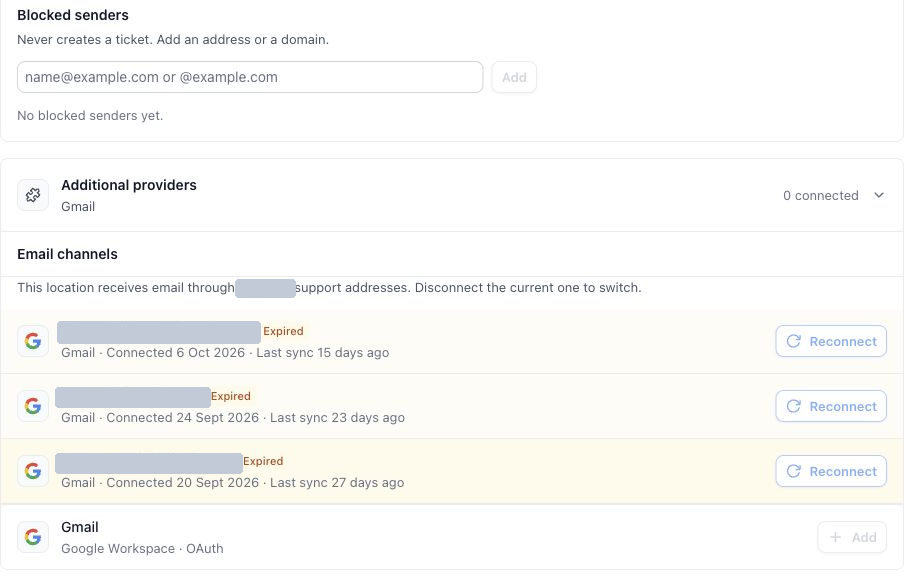
Connect or reconnect Gmail
- Open Settings > Integrations and expand Additional providers.
- Review the Gmail, Google Workspace · OAuth option and any provider switching notice.
- If Add is shown, click Add and follow Google’s sign in and authorization flow for the support mailbox.
- If the control is disabled, resolve the reason shown in the integration screen before repeating the sign in flow.
- Return to Ticketing and confirm the connection is active.
- If the connection has expired, click Reconnect and repeat the authorization steps.
Block unwanted senders
- In Integrations, locate Configuration > Blocked senders.
- Enter an email address or a domain (for example, name@example.com or @example.com).
- Click Add and verify the entry appears in the list.
Confirm that your setup works
- Send a test email from a customer side address to the configured support address.
- Check that a ticket appears, is linked to the correct contact, and shows the expected subject and source.
- Open the ticket and send a reply only to the test recipient.
- Verify the From address and that a customer reply returns to the same ticket.
06What it looks like in HighLevel
07Settings that matter
- Default email system. Determines which verified domain receives support emails and which address is used for outbound ticket replies.
- Additional providers. Holds the Gmail integration option and shows its connection status or any provider switching messages.
- Blocked senders. Lists email addresses or domains that are prevented from creating tickets.
08Things to know before you rely on it
- Only one email provider can be active at a time; Gmail controls are disabled while the default email system is connected.
- Blocking a domain stops all mail from that domain from generating tickets; use a single address if you only want to block one sender.
- Email created tickets are generated only from eligible support addresses; automated, spam or looped messages are filtered out.
09If something goes wrong
- New ticket cannot be saved. Make sure the name, contact, and any other required fields are filled. Look for validation messages next to the fields.
- A custom field is missing. Check the saved ticket form layout for the missing field.
- An incoming email does not create a ticket. Confirm the exact destination address, provider connection, blocked senders list, and whether the message belongs to an existing thread or is filtered as spam.
- Gmail Add or Reconnect is disabled. Read the provider switching message and connection state; a disabled control cannot be fixed by repeating authorization.
- Replies use an unexpected sender. Review the ticket’s source mailbox and the default support address used for manually created tickets.
- Older emails are missing after reconnection. Verify the mailbox and received dates with your administrator; reconnection does not automatically import the full mailbox history.
10How it connects to the rest of HighLevel
- Set up and configure ticketing settings for support teams Ticketing configuration
- Automate ticket creation with workflows Ticket automation
- View pricing and plan options for HighLevel Pricing
Michael's take

Most people try to add a support address before they verify a domain. Verify the domain first, then add the address so the system can link the mailbox correctly.
If I were setting this up, I would start with a quick test email after connecting the inbox. Seeing the ticket appear and the reply stay in the same thread gives confidence that the whole flow works.