
01Who this is for
- Support managers, because they can enforce specific response times for different ticket priorities.
- Operations teams, because business hour schedules let them pause SLA timers when the team is closed.
02SLAs and business hours, explained
The SLA feature lets you define time targets such as time to first reply or time to close a ticket. Each target measures the interval from a defined ticket event to a required action. You can enable any combination of these targets in a policy.
Business hour schedules provide the calendar that drives the SLA clock. A schedule includes a time zone, daily start and end times, optional split shifts, and holiday dates. When a policy uses a business hour schedule, the clock only counts time that falls within the schedule.
Both SLA policies and business hour schedules are managed in Settings. Policies are evaluated in order; the first policy that matches a ticket’s category, priority and any advanced filters applies. Clock behavior, continuous or business hour based, pause statuses and warning thresholds, is set in the policy’s Clock section.
03How businesses use SLAs and business hours
- Software as a service provider. Create a weekday schedule with split shifts, add public holidays, and attach it to an SLA policy that requires a first reply within four business hours. The policy’s clock runs only during the defined schedule, pausing on weekends and holidays.
- Online retailer customer support. Define a policy that tracks time to close tickets, set the target to 24 hours, and choose a 24/7 clock so the timer runs continuously regardless of business hours. Configure a warning threshold so agents are alerted before a breach.
- Managed IT services firm. Add a “Waiting on Customer” status to the Pause when list in the SLA policy so the timer stops while the client provides information. This ensures the SLA target only counts active work time.
04The numbers and rules that matter
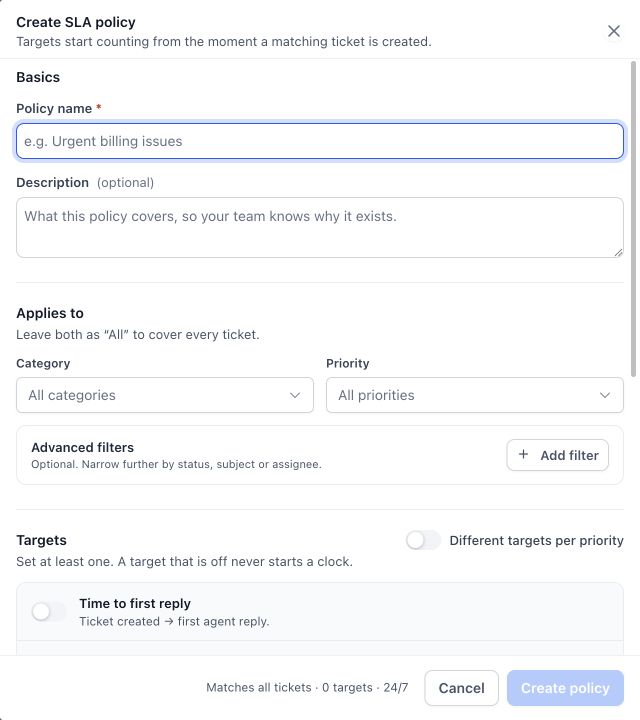
- Different targets per priority option is available.
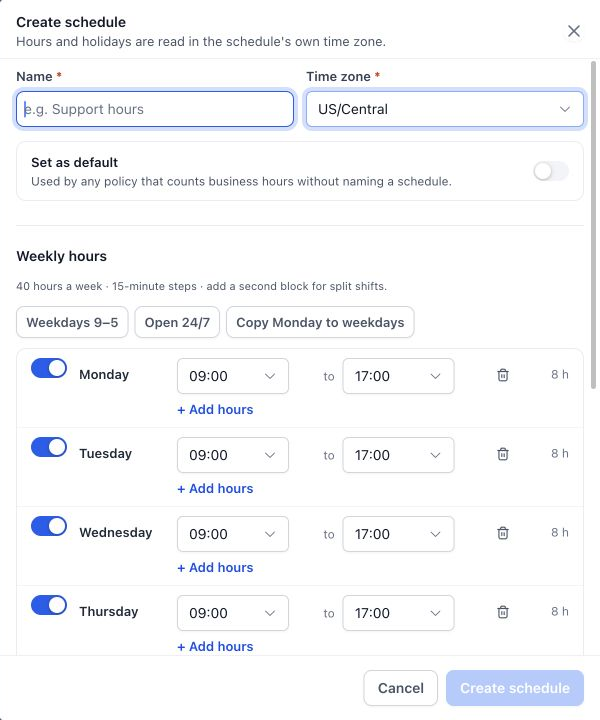
- Schedule presets: Weekdays 9 to 5, Open 24/7, Copy Monday to weekdays.
05Before you start
- Administrator access to Settings is required.
- Decide which ticket categories, priorities or statuses need separate targets before building policies.
- If business hour SLAs are needed, create the appropriate schedule first.
06How to set up and use SLAs and business hours in HighLevel
Create a business hours schedule
- Open Settings > Business hours.
- Select Create schedule.
- Enter a name that identifies the team or working pattern.
- Select the schedule’s Time zone.
- Enable the working days and set their start and end times.
- Use + Add hours for split shifts, such as separate morning and afternoon blocks.
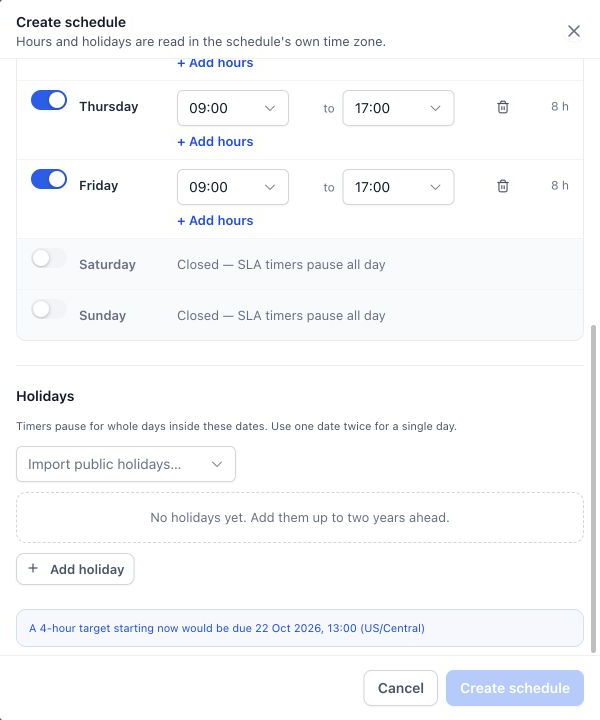
- Add holidays as needed, then select Create schedule.
Add holidays to a schedule
- Scroll to Holidays in the schedule editor.
- Select Add holiday, enter the name and start/end dates, and save the schedule.
- For a single day closure, use the same date for both ends.
- Optionally import public holidays and review the resulting dates.
Create an SLA policy
- Open Settings > SLA and select Create SLA.
- Enter the Policy name and an optional description.
- Under Applies to, choose Category and Priority values, or leave both as All.
- Use Advanced filters when you need additional conditions, such as status, subject, or assignee.
- Enable at least one target and set its duration; select the milestone status for Time to reach status.
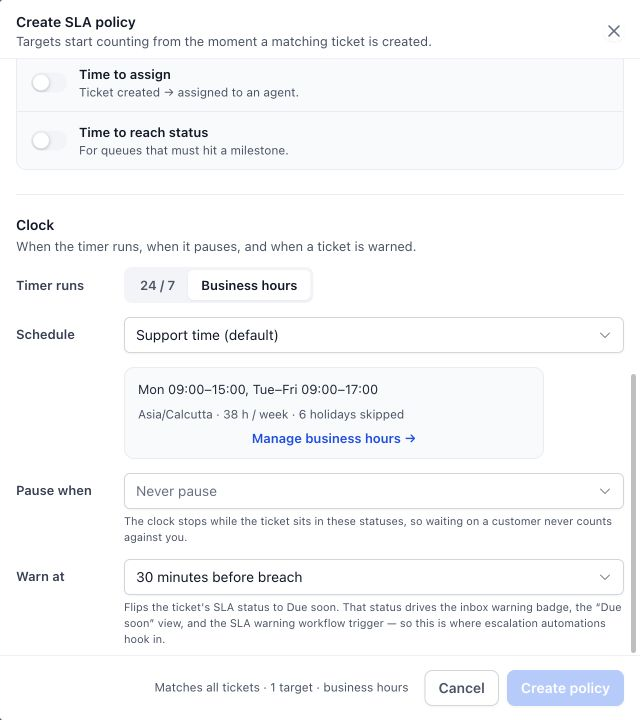
- Choose the clock settings described below and then select Create policy.
Choose when the clock runs
- In the policy’s Clock section, select 24 / 7 to count elapsed time continuously.
- Choose Business hours to count only the time included in the selected schedule.
- Set Pause when statuses and Warn at thresholds as needed.
07What it looks like in HighLevel
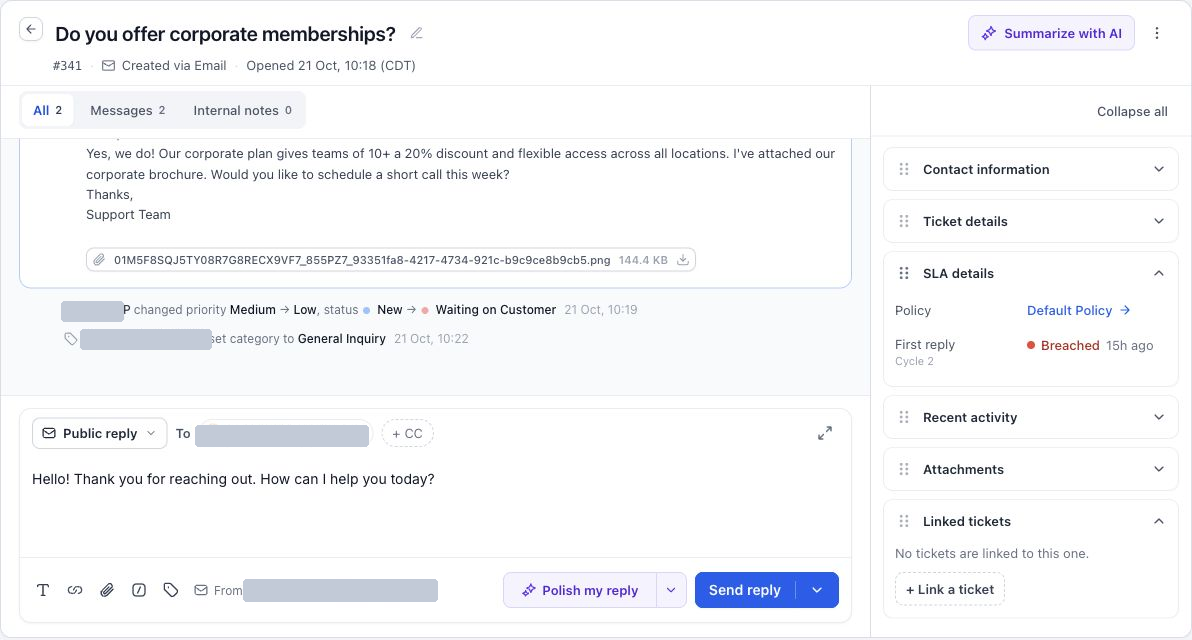
08Settings that matter
- Time zone. Determines the reference zone for schedule hours and holiday dates.
- Working days. Enables specific weekdays and defines their start and end times.
- + Add hours. Creates additional time blocks for split shifts within a single day.
- Holidays. Defines whole day dates that pause SLA timers for schedules that use business hours.
- Pause when. Lists ticket statuses that stop the SLA clock while the ticket is in those states.
- Warn at. Sets the point at which a ticket enters the Due soon state before a breach.
- Clock. Selects whether the SLA timer runs continuously (24 / 7) or only during business hours.
- Default schedule. Identifies the schedule used when a business hours policy does not specify another schedule.
09Things to know before you rely on it
- A default schedule cannot be deleted while it remains the default; assign another schedule as default first.
- At least one target must be enabled in an SLA policy; otherwise the policy cannot be saved.
- Policies are evaluated in order; the first matching policy applies, so specific policies must be placed before broader ones.
- The built in Default Policy cannot be deleted but can be disabled or edited.
10If something goes wrong
- The expected policy did not apply. Check the ticket’s properties, policy conditions, enabled state, and evaluation order.
- The clock runs outside support hours. Confirm the policy uses Business hours and the correct schedule and time zone.
- The clock pauses unexpectedly. Check closed days, holidays, and Pause when statuses.
- An urgent ticket uses a general policy. Move the specific matching policy above the broader one and review its conditions.
- A breach did not notify anyone. Check the relevant workflow trigger, filters, publication state, and notification action.
- A policy cannot be created. Enter a name, enable a target, complete its inputs, and resolve validation messages.
11How it connects to the rest of HighLevel
- Ticketing overview and how tickets are tracked Ticketing in HighLevel
- Automate SLA warnings and breaches with workflows Ticket automations
- General ticketing setup and configuration steps Configure ticketing settings
Michael's take

SLAs and business hours give a small business a clear way to promise response times and hold the team accountable, turning vague promises into measurable service levels.
Don’t forget to put the most urgent policies at the top of the list, or they’ll never fire.