
01Who this is for
- Support managers need a unified view of requests to assign owners and monitor progress.
- Customer success agents benefit from fast replies and custom fields to capture required information quickly.
- Administrators require configuration controls to set statuses, priorities and SLA policies.
02Ticketing, explained
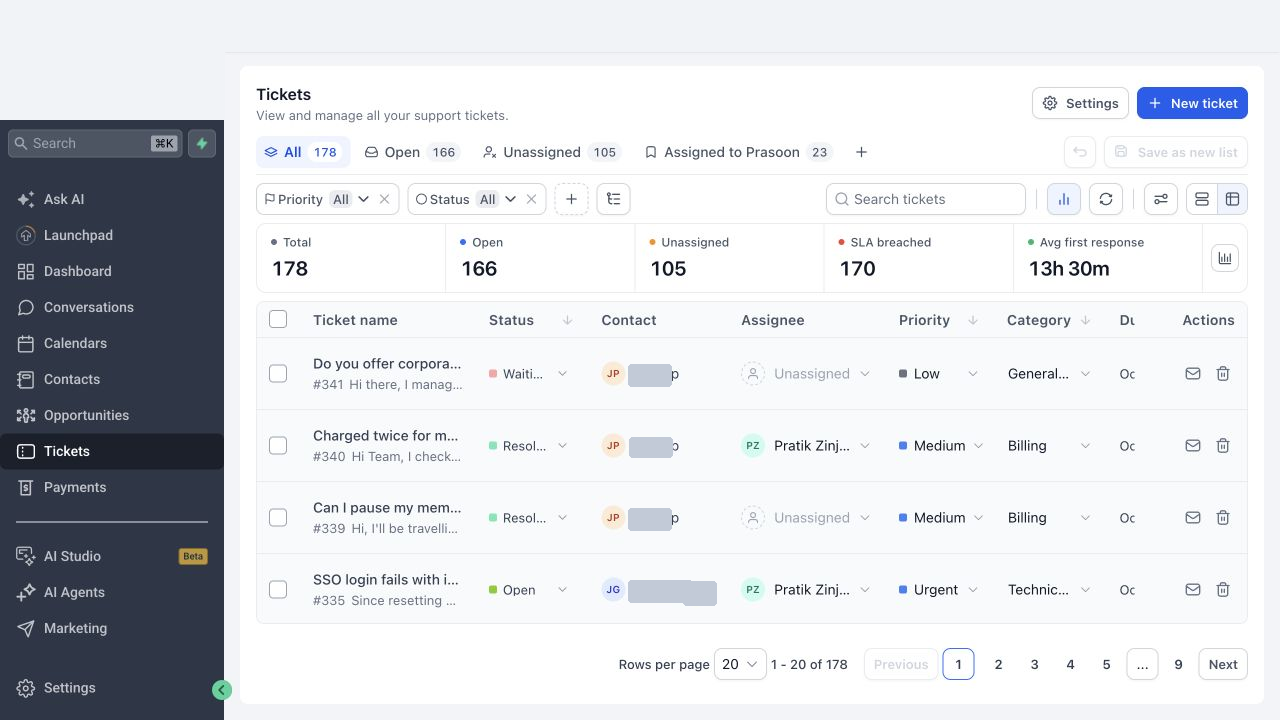
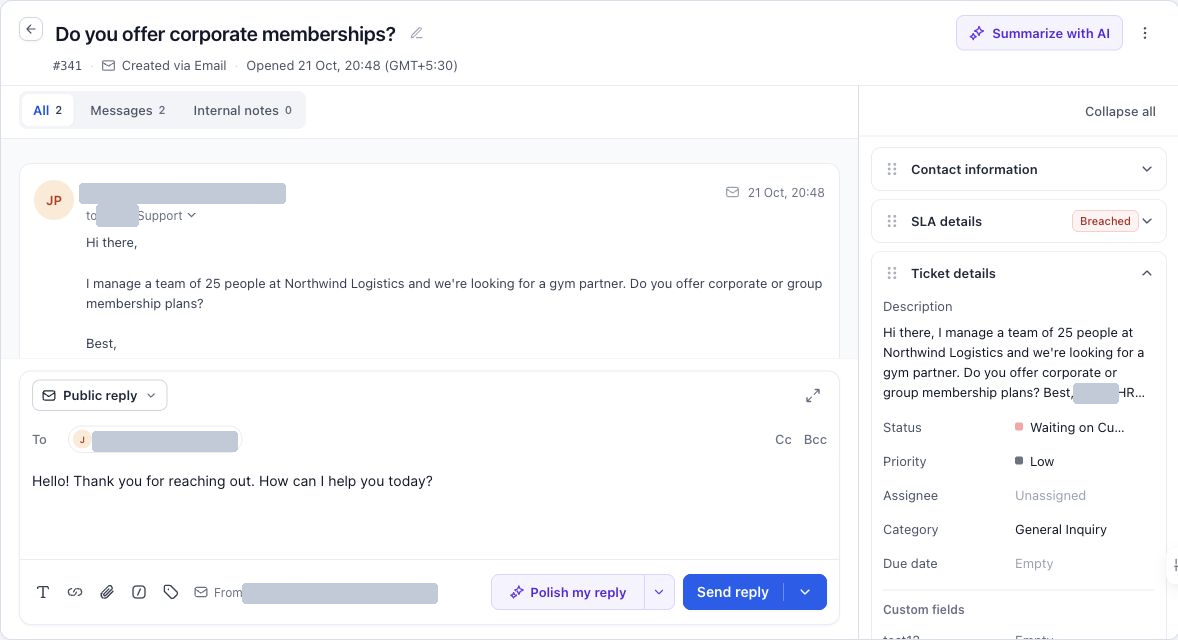
Ticketing lets a subaccount capture support requests as tickets that keep all related data together. Agents can create tickets manually, receive them from email, and view the full history of messages and internal notes on a single record.
The feature lives under the Tickets menu in the left navigation. From the ticket list you can open Settings to define statuses, priorities, categories, custom fields, fast replies, SLAs and business hours. All these settings shape the form agents see and the service targets the team must meet.
03How businesses use ticketing
- SaaS startup. The team creates tickets manually for onboarding questions that come in via phone. They also set up an email integration so incoming onboarding emails generate tickets automatically. Fast replies are saved for common welcome messages.
- Digital marketing agency. Agents configure custom fields to capture campaign IDs and use categories to separate billing from technical issues. SLA policies and business hours are defined so high priority ad spend problems receive faster response times.
- Property management company. Support staff set up priority levels for maintenance requests and define business hour schedules that match office hours. Email tickets are created from tenant messages, and fast replies contain standard maintenance instructions.
04Before you start
- Ticketing must be enabled for the subaccount.
- The user must have permission to view and manage tickets.
- Ticketing is only available in the Founders plan.
05How to set up and use ticketing in HighLevel
Create a ticket manually
- Open the Tickets page in the left navigation.
- Click the New ticket button.
- Select the contact that the request belongs to.
- Enter request details and click Create.
Turn customer emails into tickets
- Open Settings and choose Integrations.
- Configure the default support email address or connect a Gmail account.
- Save the integration settings.
- Incoming customer emails will now generate tickets linked to the sender’s contact.
Configure ticket fields and Fast Replies
- From the Tickets page, open Settings.
- Select Ticket configuration to add or reorder custom fields and mark required fields.
- Go to Fast replies in Settings and create reusable response templates.
- Save both configurations.
Set up SLA policies and business hours
- Open Settings and choose SLA.
- Create a new SLA policy and define response and completion targets.
- Set matching conditions such as priority or category for the policy.
- Open Settings and select Business hours to define the support schedule and holidays.
- Save the SLA policy and business hour schedule.
06What it looks like in HighLevel
07Settings that matter
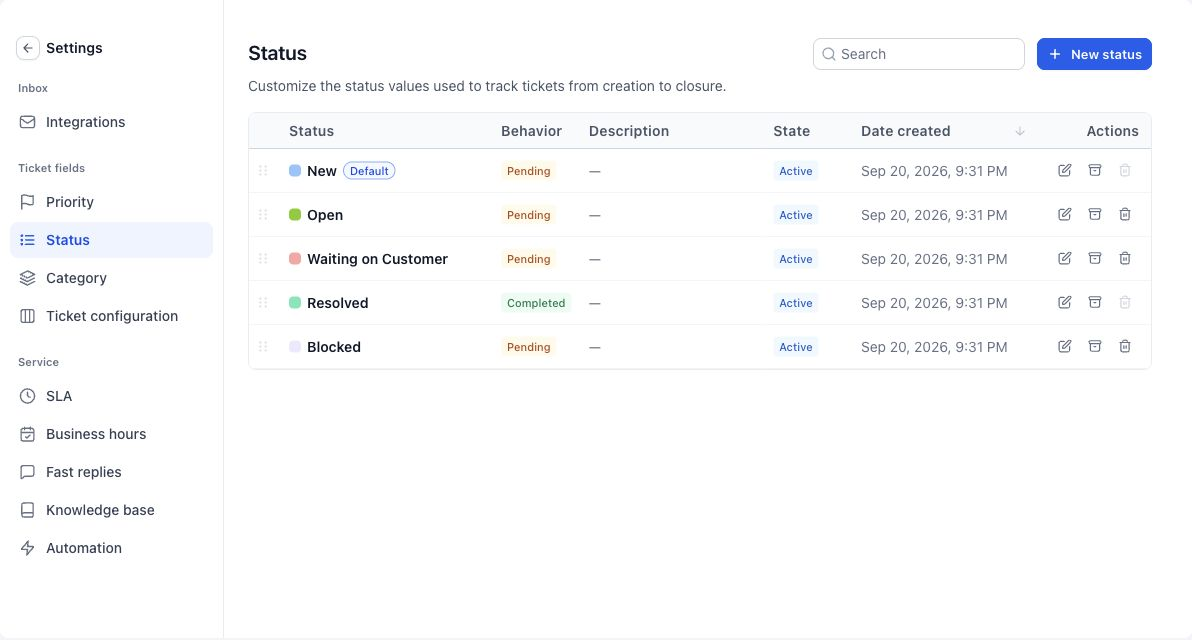
- Status. Controls the stages a ticket moves through, such as New, Open, Waiting on Customer, and Resolved.
- Priority. Defines how urgent a request is and lets you order priority levels.
- Category. Organizes tickets by type, for example Billing or Technical Support, with optional subcategories.
- Ticket configuration. Determines which fields appear on the ticket form and whether they are required.
- Fast replies. Stores reusable response templates that agents can insert into ticket replies.
- SLA. Sets service level agreement targets for response, assignment, status changes and closure.
- Business hours. Defines the working schedule used by SLA policies to count elapsed time.
08Things to know before you rely on it
- Ticketing is only available in the Founders plan.
09If something goes wrong
- Tickets page is not visible. Ask the administrator to verify that Ticketing is enabled for the subaccount and that your user has the appropriate permissions.
10How it connects to the rest of HighLevel
- Create tickets and connect email integrations Email integration guide
- Automate ticketing with workflows Workflow automation
- Configure SLA policies and business hours SLA setup
Michael's take

Ticketing provides a single place where emails, phone calls or meeting notes can become a tracked ticket, keeping all conversation and internal notes attached until it’s resolved.
When setting it up, mapping common request types. Billing, technical, onboarding. Into categories and priorities helps the queue show what needs attention first, and SLA policies can be used to define the response times you aim to meet.